
- Ways to Fix Amazon Prime Error Code 1061 on Fire TV Stick
- What does Error Code 1061 mean on Amazon Prime?
- What Causes Error 1061?
- How to Fix Amazon Prime Error Code 1061 on Fire TV Stick
- Method 1: Restart Router
- Method 2: Wait for Amazon Server Uptime
- Method 3: Restart Firestick
- Method 4: Restart Application
- Method 5: Clear App Cache
- Method 6: Update Amazon Prime
- Method 7: Update Fire OS
- Method 8: Reinstall Amazon Prime
- Method 9: Contact Internet Service Provider
- Method 10: Contact Amazon Prime Help Center
What Causes Error 1061?
- You are not connected to the internet.
- You have an unstable internet connection.
- You have not updated Amazon Prime.
- Amazon Prime is currently facing server downtime.
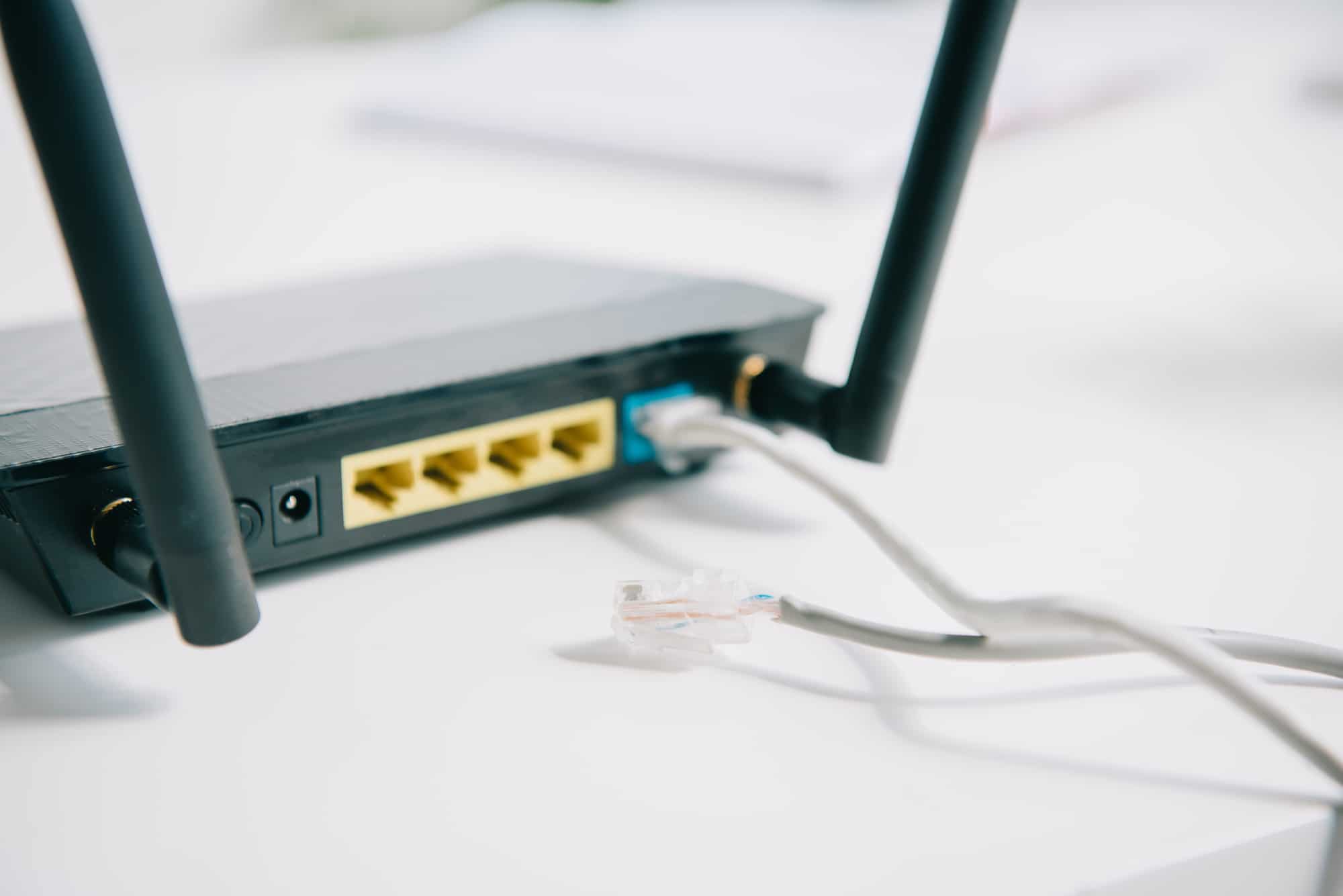
Method 1: Restart Router
As mentioned earlier, error 1061 can also result due to a bad internet connection. To solve this, you can read out in-depth How to Troubleshoot Network Connectivity Problems on Windows 10 to restart router or modem and establish a fresh connection.

Method 3: Restart Firestick
Press the Home button and go to Settings .
Next, select My Fire TV from the menu.

- Finally, select the Restart option from the displayed menu.
Method 4: Restart Application
You can also try force stopping an app on your Fire Stick TV if it is behaving the exact opposite of how it should. For this, all you have to do is:
Press the home button and go to Settings .
Go to Apps followed by Manage Installed Applications .

- Choose Force stop from the menu on the screen.
Method 5: Clear App Cache
Clearing app cache helps to improve speed and free up storage space. It will also prevent unexpected app crash which interrupt your experience and make things frustrating.
Go to Settings and select Applications on your Fire TV.
Now go to Manage Installed Applications .

- Next, select Clear Cache .

First go to Settings followed by Applications .
Select Appstore .

- Lastly, toggle ON Automatic Updates .

Doing this will ensure that your Fire TV updates all the installed apps as soon as an update for them is available.
Method 7: Update Fire OS
Go to Settings on Fire TV.
Select My Fire TV at the bottom.

- Now go to About .

Choose the Check for Updates option.
Go to Settings .
Select Applications .
Next, select Manage Installed Applications .

- Next, select the Find option on the home screen.

- Select the download option and wait till the process is complete.
Now launch the app again and see if the issue has been resolved.
Method 9: Contact Internet Service Provider

Recommended:
- Top 20 Best Mac Clipboard Manager Apps
- Fix Titanfall 2 Error 429 Connection to Server Timed Out on PC
- 9 Ways to Fix Amazon Prime Error Code 7136
- What is Amazon Prime PMTS Bill WA?
