Facebook has become one of the most important platforms for interacting and business marketing. But many users have been facing the ongoing problem of posts suddenly becoming blank. No matter what you do, the content is not visible. If you’re facing this problem too, here are some of the best ways to fix the Facebook Content is Not Available error.
- Fix Facebook Content Is Not Available Error
- Method 1: Check Internet Connection
- Method 2: Update App
- Method 3: Re-login to Facebook
- Method 4: Check Correct Link
- Method 5: Review the Content’s Privacy Settings
- Method 6: Check if Content Has Been Removed
- Method 7: Check If You Have Been Blocked
- Method 8: Verify Geographic or Age Restrictions
- Method 9: Update Browser
- Method 10: Clear Your Browser Cache
- Method 11: Contact Facebook Support
Fix Facebook Content Is Not Available Error
Let’s check out different ways to resolve this issue.
Method 1: Check Internet Connection
Start by making sure you’re connected to a stable internet network. A weak or unstable connection can prevent Facebook from loading certain posts or pages properly. Try switching to Wi-Fi or mobile data to see if the content appears.
Method 2: Update App
Outdated versions of the Facebook app can sometimes cause loading or visibility issues.
- Open App Store or Google Play Store .
- Search for Facebook .
- Tap on Update .
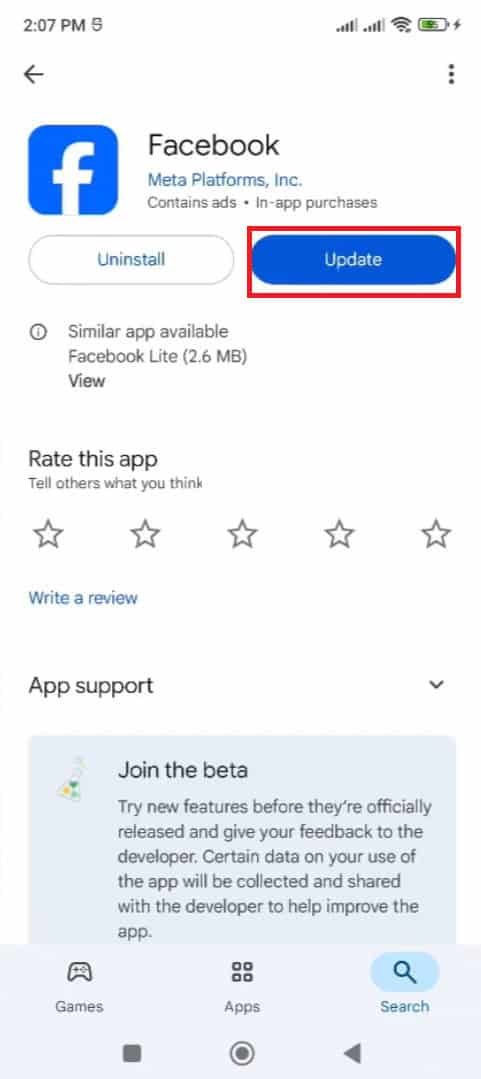
Install the app to its latest version.
Method 3: Re-login to Facebook
Log out of your Facebook account and sign back in. This refreshes your session and clears any temporary glitches that may be blocking content from appearing.
Method 4: Check Correct Link
If you clicked a shared post or link, make sure it’s valid. Sometimes the content’s link might be broken or deleted, leading to the Content Not Available message.
Method 5: Review the Content’s Privacy Settings
The post owner may have restricted who can view their content. If the privacy is set to Friends Only or Only Me, you might not be able to access it unless you’re included in that group.
Method 6: Check if Content Has Been Removed
The content you’re trying to view might have been deleted by the user or removed by Facebook. Try refreshing the page or checking if others can still access it.
Method 7: Check If You Have Been Blocked
If the person who posted the content has blocked you, you won’t be able to view their posts or profile. Try checking from another account to confirm.
Method 8: Verify Geographic or Age Restrictions
Some posts or pages have regional or age-based restrictions. If you’re outside the allowed region or don’t meet the age requirement, the content will not be visible.
Method 9: Update Browser
If you’re using Facebook on a browser, make sure it’s up to date. Outdated browsers can cause compatibility problems, preventing content from loading correctly.
- Open Google Chrome and click on the three dots at the top right corner.
- Select Settings .
- Scroll down and click on About Chrome .
- Now, click on Relaunch .
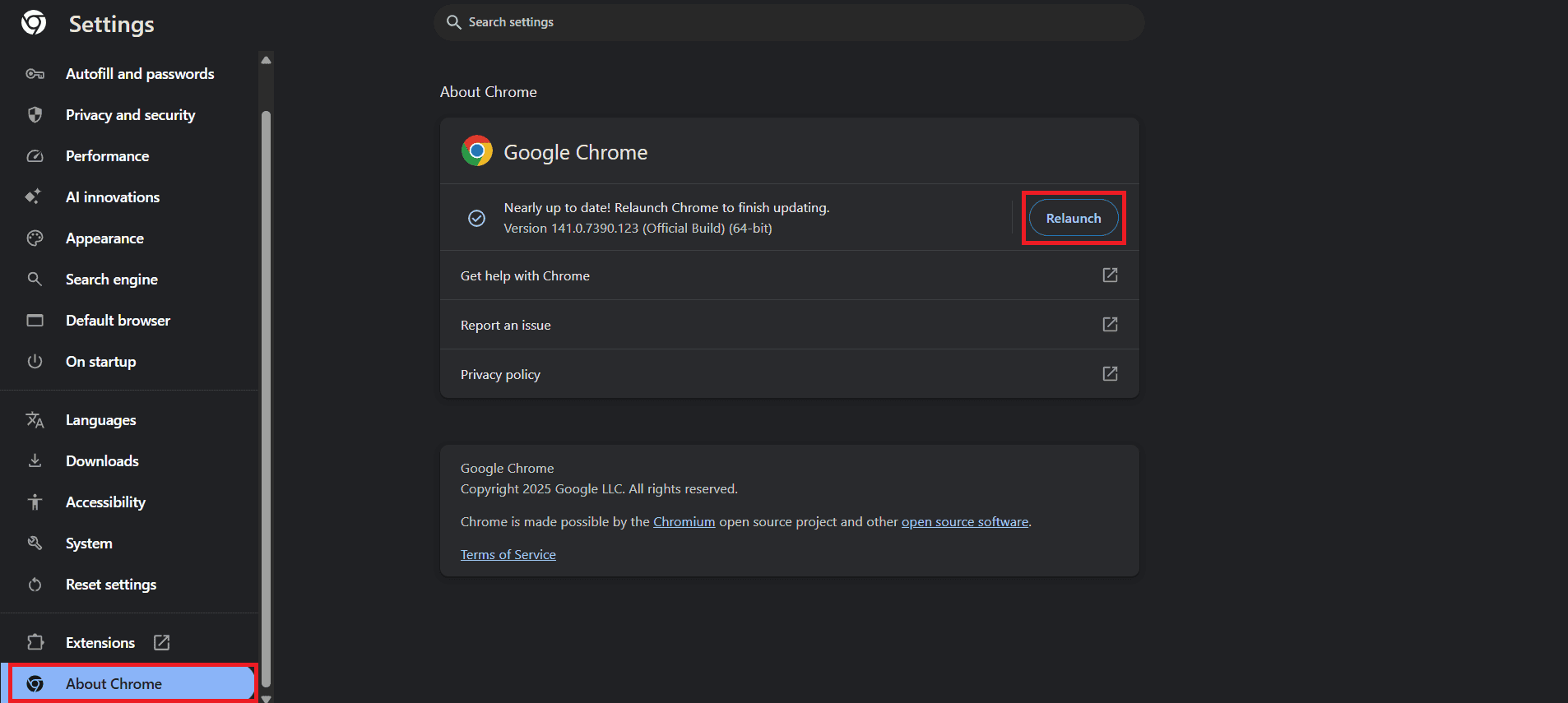
Chrome will run on its latest version.
Method 10: Clear Your Browser Cache
Old cookies and cached data can interfere with how Facebook loads.
- Open Google Chrome and click on the three dots at the top right corner.
- Select Settings .
- Click on Privacy and security .
- Select Delete browsing data .
- Now, tick on Cookies and other site data and Cache images and files .
- Click on Delete data .
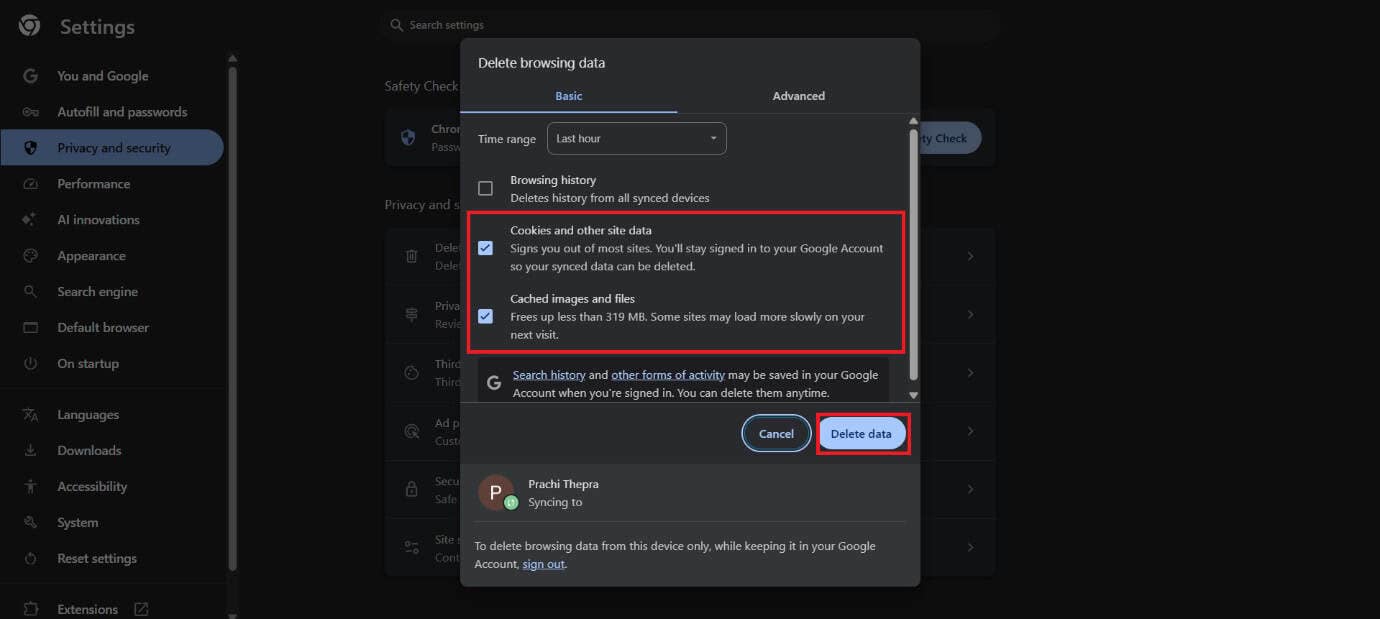
Reload the page to check if the content appears.
Method 11: Contact Facebook Support
If none of the above methods work, reach out to Facebook Support. There could be a temporary issue with your account or the platform that needs to be resolved from their end.
Now that you have seen fix the Facebook Content is Not Available error, we hope your doubts are cleared with the methods shown in this guide. Keep visiting TechCult to know the latest tech walkarounds. If you have any queries or suggestions, do reach out to us in the comment section.
