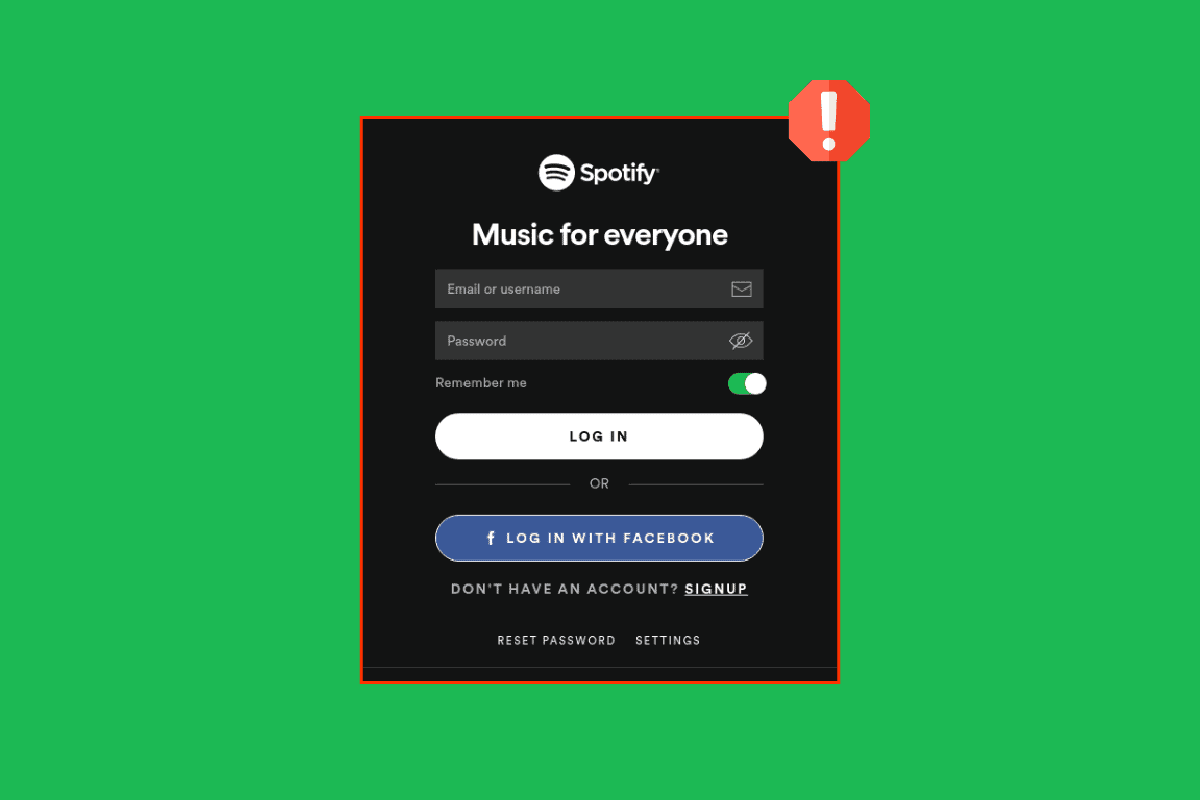
- How to Fix Spotify Unable to Login Error
- Method 1: Enter Correct Login Details
- Method 2: Troubleshoot Internet Connectivity
- Method 3: Wait for Reddit Server Uptime
- Method 4: Restart Device
- Method 5: Update Spotify App
- Method 6: Clear Spotify Storage and Cache
- Method 7: Reinstall Spotify
- Method 8: Reset Spotify Password
- Method 9: Log in Using a Different Device
- Method 10: Deactivate Current Account
- How to Use Spotify without Facebook
How to Fix Spotify Unable to Login Error
You may get logged out of Spotify due to several reasons ranging from viruses to device glitches. Besides that, here are other reasons why your Spotify is unable to log in:
- You have a wobbling internet connection .
- Your login details are incorrect .
- There is a glitch in the app .
- You have not downloaded the latest version of the Spotify app.
- You are trying to access your Spotify account from a different location .
- There might be viruses and bugs on your smartphone.
- Spotify has disabled your account for violating its rules .
Method 1: Enter Correct Login Details
Sometimes we are in a hurry and end up typing the wrong email address or password . Even slight typos such as capitalization and spacing can stop Spotify from giving you access to your accounts and mesmerizing playlists. Therefore, always double-check the email address and password you are typing on your smartphone to log in.
Method 2: Troubleshoot Internet Connectivity
Being an online music streaming app, Spotify requires a stable internet connection for smooth and uninterrupted streaming. However, a wobbling internet connection can make it lag and take away its brownie points. In this case, you can restore Spotify back to its shape by turning off and on the Wi-Fi or mobile data .
You can establish a fresh connection by restarting your Internet Router or Modem. It is used to resolve Network connectivity issues and may fix the discussed issue. Read our guide on How to Boost Internet Speed on Your Android Phone and implement the same to resolve internet issues.

Method 3: Wait for Reddit Server Uptime
Like other popular social media platforms and streaming apps, Spotify can also go down once in a while. When this happens, users across the world face difficulty in loading songs, playing tracks, or simply logging in to their Spotify accounts. Fortunately, there are two ways to check if the server is down for others as well:
Option I: Look on Spotify Status Twitter Handle
Log into your Twitter account and search Spotify Status in the search bar.
Open the account and scroll down to see its latest Tweets.

- If the app specifies that there is something wrong with the server, wait until the issue has been resolved. Try logging in to your Spotify account after a few hours and check the same.
Option II: Use Third-party Tool
- Browse the official website of Downdetector on your smartphone.

- Tap on the magnifying glass option at the top right corner.

- Type Spotify to see all the issues being faced by the app at the moment.

If no issues are being specified, it means that the server is perfectly fine and you need to try other mentioned methods in the article.
Method 4: Restart Device
Your smartphone or tablet’s minor issues can also stop certain apps from performing their best. In this case, you can try restarting your phone to see whether Spotify unable to login has been resolved or not. Doing this also clears all the apps running in the background and gives your phone a little well-deserved boost.
Press and hold your power button for a few seconds.
Release them once you see the Restart option and tap on it.

Now, wait for the device to restart and check if you are able to login on the Spotify app.
Method 5: Update Spotify App
Imagine listening to your favorite playlist one day and the app stops recognizing you the next day. Isn’t it devastating to even think about? This is what not upgrading your current Spotify version can sometimes do for you. Updating apps using the Play Store is always recommended as the developers fix pertaining issues and bugs to improve the app’s performance.
Open Google Play Store and type Spotify in the search box.
Tap on the app’s name followed by the Update option to install the latest Spotify app version on your device.
Note: If the auto-update option is on in your device, then you may not get the Update option. Instead, you will only get Uninstall and Open displayed on your screen.

Method 6: Clear Spotify Storage and Cache
Another possible reason why you are facing Spotify unable to login is cache and unwanted files. To the uninformed, cache build-up is nothing but files, images, lyrics, and other multimedia building-up in your device. Accordingly, all this debris takes up space in your smartphone and thus, reducing the speed and efficiency.
Note: Since smartphones don’t have the same Settings options, they vary from manufacturer to manufacturer. Therefore, always ensure the correct settings before changing any. The said steps were performed on Motorola Edge 30.
Option I: Clear Spotify Storage Data
- Go to Settings and tap on Apps .

- Next, tap on See all [number] apps and find Spotify in the list.

- Next, tap on Storage & cache .

- Finally, finish the process by tapping on Clear storage .

Option II: Clear Spotify Cache
Repeat the above-mentioned steps 1-3 in Method 6A .
Tap on Clear cache and remove all the junk from your smartphone.

Method 7: Reinstall Spotify
If the above methods failed, you can try reinstalling the Spotify app on your smartphone. Once you remove the app, your device will get rid of all the data, cache, and malware. After this, you can start fresh by installing the app again.
Open Google Play Store and search Spotify .
Tap on Uninstall and wait till the process is finished.

- Next, tap on Install and try logging in to your account.

Method 8: Reset Spotify Password
Before moving forward to lengthy procedures, you can also try resetting your Spotify login password.
Browse reset Spotify password on Google.
Enter your Email address or username and click on Send .

Go to your email and open the link sent by Spotify.
Finally, create a new password and use that for logging in.
Method 9: Log in Using a Different Device
Sometimes taking the path less traveled is all you need to get past something. Similarly, try logging in to your Spotify account using a different browser or device. If this works then there might be something wrong with your old device. But if this doesn’t work, maybe there is an unresolved bug on the Spotify app.
- Head over to the official Spotify website on your laptop and click on Log in at the top right corner.
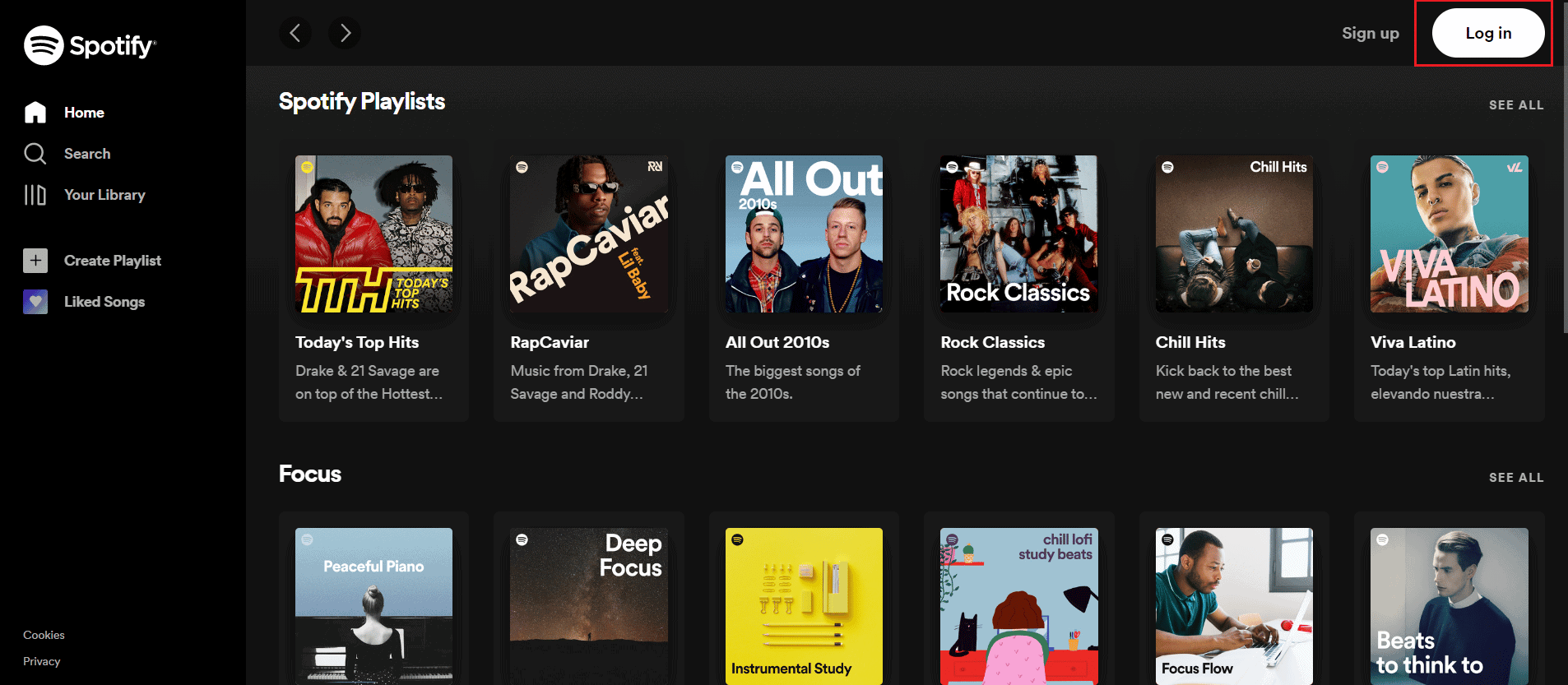
- Enter your Email address or username or Password to access your Spotify account.
Method 10: Deactivate Current Account
- Browse deactivate Spotify account in your browser and tap on the official Spotify customer support website .

- Tap on Close your account under Don’t have Premium?

- Next, enter your login credentials and follow the steps on your screen.
Thus, these are the methods to solve Spotify unable to login issue.
How to Use Spotify without Facebook
Like other apps, Spotify lets you share your account access with third-party apps. However, this can cause several issues such as Spotify not logging in with Facebook. Luckily, you can weed out the issue by simply delinking those apps from your Spotify account to log in easily.
- Launch the Facebook app and tap on the three horizontal lines at the top right corner.

- Scroll down and find Settings & privacy.

- From the drop-down menu, tap on Settings .

- Now scroll down to find Apps and websites under Permissions.

- Next, locate Spotify among other apps and tap on Spotify followed by Remove to end the process.

Hence, this is how you can use Spotify without Facebook.
Q1. Why is the Spotify app not letting me log in?
Ans. There can be multiple reasons behind this issue. For instance, maybe the server is down, the app is not updated, or your phone is facing some error. In this case, you can try your luck with any of the above-mentioned methods and resolve the issue almost immediately.
Q2. Why is my Spotify account not working?
Ans. As mentioned earlier in the article, Spotify can stop working due to several reasons. Always ensure that your device supports the latest version of the data, has enough space, and the internet connection is stable.
Q3. Why is Spotify logging me out and can’t log back in?
Ans. Spotify will log you out across all devices once you change the password as a safety measure. Accordingly, you need to enter your email address or username along with the new password to log in. However, if the issue persists, try clearing the cache, freeing up space, or reinstalling the app.
Recommended:
- How to Change DPI of Image in Windows
- How to Temporarily Disable my Instagram Account
- How to Remove Device from Spotify Connect
- How to Connect Spotify to Facebook
