If you’re downloading an app from Microsoft Store, an error code 0x80070520 may occur. Problems with Microsoft Store and your account settings can be frustrating. In this guide, we will teach you how to fix this Microsoft Store error code.

- How to Fix Microsoft Store Error Code 0x80070520
- What are the Reasons for Microsoft Store Error Code 0x80070520?
- Method 1: Basic Troubleshooting Steps
- Method 2: Run Windows Store Apps Troubleshooter
- Method 3: Restart Essential Windows Services
- Method 4: Reset Windows Store
- Method 5: End Tasks
- Method 6: Clear Windows Store Cache
- Method 7: Reset Windows Store App cache
- Method 8: Update Windows
- Method 9: Re-register Windows Store
- Method 10: Reinstall Windows Store
- Method 11: Contact Microsoft Store
How to Fix Microsoft Store Error Code 0x80070520
If you are getting Microsoft Store error 0x80070520, then there could be many possible causes which we will discuss in the next point. But one of the main reasons is accumulated updates or unwanted app components. Here, you will know the causes and how to fix this Microsoft Store error on Windows 10 and 11 in detail.
Quick Answer Try troubleshooting your network connection and clearing the Microsoft Store cache data. You can also run Windows Store apps troubleshooter on your PC.
What are the Reasons for Microsoft Store Error Code 0x80070520?
As we just said there could be many possible causes that are causing the error. Below listed are a few of them:
- Microsoft Store Cache Accumulated
- Accumulated Updates
- Outdated Windows Version
- Connection Issue
- Server Issue
- Damaged or corrupted Windows Update Component
- Presence of Virus
- Damaged or missing system files after installing third-party software
Let’s now discuss how to fix Microsoft Store Error 0x80070520 on Windows 10 and 11
Method 1: Basic Troubleshooting Steps
These are some basic troubleshooting which we will suggest you use as the very first thing. However, if they don’t work only then try the other advanced method mentioned.
1A. Restart PC
The very first thing that you can do in this case is restart your Windows. Follow the steps below to do so:
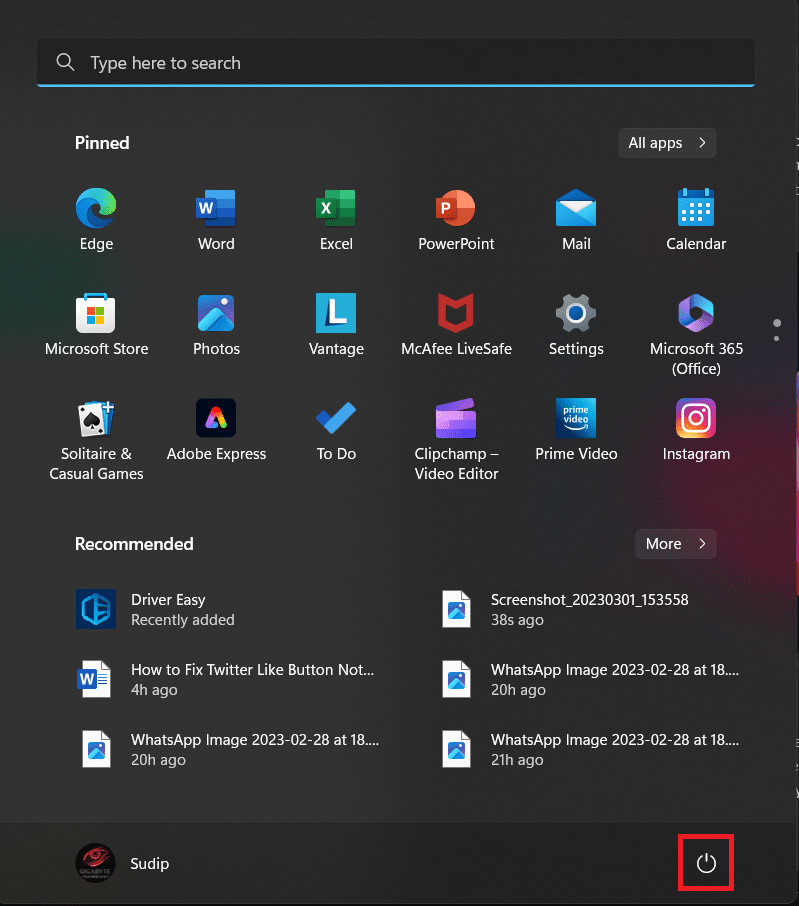
Click on the Windows icon .
Click on the power button .
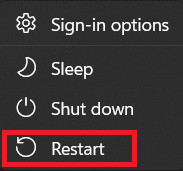
- Select Restart .
1B. Wait for Server Uptime
Microsoft Servers are down and that might be causing the problem. If this is the case, then you cannot do anything but wait for the Microsoft team to fix it. But if you want to know whether the server issue is really the problem or not, then you can check out the server status on sites like Downdetector or Is It Down Right Now . You can also follow Microsoft Store on Twitter and get notified when the servers are down.

1C. Connect to Stable Network
If the network is not stable, then that can also cause a malfunction in your apps. If that is also the case here, then you can change the network to a different service which will help you to fix the issue. However, if you don’t want to change the network, then it is also possible to increase the speed of your current one. Read this article to know more about it, How to Increase Internet Speed in Windows 11 .

1D. Scan Virus

Method 2: Run Windows Store Apps Troubleshooter
There is an inbuilt troubleshooter function in the settings. You can use that to troubleshoot the problem. However, many people ignore this option and label it as ineffective. But troubleshooting is a very useful feature and we will suggest you try it out. Here is the step-by-step guide.
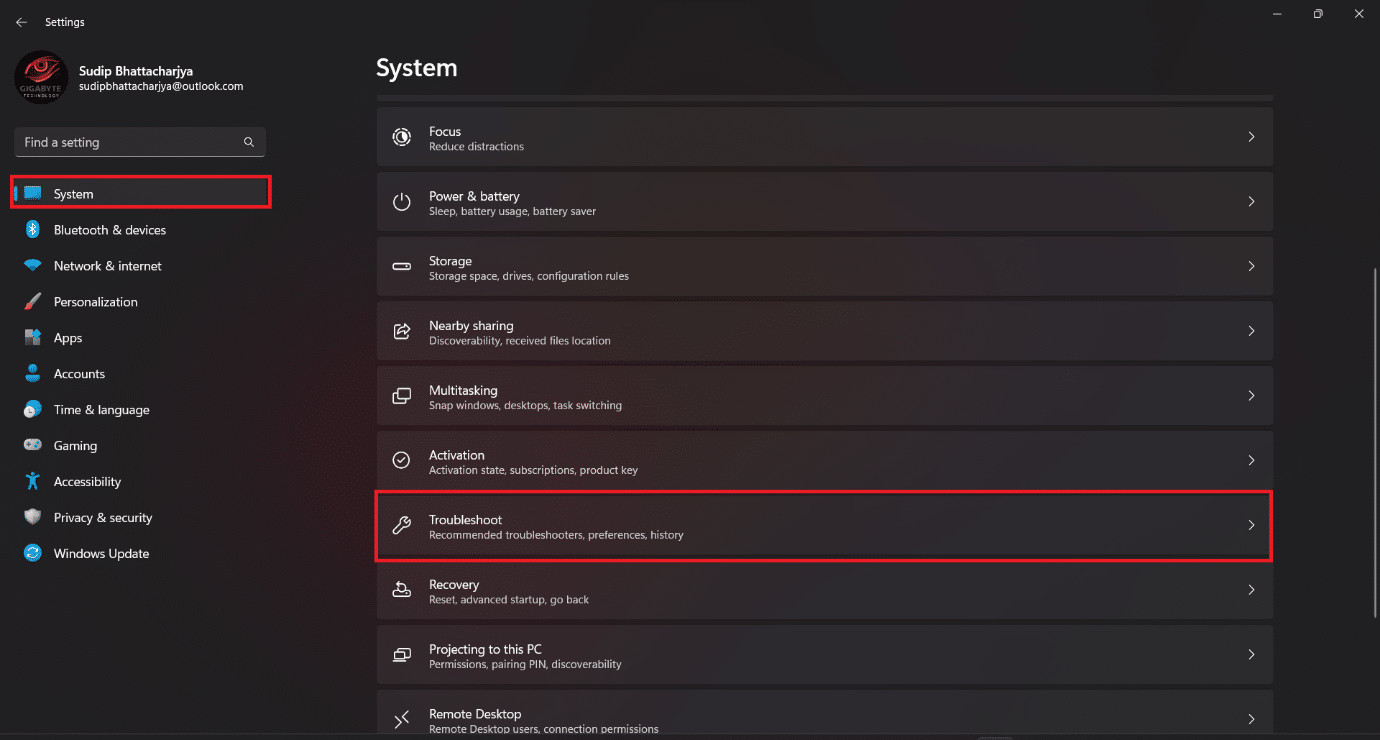
Open Settings by pressing the Windows + I keys together.
Then, select System and click on Troubleshoot .
- Select Other troubleshooters .

- Click Run beside Windows Store Apps .

Method 3: Restart Essential Windows Services
Sometimes restarting essential Windows services like Background Intelligent Transfer services must be enabled to avoid Microsoft Store error code 0x800705200x80073CFB. If these services are disabled in your system, you are more likely to face the discussed error. Hence, restart essential Windows services as instructed below.
- Type Services in the search menu and click on Run as administrator .

- Now, scroll down and double-click on Background Intelligent Transfer Service .

- Now, select the Startup type to Automatic , as depicted.
Note: If the Service status is Stopped , then click on the Start button. If the Service status is Running , click on Stop and Start it again.

Click on Apply and then OK to save the changes. Check if you can fix the discussed error.
Repeat all these steps for other Windows services like Cryptographic , Network Location Awareness , MSI Installer , and Windows Update Services .
Method 4: Reset Windows Store
You can also reset the Windows Store which can also solve the issue. To reset follow the steps below.
- Open Settings as mentioned earlier and click on Apps followed by Installed apps .

- Click on the three dots beside Microsoft Store .
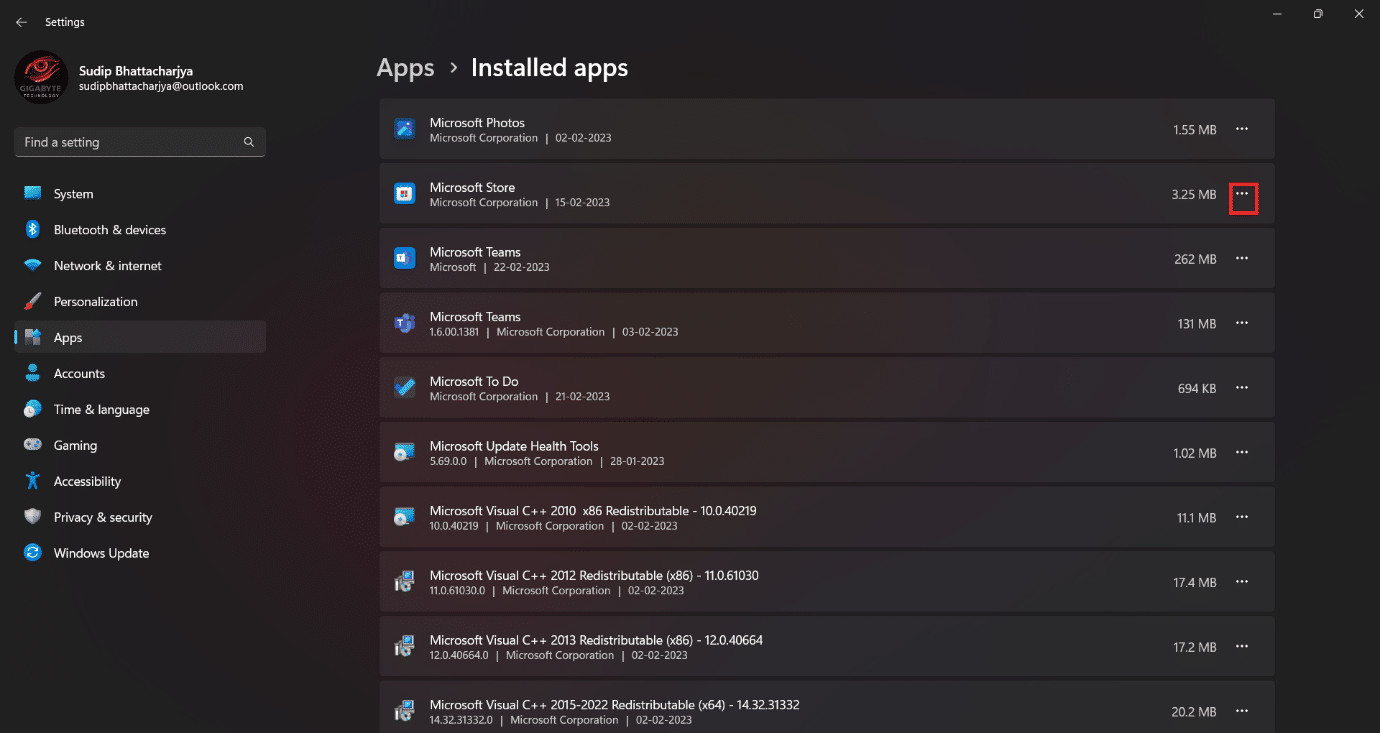
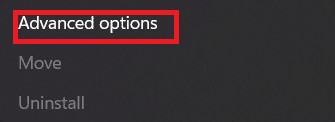
- Then, select Advanced options .
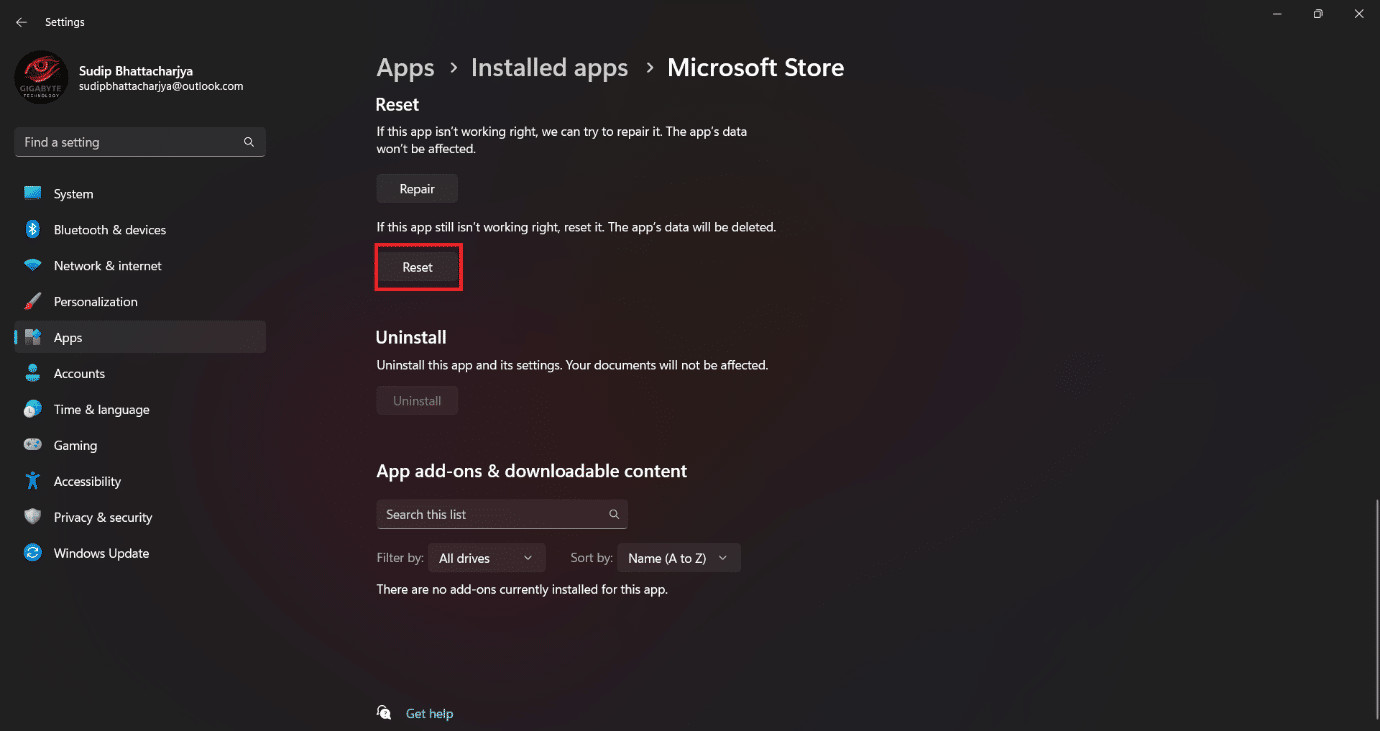
- Finally click on Reset App.
Note : You can also use the Repair App for repairing the application.
Method 5: End Tasks
If the RAM is full, it is possible that some of the apps might not work properly. So you can clear out your computer’s RAM by closing other applications. To close the apps, you can read our guide on how to disable background apps in Windows 10 .

Method 6: Clear Windows Store Cache
You can clear the temporary cache files accumulated in your computer by restarting it. However, if you want to clear the Windows app cache, then follow the steps mentioned in this article, 14 Ways to Clear Cache in Windows 11.

Method 7: Reset Windows Store App cache
Some of the users have realized that it is possible to solve the 0x80070520 error by resetting the Windows store cache files. Follow the steps below to do so:
Launch the Run dialog box by pressing Windows + R keys together.
Now, type wsreset.exe and hit Enter key .

Method 8: Update Windows
If your Windows version is not updated and you are still using an older version of Windows, then we will recommend you update it to the latest version. Sometimes the new apps and app store might conflict with the previous version of Windows. Follow the steps below to update the Windows.
Open Settings , by typing in the Windows search bar.
Then, select Windows Update and then click on Check for updates .

3a. If a new update is available click on Install Now and follow the instructions to Update.
3b. If not, then you will get You’re up to date message.
Method 9: Re-register Windows Store
If the problem is with your account, then you can re-register with the Windows store and it will easily solve the issue. This method is a bit technical, so please follow the steps below carefully.
- Navigate to the search menu and type Windows PowerShell. Then, click on Run as administrator .

- Now, paste the following command line in the Windows PowerShell and hit Enter key .
PowerShell -ExecutionPolicy Unrestricted -Command "& {$manifest = (Get-AppxPackage Microsoft.WindowsStore).InstallLocation + 'AppxManifest.xml' ; Add-AppxPackage -DisableDevelopmentMode -Register $manifest}

- Wait until the commands are executed and now you will not face the discussed error again.
Method 10: Reinstall Windows Store
You can also reinstall the Windows store application to prevent Error Code 0x80070520 from happening. It is also a technical process so we will advise you to follow every step carefully.
Launch PowerShell with admin rights as instructed above.
Now, type get -appxpackage –allusers and hit Enter key .

- Now, search for Microsoft.WindowsStore Name and copy the entry of PackageFullName .

- Now, go to a new line in the PowerShell window and type remove-appxpackage followed by a space and the line you have copied in the before step.
It looks like,
remove-appxpackage Microsoft.WindowsStore_22202.1402.2.0_x64__8wekyb3d8bbwe
Note: The command may vary a little according to the version of Windows you use.

Now, Microsoft Store will be deleted from your PC. Now, reboot the Windows PC .
Then, to reinstall it, again open Windows PowerShell as an administrator and type the following command.
Add-AppxPackage -register "C:\Program Files\WindowsApps\Microsoft.WindowsStore_11804.1001.8.0_x64__8wekyb3d8bbwe\AppxManifest.xml" –DisableDevelopmentMode

Method 11: Contact Microsoft Store
If none of the methods works which we shared in this article till now, there is no way but to contact customer care. You can either contact them from Twitter by tagging Microsoft Store’s official account and explaining your problem or can also contact the Microsoft team from their official support page.

Recommended:
- How to Update Facebook on Android
- What is CapCut App?
- Fix Try That Again Error on Microsoft Store
- Fix Microsoft Store Error 0x8A150006 in Windows 10
We hope that after reading this article you learned how to fix Microsoft Store error code 0x80070520 . If you still have any problems, don’t forget to ask them in the comment section and our team will look after them. You can also suggest us a new topic and we will try to write a dedicated article on it. Save our website in your bookmark for future reference. Thank you for reading.
