How to Reinstall Realtek HD Audio Manager: Are you facing issues with Realtek High Definition Audio Manager? Is Realtek HD Audio Manager is missing from your PC? Or there is no sound coming from your speakers in Windows 10? Well, if you are facing any one of the problems above then don’t worry as you’re at the right place as today we are going to see How to Reinstall Realtek HD Audio Manager in order to fix the issue.

Realtek HD Audio Manager is one of the most useful tools available for managing all your audio/sound needs in Windows 10. But what happens when you can’t find the Realtek HD Audio Manager icon on the Taskbar? Well, most of the users facing this issue complain that they are only having this issue after the Windows 10 upgrade or update.
If you are unable to find Realtek HD Audio Manager then the underlying for this issue seems to be a corrupt Realtek audio driver, and if this is the case then you could easily fix the issue by reinstalling the Realtek audio drivers. Anyway, without wasting any time let’s see How to Reinstall Realtek HD Audio Manager.
In this article we will fix the following issues:
Realtek HD Audio Manager not opening or icon missing
Realtek HD Audio Manager missing
Realtek HD Audio Manager not opening
How to Reinstall Realtek HD Audio Manager [GUIDE]
Method 1: Reinstall Realtek HD Audio Manager
Method 2: Manually Update Realtek Audio Drivers
Method 3: Disable Microsoft UAA Bus Driver for High Definition Audio
Method 4: Use Add legacy to install drivers to support older Sound Card
How to Reinstall Realtek HD Audio Manager [GUIDE]
Make sure to create a restore point just in case something goes wrong.
Method 1: Reinstall Realtek HD Audio Manager
1.Open your favorite web browser then navigate to this website .

2.You will be directed towards the download page, now under “ PC Audio Codecs ” select to the latest driver available.
Note: Make sure to download the proper driver according to your system architecture.
3.If you’re unable to find then either you need the driver for AC’97 Audio Codecs Software or High Definition Audio Codecs Software .

Note: For most of the users, you need to download the High Definition Audio Codecs, but if you’re on an old system then only you need to download AC’97 Audio Codecs.

4.Once the file is downloaded, double-click on the setup file and follow the on-screen instructions to install the latest Realtek High Definition Audio drivers.
5.Navigate to the following location in the file explorer:
C:\Program Files\Realtek\Audio\HDA\RtkNGUI64.exe

6.Double-click on RtkNGUI64.exe to open the Realtek HD Audio manager.
Method 2: Manually Update Realtek Audio Drivers
1.Press Windows Key + R then type devmgmt.msc and hit Enter to open Device Manager.

2.Expand Sound, video and game controllers and then right-click on “ Realtek High Definition Audio ” & select Update driver.

3.On the next window, click on “ Search automatically for updated driver software “.
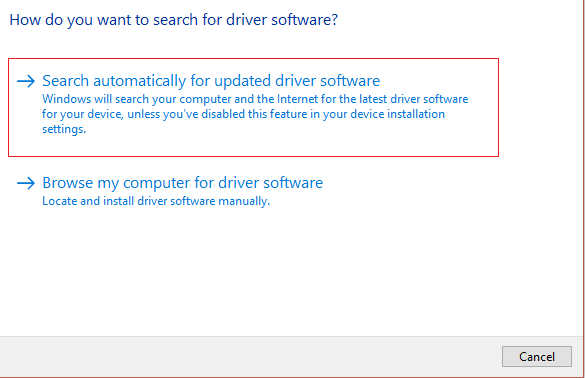
4.In case, you already have the updated driver then you will see the message “ The best drivers for your device are already installed “.

5.If you don’t have the latest drivers then Windows will automatically update Realtek Audio drivers to the latest update available .
6.Once finished, reboot your PC to save changes.
If you’re still facing the Realtek High Definition Audio Driver Issue then you need to manually update the drivers, just follow this guide.
1.Again open Device Manager then right-click on Realtek High Definition Audio & select Update driver.
2.This time click on ” Browse my computer for driver software. ”

3.Next, select “ Let me pick from a list of available drivers on my computer. ”

4.Select the appropriate driver from the list and click Next.

5.Let the driver installation complete and then restart your PC.
Method 3: Disable Microsoft UAA Bus Driver for High Definition Audio
1.Press Windows Key + R then type “ devmgmt.msc ” (without quotes) and hit enter to open Device Manager.
2.Expand System Devices and right-click on Microsoft UAA Bus Driver for High Definition Audio then select Disable.
3.Press Windows Key + I to open Settings then click on Apps.

4.From the left-hand menu make sure to select Apps & feature.
5.Now under Apps & features , you find a search box, type “ Realtek High Definition Audio Driver ” in it.

6.Click Uninstall under Realtek High Definition Audio Driver.

7.Now visit Realtek to download the latest driver and Reinstall Realtek HD Audio Manager.
Method 4: Use Add legacy to install drivers to support older Sound Card
1.Press Windows Key + R then type “ devmgmt.msc ” (without quotes) and hit enter to open Device Manager.
2.In Device Manager select Sound, video and game controllers and then click on Action > Add legacy hardware.

3.Click Next, select ‘ Search for and install the hardware automatically (Recommended) .’

4.Reboot your system to save changes.
Recommended:
- How to Fix Printer Offline Status in Windows 10
- SOLVED: Encrypt Contents To Secure Data Grayed Out In Windows 10
- Fix Windows Hello isn’t available on this device on Windows 10
- Fix Microsoft Visual C++ 2015 Redistributable Setup Fails Error 0x80240017
That’s it you have successfully learned How to Reinstall Realtek HD Audio Manager but if you still have any queries regarding this tutorial then feel free to ask them in the comment’s section.
Fix Printer Offline Status in Windows 10: If you are facing some issues with your printer then generally restarting the printer can pretty much fix most of these issues. But if your printer is offline even after being fully connected to the PC then this issue can’t be fixed by a simple restart. Users are complaining that they can’t use the printer because their printer is offline even though their printer in ON, connect to the PC and fully operational.

If your printer is not working, or the print command doesn’t seem to respond then you can check if your device status if offline or not. To verify this, press Windows Key + R then type control printers and hit Enter. Or you could navigate to the Devices and Printers in Control Panel then select the desired printer and under the ribbon, at the bottom, you will see something like this “Status: Offline”. If this is the case then your printer is offline and until you resolve this issue the printer won’t work.
- Why does your Printer Go offline?
- Fix Printer Offline Status in Windows 10
- Method 1: Check Printer Connection
- Method 2: Change the Printer Status
- Method 3: Update Printer Driver
- Method 4: Run Printer Troubleshooter
- Method 5: Restart Print Spooler Service
- Method 6: Add a Second Printer
- Method 7: Reinstall your Printer Drivers
Why does your Printer Go offline?
There is no particular cause for this error but the issue could be caused because of outdated or incompatible drivers, conflict of printer spooler services, a problem with physical or hardware connection of the printer to PC or, The Active Directory Domain Services is Currently Unavailable error .. So without wasting any time let’s see How to Fix Printer Offline Status in Windows 10 with the help of the below-listed tutorial.
Fix Printer Offline Status in Windows 10
Make sure to create a restore point just in case something goes wrong.
Method 1: Check Printer Connection
Before doing anything, first, you should check if the communication between the printer & PC is properly set up. There can be something wrong with the USB cable or USB port, or network connection if connected wirelessly.
1.Shutdown your PC and power off your printer. Remove all the cables connected to the printer (even the power cable) and then press & hold the power button of the printer for 30 seconds.
2.Again connect all the cables and then make sure the USB cable from the printer is properly connected to the USB port of the PC. You could also switch the USB port to see if this resolves the problem.
3.If your PC is connected via Ethernet port then make sure the Ethernet port is working and the connection to your printer & PC is proper.
4.If the printer is connected to PC via a wireless network then make sure the printer is connected to your PC network. Check if this Fixes Printer Offline Status in Windows 10, if not then continue.
Method 2: Change the Printer Status
1.Press Windows Key + R then type control printers and hit Enter to open Devices and Printers.

Note: You could also open Devices and Printers in control panel by navigating to Control Panel > Hardware and Sound > Devices and Printers.
2.Right-click on your printer and select “ Set as default printer ” from the context menu.

3.Then again right-click on your printer and select “ See what’s printing “.

4.You will see the printer queue, see if there are any unfinished tasks and make sure to remove them from the list.

5.Now from the printer queue window, select your Printer and uncheck the “Use Printer Offline” option.

6.Similarly, uncheck the “ Pause Printing ” option, just to make sure everything works fine.
Method 3: Update Printer Driver
1.Press Windows Key + R then type “ services.msc ” and hit enter.

2.Find Print Spooler service then right click on it and select Stop.

3.Again press Windows Key + R then type printui.exe /s /t2 and hit enter.
4.In the Printer Server Properties window search for the printer which is causing this issue.
5.Next, remove the printer and when asked for confirmation to remove the driver as well, select yes.

6.Now again go to services.msc and right-click on Print Spooler and select Start.
7.Next, navigate to your printers manufacturer website, download and install the latest printer drivers from the website.
For example , in case you have an HP printer then you need to visit HP Software and Drivers Downloads page . Where you can easily download the latest drivers for your HP printer.
8.If you’re still not able to fix Printer Offline Status then you can use the printer software that came with your printer. Usually, these utilities can detect the printer on the network and fix any issues that are causing the printer to appear offline.
For example, you can use HP Print and Scan Doctor to fix any issues regarding HP Printer.
Method 4: Run Printer Troubleshooter
1.Type “troubleshooting” in Control Panel then click on Troubleshooting from the search result.
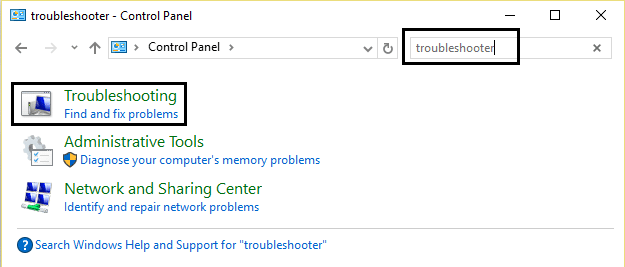
2.Next, from the left window pane select View all.
3.Then from the Troubleshoot computer problems list select Printer.

4.Follow on-screen instruction and let the Printer Troubleshooter run.
5.Restart your PC and you may be able to Fix Printer Offline Status in Windows 10.
Method 5: Restart Print Spooler Service
1.Press Windows Key + R then type services.msc and hit Enter.
2.Find Print Spooler service in the list and double-click on it.
3.Make sure the Startup type is set to Automatic and the service is running, then click on Stop and then again click on start in order to restart the service.

4.Click Apply followed by OK.
5.After that, again try to add the printer and see if you’re able to Fix Printer Offline Status in Windows 10.
Method 6: Add a Second Printer
NOTE: This method will only work if your printer is connected via a network to the PC (instead of the USB cable).
1.Press Windows Key + I to open Settings then click on Devices.

2.From the left-hand menu click on “ Bluetooth & other devices “.
3.Now from the right window pane click on “ Devices and printers “.

4.Right-click on your printer and select Printer properties from the context menu.

5.Switch to Ports tab then click on the “ Add Port… ” button.

6.Select “ Standard TCP/IP Port ” under Available port types and then click New Port button.

7.On the Add Standard TCP/IP Printer Port Wizard click on Next .

8.Now type in the Printers IP Address and Port name then click Next.

Note: You could easily find the IP address of your printer on the device itself. Or you could find these details on the manual that came with the printer.
9.Once you successfully added the Standard TCP/IP Printer, click Finish.

See if you’re able to Fix Printer Offline Status in Windows 10 Issue , if not then you need to reinstall your printer drivers.
Method 7: Reinstall your Printer Drivers
1.Press Windows Key + R then type control printers and hit Enter to open Devices and Printers.
- Right-click on your printer and select “ Remove device ” from the context menu.

3.When the confirm dialog box appears , click Yes.

4.After the device is successfully removed, download the latest drivers from your printer manufacturer website .
5.Then reboot your PC and once the system restarts, press Windows Key + R then type control printers and hit Enter.
Note: Make sure your printer is connected to the PC via USB, ethernet or wirelessly.
6.Click on the “ Add a printer ” button under Device and Printers window.

7.Windows will automatically detect the printer, select your printer and click Next.

- Set your printer as default and click Finish.

If nothing above helps then follow this guide: Fix Printer Installation Error 0x00000057
Recommended:
- SOLVED: Encrypt Contents To Secure Data Grayed Out In Windows 10
- How to Fix USB Tethering Not Working in Windows 10
- Fix The program can’t start because api-ms-win-crt-runtime-l1-1-0.dll is missing
- Fix Microsoft Visual C++ 2015 Redistributable Setup Fails Error 0x80240017
That’s it you have successfully Fix Printer Offline Status in Windows 10 but if you still have any questions regarding this tutorial then feel free to ask them in the comment’s section.
