Google Chrome is the default web browser for most users, and it is the most used web browser in the world. However, there are times when you are doing some important research work and have multiple tabs open on your Chrome browser, but then your browser, for some unknown reason, crashes, or you accidentally close down a tab. In this situation, you may want to restore all the previous tabs, or you may want to restore a tab that you browsed a few days back. Don’t worry, and we have got your back with our guide on how to restore the previous session on Chrome. You can easily restore the tabs if you ever accidentally close them.

- 4 Ways to Restore the Previous Session on Chrome
- Method 1: Reopen Recently Closed Tabs in Chrome
- Method 2: Restore Multiple Tabs
- Method 3: Set up an Auto-Restore Setting on Chrome
- Method 4: Access Tabs from other devices
4 Ways to Restore the Previous Session on Chrome
We are listing down the ways for restoring your tabs on your Chrome browser. Here is how to restore Chrome tabs:
Method 1: Reopen Recently Closed Tabs in Chrome
If you accidentally close down a tab on Google Chrome, you cannot find it again. Here is what you can do:
On your Chrome browser , make a right-click anywhere on the tab section.
Click on Reopen closed tab .

- Chrome will automatically open your last closed tab.
Alternatively, you can also use a keyboard shortcut by pressing Ctrl + Shift + T to open your last closed tab on PC or Command + Shift + T on a Mac. However, this method will only open your last closed tab and not all the previous tabs. Check out the next method to open multiple closed tabs.
Method 2: Restore Multiple Tabs
If you accidentally quit your browser or suddenly Chrome closed all your tabs due to a system update. In this situation, you may want to reopen all your tabs again. Usually, Chrome shows a restore option when your browser crashes, but other times you can restore your tabs through your Browser history. If you are wondering how to restore closed tabs on Chrome, you can follow these steps:
On Windows and MAC
If you use your Chrome browser on your Windows PC or MAC, you may follow these steps to restore recently closed tabs in Chrome:
- Open your Chrome browser and click on the three vertical dots at the screen’s top-right corner.

- Click on History , and you will be able to see all the recently closed tabs from the drop-down menu.

If you wish to open tabs from a few days back. Click on history from the drop-down menu under History . Alternatively, you can use the shortcut Ctrl + H to access your browsing history.
Chrome will list your browsing history for your previous session and all the preceding days .

- To restore the tabs, you can hold down the Ctrl key and make a left click on all the tabs you wish to restore.
On Android and iPhone
If you use your Chrome browser on an Android or iPhone device and accidentally close all the tabs, you can follow these steps if you don’t know how to restore Chrome tabs. The procedure for restoring the closed tabs is pretty similar to the desktop version.
Launch your Chrome browser on your device and open a new tab to prevent overwriting the currently open tab.
Click on the three vertical dots from the top-right corner of your screen.

- Click on History .

- Now, you will be able to access your browsing history. From there, you can scroll down and restore all your closed tabs.
Method 3: Set up an Auto-Restore Setting on Chrome
Chrome browser can be fascinating when it comes to its features. One such feature is that it allows you to enable the Auto-restore setting to restore the pages during a crash or when you accidentally quit your browser. This Auto-restore setting is called ‘continue where you left off’ to enable through Chrome settings. When you enable this setting, you don’t have to worry about losing your tabs. All you have to do is restart your Chrome browser . Here is how to open closed tabs on Chrome by enabling this setting:
Launch your Chrome browser and click on three vertical dots at the top-right corner of the screen to access the main menu.
Go to Settings .

Select the On start-up tab from the panel on the left of your screen.
Now, click on the Continue where you left off option from the middle.

Since, by default, when you launch Chrome , you get a new tab page. After you enable the Continue where you left off option, Chrome will automatically restore all the previous tabs.
Method 4: Access Tabs from other devices
If you open some tabs on a device and later wish to open the same tabs on another device, you can easily do it if you are signed in on your Google account . Your Google account saves your browsing history regardless of your switching devices. This feature can come in handy when you wish to access the same website from your mobile phone on your desktop. Follow these steps for this method.
- Open the Chrome browser and click on the three vertical dots at the screen’s top-right corner to access the main menu.
From the main menu, click on History and then select History from the drop-down menu. Alternatively, you can use Ctrl + H to open your browsing history.
Click on tabs from other devices from the panel on the left.
Now, you will see the list of websites that you accessed on other devices. Click on it to open the website.

Q1. How do I restore the previous session in Chrome?
To restore the previous session on Chrome, you can access your browsing history and reopen the tabs. Open your browser, and access the main menu by clicking on the three vertical dots from the top-right corner of the browser window. Now, Click on the history tab, and you will see the list of your websites. Hold the Ctrl key and make a left click on the tabs that you wish to open.
Q2. How do I restore tabs after restarting Chrome?
After restarting Chrome, you may get the option to restore the tabs. However, if you don’t get an option, you can easily restore your tabs by accessing your browser history. Alternatively, you can enable the ‘Continue where you left off’ option on Chrome to restore the pages when you launch the browser automatically. To enable this option, click on the three vertical dots at the top-right corner of the screen to access the main menu>settings>on start-up. Under the On start-up tab, select the option ‘Continue where you left off’ to enable it.
Q3. How do I restore closed tabs in Chrome?
If you accidentally close one tab, you can make a right-click anywhere on the tab bar and select a reopen closed tab. However, if you want to restore multiple tabs on Chrome, you can access your browsing history. From your browsing history, you will easily be able to reopen the previous tabs.
Q4. How do I undo closing all tabs on Chrome?
To undo closing all tabs on Chrome, you can enable the Continue where you left off option in the settings. When you enable this option, Chrome will automatically restore the tabs when you launch the browser. Alternatively, to restore the tabs, go to your browsing history. Click Ctrl + H to open the history page directly.
Q5. How to restore chrome tabs after a crash?
When Google Chrome crashes, you will get the option to restore pages. However, if you don’t see any option to restore the tabs, open your web browser, and click on three vertical dots from the top-right corner of the screen. Now, move your cursor over the history tab, and from the drop-down menu, you will be able to see your recently closed tabs. Click on the link to reopen the tabs.
Recommended:
- How to Fix No Sound issue in Google Chrome
- How to Disable Auto-start Apps on Android
- Fix Chrome Not Connecting to the Internet
- How to Print When You Don’t Have a Printer
The recent surge of online activity has prompted the downfall of the printer. In an era, where everything can be viewed online with ease, the relevance of the gigantic and bulky printer has started to decrease. However, we are yet to reach a stage where we can neglect the printing device altogether. Until then, if you do not possess the heavy Inkjet and want something printed urgently, here’s a guide to help you decipher how to print documents when you don’t have a printer.

- How to Print Documents When You Don’t Have a Printer
- Method 1: Print Documents as PDF files
- Method 2: Print Webpages as PDF files
- Method 3: Search for Wireless Printers Near You
- Method 4: Find Other Printing Services Around Your Location
- Method 5: Use Google Cloud Print
How to Print Documents When You Don’t Have a Printer
Method 1: Print Documents as PDF files
PDF is a universally accepted format that keeps the document exactly the same across different platforms and devices . There is a possibility that the PDF file of the document you need to print will do the trick instead. Even if softcopies are not an option in your situation, the PDF file makes it easy for you to save web pages and transfer them as documents for future printing. Here’s how you can print to PDF on your PC without a printer:
- Open the Word document that you want to print and click on the File option on the top left corner of the screen.

- From the options that appear, click on ‘Print.’ Alternatively, you can press Ctrl + P to open Print Menu

- Click on the ‘Printer’ drop-down menu and select ‘ Microsoft Print to PDF.’

- Once selected, click on ‘Print’ to continue.

- In the window that appears, type in the name of the PDF file and select the destination folder. Then click on ‘Save.’

- The PDF file will be printed without a printer in the destination folder.
Method 2: Print Webpages as PDF files
Browsers today have adapted to the requirements of the modern-day and introduced new features on their application. One such feature gives users the ability to print webpages as PDF documents on their PC. Here’s how you can print web pages as PDFs:
Open your browser and open the webpage you want to print.
Click on the three dots on the top right corner of the screen.

- From the various options, click on ‘Print.’ You can use the shortcut in the browser as well.

In the print window that opens up, click on the drop-down list in front of the ‘Destination’ menu.
Select ‘Save as PDF.’ You can then proceed to select the pages you want to download and the layout of the print.

- Once done, click on ‘Print’ and a window will appear asking you to select the destination folder. Select the folder and rename the file accordingly and then click on ‘Save’ again.

- The page will be printed as a PDF file without a printer.
Method 3: Search for Wireless Printers Near You
Even if you personally don’t own a printer, all hope is not lost. There is a remote possibility that someone in your neighbourhood or building owns a wireless printer. Once you have found a printer, you can ask the owner to let you take a print out. Here’s how you can scan for printers near you and print without owning a printer:
Press Windows Key + I to open the Settings app on your Windows device.
Click on ‘Devices.’
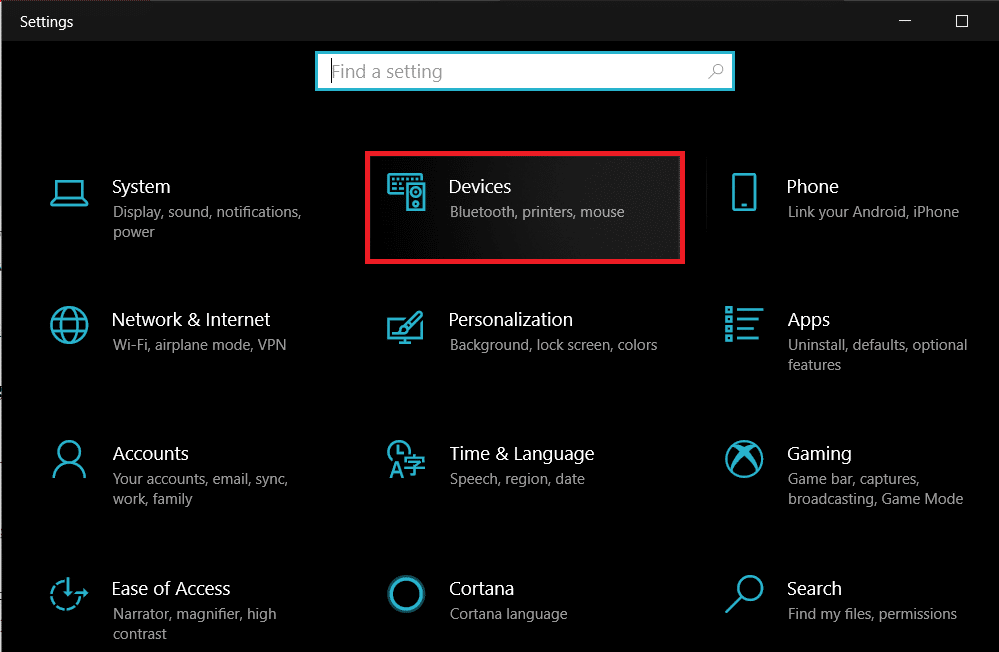
- From the panel on the left, click on the ‘Printers and Scanners’

- Click on ‘ Add a printer or scanner’ and your PC will find any printers that are operating near you.

Method 4: Find Other Printing Services Around Your Location
Some shops and services serve the specific purpose of getting print outs for their customers. You can search for print shops near your location and print documents there. Alternatively, you can head onto your University library or access the printer in your office to take urgent print outs. Printing options are also available in most internet cafes and public libraries. You can also use services such as PrintDog and UPrint that deliver large print outs to your home.
Method 5: Use Google Cloud Print
If you have a wireless printer at your home and are out of town, you can remotely print pages from your home printer. Head onto the Google Cloud Print website and see if your printer is eligible. Sign in to the app with your Google account and add your printer. Thereafter, while printing, click on the ‘Printers’ option and select your wireless printer to print documents remotely.
Q1. Where to print documents when you don’t have a printer?
With most documents beings shared and viewed through the screen, the printed page no longer holds the same value and the printer no longer seems worth the money. Having said that, there are still times where a hard copy of a document is required for a certain task. During instances like these, you can try using public printing services or ask your neighbours if they could give access to their printers for a brief period.
Q2. When you need to print something urgently, but there is no printer?
Such situations have happened to most of us. Try downloading the PDF of the document or webpage you want to print. The PDF should work as an alternative most of the time. If not, mail the PDF to any printing service near you and ask them to keep a print out ready. You will have to physically go and collect the printout but it is the fastest way possible.
Q3. How can I print from my phone without a printer?
You can print web pages and documents as PDF files from your phone and then print them as hard copies later. On the browser, tap on the three dots on the top right corner and select the ‘share’ option. From the various options available, tap on ‘Print’ and the webpage will be saved as a PDF. The same procedure can be used for Word documents.
Q4. Is there a printer that doesn’t need a computer?
Nowadays, wireless printers are the new norm. These printers often do not require physical connections with PCs or other devices and can download images and documents remotely.
Recommended:
- How To Clear Print Queue In Windows 10?
- Fix Common Printer Problems in Windows 10
- Share files and printers without HomeGroup on Windows 10
- How to Sync Google Calendar with Outlook
