Twitter/X is one of the most used social media platforms for staying updated with the latest news or trends. But nothing kills the vibe like getting the dreaded alert of not being able to view tweets anytime you wish to browse on the app. The good news? There are simple solutions to get you back on track. If you’ve been searching for ways to fix “Cannot Retrieve Tweets at This Time”, here are 6 answers for you!
- 6 Ways to Fix Cannot Retrieve Tweets at This Time
- Method 1: Remove App from Background
- Method 2: Disable VPN or Proxy
- Method 3: Check Daily Tweet View Limit
- Method 3: Correct Date and Time Settings
- Method 4: Sign out of Twitter
- Method 5: Use X on a Different Device or Browser
- Method 6: Clear App Cache
6 Ways to Fix Cannot Retrieve Tweets at This Time
Now you can easily resolve the constant error you have been facing while scrolling through Twitter and get back to tweeting in no time. Make sure you have the latest version installed before starting out with these fixes.
Method 1: Remove App from Background
The simplest way to resolve a brief issue on any app is by restarting it. Time-consuming tasks can be offloaded by removing them from the background apps. Simply press your home screen button and swipe up on Twitter to remove it. Now, you can reopen the app.
Method 2: Disable VPN or Proxy
Since VPN and proxies hide your IP address and change locations, it may cause Twitter to glitch due to privacy issues. Therefore, if you have them enabled, it is advisable to turn them off while using the app.
Method 3: Check Daily Tweet View Limit
Twitter has daily view limits imposed on users to view tweets. If you get the ‘Cannot Retrieve Tweets at This Time’ error, chances are you have fulfilled your limit. Here are the requisites of how many posts a user is allowed to view:
- Verified Users: Can view up to 10,000 posts per day.
- Unverified Users: Can view up to 1,000 posts per day.
- New Unverified Accounts: Can view up to 500 posts per day.
Method 3: Correct Date and Time Settings
Even having the wrong date and time settings on your phone can cause Twitter to shut down its services.
Option 1: Via iPhone
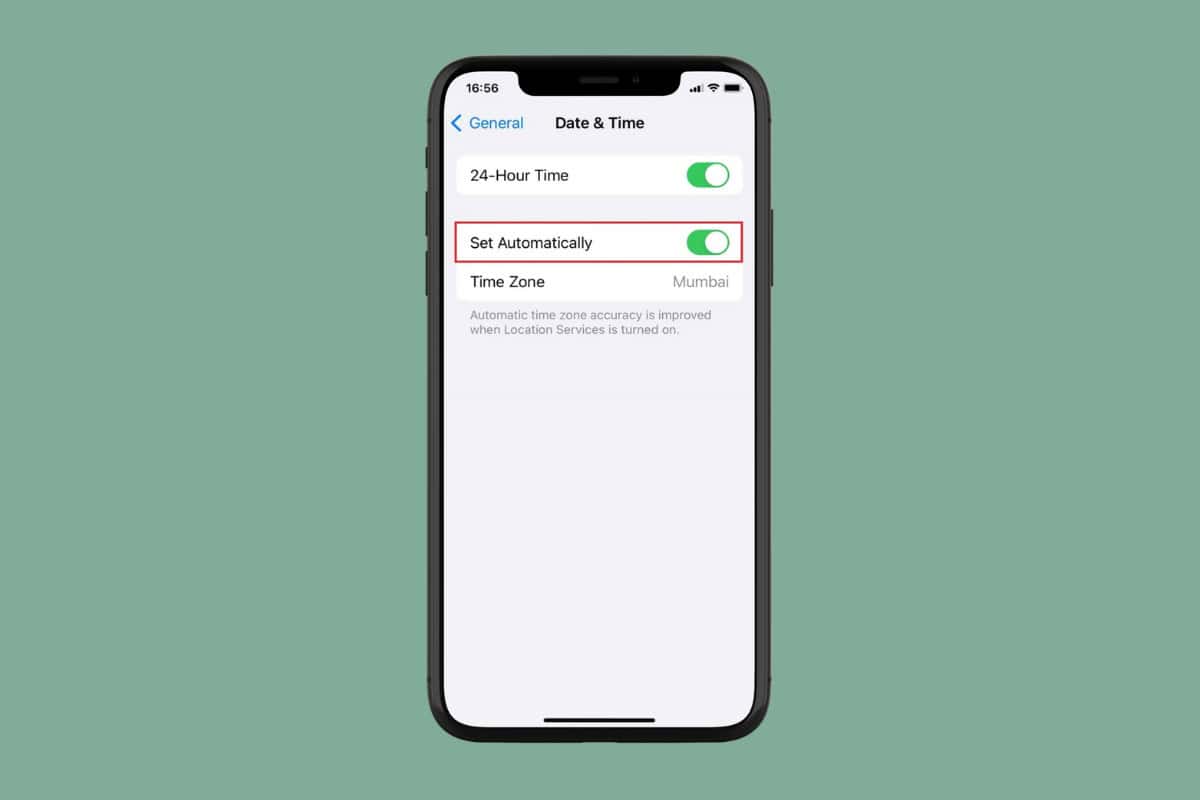
Follow the steps mentioned below to set up automatic date settings from your iPhone:
- Open Settings and tap on General .
- Swipe down and select Date & Time .
- Now, turn the toggle on for Set Automatically .
- Open Twitter .
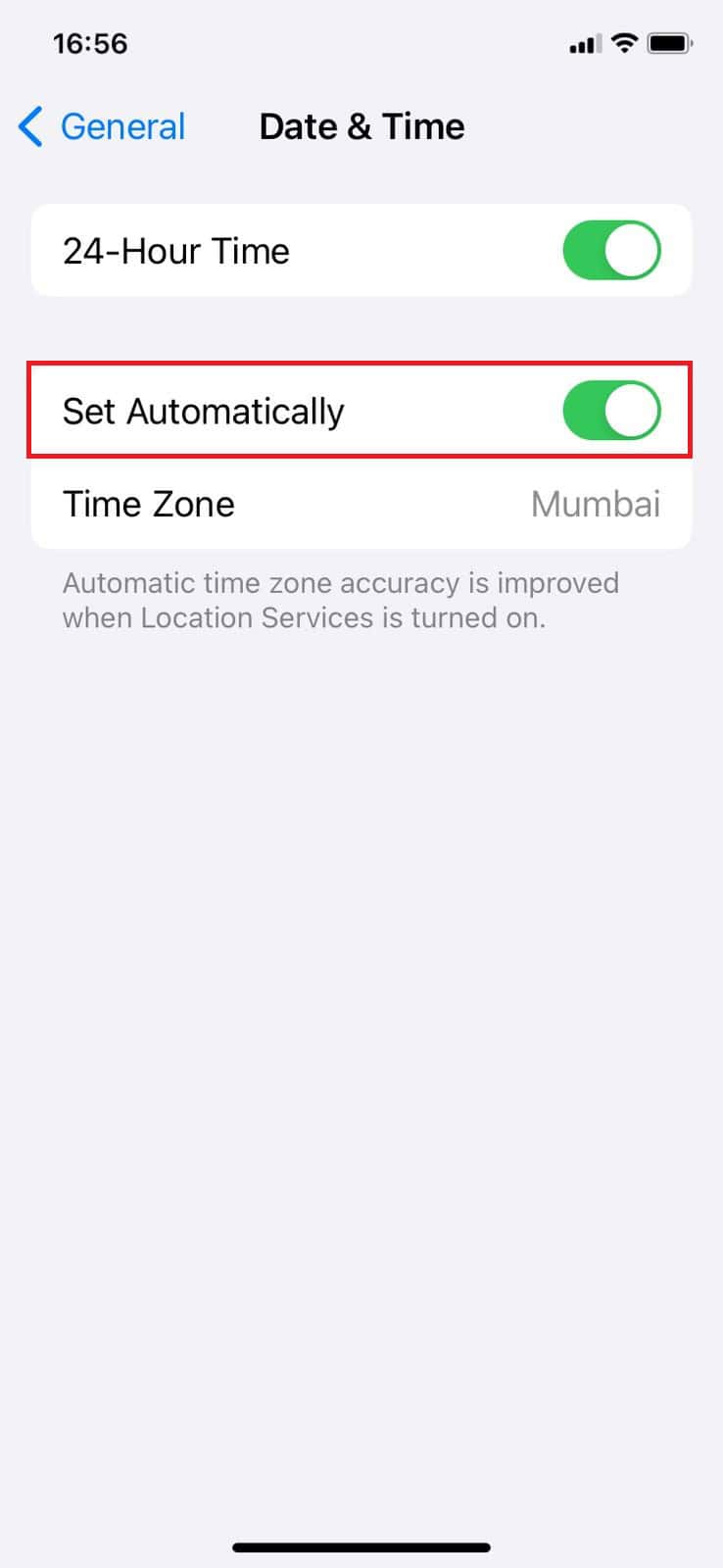
This way, you will be able to view tweets.
Option 2: Via Android
Similarly, here’s how you can do the same from an Android smartphone:
Note: Not all Android devices have the same interface since they vary from manufacturer to manufacturer. Hence, ensure the correct settings have been selected according to your device’s language.
- Open Settings and tap on System .
- Tap on Date & time .
- Now, turn the toggle on for Set time Automatically .
- Open Twitter .
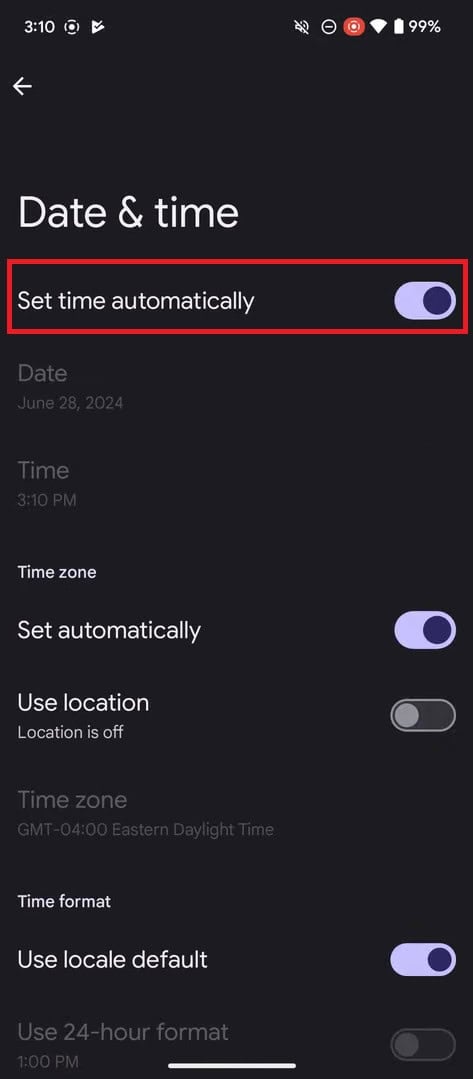
Your Twitter should start working properly.
Method 4: Sign out of Twitter
You can also log out and re-login to solve any software issues:
- Open Twitter and tap on your profile in the top left corner.
- Tap on Settings and privacy .
- Select Your account .
- Tap on Account information .
- Then, tap on Log out .
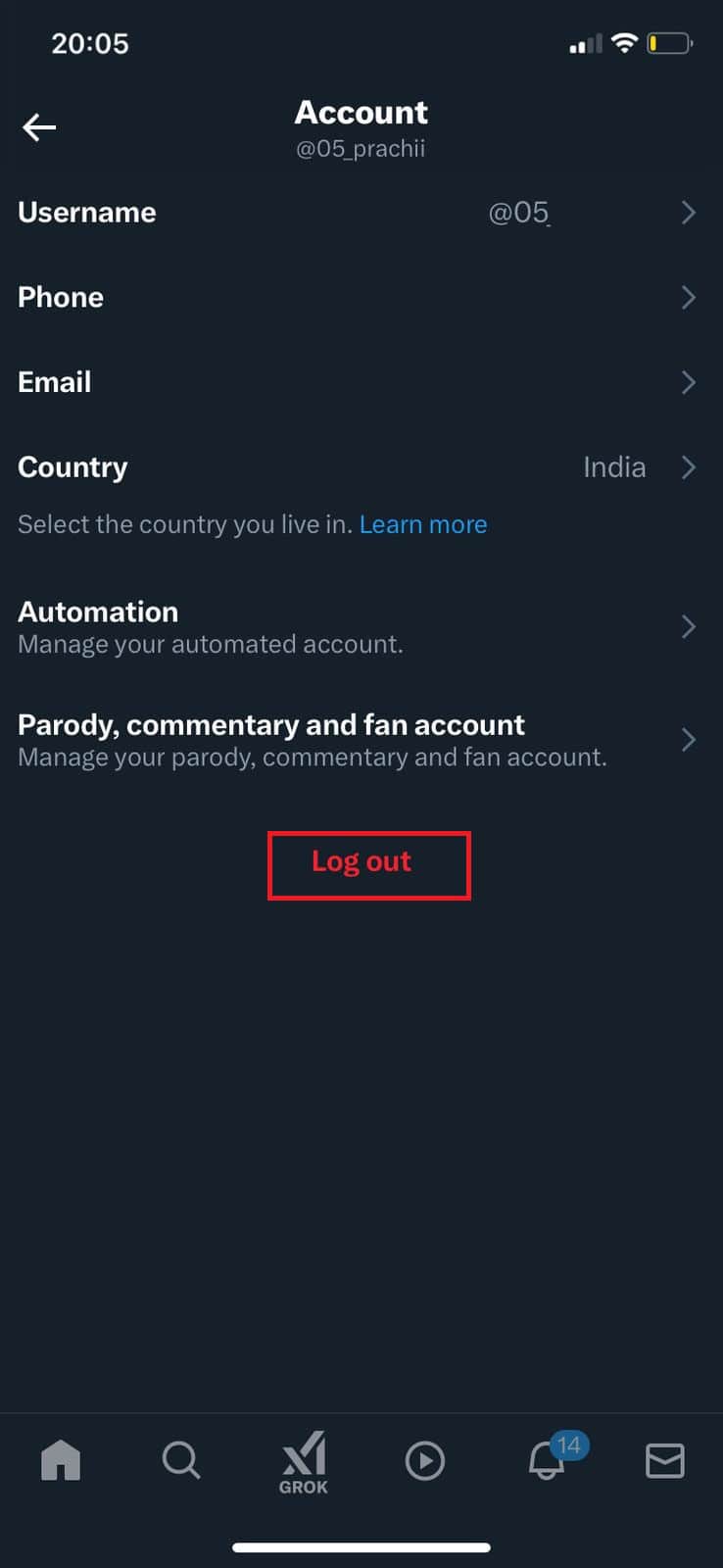
Log in after some time and check if you can see tweets.
Method 5: Use X on a Different Device or Browser
You can also try logging into your account from another phone or desktop if you suspect your smartphone may be facing issues.
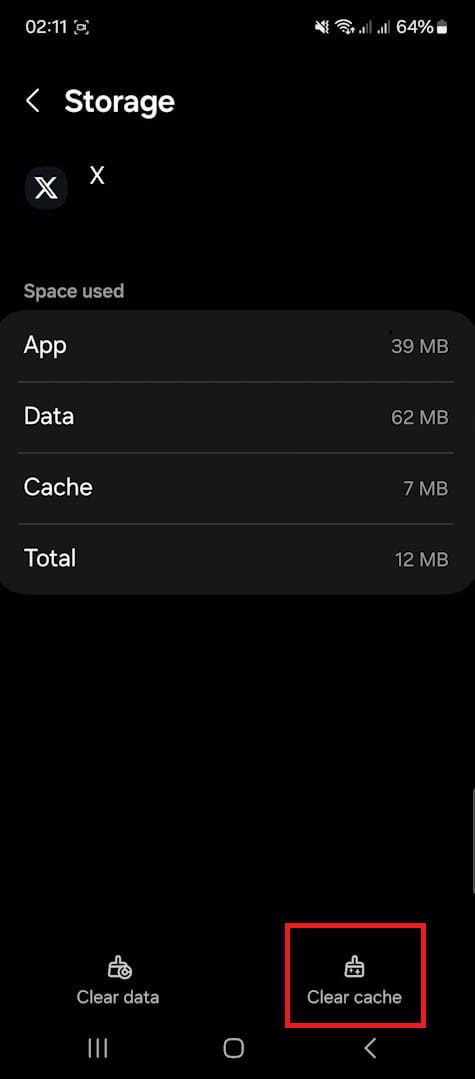
Method 6: Clear App Cache
Lastly, Android users can clear their app cache to free up some storage space and processing time for Twitter:
- Open Settings and tap on App .
- Swipe down and select X .
- Tap on Storage .
- Then, select Clear Cache .
Your problem should be resolved.
