Boot device problem may be quite disturbing since the functions of the PC may not load properly. Understanding how to fix a boot device problem in Windows 10 can save you from potential data loss or system instability. This guide lists all the probable reasons for the issue and the solutions to resolve this head-scratcher.

- How to Fix Boot Device Problem in Windows 10
- Method 1: Basic Troubleshooting Methods
- Method 2: Use Diskpart Command
- Method 3: Restore Lost EFI Partition
- Method 4: Set BIOS to Default Settings
- Method 5: Rebuild MBR (For Legacy BIOS Users)
- Method 6: Disable Legacy Boot (For UEFI Only)
- Method 7: Perform System Restore
- Method 8: Repair Install Windows
How to Fix Boot Device Problem in Windows 10
BIOS stands for Basic Input/ Output System and is the program on the Computer’s Microprocessor. It is used to start the PC after it is turned on and manages the data flow between the Operating System and connected devices. The possible causes of BIOS or boot device problem are listed in this section.
- Incorrect Boot Order-
- Partition Drive is not set to Active
- Incorrect HDD selected in BIOS-
- Bootable HDD is unidentified-
- Corrupt Boot or OS Files
- Hardware Issues- The cable or the SATA slot may have some issues and the boot disk may have some damage.
Method 1: Basic Troubleshooting Methods
To fix the Boot device problem, you can try implementing these basic troubleshooting methods to resolve the same.
1A. Check for Hardware
You need to check if the Hard Disk Drive is connected properly to the PC. You can either:
- Remove the battery from the slot and place it back on the slot, if the battery can be removed.
- Check if the power cable connecting your Hard Drive is broken or frayed.
- Check if the connecting cables are plugged properly into the plugs in the HDD.
- Check if you can connect the HDD using the power cable to another Windows PC.
- Replace the power cable connecting the HDD with a new one.
1B. Power Cycle your PC
An approach to fix the issue and tweak the Support boot to a clean state is to power cycle your Windows PC. This would fix all the glitches and errors on the PC and restart it afresh.
- Press the Alt + F4 keys together, select the Shutdown option and hit the Enter key .

Remove the power cable of the PC from the power socket.
Unplug the Hard Drive and re-plug it using the connectors.
Re-plug the power cable in the power socket and press the power button to turn on the PC.
1C. Correct Boot Order
If the Boot order is not proper on your PC, select the Hard Disk Drive as the first option in the Boot. Read here method to check & select the Boot order on your Windows 10 PC.

1D. Check for Errors in Hard Disk
You can check for errors on the HDD using the Chkdsk command .

1E. Clean RAM Space
If the space on the Hard Disk Drive is less, you may face this issue with the boot. Follow these methods to free up some space .

Method 2: Use Diskpart Command
One of the reasons for BIOS boot device problem may be that the Primary partition is not set as active. Using the link given here, you can clean HDD and set the correct partition drive to active using Diskpart command .

Method 3: Restore Lost EFI Partition
If the EFI Partition drive on the Windows PC is missing, you may face this issue.
Step I: Enter into BIOS Setting
Connect the Windows 10 Bootable Installation USB to the USB port and restart your PC from the START menu.
Press any key on the keyboard to continue into the boot window.

- Choose the language in the preferences and click on the Repair your computer option.

- Click on the Troubleshoot option.
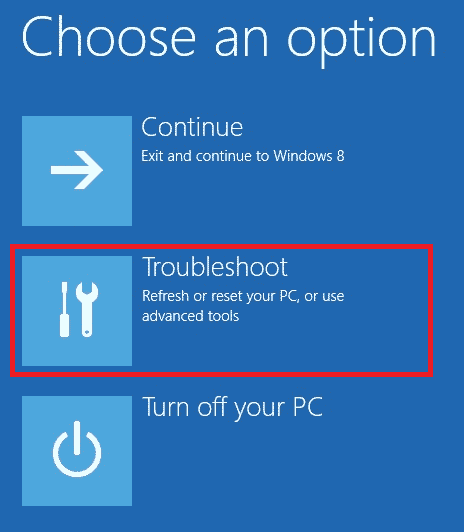
- Click on the option Advanced options .

Step II: Select Windows Disk using Diskpart Command
- Click on the Command Prompt option.

- Type the diskpart command and press the Enter key to use the Diskpart command.

- Type the list disk command and press the Enter key to view the partitions on the PC.

- Type the select disk 0 command and press the Enter key to select the Partition disk that contains Windows.

Step III: Create EFI Partition & Copy Windows Files
- Type the following command and press the Enter key to create a new partition.
create partition efi

- Type the following command and press the Enter key to format the drive to Windows architecture.
format quick fs=fat32

- Type the list volume command and press the Enter key to know the volume in which the Windows is installed.

- Type the following command and press the Enter key to copy the boot files to the EFI partition drive.
bcdboot E: \windows

Note: For explanatory purposes, the partition drive E is chosen. You have to replace the partition drive with Windows in place of E in the command.
- Unplug the installation media from the port and restart your PC.
Method 4: Set BIOS to Default Settings
Another method to fix Bios problem is to set it to the default setting on the BIOS setup screen:
- Firstly Shutdown your PC.
- Press the power button, then hit the Delete key to enter into the BIOS setup.
Note: You can learn the method to enter into BIOS as per the PC manufacturer using the link given here.

- Click on the Load Setup Defaults option and click on the Yes option on the confirmation message.

- Log in to your user account using your credentials and check if the issue is resolved.
Method 5: Rebuild MBR (For Legacy BIOS Users)
To fix the Boot device problem, you have to repair the Windows Boot Loader and Windows Boot files. To do so, you can rebuild the MBR or Master Boot Record on your PC. Use the link provided here to know the method to rebuild MBR on your PC.

Method 6: Disable Legacy Boot (For UEFI Only)
If your PC has UEFI instead of BIOS, you can try disabling the Legacy Boot option to fix the issue. Use the link given here to learn the method to disable the Legacy Boot on your Windows PC.

Method 7: Perform System Restore
The Registry Editor may be filled with incomplete or corrupt/infected files of uninstalled applications and can cause a lot of errors. To fix the issue with the Support boot and improve the PC performance, perform a System Restore .

Method 8: Repair Install Windows
As last resort, you can repair install Windows on your PC.

Recommended: Fix The System Found Unauthorized Changes on the Firmware Operating System or UEFI Drivers
