
Ways to Fix Amazon Prime Error Code 7136
What Does Amazon Prime Error 7136 Mean?
How to Fix Amazon Prime Error Code 7136
Method 1: Troubleshoot Internet Connection
Method 2: Wait for Server Uptime
Method 3: Restart Fire TV
Method 4: Restart Amazon Prime Video App
Method 5: Clear Amazon Prime Cache Files
Method 6: Update Amazon Prime
Method 7: Update TV OS
Method 8: Reinstall Amazon Prime
Method 9: Contact Amazon Prime Customer Support
Slow internet connection
Amazon Prime server downtime
Too many cache files
Unresolved bugs in your device
Outdated app version
Outdated TV OS
Method 1: Troubleshoot Internet Connection
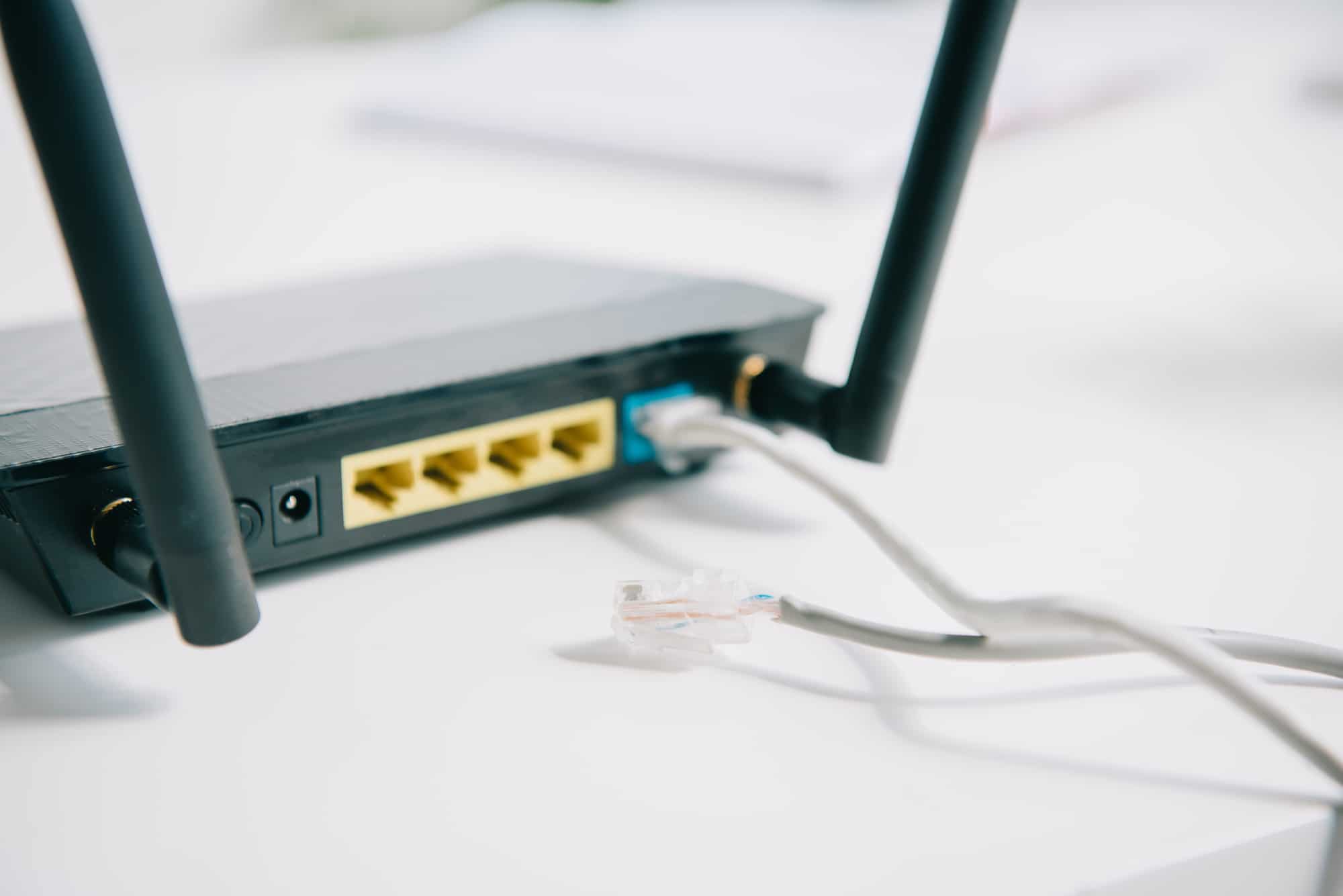
As mentioned earlier, the said error can be a result of a weak internet connection. This can further cause buffering which is something no one likes. Accordingly, the first thing you need to do is troubleshoot your internet connection. You can follow our guide on Slow Internet Connection? 10 Ways to Speed up your Internet .
Method 2: Wait for Server Uptime

Method 3: Restart Fire TV
Press the home button and go to Settings .
Next, find Applications .

- Select Manage Installed Applications from the list.

- Finally, select Force stop .

Go to Settings on the homescreen.
Select Applications and choose Manage Installed Applications .

- Finally, choose Clear cache .

- Go to Settings followed by Applications .

Select Appstore .
Now here toggle ON Automatic Updates .

Doing so will automatically update all the apps on your TV.
Method 7: Update TV OS
- Navigate to Settings and select My Fire TV .

Select About .
Select Install Update.
Note: If you see Check for Updates then it means no new update version is available for your TV OS.
Go to Settings and choose Applications .
Select Manage Installed Applications .

- Select the Find option available on the home screen.


- Tap on the result and select Download option.

Recommended:
- Fix Modern Warfare 2 Error Travis Shipton
- 27 Best YouTube Playlist Downloader
- What is Amazon Prime PMTS Bill WA?
- Fix Insufficient Bandwidth Error on Amazon Prime Video
