A Network Change Detected is a common error message that has been seen by various Google Chrome users. Generally, this error occurs due to various Chrome issues, such as excessive browsing history and corrupt extensions. Often, you can simply fix this issue by refreshing the page. However, at other times you may need to perform more advanced methods to fix the issue. In this guide, we will discuss methods to fix a network change was detected Chrome issues. Therefore, if you are someone who is having this issue on Google Chrome, this is the guide for you.

- How to Fix Network Change Was Detected Error
- Method 1: Basic Troubleshooting Methods
- Method 2: Delete Unwanted Network
- Method 3: Update Windows
- Method 4: Flush DNS Cache
- Method 5: Modify Proxy Settings
- Method 6: Clear Browsing Data
- Method 7: Disable Chrome Extensions
- Method 8: Update Google Chrome
- Method 9: Reset Google Chrome
How to Fix Network Change Was Detected Error
There can be various reasons for this error on Google Chrome. However, we have mentioned a few possible reasons for this error.
- Improper loading of the web page is a common reason for this issue.
- Improper loading of the Google Chrome browser can also cause this error.
- Various system issues such as improper booting can also cause this error.
- Improper WiFi router connections can also cause this issue.
- Various unwanted and unnecessary network connections saved on your computer can cause this issue with Google Chrome.
- Outdated or corrupt Windows updates can also cause this issue.
- Excess browsing data on your Google Chrome browser can cause this issue.
- A corrupt Chrome extension can also cause this issue.
- An outdated Google Chrome browser is also sometimes responsible for this issue.
- Improper DNS settings are also responsible for this issue.
In the following guide, we will discuss methods to fix network change was detected error Chrome issues.
Method 1: Basic Troubleshooting Methods
The following are some of the simple and basic troubleshooting methods to fix this issue.
Option I: Reload Web Page
One of the first steps that you can take to fix the issue, is to simply reload the web page. Reloading the page will force Google Chrome to download the website content again, and in turn, will possibly fix a network change was detected Chrome issue.
- Locate and click on the circular icon on the top-left side of the window.

- You can also press the Ctrl + R keys together to reload the web page.
Option II: Restart Google Chrome
If reloading does not help with the issue, you can try to close Google Chrome, and relaunch it. It is a simple fix, that can help you get away with issues caused by improper loading of the browser. if restarting Google Chrome does not fix the issue, try the next method.
Option III: Restart Computer
If the previous methods do not help, and the issue remains with Google Chrome, you can try to restart your computer. Restarting the computer will reboot your system and resolve any network issues that may be caused by your computer.
Click on the Start icon on your computer.
Now, click on the Power icon.

- Finally, click on Restart.

Option IV: Restart Router
If even restarting your computer does not help, you should check with your WiFi router. If the WiFi router is not connected properly, you may have various issues while using Google Chrome. Fixing WiFi connections is one of the basic methods that you can try to fix network change was detected error Chrome issues. Generally, network errors with Google Chrome are caused by improper router connections. Therefore, make sure that you have connected your router properly to avoid a network change was detected Chrome.
- Long press the Power Button on your router.

Once the router has been turned off, unplug the router from the main switch.
Wait a couple of minutes, reconnect the cable, and turn on the WiFi router.
Method 2: Delete Unwanted Network
When your Windows computer is trying to connect to multiple networks on your computer, it may cause this error with Google Chrome . Therefore, if you have saved multiple networks on your computer, it is time to delete some of the unwanted networks. You can follow these simple steps to delete unwanted networks on your computer.
Press the Window + I keys simultaneously to open Settings .
Here, click on Network & internet .

- Now, from the left-side panel, navigate to Wi-Fi .

- Locate and click on Manage known networks .

- Select the WiFi network, and click on Forget.

Method 3: Update Windows
Often, this issue can also be caused due to outdated or corrupt Windows updates. Many users were able to fix this issue by manually installing updates for Windows 10 computers. Generally, Windows updates are installed automatically. However, if you are experiencing various issues with your computer, including network configuration issues with Google Chrome, you can try to install Windows updates on your computer. If you are not sure how to manually update Windows on your computer, you can check out the How to Download and Install Windows 10 Latest Update guide to know all the steps to safely install the latest updates and fix network change was detected error Chrome.

Method 4: Flush DNS Cache
One of the most effective methods to fix a network change was detected Chrome issue on your Windows computer is to flush down and reset the DNS settings. If you are not sure how to flush DNS on your computer, you can check out the How to Flush and Reset DNS Cache in Windows 10 guide to safely perform this method.

Method 5: Modify Proxy Settings
Often, proxy settings can interrupt network connections and cause various issues with Google Chrome. Therefore, it is a good idea to check proxy settings to fix this issue. If you are not sure how to change proxy settings on your computer, you can check out the How to Disable VPN and Proxy on Windows 10 guide to fix the issue.

Method 6: Clear Browsing Data
One of the common methods to fix a network change was detected Chrome issue is to clear the browsing data in Chrome. Extensive data stored in your browser history is often associated with various browser errors. Many users found that clearing browsing data fixed this issue on their computers. You can follow these simple steps to clear your browsing data.
- Open Google Chrome from the Start Menu .

- Locate and click on the three-dot icon on the top-right of the window.

- Locate and click on History .

- Now, click on Clear browsing data from the left-side panel.

- Select Browsing data, Download history, Cookies and other site data, and Cached images and files .

- Click on Clear data .

Method 7: Disable Chrome Extensions
If clearing the browsing data does not help with the issue, you should check with one of the Chrome extensions. If a browser extension has gone corrupt, it can cause various errors, and interrupt the browsing experience. You can follow these simple steps to disable an extension on your Google Chrome browser to fix this issue.
- Open Google Chrome from the Start Menu .

- Locate and click on the three-dot icon on the top-right of the window.

- Locate and click on More tools, and then click on Extensions .

- Locate the problematic extension, and turn off the toggle to disable it.

Method 8: Update Google Chrome
If the previous methods do not help, you can try to fix this issue by updating Chrome. Generally, Google Chrome updates automatically. However, if you are having various troubles while searching the internet, you can try to manually update Chrome to fix the issue. You can follow these simple steps to update Google Chrome to fix this issue.
- Open Google Chrome from the Start Menu .

- Locate and click on the three-dot icon on the top-right of the window.

- Locate and click on Settings .

- From the left side panel, click on About Chrome .

- Here, check for available updates and install if any.

Method 9: Reset Google Chrome
If none of the previous methods work and you can’t figure out what has caused a network change was detected Chrome issue. You can consider resetting Google Chrome.
- Open Google Chrome from the Start Menu .

- Locate and click on the three-dot icon on the top-right of the Window.

- Locate and click on Settings .

- From the left-side panel, navigate to Reset and clean up .

- Here, click on Restore settings to their original defaults .

- Finally, click on Reset settings to make the changes.

Q1. What is a network change error in Google Chrome?
Ans. A network change error is a common error in Google Chrome and can be caused due to various interruptions in the network connection.
Q2. How to fix a network change error in Google Chrome?
Ans. You can try to fix a network change error in Google Chrome by clearing the browsing data and flushing the DNS settings.
Q3. Can I disable an extension on Chrome?
Ans. Yes , you can disable an extension in Google Chrome. This will stop the extension functions in the browser.
Recommended:
- 11 Easy Solutions to Fix Apps Not Working on Samsung TV
- IMAP vs POP3: Difference and Comparison
- Fix Slow Network Printing in Windows 10
- Fix Windows 10 Network Profile Missing Problem
We hope this guide was helpful to you and you were able to fix network change was detected issue. Let us know which method worked best for you. If you have any suggestions or queries for us, please let us know in the comment section.

- How to Fix Slow Network Printing in Windows 10
- Method 1: Troubleshoot Printer Connection
- Method 2: Run Printer Troubleshooter
- Method 3: Update Windows
- Method 4: Modify Printer Preferences
- Method 5: Repair System Files
- Method 6: Verify Printer Port Settings
- Method 7: Delete Temporary files (Print Spooler)
- Method 8: Change Print Spooler Recovery Settings
- Method 9: Update or RollBack Printer Driver
- Method 10: Reinstall Printer Drivers
- Method 11: Remove & Add Printer Again
How to Fix Slow Network Printing in Windows 10
Here are some indispensable reasons that cause delay in printing to network printer on your Windows 10 PC. Read them carefully to find which one troubles you.
- Printer is not turned on.
- Printer is not connected to your computer.
- The Wi-Fi or USB connection is not set properly.
- A loose connection or outdated USB drivers also causes trouble.
- Few essential services are not running on your PC.
- A large list of files is queued for the further printing process.
- The operating system is outdated.
- There are a few corrupt and broken components of internal files on your PC.
If your internet connection is unstable and inadequate. this could cause a slow network printing issue. If there is any interference or obstacles between your PC and router, it might also cause the discussed problem.
Check the network speed of your computer by running a Speedtest .

Follow the below criteria and make sure these are satisfied by your computer.
- Clear all the obstructions in between the way of the router if the signal strength of your network is very low.
- Your internet connection might be slow if many devices are connected to the same network, so try to avoid it.
- Always prefer buying a router or modem that is verified by your ISP (Internet Service Provider).
- It is not recommended to use old, damaged, or broken cables, replace the cables if it is necessary.
- Make sure that wires of the modem to the wall and wires from the modem to the router are out of any disturbance.
If you face any internet connectivity issues, check our guide How to Troubleshoot Network Connectivity Problems on Windows 10 to troubleshoot the same.

Here are some amazing hacks that will help you fix slow printing problem on your device. But, before following the below-mentioned methods, reboot your Windows 10 PC to resolve any temporary glitches associated with the device. If you did not attain any fix for the issue after rebooting your computer, follow the below-mentioned methods.
Method 1: Troubleshoot Printer Connection
When you face delay in printing to network printer, the device wants to tell users that there is something wrong with the communication established between the printer and the system through the USB cable or network connection. To solve this issue, ensure whether the following steps are satisfied or not.
- To restart your printer , turn off the power supply of the printer & then switch it ON again .
- Now again check the connection of your printer .
- If you have connected your printer using a USB cable, make sure your cable is working properly and the connections to the ports are fitted tight. You could also switch the USB port to see if this resolves the problem.
- If you have connected your printer through wired networks, check whether the connection to your cable is properly done or not. Also, you can check whether the signal to your printer is flashing or not.
- If the connection of your system with the printer is made through a wireless network, make sure your printer is connected to your computer network & the wireless icon will lit-up to show that you are connected.
Method 2: Run Printer Troubleshooter
The easiest and quickest way to solve any problem with a device or a feature is to run the troubleshooter associated with it. Windows 10 includes a troubleshooter tool for a wide variety of issues, and printer problems are also one of them. The Printer troubleshooter automatically performs several actions like restarting the print spooler service, clearing corrupt spooler files, checking whether the existing printer drivers are outdated or corrupt, etc. Refer to the steps listed below to run Printer Troubleshooter.
Press Windows + I keys simultaneously to launch Settings .
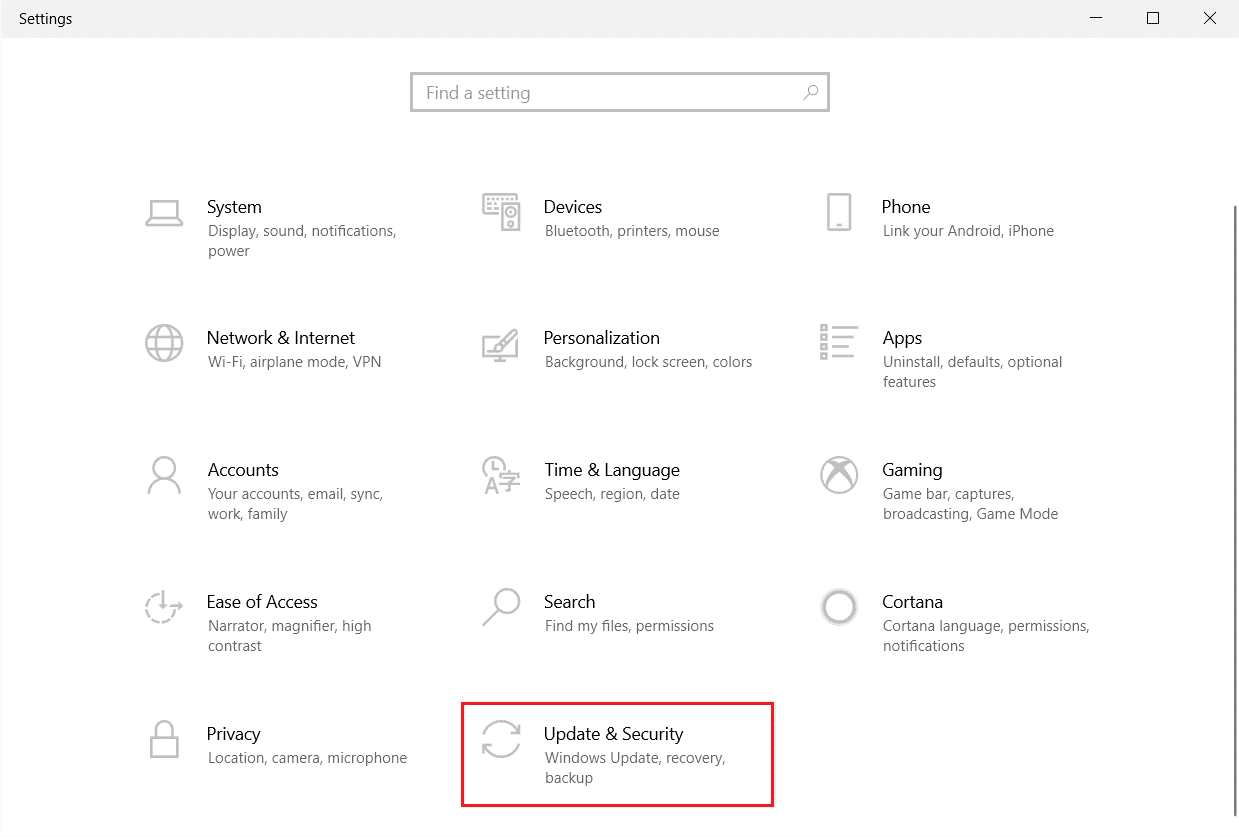
Click on the Update & Security tile, as shown.
Go to Troubleshoot menu in the left pane.
Select Printer troubleshooter and click on Run the troubleshooter option.

- Wait for the troubleshooter to detect issues and follow the on-screen instructions to apply the fix.
Check if you have fixed slow network printing Windows 10 issue.
Method 3: Update Windows
Also, if there are any bugs in your PC, they can only be fixed after a Windows update . Microsoft releases regular updates to fix all these bugs thereby fixing slow network printing Windows 10 issue. Hence, ensure if you have updated your Windows Operating System and if there are any updates pending in action, use our guide How to Download and Install Windows 10 Latest Update

After updating your Windows Operating System, check whether you can print pages without any issues.
Method 4: Modify Printer Preferences
It is a well-known fact that, the quality settings of your printer consume different amounts of ink levels as well. If the printing quality is set to Best, then the printing speed will be definitely slow. You can change the printer preferences as instructed below.
- Hit the Windows key and type Printers & scanners , then click on Open .

- Then, select your printer and click on Manage .

- Now, click on Printing preferences .

In the next window, switch to the Paper/Quality tab and choose Plain Paper in the Media / Paper Type field under the Tray Selection menu.
Then, select Draft, Normal or Standard under the Quality Settings or Print Quality menu.
Save the changes by pressing OK . Now, check if the printing speed is increased or not.
Method 5: Repair System Files
If there are any corrupt system files in your Windows Operating system, your PC may face a lot of internet connectivity issues. If you are experiencing slow network printing Windows 10 issue very recently, there are some chances that your computer files have become corrupt or damaged. Luckily, your Windows 10 PC has inbuilt repair tools like SFC (System File Checker) and DISM (Deployment Image Servicing and Management) that will help you fix all the corrupt files. Read our guide on How to Repair System Files on Windows 10 and follow the steps as instructed to repair all your corrupt files.

Method 6: Verify Printer Port Settings
Few users have suggested that slow printing problem on your device can be resolved by tweaking some printer port settings as instructed below.
- Hit the Windows key and type Control panel , and click on Open .

- Set View by > Category , then click on the View devices and printers .

- Now, right-click on your printer and select Properties .

Switch to the Ports tab and find the port to which your device is connected.
Then, click the checkbox that hosts the USB pin of the printer.
Save the changes by clicking Apply > OK .
Note: It is also quite possible that your printer is working just fine, but you have been sending the print request to the wrong printer. This might be the case if there are multiple printers installed on your computers. Set the one you are trying to use as the default printer to resolve the issue. Hence, right-click on your printer and select Set as default printer .

Method 7: Delete Temporary files (Print Spooler)
A print spooler is a mediating file/tool that coordinates between your computer and the printer. The spooler manages all the print jobs you send to the printer and lets you delete a print job that is still being processed. Problems might be encountered if the Print Spooler service is corrupt or if the temporary files of the spooler become corrupt. Restarting the service and deleting these temporary files should help you to fix slow printing Windows 10 problems on your computer.
Note: Before we delete the print spooler files, we will need to halt the Print Spooler service that constantly runs in the background.
- Hit the Windows key and type Services , then click on Open .

- Scan the list of Local Services to find the Print Spooler service. Once found, right-click on the Print Spooler service and select Properties from the context menu (or double-click on a service to access its properties)
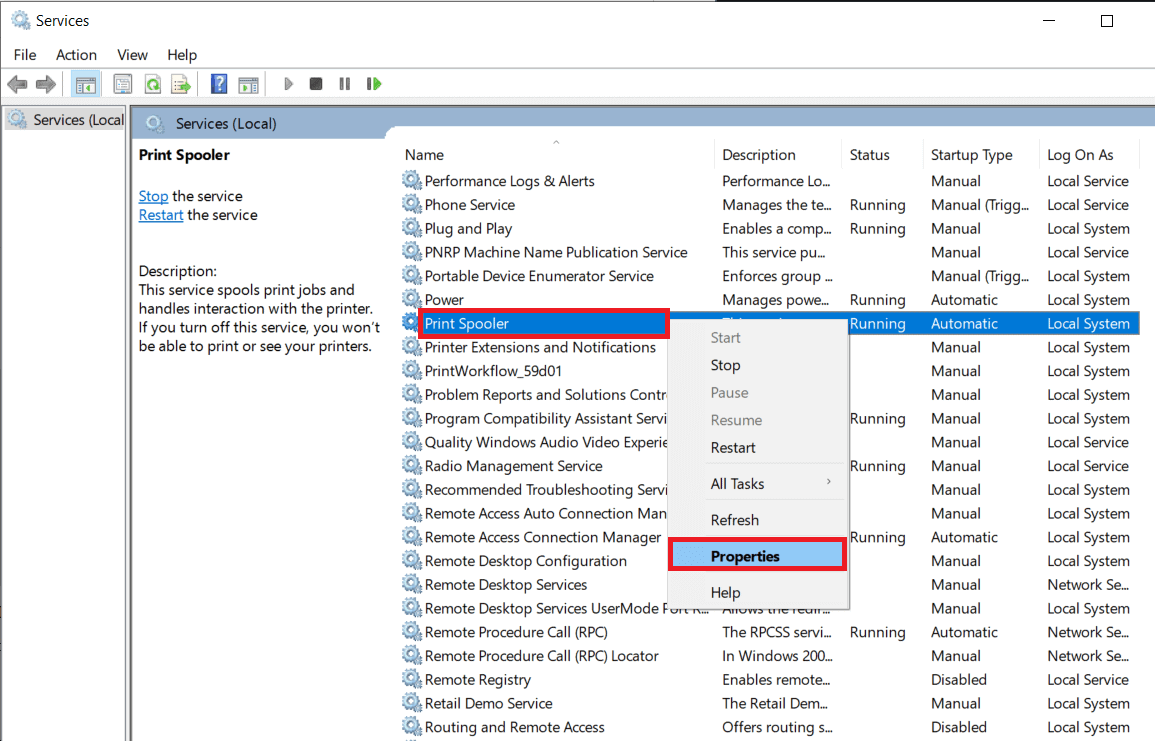
- Click on the Stop button to stop the service.
Note: Minimize the Services window instead of closing as we will need to restart the service after deleting the temporary files.

- Now, open up the Windows File Explorer (Windows key + E) and navigate to the following path – C:\WINDOWS\system32\spool\printers .
Note: You can also launch the run command box, type %WINDIR%\system32\spool\printers , and hit Enter to reach the required destination directly.

Press Ctrl + A to select all the files in the printer’s folder and hit the delete key on your keyboard to delete them.
Maximize/switch back to the Services application window and click on the Start button to restart the Print Spooler service.

You should now be able to fix slow network printing problem and be able to print your documents without any issues.
Method 8: Change Print Spooler Recovery Settings
Any incorrect recovery settings configuration of the print spooler service may also cause delay in printing to network printer. Therefore, you need to make sure that recovery settings are correct otherwise Printer spooler will not start automatically.
Open the Services window as you did earlier.
Locate Print Spooler then right-click on it and select Properties.

- Switch to the Recovery tab and ensure that three failure tabs are set to Restart the Service.

- Click Apply followed by OK to save the settings.
Now see if you’re able to fix the problem in your printer.
Method 9: Update or RollBack Printer Driver
Every computer peripheral has a set of software files associated with it to communicate with your computer and the OS effectively. These files are known as device drivers. These drivers are unique for each device and manufacturer. Also, it is important to have the correct set of drivers installed in order to use an external device without facing any issues.
Option I: Update Printer Driver
Drivers are also constantly updated to stay compatible with the new Windows versions. If your drivers are not updated to their latest versions, update them by following our guide How to Update Device Drivers on Windows 10 .

Option II: Roll Back Printer Driver Updates
Sometimes, the current version of printer drivers may cause any conflicts and, in this case, you have to restore previous versions of installed drivers. This process is called Roll back of drivers and you can easily roll back your computer drivers to their previous state by following our guide How to Rollback Drivers on Windows 10 .

Wait until the previous versions of drivers are installed on your Windows 10 PC. Once done, check if you have fixed slow printing problem on your device.
Method 10: Reinstall Printer Drivers
Incompatible drivers must be reinstalled to fix slow printing Windows 10 issues. You are advised to reinstall device drivers only if you cannot attain any fix by updating them. Steps to reinstall drivers are very easy and you can do so by using a third-party application or by implementing the steps manually as instructed in our guide How to Uninstall and Reinstall Drivers on Windows 10

After reinstalling printer drivers, check if you can fix the discussed issue.
Note: Few users have suggested that re-installing printer drivers in compatibility mode have helped them fix the discussed issue. Here are a few instructions regarding the same.
- After uninstalling the driver go to your printers manufacturer’s website (e.g. Hp ) and download the latest drivers for your printer.

- Right-click on the setup file and select Properties.
Note: If the drivers are in a zip file make sure to extract all the files and then right-click on the .exe file.

Switch to the Compatibility Tab and click on Run this program in Compatibility mode .
From the drop-down select Windows 7 or 8 and then click on Run this program as an administrator .

Finally, double-click on the setup file and wait for the drivers to be installed on your device.
Once finished, reboot your PC and see if you can fix the printing issue on Windows 10 PC is fixed or not.
Method 11: Remove & Add Printer Again
If all these steps do not work to fix delay in printing to network printer, you might need to completely uninstall the existing drivers and the printer and then reinstall them. The process of doing the same is simple but rather lengthy but this seems to fix the discussed issue on your Windows PC. Anyway, below are the steps to remove and add your printer back.
- Launch the Windows Settings and select Devices setting.

- Move to the Printers & scanners settings in the left pane.
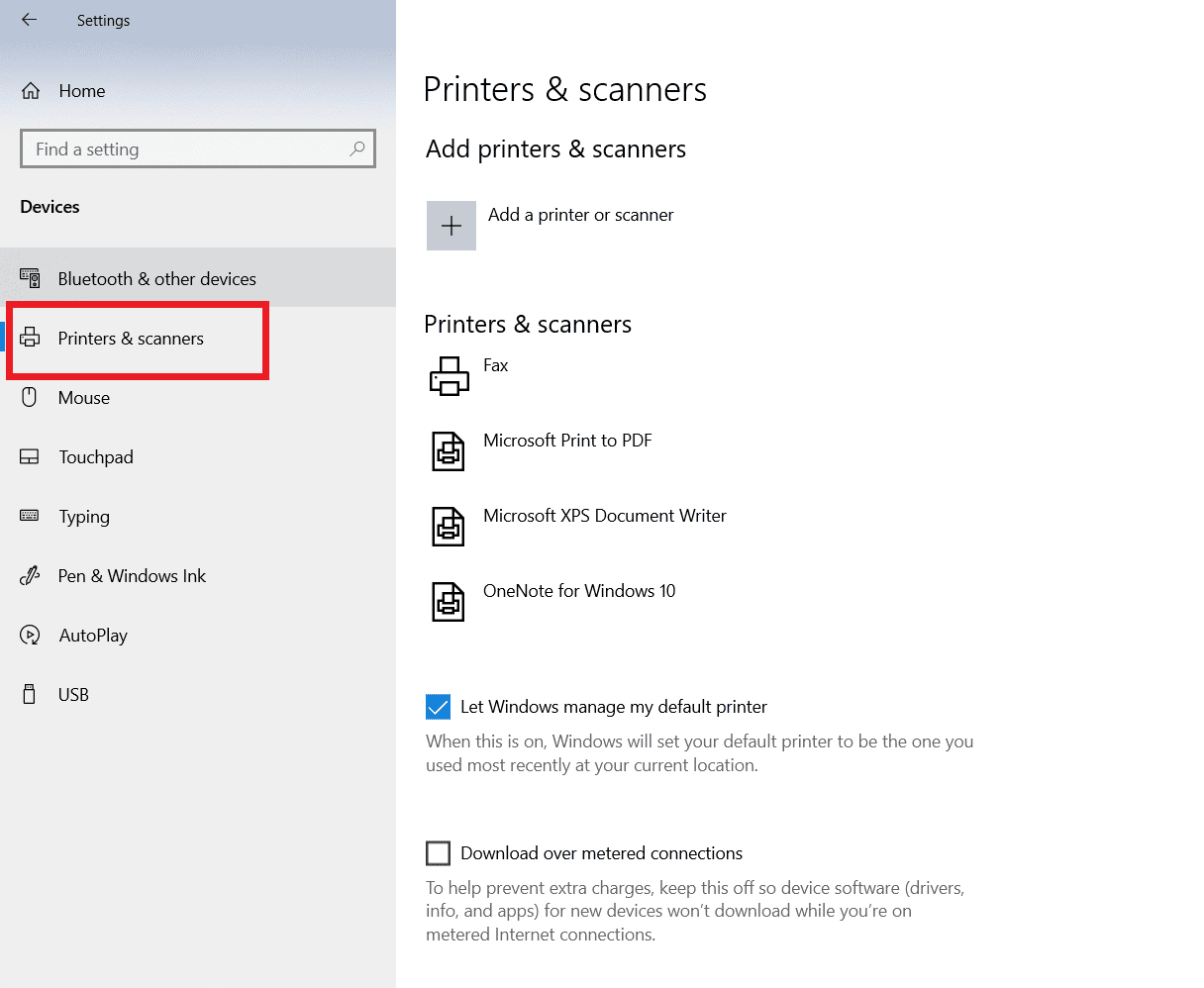
- Find the problematic printer in the right-side panel and single click on it to access its options. Select Remove Device , let the process complete, and then close Settings.

- Click on Windows keys and type Print Management in the search bar, then click on Open

- Double-click on All Printers (in the left panel or right panel, both are fine) and press Ctrl + A keys together to select all connected printers.

- Right-click over any printer and select Delete .

Now, it is time to add the printer back, but first, unplug the printer cable from your computer and perform a restart. Once the computer boots back on, properly reconnect the printer.
Follow steps 1 and step 2 of this method to open the Printer & Scanner settings .
Click on the Add a printer & scanner button at the top of the window.

- Windows will now automatically start looking for any connected printers. If Windows successfully detects the connected printer, click on its entry in the search list and select Add device to add it back otherwise, click on The printer that I want isn’t listed hyperlink.

- In the following window, select the appropriate option by clicking on its radio button and click on Next .
Note: For example, select My printer is a little older. Help me find it if your printer doesn’t use USB for connection or select Add a Bluetooth, wireless, or network discoverable printer to add a wireless printer.

- Now, reinstall your printer .
Now that you have successfully reinstalled your printer, try printing a test page to ensure everything is right back on track.
- Hit Windows + I keys to open Settings and click on Devices .
- On the Printers and Scanners page, click on the printer you just added back and would like to test, followed by a click on the Manage button.

- Finally, click on the Print a test page option. Muffle your ears & listen carefully for the sound of your printer printing a page and rejoice.

Recommended:
- Fix Intel Wireless AC 9560 Not Working
- Fix 0x800f0831 Windows 10 Update Error
- Fix Epson Scanner Cannot Communicate in Windows 10
- Fix Error Printing in Windows 10
