When you use an application or play games, and suddenly it freezes, crashes or exit followed by your PC screen going off and then turning back on again. And suddenly you see a pop-up error message saying “Display driver stopped responding and has recovered” or “Display driver nvlddmkm stopped responding and has successfully recovered” with driver info in details. The error is displayed when Timeout Detection and Recovery (TDR) feature of Windows determines that the Graphics Processing Unit (GPU) has not responded within the allowed time frame and have restarted the Windows Display Driver to avoid a full restart.

The main cause of Display driver stopped responding and has recovered error:
- Outdated, corrupted or incompatible Display Driver
- Faulty Graphic Card
- Overheating Graphics Processing Unit (GPU)
- TDR’s set timeout is less for the GPU to respond
- Too many running programs causing the conflict

These are all the possible causes that can trigger the “Display driver stopped responding and has recovered” error. If you started seeing this error more frequently in your system, it’s a serious issue and needs troubleshooting, but if you see this error once in a year, it’s not a problem, and you can continue to use your PC normally. So without wasting any time, let’s see how to actually fix this error with the below-listed troubleshooting steps.
- Display driver stopped responding and has recovered error [SOLVED]
- Method 1: Uninstall Graphic Card Driver
- Method 2: Update Graphic Card Drivers
- Method 3: Adjust visual effects for better performance
- Method 4: Increase GPU processing time (Registry Fix)
- Method 5: Update DirectX to the Latest Version
- Method 6: Make Sure the CPU and GPU are not Overheating
- Method 7: Set Hardware to Default Settings
- Method 8: Faulty Hardware
Display driver stopped responding and has recovered error [SOLVED]
Make sure to create a restore point just in case something goes wrong.
Method 1: Uninstall Graphic Card Driver
- Right-click on your NVIDIA graphic card under device manager and select Uninstall.
![right click on NVIDIA graphic card and select uninstall | Display driver stopped responding and has recovered error [SOLVED] - 3](https://techcult.com/wp-content/uploads/2017/06/right-click-on-NVIDIA-graphic-card-and-select-uninstall.png)
If asked for confirmation, select Yes.
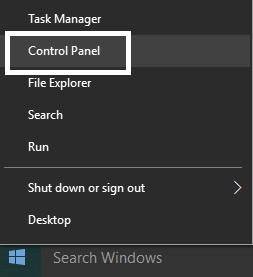
Press Windows Key + X then select Control Panel.
- From Control Panel, click on Uninstall a Program.

- Next, uninstall everything related to Nvidia.

Reboot your system to save changes and again download the setup from the manufacturer’s website.
Once you are sure that you have removed everything, try installing the drivers again . The setup should work without any problems.
Method 2: Update Graphic Card Drivers
- Press Windows Key + R then type devmgmt.msc and hit enter to open Device Manager.
![devmgmt.msc device manager | Display driver stopped responding and has recovered error [SOLVED] - 7](https://techcult.com/wp-content/uploads/2016/06/devmgmt.msc-device-manager.png)
- Next, expand Display adapters and right-click on your Nvidia Graphic Card and select Enable.
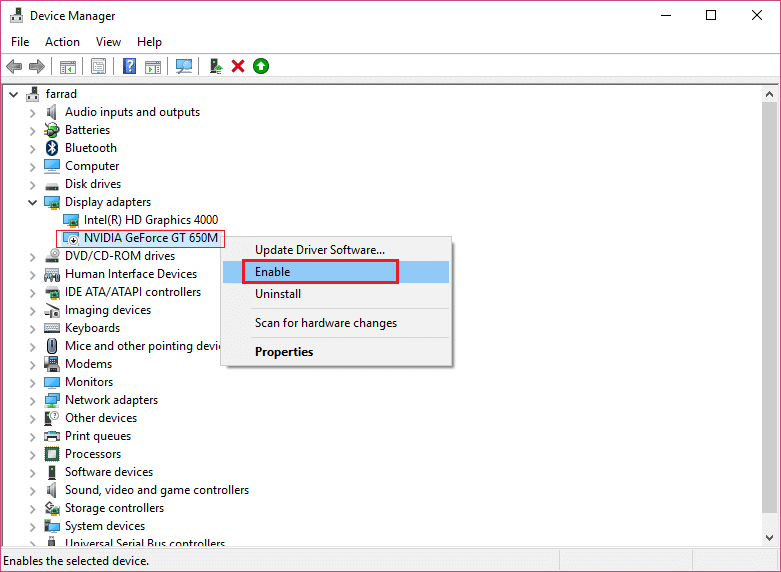
- Once, you have done this again, right-click on your graphic card and select “ Update Driver Software. ”

- Select “ Search automatically for updated driver software ” and let it finish the process.
![Select Search automatically for updated driver software | Display driver stopped responding and has recovered error [SOLVED] - 10](https://techcult.com/wp-content/uploads/2017/07/Select-Search-automatically-for-updated-driver-software.png)
If the above step could fix your problem, then very good, if not then continue.
Again select “ Update Driver Software ” but this time on the next screen select “ Browse my computer for driver software. ”

- Now. select “ Let me pick from a list of device drivers on my computer .”

Finally, select the compatible driver from your Nvidia Graphic Card list and click Next.
Let the above process finish and restart your PC to save changes. After updating the Graphic card, you may be able to Fix Display driver stopped responding and has recovered error.
Method 3: Adjust visual effects for better performance
Too many programs, browser windows or games open at the same time can use up a lot of memory and thus cause the above error. To fix this issue, try to close as many programs and windows that are not in use.
Increasing the performance of your system by disabling visual effects can also help to resolve Display driver stopped responding and has recovered error:
- Right-click on This PC or My Computer and select Properties.
![Right-click on This PC or My Computer and select Properties | Display driver stopped responding and has recovered error [SOLVED] - 13](https://techcult.com/wp-content/uploads/2017/07/Right-click-on-This-PC-or-My-Computer-and-select-Properties.jpg)
- Then click Advanced system settings from the left-hand menu.

Note: You could also directly open Advanced system settings by pressing Windows Key + R then type sysdm.cpl and hit Enter.
- Switch to Advanced tab if not already there and click Settings under Performance.

- Now select the checkbox which says “ Adjust for best performance. ”
![Select Adjust for best performance under Performance Options | Display driver stopped responding and has recovered error [SOLVED] - 16](https://techcult.com/wp-content/uploads/2017/07/Select-Adjust-for-best-performance-under-Performance-Options.png)
Click Apply, followed by OK.
Reboot your PC to save changes.
Method 4: Increase GPU processing time (Registry Fix)
- Press Windows Key + R then type regedit and hit Enter to open Registry Editor.

- Navigate to the following registry key:
HKEY_LOCAL_MACHINE\SYSTEM\CurrentControlSet\Control\GraphicsDrivers

- Make sure you have highlighted GrphicsDivers from the left-hand window pane and then right-click in an empty area in the right window pane. Click New and then select the following registry value specific to your version of Windows (32 bit or 64 bit):
For 32-bit Windows:
a. Select DWORD (32-bit) Value and type TdrDelay as the Name.
b. Double click on TdrDelay and enter 8 in the Value data field and click OK.

For 64-bit Windows:
a. Select QWORD (64-bit) Value and type TdrDelay as the Name.
![Select QWORD (64-bit) Value and type TdrDelay as the Name | Display driver stopped responding and has recovered error [SOLVED] - 20](https://techcult.com/wp-content/uploads/2017/07/Select-QWORD-64-bit-Value-and-type-TdrDelay-as-the-Name.jpg)
b. Double click on TdrDelay and enter 8 in the Value data field and click OK.

- Close the Registry Editor and reboot your PC to save changes.
Method 5: Update DirectX to the Latest Version
To Fix Display driver stopped responding and has recovered error, you should always update your DirectX. The best way to make sure you have the latest version installed is to download DirectX Runtime Web Installer from Microsoft’s official website.
Method 6: Make Sure the CPU and GPU are not Overheating
Make sure that the temperature of the CPU and GPU do not exceed the maximum operating temperature. Make sure the heatsink or fan is being used with the processor. Sometimes excessive dust can cause overheating issues, so it’s advised to clean out the vents and graphic card to fix this issue.

Method 7: Set Hardware to Default Settings
An overclocked processor (CPU) or Graphics card can also cause the “Display driver stopped responding and has recovered” error and to resolve this make sure you set the Hardware to default settings. This will ensure that the system is not overclocked and the hardware can function normally.
Method 8: Faulty Hardware
If you’re still unable to fix the above error, then it may be because the graphic card is faulty or damaged. To test your hardware, take it to a local repair shop and let them test your GPU. If it’s faulty or damaged replace with a new one and you will be able to fix the issue once and for all.

Recommended:
- Fix Hidden Attribute option greyed out
- How to Fix Default Printer Keeps Changing Issue
- Fix Webcam not working in Windows 10
- Fix Windows Time service doesn’t start automatically
That’s it you have successfully Fix Display driver stopped responding and has recovered error [SOLVED] but if you still have any questions regarding this post then feel free to ask them in the comment’s section.
Fix Default Printer Keeps Changing Issue: In Microsoft latest operating system which is Windows 10, they have removed the Network Location aware feature for Printers and because of this, you can’t set the default printer of your choice. Now the default printer is set automatically by Windows 10 and is generally the last printer you selected. If you want to change the default printer and don’t want it to automatically change then follow the below-listed troubleshooting guide.

- Default Printer Keeps Changing [SOLVED]
- Method 1: Disable Windows 10 to Automatically Manage your Printer
- Method 2: Manually Set the Default Printer
- Method 3: Registry Fix
Default Printer Keeps Changing [SOLVED]
Make sure to create a restore point just in case something goes wrong.
Method 1: Disable Windows 10 to Automatically Manage your Printer
1.Press Windows Key + I to open Settings then click Devices.

2.Now from the left-hand menu select Printers & scanners.
- Disable the toggle under “ Let Windows manage my default printer. “

4.Close everything and reboot your PC.
Method 2: Manually Set the Default Printer
1.Press Windows Key + X then select Control Panel.
2.Click Hardware and Sound and then select Devices and Printers.

3.Right-click on your printer and select Set as a default printer.

4.Restart your PC to save changes.
Method 3: Registry Fix
1.Press Windows Key + R then type regedit and hit Enter to open Registry Editor.
2.Navigate to the following registry key:
HKEY_CURRENT_USER\SOFTWARE\Microsoft\Windows NT\CurrentVersion\Windows
3.Double click on LegacyDefaultPrinterMode and change its value to 1.

Note: If the value is not present then you have to manually create this key, right-click in an empty area in the right-hand side window in the registry then select New > DWORD (32-bit) Value and name this key as LegacyDefaultPrinterMode.
4.Click OK and close registry editor. Again set your default Printer by following the above method.
5.Reboot your PC to save changes.
6.If this doesn’t fix the issue then again open Registry Editor and navigate to the following path:
HKEY_USERS\USERS_SID\Printers\Connections HKEY_USERS\USERS_SID\Printers\Settings

7.Delete all the entries present inside these keys and then navigate to:
HKEY_USERS\USERS_SID\Printers\Defaults
8.Delete the DWORD DisableDefault in the right-hand side window and again set your default Printer.
9.Reboot your PC to save the above settings.
- Fix Task Scheduler Error One or more of the specified arguments are not valid
- Fix You can’t sign in to your PC right now error
- Your Device Is Offline. Please Sign In With The Last Password Used On This Device
- Fix Superfetch has stopped working
That’s it you have successfully Fix Default Printer Keeps Changing [SOLVED] but if you still have any questions regarding this guide then feel free to ask them in the comment’s section.
