Modern Warfare 2 features several different playlists that you can choose from. The game features multiplayer playlists like Quick Play with game modes like Search and Destroy, Prisoner Rescue, Knock Out, and many more, and other Tier 1 playlists as well. While the developers are known to introduce multiple modes to their playlists, recently many users started to face failed to update playlist errors in the MW2 game and it was quite an annoying experience. However, we have come to rescue you. In this article, you will learn how to fix this issue.

- How to Fix Call of Duty MW2 Failed to Update Playlist Error
- Reasons for Failed to Update Playlist Error on PC
- Method 1: Troubleshoot Internet Connection
- Method 2: Restart Game
- Method 3: Reboot Game Launcher
- Method 4: Run Game as Administrator
- Method 5: Update Game
- Method 6: Update Network Adapters
- Method 7: Update Windows
- Method 8: Repair Game Files
- Method 9: Remove Files from Main Folder
- Method 10: Disable Windows Firewall (Not Recommended)
- Method 11: Disable Third-Party Antivirus Temporarily (If Applicable)
- Method 12: Reinstall Modern Warfare 2 Game
How to Fix Call of Duty MW2 Failed to Update Playlist Error
Following this article, we will learn about the methods to fix failed to update playlist error PC. But before that let us find out the possible reasons you have to face this error.
Quick Answer Try to clear the game cache and restart the game to fix Failed to Update Playlist error in Call of Duty Modern Warfare 2 (MW2).
Reasons for Failed to Update Playlist Error on PC
Below are the main causes for this MW2 issue:
- Poor internet connectivity
- Corrupt game files
- Interaction by Windows Defender or third-party antivirus
- Outdated game or game launcher
As Modern Warfare 2 for Windows is available both on Steam and Battle.net , we have listed methods for both platforms for our readers.
Method 1: Troubleshoot Internet Connection
As we read above, poor internet speed tends to trigger the cause of Failed to update playlist error MW2 on the device you use. It does so because of the unsteady communication between both ends. This becomes the reason why data files do not load properly when the game starts. For this, read our guide on How to Troubleshoot Network Connectivity Problems on Windows 10 and implement the same.

Method 2: Restart Game
It is possible that there might be a glitch and visible lags in the game after you load it. In such cases, restarting the game would help.
Option I: On Steam
To restart the COD: MW2 game on the Steam launcher on Windows PC
If you are facing the issue currently, exit from the game first.
Click on the LIBRARY tab.

Locate Call of Duty: Modern Warfare 2.
Start it again.
Option II: On Battle.net
To start the game on Battle.net
Shut the game if you have started already and can find the issue.
On the Battle.net app on the PC, locate and select Call of Duty: Modern Warfare 2 .

- Click on the Play option to start the game and verify if the problem still persists.
Method 3: Reboot Game Launcher
If there is no major bug in the app and it is just that a glitch acted when you launched the launcher, just closing and restarting it would help.
Instead of exiting from the launcher app directly by closing it, launch the Task Manager app on the Windows PC.
From the Processes tab in the task manager, locate Steam or Battle.net whichever launcher you use. Right-click on it.
From the dropdown menu, click on End Task .

Method 4: Run Game as Administrator
When any app/game is provided authorization from the admin, it gets complete access to run all resources properly. Often this has been found to resolve most of the errors faced by users.
Right-click on the Steam or Battle.net app.
Click on the option Run as administrator .

From the prompt, select Yes to confirm.
Now load the game to check if the game error is resolved.
If this does fix the Modern Warfare failed to update playlist issue and the game starts to work properly, you can permanently enable this setting for the app by the following steps.
Right-click on the Steam or Battle.net game launcher app.
Click on Properties .

From the pop-up window, tab to Compatibility .
Enable the option to Run the program as an administrator by ticking the box right.
Click on Apply and OK to save.

Method 5: Update Game
When the game is not updated for a long while, the bugs in the software do not resolve and trigger the error of failed to update playlist error MW2. Updating the game downloads the latest version and that ensures to fix all the bugs, if fixed by the developers.
Option I: On Steam
To update the game on the Steam app
Run the Steam app on the PC.
Navigate to Library .
Right-click on the Call of Duty: Modern Warfare 2 game and click on Properties… option.
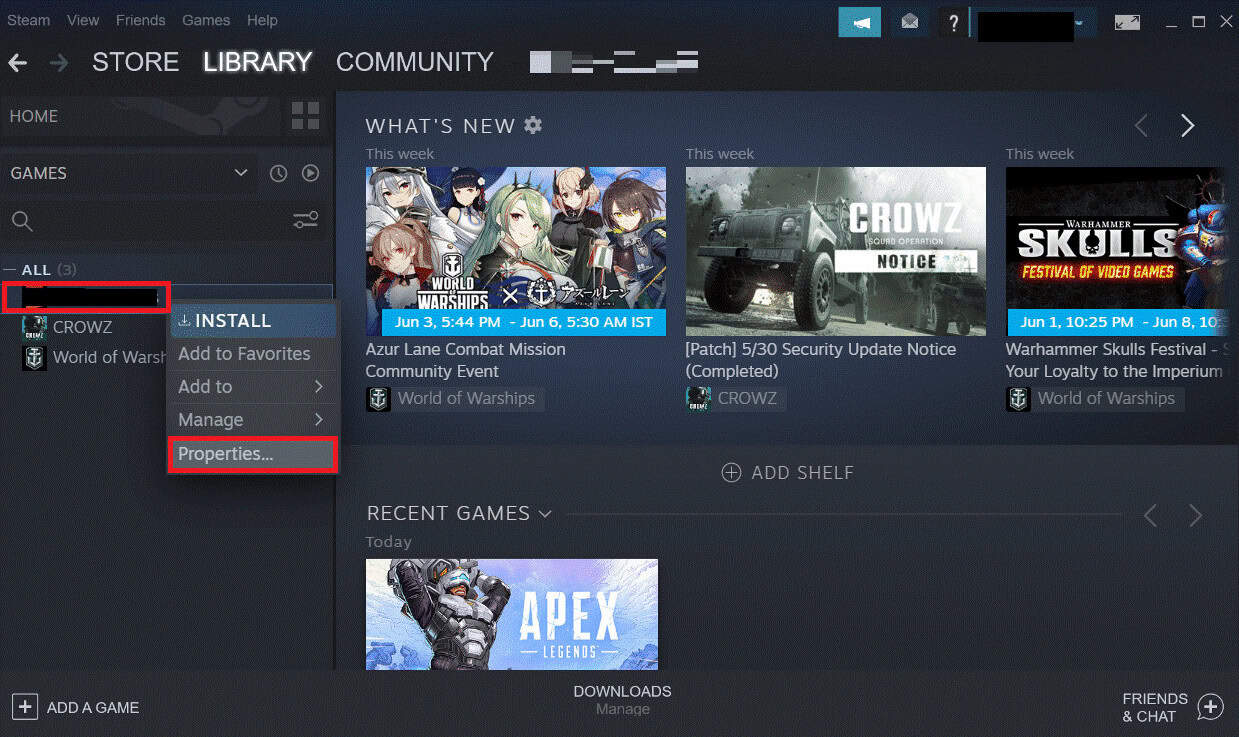
- Now, go to the UPDATES tab and click on Always keep this game updated from the AUTOMATIC UPDATES section, as shown.

Option II: On Battle.net
To update COD: Modern Warfare 2 on the Battle.net app
Launch the Battle.net app on the PC.
Click on COD: Modern Warfare 2 game.

Click on the cogwheel (settings) icon next to the Play button.
Select Check for Updates .
If an update is available, download and install it.
Method 6: Update Network Adapters
Users mostly tend to miss the information about updating the network adapter on their PC. This can also be a factor why you are facing this failed to update playlist error PC error. We suggest our readers to check for updates of the network adapter on the PC, and if there are any, update it to fix the issue they are facing.
- Press the Windows key , type Device Manager , and hit the Enter key .

- Navigate to Network Adapters and double-click on it.

Right-click on the driver that you think needs to be updated.
Click on Update Driver .

- Click on Search automatically for drivers .

- Wait until Windows automatically finds out any update for the driver. Follow the onscreen instructions and install the update for the driver.
Method 7: Update Windows
Many times, it is the issue of proper compatibility between operating software and the applications. Also, there might be chances of bugs in the last Windows update that would have caused the error to a game. To fix failed to update playlist error MW2, you can update the PC and check if that solves the issue.
To update the PC, follow our guide on How to Download and Install Windows 11 Updates .

Method 8: Repair Game Files
Any type of corrupted files from the game can be repaired on the app itself after scanning and verification of the same. This helps most of our readers to fix failed to update playlist error PC.
Option I: Verify Integrity of Game Files On Steam
Users who play the Modern Warfare 2 game on Steam can verify the integrity of the game files and then can repair them in a few steps. To do so read out our guide on how to verify integrity of game files on Stream .

Option II: On Battle.net
Those who play the game on the Battle.net app on PC, have the feature to scan the game files completely and repair automatically any files that are corrupted.
Open the Battle.net launcher on the PC.
Click on the ALL GAMES option at the top.

- Click on My Games in the left panel.

Select Call of Duty: Modern Warfare 2 game.
Click on the Gear icon next to the Play button.
Choose the Scan and Repair option from the menu.
Click Begin Scan from the pop-up.
Battle.net will automatically now begin scanning files and repair the corrupt files.
Method 9: Remove Files from Main Folder
This method is limited to Steam users only where they can remove the main file from the game to fix the issue. It has proven to work for many users who were dealing with the failed to update playlist error MW2 earlier.
Launch Steam and move to LIBRARY .
Right-click on the game Call of Duty Modern Warfare 2 .
Select Manage and click on Browse Local Files to open the file location.

Move into the installed game folders.
From there, open the Main folder .
Delete the files such as data0.dcache , data1.dcache , toc0.dcache , toc1.dcache .
Reboot MW2 game and check if the failed to update playlist PC error is now fixed.
Method 10: Disable Windows Firewall (Not Recommended)
Although it is not advisable to disable Windows Defender and Firewall programs on PC, not very often but a few times Windows own antivirus security framework in response to protecting the device from any kind of malware, interrupting connection between the game app on the PC and its servers. Henceforth, this can be a predicted reason behind the Failed to update playlist error MW2 error showing up. You can disable it and ensure that resolves the issue.
Read our guide on How to Disable Windows 10 Firewall and implement the same. If this doesn’t help, you can follow the instructions on the Allow or Block Apps through the Windows Firewall article.

Method 11: Disable Third-Party Antivirus Temporarily (If Applicable)
The same case as Windows Defender is possible to happen with third-party antivirus like Avast, McAfee, BitDefender, Norton etc. as well. To disable these antiviruses, you can follow our guide on How to Disable Antivirus Temporarily on Windows 10 .

Method 12: Reinstall Modern Warfare 2 Game
The last one is an extreme step to patch failed to update playlist error MW2, you can follow if none of the above methods works for you. This is to uninstall the game and reinstall it again on the respective launcher.
Option I: On Steam
To reinstall a game from scratch on Steam, you would first need to uninstall it and then download and install it back.
- Press the Windows key , type Control Panel , and click on Open .

- Set View by > Category , then click on Uninstall a program .

- Look for Call of Duty: Modern Warfare 2 and right-click on it to Uninstall .
To Reinstall, and you have the game on your Steam then follow these steps:
- Go to your Steam Library .
Search and click on Call of Duty: Modern Warfare 2 and click on Install .
Finally Choose location for install and click on NEXT> button.

Option II: On Battle.net
To uninstall and reinstall the Modern Warfare 2 game on Battle.net follow these steps.
Launch the Battle.net app on the PC.
Select the MW2 icon to move to the game.
Click on the gear icon next to the Play option.

- Select the Uninstall option from the menu.

Select the game again which you want to install.
Click on the Install button to download it.
Recommended:
- Top 20 Best Live Streaming App for iPhone
- Where is the Hidden Gift in Fortnite?
- Fix Call of Duty Modern Warfare Disc Read Error 3.1
- Fix Call of Duty MW3 Disc Read Error
