After years of browser-related complaints and issues, Microsoft decided to launch a successor to the infamous Internet Explorer in the form of Microsoft Edge. While Internet Explorer is still very much a part of Windows, Edge has been made the new default web browser owing to its superior performance and better overall features. However, Edge compares only slightly better than its predecessor and also seems to throw up an error or two when browsing the internet through it.
A few of the more common Edge related issues are Microsoft Edge Not Working in Windows 10 , Hmm, we can’t reach this page error i n Microsoft Edge, Blue Screen error in Microsoft Edge, etc. Another widely encountered issue is the ‘Can’t Connect Securely to this page’. The issue is predominantly experienced after installing the Windows 10 1809 update and is accompanied by a message that reads “This might be because the site uses outdated or unsafe TLS protocol settings. If this keeps happening, try contacting the website’s owner”.
The ‘Can’t Connect Securely to this page’ issue isn’t unique to Edge either, it can also be encountered in Google Chrome, Mozilla Firefox, and other web browsers. In this article, we will be first enlightening you about the cause of the issue and then provide a couple of solutions that have been reported to resolve it.
- What causes the “Can’t connect securely to this page” error?
- Fix Can’t Connect Securely to this Page Error in Microsoft Edge
- Method 1: Clear Edge Cookies and Cache Files
- Method 2: Enable Transport Layer Security (TLS) protocols
- Method 3: Enable Display Mixed Content
- Method 4: Disable Antivirus/Ad Blocking Extensions Temporarily
- Method 5: Update Network Drivers
- Method 6: Change DNS Settings
- Method 7: Reset your Network Configuration
What causes the “Can’t connect securely to this page” error?
Reading the error message is enough to point you towards the culprit ( TLS protocol settings) for the error. Although, most average users might be unaware of what TLS really is and what it has to do with their internet browsing experience.
TLS stands for Transport Layer Security and is a set of protocols used by Windows to securely communicate with the websites you try to access. The “Can’t connect securely to this page” error pops up when these TLS protocols aren’t configured correctly and do not match with a particular site’s server. The mismatch and, therefore, the error is most likely to occur if you are trying to access a really old website (one that still uses HTTPS instead of the newer HTTP technology) that has not been updated for ages. The error may also occur if the Display Mixed Content feature on your computer is disabled while the website you are trying to load contains both HTTPS and HTTP content.

Fix Can’t Connect Securely to this Page Error in Microsoft Edge
The “Can’t connect securely to this page” issue in Edge can be easily resolved by properly configuring the TLS protocol settings on most computers and by enabling Display Mixed Content in some systems. While some users might need to update their network drivers (network drivers if corrupt or outdated can prompt the error), reset their existing network configuration, or change their DNS settings . A few easy solutions like clearing the browser’s cache files & cookies and disabling any third-party antivirus program temporarily have also been reported to solve the issue, albeit not always.
Method 1: Clear Edge Cookies and Cache Files
While this may not resolve the “Can’t connect securely to this page” error for most users, this happens to be the easiest solution and solves a number of browser-related issues. Corrupt cache and cookies or an overload of them often lead to browser issues and it is advised to regularly clear them up.
As obvious, we start by launching Microsoft Edge. Double-click on Edge’s desktop (or taskbar) shortcut icon or search for it in the Windows search bar (Windows key + S) and press the enter key when the search returns.
Next, click on the three horizontal dots present at the top-right of the Edge browser window. Select Settings from the ensuing menu. You can also access the Edge settings page by visiting the edge://settings/ in a new window.

Switch to the Privacy and services settings page.
Under the Clear Browsing Data section, click on the Choose what to clear button.

In the following pop-up, tick the box next to ‘Cookies and other site data’ and ‘Cached images and files’ (Go ahead and tick Browsing history too, if you don’t mind deleting it.)
Expand the Time Range drop-down and select All Time .
Finally, click on the Clear now button.
Restart the web browser and try opening the problematic website again.
Method 2: Enable Transport Layer Security (TLS) protocols
Now, onto the thing that primarily causes the error – TLS protocols. Windows allows the user to choose between four different TLS encryption settings, namely, TLS 1.0, TLS 1.1, TLS 1.2, and TLS 1.3. The first three are enabled by default and can prompt errors when disabled, either accidentally or on purpose. So we will first be making sure that TLS 1.0, TLS 1.1, and TLS 1.2 encryption settings are enabled.
Also, before switching to TLS, Windows made use of the SSL technology for encryption purposes. However, the technology is now obsolete and should be disabled to avoid conflicts with TLS protocols and thus prevent any mishaps.
- Press Windows key + R to launch the Run command box, type inetcpl.cpl, and click on OK to open the Internet Properties.

Move to the Advanced tab of the Internet Properties window.
Scroll down the Settings list until you find Use SSL and Use TLS checkboxes.
Ensure the boxes next to Use TLS 1.0, Use TLS 1.1, and Use TLS 1.2 are ticked/checked. If they are not, click on the boxes to enable these options. Also, make sure the Use SSL 3.0 option is disabled (unchecked).

- Click on the Apply button at the bottom right to save any changes you might have made and then the OK button to exit. Open Microsoft Edge, visit the webpage, and hopefully, the error won’t appear now.
Method 3: Enable Display Mixed Content
As mentioned earlier, the “ Can’t connect securely to this page ” can also be caused if a website contains HTTP as well as HTTPS content. The user, in that case, will need to enable Display Mixed Content otherwise, the browser will have problems loading all the contents of the webpage and result in the discussed error.
Open the Internet Properties window by following the method mentioned in the first step of the previous solution.
Switch to the Security tab. Under ‘Select a zone to view or change security settings’, select the Internet (the globe icon), and click on the Custom level… button inside the ‘Security level for this zone’ box.

- In the following pop-up window, scroll to find the Display mixed content option (under miscellaneous) and enable it.

- Click on OK to exit and perform a computer restart to bring the modifications into effect.
Method 4: Disable Antivirus/Ad Blocking Extensions Temporarily
The real-time web protection (or any similar) feature in third-party antivirus programs can also prevent your browser from loading a certain webpage if it finds the page harmful. So try to load the website after disabling your antivirus. If this does end up solving the “Can’t connect securely to this page” error, consider switching to another antivirus software or disable it whenever you want to access the webpage.
Most antivirus applications can be disabled by right-clicking on their system tray icons and then selecting the appropriate option.
Similar to antivirus programs, ad blocking extensions can also prompt the error. Follow the below steps to disable any extensions in Microsoft Edge:
- Open Edge , click on the three horizontal dots, and select Extensions .

Click on the toggle switch to disable any particular extension.
You can also choose to uninstall the extension by clicking on Remove .

Method 5: Update Network Drivers
If enabling the appropriate TLS protocols and Display Mixed Content feature didn’t do the job for you, then it might be the corrupt or outdated network drivers causing the error. Simply update to the latest version of the available network drivers and then try visiting the website.
You can either use one of the many third-party drivers updating applications like DriverBooster , etc. or update the network drivers manually through the Device Manager.
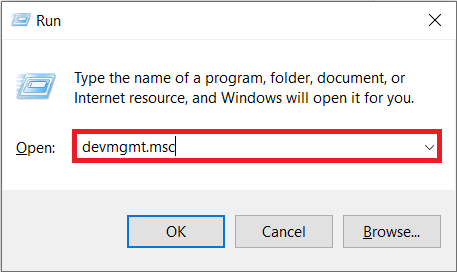
- Type devmgmt.msc in the run command box and press enter to launch Windows Device Manager.
Expand Network adapters by clicking on the arrow to its left.
Right-click on your Network adapter and select Update Driver .

- In the following window, click on Search automatically for updated driver software .

The most up-to-date drivers will now be automatically downloaded and installed on your computer.
Method 6: Change DNS Settings
To those unaware, DNS (Domain Name System) acts as the phonebook of the internet and translates domain names (for example https://techcult.com ) into IP addresses and therefore allows web browsers to load all kinds of websites. However, the default DNS server set by your ISP is often slow and should be replaced with Google’s DNS server or any other trusted server for the best browsing experience.
- Launch the Run command box, type ncpa.cpl , and click on OK to open the Network Connections window. You can also open the same via the Control Panel or through the Search bar.

- Right-click on your active network (Ethernet or WiFi) and select Properties from the ensuing context menu.
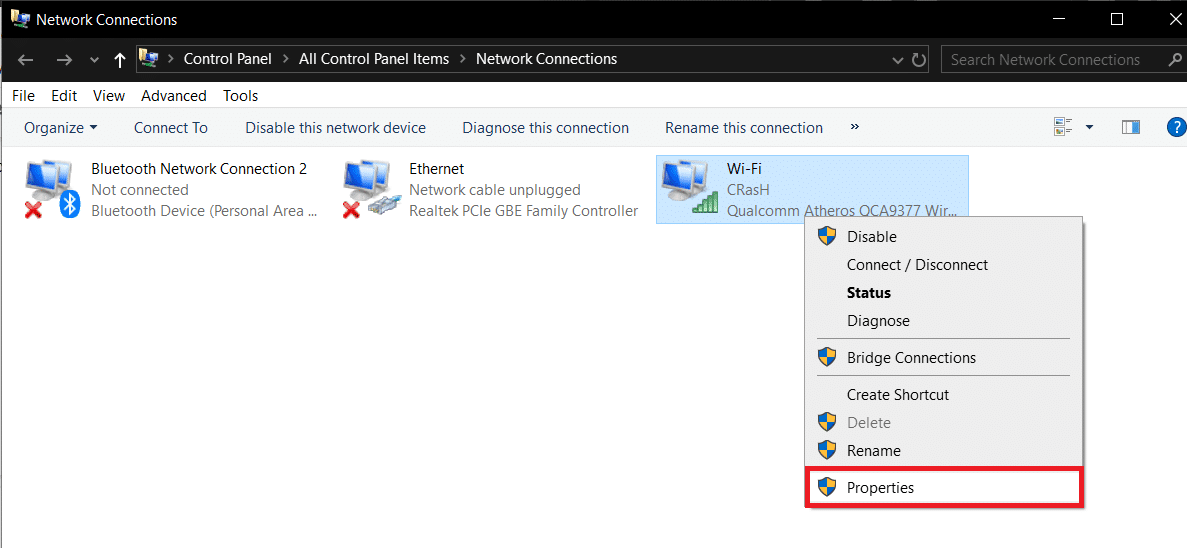
- Under the Networking tab, select Internet Protocol Version 4 (TCP/IPv4) and click on the Properties button (You can also double-click on it to access its Properties window).

- Now, select Use the following DNS server addresses and enter 8.8.8.8 as your Preferred DNS server and 8.8.4.4 as the Alternate DNS server.

- Check/tick the box next to Validate settings upon exit and click on OK .
Method 7: Reset your Network Configuration
Finally, if none of the above-explained methods worked, try resetting your network configuration to its default settings. You can do this by executing a couple of commands in an Elevated Command Prompt window.
- We will need to open the Command Prompt as an administrator to reset the network configuration settings . To do so, search for Command Prompt in the search bar and select Run as Administrator from the right panel.

- Execute the following commands one after the other (type the first command, press enter and wait for it to be executed, type the next command, press enter, and so on):
netsh winsock reset

netsh int IP reset

ipconfig /release

ipconfig /renew

ipconfig /flushdns

Recommended:
- 2 Ways to Cancel YouTube Premium Subscription
- Fix Common Printer Problems in Windows 10
- Fix Microsoft Edge opens multiple windows
Windows updates are extremely important as they bring about a number of bug fixes and new features. Although, sometimes they might end up breaking a few things which worked just fine previously. New OS updates can often lead to some issues with external peripherals, particularly printers. Some common printer related problems you might experience after updating Windows 10 are printer not showing up in connected devices, unable to perform the print action, print spooler not running, etc.
Your printer woes can be due to a number of reasons. The most common culprits are outdated or corrupt printer drivers, problems with print spooler service, the new Windows update doesn’t support your printer, etc.
Fortunately, all your printer problems can be fixed by implementing some easy yet quick solutions. We have listed down five different solutions that you can try to get your printer to print again.

- How to fix various printer problems in Windows 10?
- Method 1: Run the Printer Troubleshooter
- Method 2: Delete the temporary files (Print Spooler) associated with your printer
- Method 3: Set a Default Printer
- Method 4: Update Printer Drivers
- Method 5: Remove and Add the Printer Again
How to fix various printer problems in Windows 10?
As mentioned earlier, there are a few different culprits that might be causing printer problems in Windows 10. Most users can solve these difficulties by running the built-in troubleshooter tool for printers. Other solutions include deleting temporary spool files, manually updating printer drivers, uninstalling and reinstalling the printer, etc.
Before we start implementing the more technical solutions, ensure that the printer and your computer are properly connected. For wired printers, check the condition of the connecting cables and make sure they are firmly connected & in their designated ports. Also, as trivial as it sounds, simply removing and reconnecting wires can also resolve any external device-related issues. Gently blow air into the ports to remove any dirt that might be clogging the connection. As for wireless printers, ensure that the printer and your computer are connected to the same network.
Another quick solution is to power cycle your printer. Turn off the printer and disconnect its power cable. Wait for about 30-40 seconds before plugging the wires back in. This will resolve any temporary issues and start the printer afresh.
If both of these tricks didn’t work, then it is time to move on to the advanced methods.
Method 1: Run the Printer Troubleshooter
The easiest and quickest way to solve any problem with a device or a feature is to run the troubleshooter associated with it. Windows 10 includes a troubleshooter tool for a wide variety of issues, and printer problems are also one of them. The printer troubleshooter automatically performs a number of actions like restarting the print spooler service, clearing corrupted spooler files, checking whether the existing printer drivers are outdated or corrupt, etc.
- The printer troubleshooter can be found within the Windows Settings application. To open Settings , press the Window key (or click on the start button) and then click on the cogwheel Settings icon above the power icon (or use the combination Windows key + I ).

- Now, click on Update & Security .
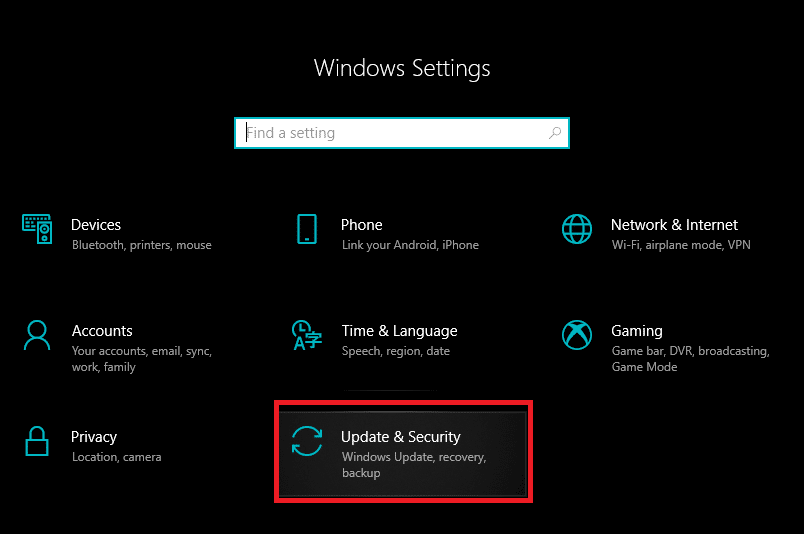
Switch to the Troubleshoot settings page by clicking on the same from the left-hand panel.
Scroll down on the right side until you find the Printer entry. Once found, click on it to open up available options and then select Run the troubleshooter .

Depending on the Windows version you are currently running, the Printer troubleshooter tool might be absent altogether. If that’s the case, click on the following link to download the required troubleshooter tool.
Once downloaded, click on the Printerdiagnostic10.diagcab file to launch the troubleshooter wizard, select Printer , and click on the Advanced hyperlink at the bottom left.

- In the following window, tick the box next to Apply repairs automatically and click on the Next button to start troubleshooting your printer.

Once you have completed the troubleshooting process, restart your computer, and then try using the printer.
Method 2: Delete the temporary files (Print Spooler) associated with your printer
Print spooler is a mediating file/tool that coordinates between your computer and the printer. The spooler manages all the print jobs you send to the printer and lets you delete a print job that is still being processed. Problems might be encountered if the Print Spooler service is corrupted or if the spooler’s temporary files become corrupt. Restarting the service and deleting these temporary files should help in fixing printer problems on your computer.
- Before we delete the print spooler files, we will need to halt the Print Spooler service that constantly runs in the background. To do so, type services.msc in either the run ( Windows key + R ) command box or the Windows search bar and hit enter. This will open up the Windows Services application .
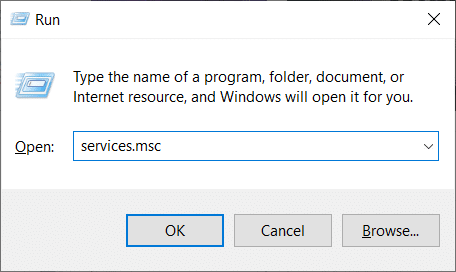
Scan the list of Local Services to find the Print Spooler service. Hit the P key on your keyboard to jump ahead to the services starting with the alphabet P.
Once found, right-click on the Print Spooler service and select Properties from the context menu (or double-click on a service to access its Properties)

- Click on the Stop button to halt the service. Minimize the Services window instead of closing as we will need to restart the service after deleting the temporary files.

- Now, either open up the Windows File Explorer (Windows key + E) and navigate to the following path – C:\WINDOWS\system32\spool\printers or launch the run command box, type %WINDIR%\system32\spool\printers and press OK to reach the required destination directly.

Press Ctrl + A to select all the files in the printers folder and hit the delete key on your keyboard to delete them.
Maximize/switch back to the Services application window and click on the Start button to restart the Print Spooler service.

You should now be able to fix your printer problems and be able to print your documents without any hiccups.
Method 3: Set a Default Printer
It is also quite possible that your printer is working just fine, but you have been sending the print request to the wrong printer. This might be the case if there are multiple printers installed on your computers. Set the one you are trying to use as the default printer to resolve the issue.
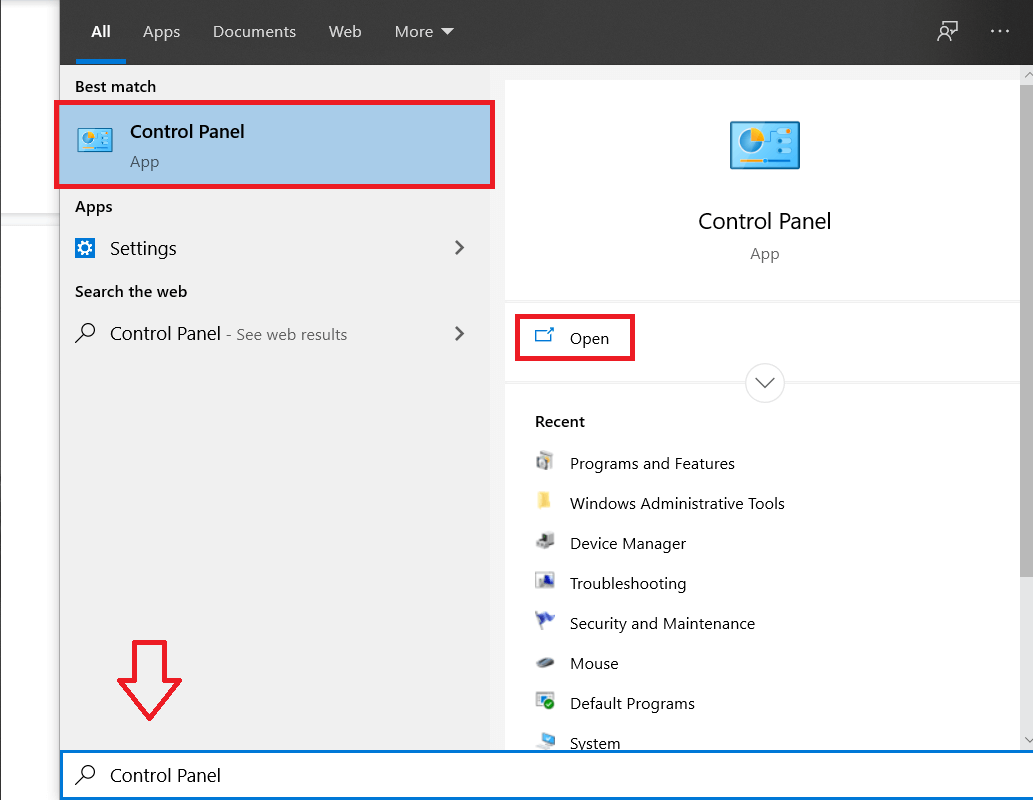
- Press the Windows key and start typing Control Panel to look for the same. Click on Open when search results return.
- Select Devices & Printers .

- The following window will contain a list of all the printers you have connected to your computer. Right-click on the printer you would like to use and choose Set as default printer .

Method 4: Update Printer Drivers
Every computer peripheral has a set of software files associated with it to communicate with your computer and the OS effectively. These files are known as device drivers. These drivers are unique for each device and manufacturer. Also, it is important to have the correct set of drivers installed in order to use an external device without facing any issues. Drivers are also constantly updated to stay compatible with the new Windows versions.
The new Windows update you just installed might not support the old printer drivers, and therefore, you will need to update them to the latest available version.
- Right-click on the start button or press Windows key + X to bring up the Power User menu and click on Device Manager .

Click on the arrow next to Print queues (or Printers) to expand it and have a look at all your connected printers.
Right-click on the problematic printer and select Update Driver from the ensuing options menu.

- Select ‘ Search Automatically for updated driver software ’ in the resulting window. Follow any on-screen instructions you might receive to install the updated printer drivers.

You can also choose to install the latest drivers manually. Visit the driver downloads page of your printer manufacturer, download the required drivers, and run the downloaded file. Printer driver files are usually available in .exe file format, so installing them doesn’t require any additional steps. Open the file and follow the instructions.
Method 5: Remove and Add the Printer Again
If updating drivers didn’t work, you might need to completely uninstall the existing drivers and the printer and then reinstall them. The process of doing the same is simple but rather lengthy but this seems to fix some of the common printer problems. Anyway, below are the steps to remove and add your printer back.
- Open the Settings application (Windows key + I) and select Devices .
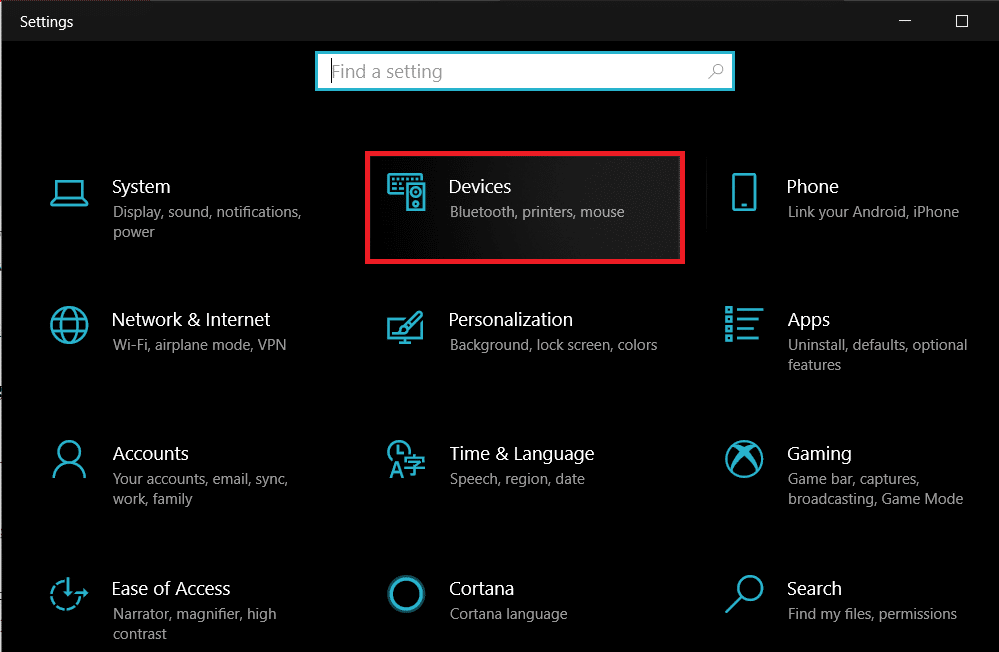
Move to the Printers & Scanners settings page.
Find the problematic printer in the right-side panel and single click on it to access its options. Select Remove Device , let the process complete, and then close Settings.

- Type Print Management in the Windows search bar (Windows key + S) and press enter to open the application.

- Double-click on All Printers (in the left panel or right panel, both are fine) and press Ctrl + A to select all connected printers.

- Right-click over any printer and select Delete .

Now, it is time to add the printer back, but first, unplug the printer cable from your computer and perform a restart. Once the computer boots back on, properly reconnect the printer.
Follow step 1 and step 2 of this method to open Printer & Scanner settings .
Click on the Add a printer & scanner button at the top of the window.

- Windows will now automatically start looking for any connected printers. If Windows successfully detects the connected printer, click on its entry in the search list and select Add device to add it back otherwise, click on The printer that I want isn’t listed hyperlink.

- In the following window, select the appropriate option by clicking on its radio button (For example, select ‘My printer is a little older. Help me find it’ if your printer doesn’t use USB for connection or select ‘Add a Bluetooth, wireless, or network discoverable printer’ to add a wireless printer) and click on Next .

- Follow the following on-screen instructions to reinstall your printer .
Now that you have successfully reinstalled your printer, let’s print a test page to ensure everything is right back on track.
Open up Windows Settings and click on Devices .
On the Printers and Scanners page, click on the printer you just added back and would like to test, followed by a click on the Manage button.

- Finally, click on the Print a test page option. Muffle your ears & listen carefully for the sound of your printer printing a page and rejoice.

Recommended:
- Fix Windows 7 Updates Not Downloading
- 10 Best Extratorrent.CC Alternative in 2020
- Fix Fallout New Vegas Out of Memory error
