
- How to Fix ChatGPT Login Issue
- What Causes ChatGPT login issue?
- Method 1: Wait for Server Up-Time
- Method 2: Restart Device
- Method 3: Troubleshoot Internet Connection
- Method 4: Enter Valid Credentials
- Method 5: Refresh Page
- Method 6: Use Incognito Mode
- Method 7: Clear Browser Cache
- Method 8: Disable Browser Extensions
- Method 9: Update Browser
- Method 10: Disable VPN
- Method 11: Switch Browser
- Method 12: Contact ChatGPT Support
How to Fix ChatGPT Login Issue
Due to server peak load, you may not be able to login to ChatGPT. Keep reading this guide to fix ChatGPT login issue.
Quick Answer Try contacting the customer support team for assistance to fix ChatGPT login issue. You can also reset your password and check if you can login or not.
What Causes ChatGPT login issue?
Many users worldwide use free AI applications like ChatGPT to create scripts, material, codes, and other important stuff. However, some users can face problems while logging in to the platform due to the below-mentioned reasons:
- ChatGPT server problem
- ChatGPT under maintenance
- Internet connectivity problem
- Corrupt browser cache
- Outdated browser version
- Interference by third-party extensions
- VPN interference
Method 1: Wait for Server Up-Time
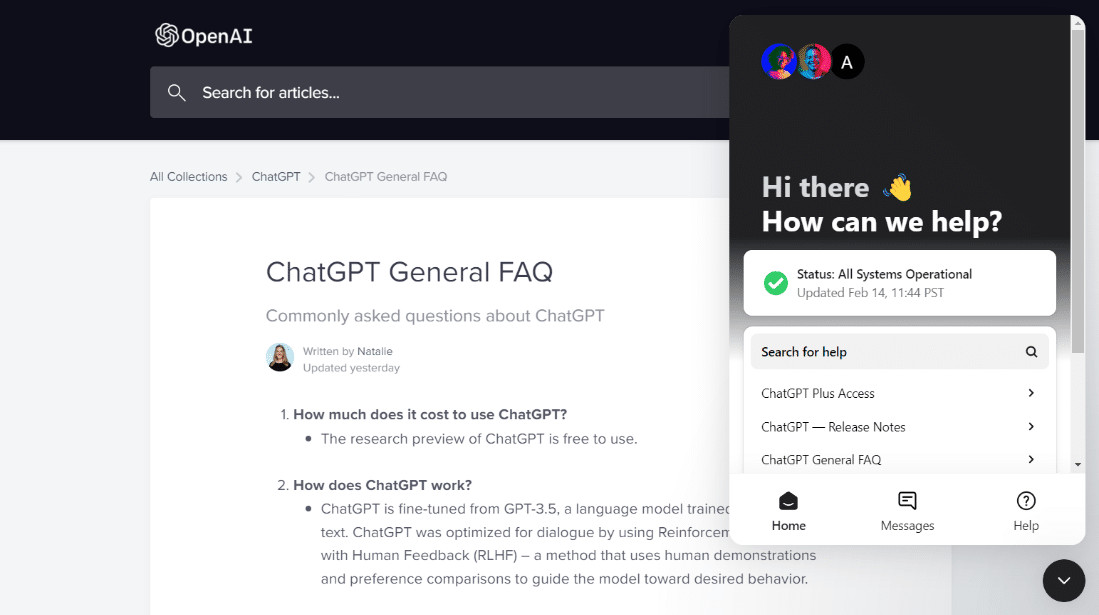
Issues while logging in to Chat GPT arise during peak hours when the servers are busy. This issue can also come up due to server downtime or maintenance. Whether it is an internal server error or due to an exponential increase in users, you can visit the ChatGPT Status page that displays the website’s status. If there are server issues, you must wait for them to reach a normal state.

Method 2: Restart Device
The system you are using ChatGPT on can also cause login issues in ChatGPT. System memory and temporary bugs in your computer are the primary causes. So, to fix ChatGPT login issue, you must restart your PC, which can be done in multiple ways with the help of our guide on 6 Ways to Reboot or Restart a Windows 10 Computer .

Method 3: Troubleshoot Internet Connection
Internet connection also plays an essential role in using ChatGPT. If you try to log in to the Chat GPT website with a weak or unstable network, you might encounter log in or sign-up issues. Therefore, you must ensure a stable and good internet connection. You can resolve data network problems, if any are found, with the help of our guide on Slow Internet Connection? 10 Ways to Speed up your Internet!

Method 4: Enter Valid Credentials
Method 5: Refresh Page
One of the most common issues with ChatGPT is that if you stay away from the website for some time, the page displays an error when you return to it. In this case, you must try reloading the page or the conversation. Doing so will lead you to the login page again, where you must enter valid credentials. So, to fix this issue, you can also try reloading the entire page of your browser.
Method 6: Use Incognito Mode
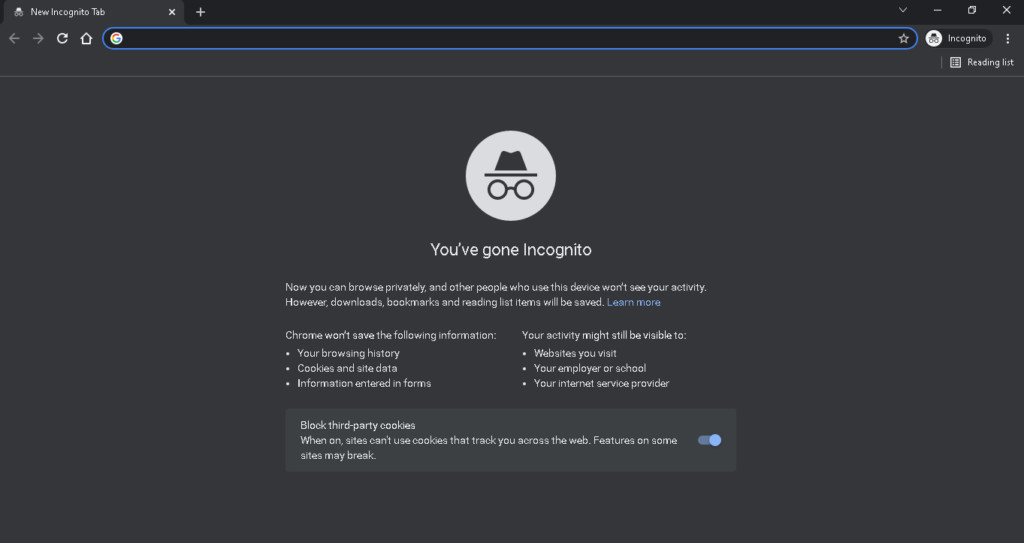
If you are still wondering why Chat GPT login not working, then try using incognito mode on your browser. Using an incognito method will help you block cookies, hide search history, and will give you the freedom to browse. All in all, it will help you log in to ChatGPT without any issues. So, please read our guide on How to Enable Incognito Mode in Chrome and attempt this method to resolve the sign-up problem on the platform.
Method 7: Clear Browser Cache
Cache and cookies of your browser store all the essential information like login details, temporary data, and more. With time, this stored information can become corrupt and result in login problems on ChatGPT. Therefore, clear browser cache and cookies and know the process of doing so with the help of our guide on How to Clear Cache and Cookies in Google Chrome .

Method 8: Disable Browser Extensions
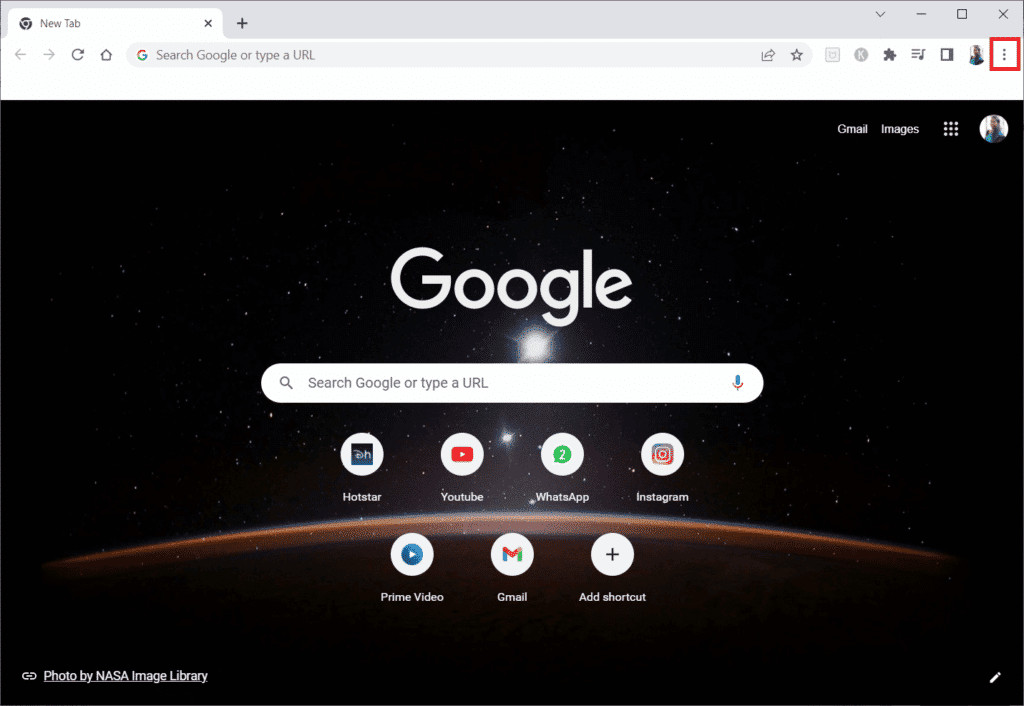
If you have enabled browser extensions on your PC, they can prevent you from logging into Chat GPT. Therefore, to fix ChatGPT login issue, disable these browser extensions from your device with the help of the following steps:
- Open the Google Chrome browser on your PC and click on the three vertical dots at the top.
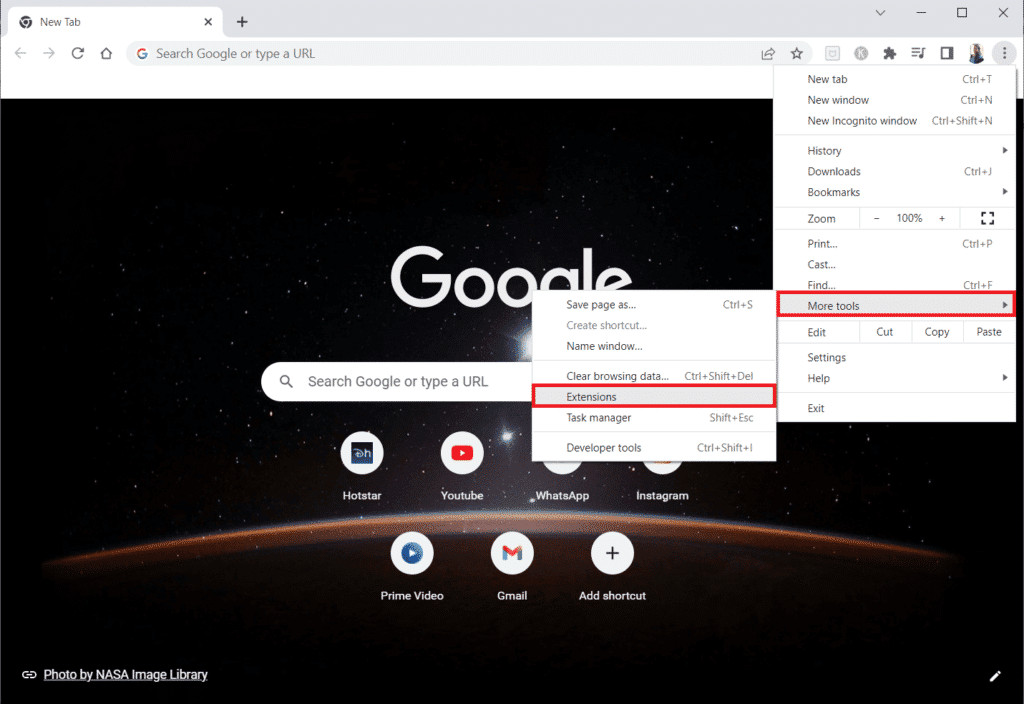
- Select More tools from the drop-down menu and click on Extensions .
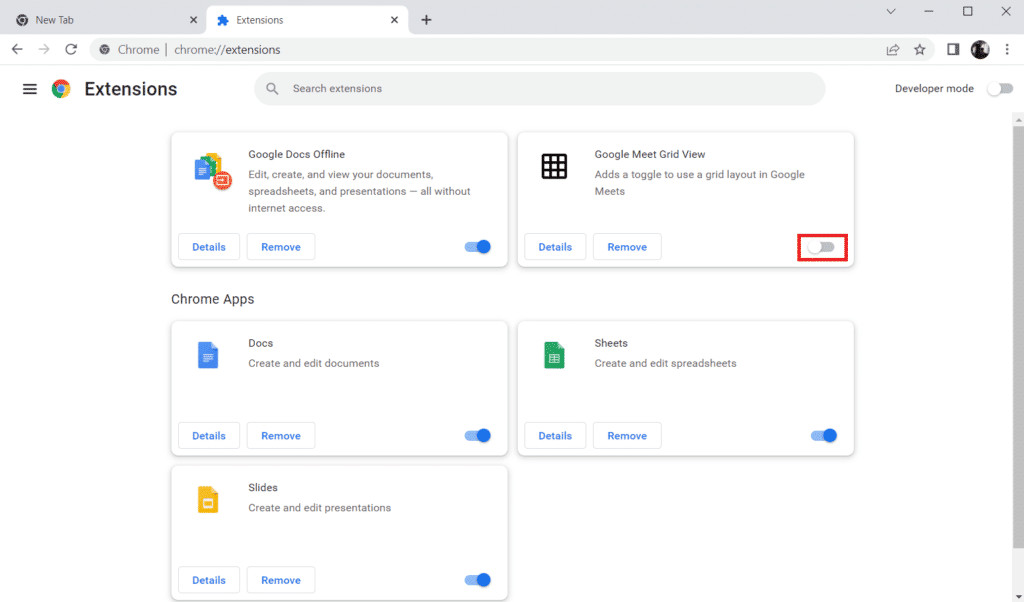
- Next, turn off the toggle for extensions that are enabled. Here, Google Meet Grid view is shown as example.
Method 9: Update Browser
An outdated browser can prevent you from logging into the Chat GPT platform. If so, you must update your browser. In case you are using Google Chrome to log in to the ChatGPT website, check out the steps below to update it:
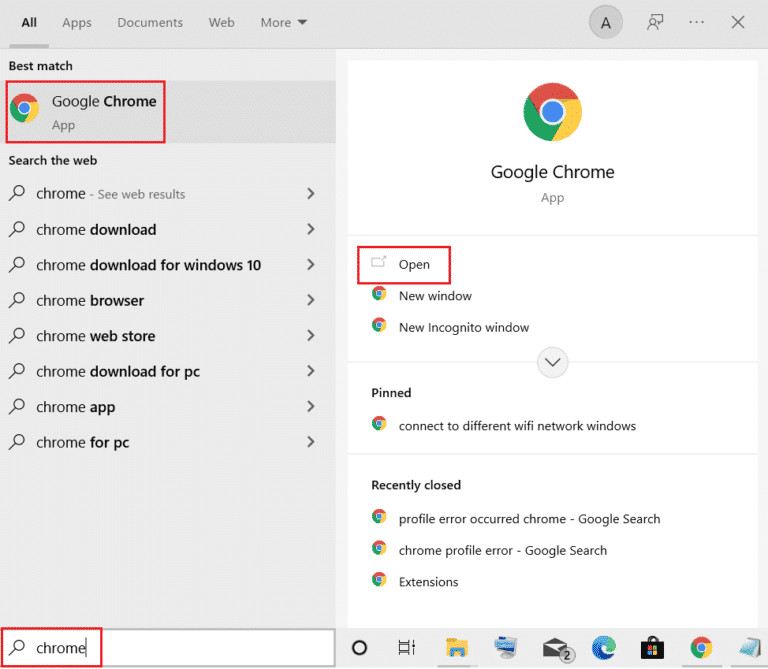
- Launch the start menu and open Google Chrome from it.
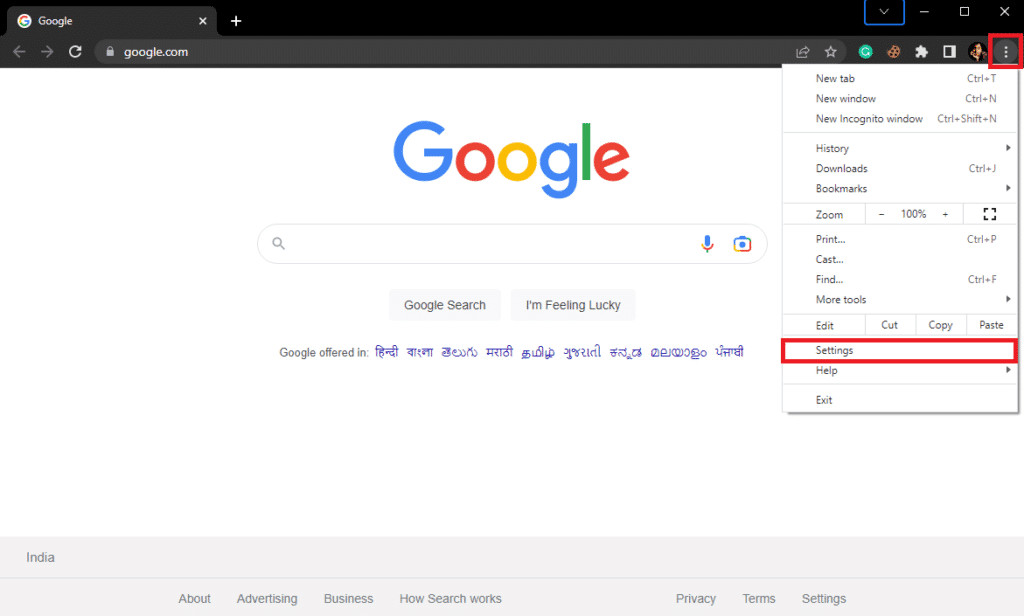
- Click the three vertical dots at the top to open Settings from the menu.
- Now, click on the About Chrome tab from the left panel.
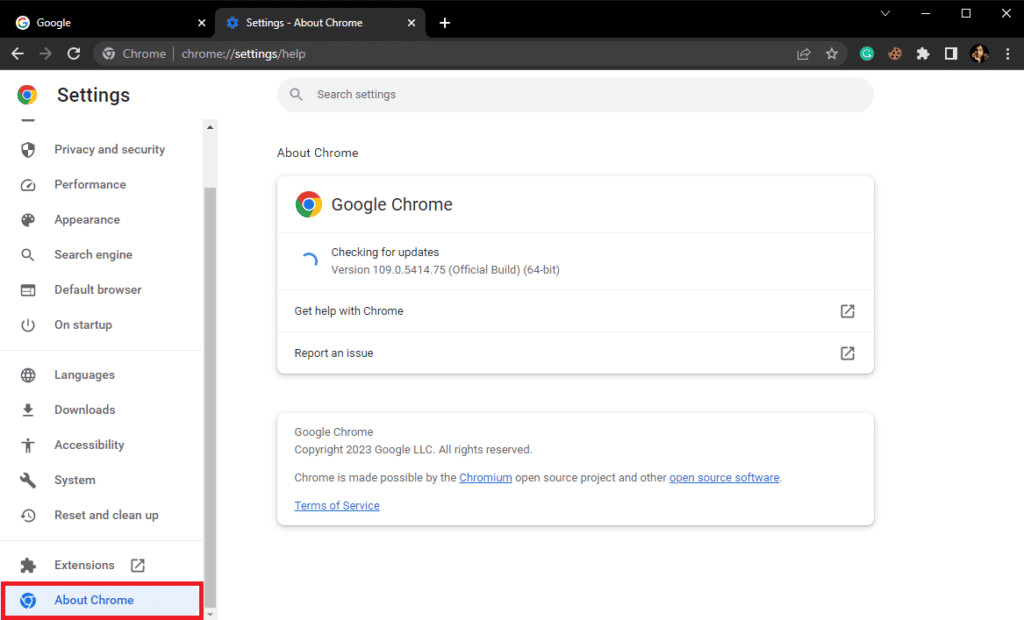
4A. If the browser is outdated, Chrome will automatically download the update. Once done, click on Relaunch .
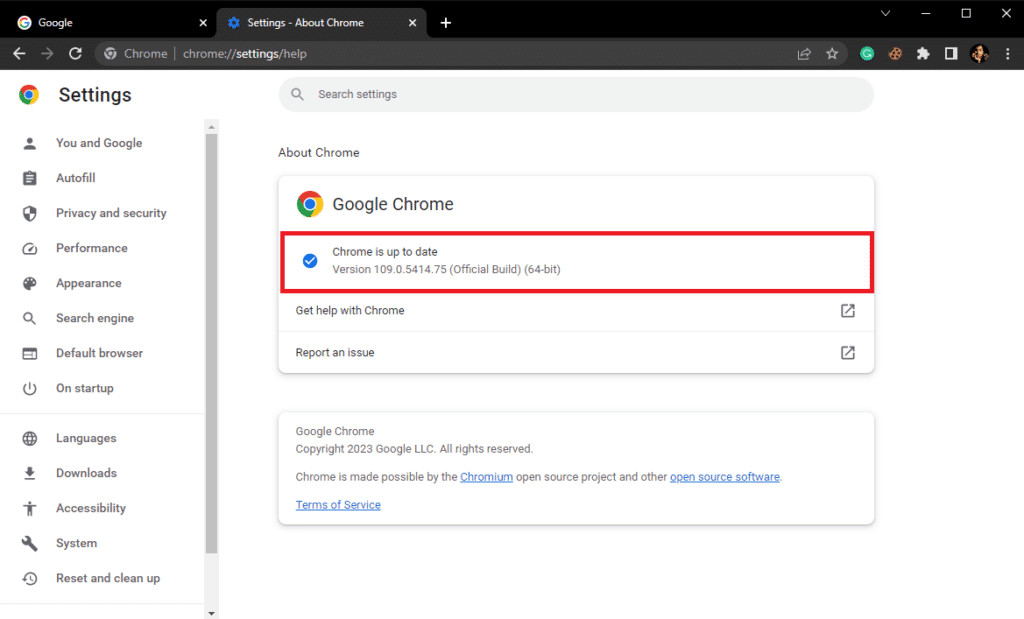
4B. If Chrome is up-to-date, it will display Chrome is up to date .
Method 10: Disable VPN
Even though using a VPN is an excellent way of preventing your internet connection from getting exposed to malicious activities, sometimes it can interfere with a few login activities, including one with ChatGPT. Therefore, try disabling VPN on your device to log in without any problem. You can refer to our guide on How to Disable VPN and Proxy on Windows 10 for more insight on this method.

Method 11: Switch Browser
If none of those mentioned above methods have helped you till now and you are still wondering why Chat GPT login not working, then you can finally try switching to a different browser, like Mozilla Firefox, Opera, and Microsoft Edge. Changing the browser can be of great help in resolving ChatGPT login problems. There are some excellent internet browsers that you easily found online.

Method 12: Contact ChatGPT Support
Finally, you can contact ChatGPT Support if you cannot get rid of the login issue on the platform. You can convey the matter to experts and solve the problem if there is some technical problem. Through the ChatGPT official support page, you can quickly contact the support team.
Recommended:
- How Many Connections Can You Have on LinkedIn?
- Fix Dropbox Link Not Working
- How to Use ChatGPT 4
- How to Use ChatGPT to Write an Essay
