Discord is a social media platform where you communicate with others and share media files. But, you may face a problem when sending images as they show up as files on PC. You will need to download those images to view them. This is not how the image sharing typically works. So, today’s article will guide you on why is Discord not showing images and fix images showing as files on PC issue.

- How to Fix Discord Images Showing as Files on PC
- Why is Discord Not Showing Images?
- Method 1: Troubleshoot Internet Connection
- Method 2: Wait for Server Uptime
- Method 3: Enable Show Text and Video Previews
- Method 4: Change Image Size and Format
- Method 5: Update Discord Client
- Method 6: Disable VPN Server
- Method 7: Reinstall Discord Client
- Method 8: Contact Discord Support
How to Fix Discord Images Showing as Files on PC
If you are a regular Discord user, at some point or other you must have come across the issue where the images you are sharing are showing up as files. These files then are supposed to be downloaded and then viewed on your PC. This is not how it works, generally, when you share images, it is supposed to be visible automatically. If you are also in the same boat, you don’t need to worry. This article is going to be all about how to fix Discord images showing as files on PC.
Quick Answer Try turning on text and image previews by following the steps below: 1. Launch Discord and go to Settings . 2. Scroll down and select Text & Image setting. 3. Here, enable the When posted as links to chat feature. 4. Also, turn off When uploaded directly to Discord feature.
Why is Discord Not Showing Images?
To explain why is Discord not showing images? We have listed down a few causes:
- Large image size
- Unstable internet connection
- Corrupt files and internal bugs
- Server downtime
To start sending images normally again, you can follow the fixes that we have brought for you. These fixes are listed as methods below:
Method 1: Troubleshoot Internet Connection

Method 2: Wait for Server Uptime

Method 3: Enable Show Text and Video Previews
One of the common ways to fix Discord images showing as files on PC is by turning on the preview options. Often people end up changing the settings of the app without realizing it. This is can be one of the prominent reasons why is Discord not showing images. One of these settings is the text and video preview. If this setting is disabled Discord images are most likely to show as files. To enable the setting on your Discord Client, you can follow the steps listed below:
Open the Discord Client app on your desktop.
Near your name, in the bottom-left corner click on the Settings icon .

- Click on the Text & Images on the left-hand side of the screen.

Toggle on When posted as links to chat option.
Then, toggle off When uploaded directly to Discord option and enable the Show embeds and preview website links pasted into chat feature.
Method 4: Change Image Size and Format
Have you ever wondered if the image size and format can ever trigger the issue of Discord images showing up as files. Yes, it can. Maybe the file size can be too large or the image file format is not supported. Therefore, what you can do is reduce the file using an image compressor. You can also change the file format from an existing one to another one. Further in the article, you will find other methods to fix Discord images showing as files on PC.
Method 5: Update Discord Client
Another reason why is Discord not showing images can be because you are using an outdated version of the app. Updating the app to the latest version can help you fix the issue. Moreover, updating the Discord client will help you get over other errors and bugs as well. You can read our guide on how to Update Discord .

Method 6: Disable VPN Server
You might have not thought about it, but VPN could hinder the images running in the background while you are using the Discord Client. As one of the fixes, it is recommended to disable the VPN on your PC. To learn how to disable VPN on your PC visit our guide How to Disable VPN and Proxy on Windows 10 . This might help you resolve the issue, but if it has not, then moving on to the next method is the best option.

Method 7: Reinstall Discord Client
Reinstalling Discord Client is the only solution left when all the above methods fail. All you need to do is uninstall the app that you are already using. It is recommended as some of the internal bugs and corrupt files may be the reason why you are facing this issue in the first place. Therefore, you can reinstall the app and see if the issue persists. To Reinstall follow the steps below:
Press the Windows + I keys together to open Windows Settings .
Click on Apps.

- In the Apps & features tab, locate and click Discord. Then, click on Uninstall button.
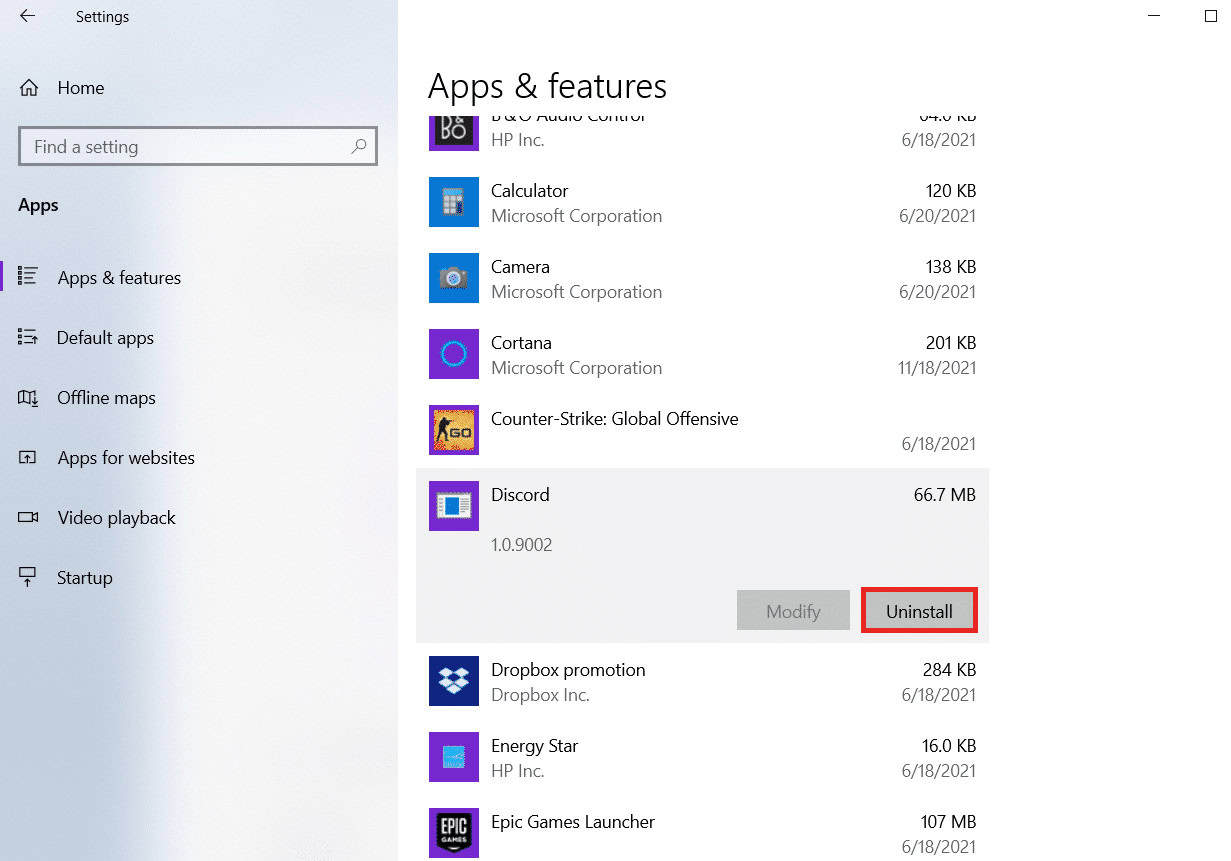
Follow the on-screen instructions to complete the uninstallation.
Then, press Windows + E keys simultaneously to open File Manager .
Navigate to the following path from the address bar.
C:\Users\USERNAME\AppData\Local

- Right-click on Discord and select the Delete option.

- Now go to the Discord website and click on Download for Windows button.

- Open the downloaded DiscordSetup.exe file and install the program.

Once, you have reinstalled Discord, all the associated problems will vanish now.
Method 8: Contact Discord Support
You can easily get in touch with the support team by visiting the Discord support page . They can help you resolve the issue if the problem is on their end. If not, they will guide you to resolve the issue in the best way possible.

Recommended:
- What does Ignored from Added Me Mean on Snapchat?
- How to Deactivate LinkedIn Account Temporarily
- How to Send Pictures on Discord
- How to Make Your Discord Status Change Every 10 Seconds
