DISM (Deployment Image Servicing and Management) is a command-line tool that users or administrators can use to mount and service a Windows desktop image. With the use of DISM, users can alter or update Windows features, packages, drivers etc. DISM is a part of Windows ADK (Windows Assessment and Deployment Kit), easily downloaded from Microsoft website.

Now coming back to question why we are talking so much about DISM, well the problem is while running DISM tool users are facing an error message “Error: 14098, The component store has been corrupted” which has led to the corruption of several features of Windows. The main cause behind the DISM Error 14098 is a corruption of Windows Update Components due to which DISM doesn’t work either.
Users are not able to fix their PC, and Windows Update doesn’t work as well. Apart from this, several crucial Windows function stopped working, which are giving users a nightmare. So without wasting any time let’s see How to Fix DISM Error 14098 Component Store has been corrupted with the help of the below-listed guide.
- Fix DISM Error 14098 Component Store has been corrupted
- Method 1: Run StartComponentCleanup Command
- Method 2: Reset Windows Update Components
Fix DISM Error 14098 Component Store has been corrupted
Make sure to create a restore point just in case something goes wrong.
Method 1: Run StartComponentCleanup Command
- Open Command Prompt. The user can perform this step by searching for ‘cmd’ and then press Enter.

- Type the following command into cmd and hit Enter:
Dism.exe /online /Cleanup-Image /StartComponentCleanup

- Wait for the command to process, then restart your PC.
Method 2: Reset Windows Update Components
Open Command Prompt. The user can perform this step by searching for ‘cmd’ and then press Enter.
Type the following command into cmd and hit Enter after each one:
net stop bits net stop wuauserv net stop appidsvc net stop cryptsvc
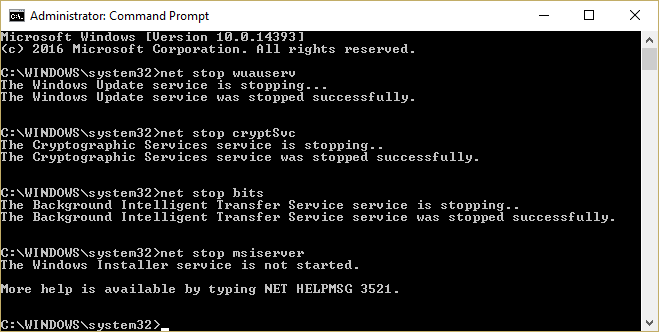
- Delete the qmgr*.dat files, to do this again open cmd and type:
Del “%ALLUSERSPROFILE%\Application Data\Microsoft\Network\Downloader\qmgr*.dat”
- Type the following into cmd and hit Enter:
cd /d %windir%\system32

- Reregister the BITS files and the Windows Update files . Type each of the following commands individually in cmd and hit Enter after each one:
regsvr32.exe atl.dll

regsvr32.exe urlmon.dll

regsvr32.exe mshtml.dll

regsvr32.exe shdocvw.dll

regsvr32.exe browseui.dll

regsvr32.exe jscript.dll

regsvr32.exe vbscript.dll

regsvr32.exe scrrun.dll

regsvr32.exe msxml.dll

regsvr32.exe msxml3.dll

regsvr32.exe msxml6.dll

regsvr32.exe actxprxy.dll

regsvr32.exe softpub.dll

regsvr32.exe wintrust.dll

regsvr32.exe dssenh.dll

regsvr32.exe rsaenh.dll

regsvr32.exe gpkcsp.dll

regsvr32.exe sccbase.dll

regsvr32.exe slbcsp.dll

regsvr32.exe cryptdlg.dll

regsvr32.exe oleaut32.dll

regsvr32.exe ole32.dll

regsvr32.exe shell32.dll

regsvr32.exe initpki.dll

regsvr32.exe wuapi.dll

regsvr32.exe wuaueng.dll

regsvr32.exe wuaueng1.dll

regsvr32.exe wucltui.dll

regsvr32.exe wups.dll

regsvr32.exe wups2.dll

regsvr32.exe wuweb.dll

regsvr32.exe qmgr.dll

regsvr32.exe qmgrprxy.dll

regsvr32.exe wucltux.dll

regsvr32.exe muweb.dll

regsvr32.exe wuwebv.dll
- To reset Winsock:
netsh winsock reset

- Reset the BITS service and the Windows Update service to the default security descriptor:
sc.exe sdset bits D:(A;;CCLCSWRPWPDTLOCRRC;;;SY)(A;;CCDCLCSWRPWPDTLOCRSDRCWDWO;;;BA)(A;;CCLCSWLOCRRC;;;AU)(A;;CCLCSWRPWPDTLOCRRC;;;PU)
sc.exe sdset wuauserv D:(A;;CCLCSWRPWPDTLOCRRC;;;SY)(A;;CCDCLCSWRPWPDTLOCRSDRCWDWO;;;BA)(A;;CCLCSWLOCRRC;;;AU)(A;;CCLCSWRPWPDTLOCRRC;;;PU)
- Again start the Windows update services:
net start bits net start wuauserv net start appidsvc net start cryptsvc
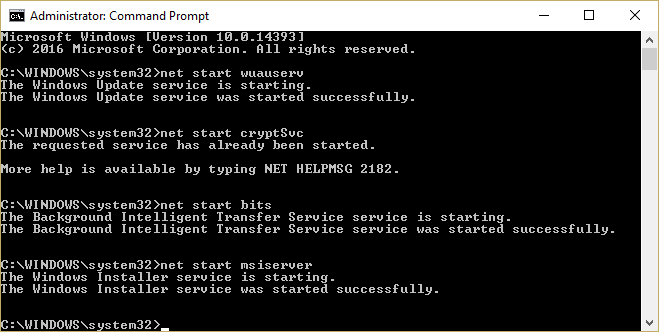
Install the latest Windows Update Agent.
Reboot your PC and see if you’re able to Fix DISM Error 14098 Component Store has been corrupted error.
Recommended:
- Fix Imaging Devices Missing From Device Manager
- How to set Default Location of your PC
- Completely Uninstall Grove Music From Windows 10
- Fix Bluetooth not working after Windows 10 Creators Update
That’s it you have successfully Fix DISM Error 14098 Component Store has been corrupted error but if you still have any questions regarding this post then feel free to ask them in the comment’s section.
