Google Photos is a widely used app for backing up and organizing photos and videos, offering users the convenience of accessing their memories from any device. However, Android users might sometimes face an issue where Google Photos stops uploading their pictures , leaving their recent captures unsaved in the cloud. This hiccup can be due to various reasons, such as connectivity issues, account problems, or app glitches. If you’re encountering trouble with Google Photos not uploading your content on Android, there’s no need to panic. In this article, we’ll explore the common causes behind this issue and provide step-by-step solutions to get your photo uploads back on track.

- Fix Google Photos not uploading photos on Android
- Enable Auto-Sync Feature for Google Photos
- Make sure the Internet is working properly
- Update the App
- Clear Cache and Data for Google Photos
- Change the Upload Quality of Photos
- Uninstall the App and then Re-install
Fix Google Photos not uploading photos on Android
1. Enable Auto-Sync Feature for Google Photos
By default, the automatic sync setting for Google Photos is always enabled. However, it is possible that you might have accidentally turned it off. This will prevent Google Photos from uploading photos to the cloud. This setting needs to be enabled in order to upload and download photos from Google Photos. Follow the steps given below to see how:
Firstly, open Google Photos on your device.
Now tap on your profile picture on the top right-hand corner.

- After that, click on the Photos Settings option.

- Here, tap on the Backup & sync option.

- Now toggle ON the switch next to the Backup & sync setting to enable it.

- See if this fixes Google Photos not uploading photos on Android issue , otherwise, proceed to the next solution in the list.
2. Make sure the Internet is working properly
The function of Google Photos is to automatically scan the device for photos and upload it on the cloud storage, and it needs a stable internet connection to do so. Make sure that the Wi-Fi network that you are connected to is working properly. The easiest way to check internet connectivity is to open YouTube and see if a video plays without buffering.
Apart from that, Google Photos has a daily data limit set for uploading photos if you are using your cellular data. This data limit exists to ensure that cellular data is not consumed excessively. However, if Google Photos is not uploading your photos, then we would suggest you disable data restrictions of any kind. Follow the steps given below to see how:
Open Google Photos on your device.
Now tap on your profile picture on the top right-hand corner.
After that, click on the Photos Settings option.
- Here, tap on the Backup & sync option.
- Now select the Mobile data usage option.

- Here, select the Unlimited option under the Daily limit for the Backup tab.

3. Update the App
Whenever an app starts acting out, the golden rule says to update it. This is because when an error is reported, the app developers release a new update with bug fixes to solve the different types of problems. It is possible that updating Google Photos will help you fix the issue of photos not being uploaded. Follow the steps given below to update the Google Photos app.
Go to the Play Store .
On the top left-hand side, you will find three horizontal lines . Click on them.
Now, click on the “My Apps and Games” option.

- Search for Google Photos and check if there are any pending updates.

If yes, then click on the update button.
Once the app gets updated, check if photos are getting uploaded as usual or not.
4. Clear Cache and Data for Google Photos
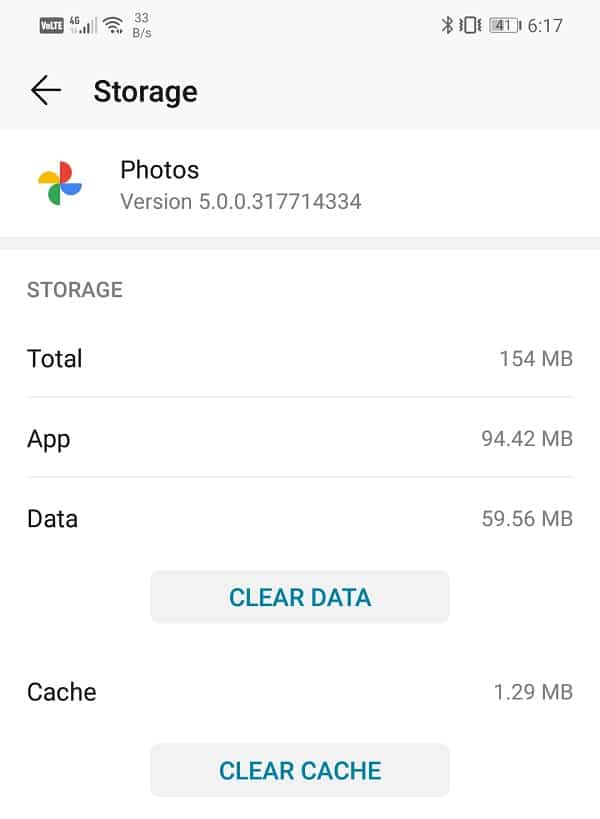
Another classic solution to all Android app related problems is clear cache and data for the malfunctioning app. Cache files are generated by every app to reduce screen loading time and make the app open faster. Over time the volume of cache files keeps increasing. These cache files often get corrupted and cause the app to malfunction. It is a good practice to delete old cache and data files from time to time. Doing so will not affect your photos or videos saved on the cloud. It will simply make way for new cache files, which will be generated once the old ones are deleted. Follow the steps given below to clear the cache and data for the Google Photos app.
Go to the Settings on your phone.
Click on the Apps option to view the list of installed apps on your device.
Now search for Google Photos and tap on it to open the app settings.
Click on the Storage option.
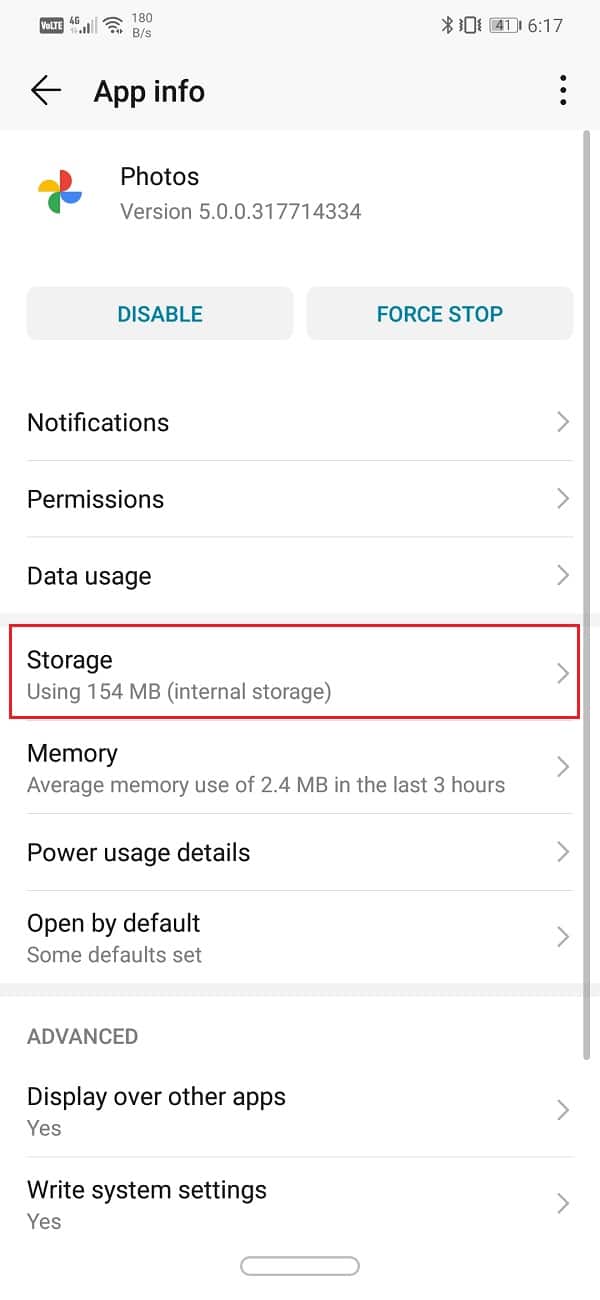
- Here, you will find the option to Clear Cache and Clear Data . Click on the respective buttons, and the cache files for Google Photos will get deleted.
5. Change the Upload Quality of Photos
Just like every other cloud storage drive, Google Photos has certain storage restrictions. You are entitled to free 15 GB of storage space on the cloud to upload your photos. Beyond which, you need to pay for any additional space that you wish to use. This, however, is the terms and conditions for uploading your photos and videos in their original quality, i.e., the file size remains unaltered. The benefit of choosing this option is that there is no loss of quality due to compression, and you get the exact same photo in its original resolution when you download it from the cloud. It is possible that this free space that was allocated to you has been completely used up, and thus, photos are no longer getting uploaded.
Now, you can either pay for extra space or compromise with the quality of the uploads to continue backing up your photos on the cloud. Google Photos has two alternate options for the Upload Size, and these are “ High Quality ” and “ Express ”. The most interesting point about these options is that they offer unlimited storage space. If you are willing to compromise a little with the quality of the image, Google Photos will allow you to store as many photos or videos as you want. We would suggest you select a High-Quality option for future uploads. It compresses the image to a resolution of 16 MP, and videos are compressed to high definition. In case you are planning to print these images via Windows 11 , then the quality of the print would be good up to 24 x 16 in. This is quite good a deal in exchange for unlimited storage space. Follow the steps given below to alter your preference for the upload quality on Google Photos.
Firstly, open Google Photos on your device.
Now tap on your profile picture on the top right-hand corner.
After that, click on the Photos Settings option.
Here, tap on the Backup & sync option.
- Under Settings, you will find the option called “Upload size” . Click on it.

- Now, from the given options, select High Quality as your preferred choice for future updates.

- This will grant you unlimited storage space and solve the problem of photos not uploading on Google Photos.
6. Uninstall the App and then Re-install
If nothing else works, then it is probably time for a fresh start. Now, had it been some third-party app installed from the Play Store, then you could have just uninstalled the app. However, since Google Photos is a pre-installed system app, you can’t simply uninstall it. What you can do is uninstall updated for the app. This will leave behind the original version of the Google Photos app that was installed on your device by the manufacturer. Follow the steps given below to see how:
Open the Settings on your phone.
Now, select the Apps option.
Now, select the Google Photos app from the list of apps.
On the top right-hand side of the screen, you can see three vertical dots , click on it.
Finally, tap on the uninstall updates button.
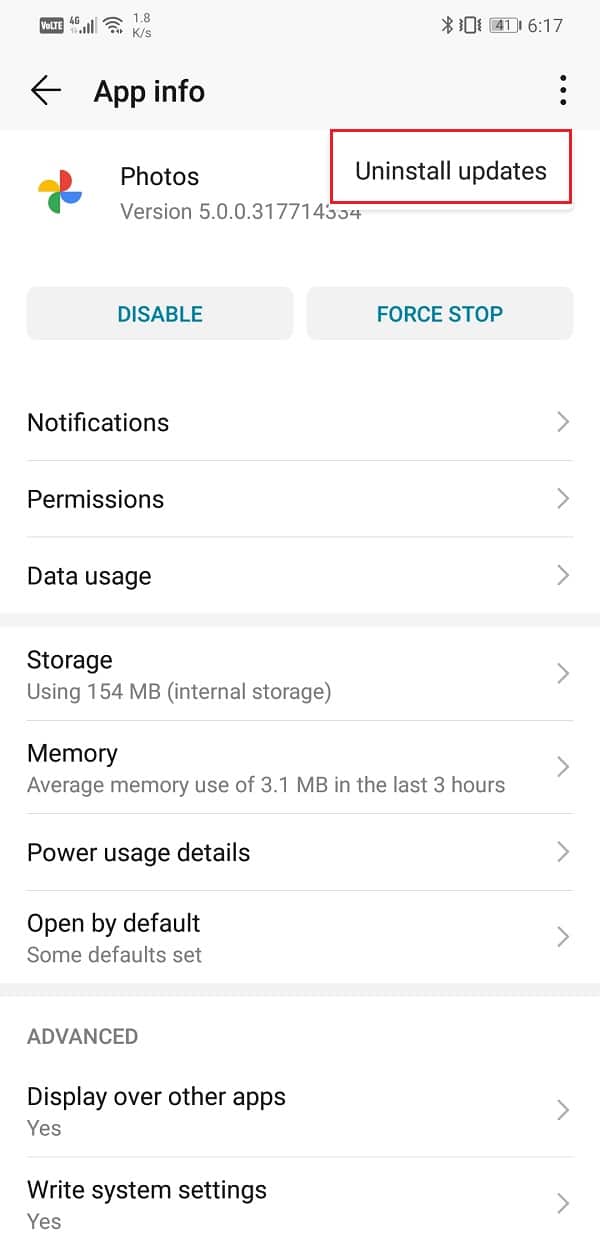
Now, you may need to restart your device after this.
When the device starts again, open Google Photos .
You might be prompted to update the app to its latest version. Do it, and that should solve the problem.
Recommended:
- 10 Ways to Fix Google Photos Not Backing Up
- How to use copy and paste on Android
- How to Find or Track your Stolen Android Phone
Well, that’ a wrap. We hope that you were able to find a suitable solution that fixed your problem. However, if you are still facing the same problem, then it is most likely due to server related issues on Google’s side. Sometimes, Google servers are down that prevent apps like Photos or Gmail to malfunction.
Since Google Photos uploads your photos and videos on the cloud, it needs access to the Google servers. If they are not working due to any technical complication, Google Photos will not be able to upload your photos on the cloud. The only thing that you can do is in this situation is to wait for some while and hope that the servers are back up soon. You can also write to Google Customer support to notify them about your problem and hope that they fix it as quickly as possible.
A0 size papers are the largest size papers available to us as per ISO 216 paper size divisions. But how to print out a high-resolution image of this size? Especially when our systems can only print the largest sizes up to A3. Well, that points to a multi-page printout with combining a couple of pages will help you get the desired image. So this article will help you with how to print large images on multiple pages with understanding how to print image on multiple pages altogether on Windows 10 & 11.

- How to Print Large Image on Multiple Pages in Windows 10/11
- Method 1: With Microsoft Paint
- Method 2: Using Excel Spreadsheet
- Method 3: Via Microsoft Word
- Method 4: Through PDF Format
How to Print Large Image on Multiple Pages in Windows 10/11
Printing large images isn’t directly possible for large poster-sized images. Universally available sizes printable from Windows 10 and 11 are:
- US letter sizes and the US envelop sizes.
- A series (from A3 to A5), B4 to B6 print sizes, C size sheet, D size sheet, E size sheet.
- Envelop sizes, PRC envelops sizes, Japanese Envelop sizes, PRC sizes, Postcard sizes, and many more.
However, A3 is the largest direct printable size for the systems we are using now. And considering allowed print sizes in India, the Bureau of Indian Standards allows the ISO -A series size for drawing and other engineering works. This is why the largest size available in the country is A3x4 paper . After this brief but vital info about paper sizes, let’s move towards learning how to print large images on multiple pages.
Note: The methods and steps represented below are performed on Windows 11. The pictures, interface, and terminologies used are from Windows 11 which closely match Windows 10 too. Do verify before making any changes.
Method 1: With Microsoft Paint
Splitting a large image into numerous ones and printing it onto multiple pages can be easily done through Microsoft Paint. It is one of the ways to know how to print large image on multiple pages in Windows 10 and 11. To do so, follow these steps:
Locate your desired image in the File Explorer .
Right-click on it, and from the context menu, click the Open with > Paint app as depicted below.

- As the image opens in Paint, click on the File menu option from the top left corner.

- From the given list, select the Print option and then click on Page setup as shown.

- In the Page Setup window, choose your desired paper size from the Size: drop-down menu option.

6A. Adjust and verify the Orientation and Centring sections as per your output image preference.
6B. Type the number of pages required for the image to be split in the Fit to option box under the Scaling section. As shown below, if the image is required to be split into 16 separate images, type 4 by 4 page(s) in the boxes.

- After customization, click on the OK button.

- Next, click File > Print > Print as illustrated below.

Click on the printer you want to print with under the Select Printer section.
Then, click on Print . The copies will start to print according to the selection made.
Note: For demo purposes, we have selected the Microsoft Print to PDF option under the Select Printer section. Please select the printer available on your system to print your desired images.

Method 2: Using Excel Spreadsheet
Another way to learn how to print large image on multiple pages is by doing it on an Excel spreadsheet. You can print split images of a large one swiftly with Microsoft Excel as follows:
- Type Excel in the Windows search menu and click on Run as administrator .

- In the Excel window, go to Home and click on the Blank workbook option as shown.

- In the new blank workbook, click on the Insert tab.

- Click on the Pictures drop-down option and select This device to browse and pick your required image.

- A File explorer pop-up window will appear. Now, locate your picture and click on Insert .

- After the picture loads on the spreadsheet, click on the picture and hover on any of the corners when you see the cursor turn into an expanding arrow .

- Click and drag the image corners to increase its size.

- After you stretch the image to the desired size depicted in the Size section of the Picture Format ribbon, click on the File option.

9A. Click on the Print option and configure the Settings section as per your output image preferences.
9B. Verify the number of Pages your image will split in as per the size stretched and the Settings made.

Note: You can repeat steps 7, 8, and 9 to adjust the number of print copies you require of the image from the Settings until the desired preview is reached.
- Click on the Printer drop-down menu option to find and select the printer connected with your system.

- After completing these settings, select the number of copies from the Copies drop-down box. Then, click on the Print option to start the print.

Method 3: Via Microsoft Word
Microsoft Word is another alternative for you to know how to print large image on multiple pages. Follow the upcoming steps to do so:
- Type Word in the Windows search bar and click the Open option as shown below.

- Click on the View tab in the blank workbook.

- In the Page Movement section, select the Side to Side option shown highlighted.

- Click on the Insert tab and click the Pictures > This Device option as depicted below.

- Select and insert the desired image from the pop-up window into this Word file.

Right-click on the image and click the Wrap Text option.
To wrap and move the image freely in the Word file, select either Behind Text or In Front of Tex option.

- Then, stretch the image to desired width and height on the first page as shown.

- Similarly, add the same image on the second page and wrap the image as earlier.

- Stretch the second image to a degree where it will connect the first image as shown below.
Note: You can check the desired width and height in the Size section from the top right corner under Picture Format tab.

- Now, follow steps 8-11 from Method 2 for setting the image for printing and then start printing the image on multiple pages.
Method 4: Through PDF Format
PDF is another way with which you can split your larger resolution image into multiple images for printing. To get the answer to how to print large image on multiple pages questions, follow these steps:
Note: The following steps are performed on Adobe Acrobat DC . Make sure to have this software installed in your system before performing the upcoming steps.
Locate your desired image in the File Explorer .
Right-click on it, and from the context menu, click the Open with > Choose another app option as depicted below.
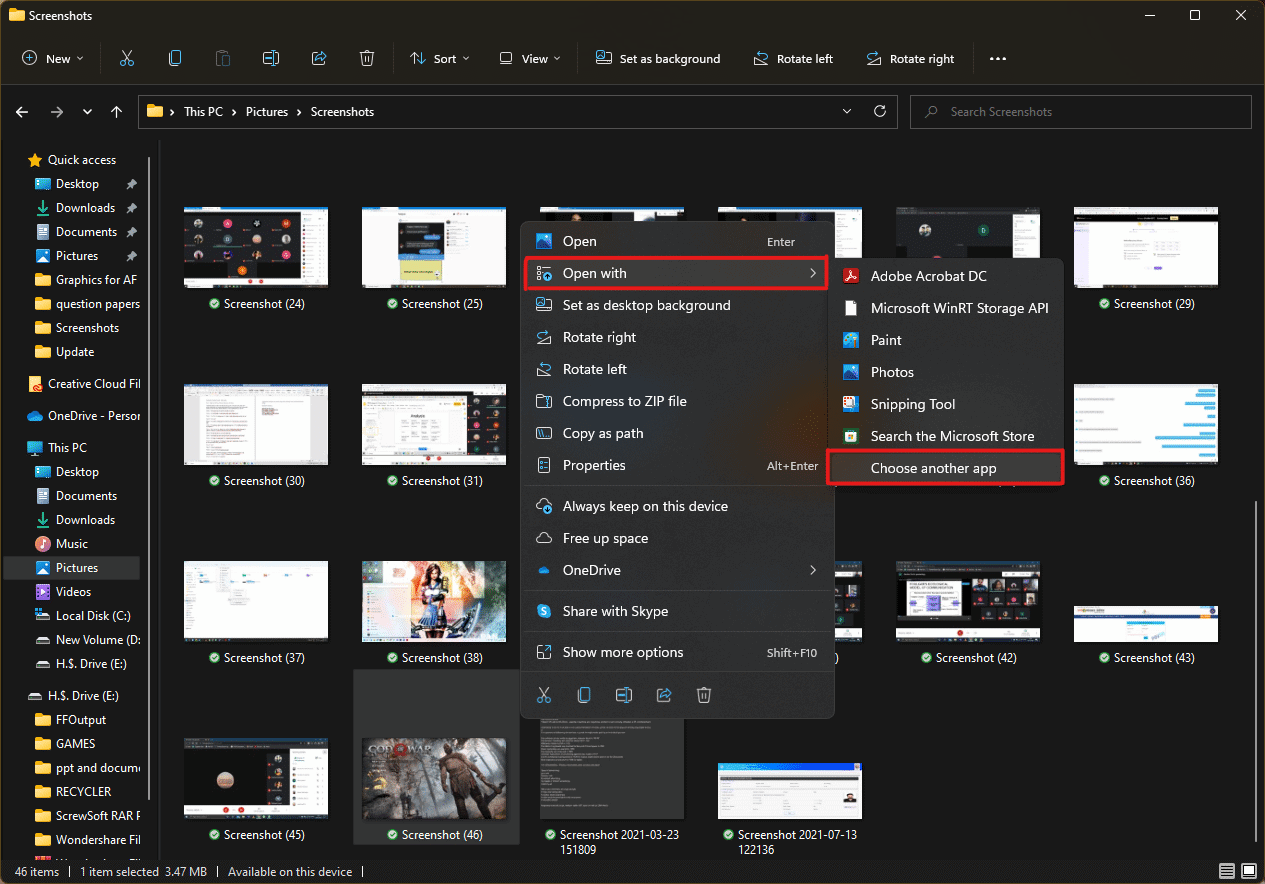
- How do you want to open this file? pop-up will appear with a list of installed apps in the system. Find and select Adobe Acrobat DC and click on OK .
Note: You can click on More apps to further expand the list of apps if you didn’t find Adobe Acrobat earlier.

- After the image opens in Adobe Acrobat, press the key combination Ctrl + P to open the Print window.

- Click on the Poster tab to split images.

- Click on the Page setup… button to configure the page sizes of the split images.

- Configure the Orientation settings and Paper size settings through the drop-down menu and click on OK .

- Select the printer a ttached to your system from the Printer drop-down menu option from the top left corner and click the Print option to start the printing process.

Recommended:
- How to Create a Hanging Indent in Word and Google Docs
- How to Reset Windows 11
- Fix Local Print Spooler Service Is Not Running
- How to Create PDF File in Windows 11
We hope you understood how to print large images on multiple pages in Windows 10/11 . Share your experiences in the comment section below with your queries and suggestions. Also, let us know which topic you want us to explore next.
