If you face error code 31 for Network Adapter or Ethernet Controller in Devie Manager, then this means the drivers have become incompatible or corrupted because of which this error occurs. When you face error code 31 it accompanies an error message saying “ Device not working properly ” which you won’t be able to access the device, in short, you won’t be able to access the Internet. The full error message which users face is as follows:
This device is not working properly because Windows cannot load the drivers required for this device (Code 31)

You will come to see this once your WiFi will stop working, as the device drivers have somehow become corrupt or incompatible. Anyway, without wasting any more time let’s see how to actually Fix Network Adapter Error Code 31 in Device Manager with the help of below-listed troubleshooting guide.
- Fix Network Adapter Error Code 31 in Device Manager
- Method 1: Download the latest Network Adapter Drivers from the manufacturer’s website
- Method 2: Install Proper Drivers for Network Adapter
- Method 3: Uninstall Drivers for Network Adapter
Fix Network Adapter Error Code 31 in Device Manager
Make sure to create a restore point just in case something goes wrong.
Method 1: Download the latest Network Adapter Drivers from the manufacturer’s website
You could easily download the latest drivers from your PC manufacturers website or the Network Adapter manufacturer website. In any case, you would easily get the latest driver, once downloaded, install the drivers and then reboot your PC to save changes. This should fix the error code 31 altogether, and you could easily access the Internet.
Method 2: Install Proper Drivers for Network Adapter
- Press Windows Key + R then type devmgmt.msc and hit Enter to open Device Manager.

- Expand Network Adapter and right-click on your Wireless Network Adapter and select Properties.

- Switch to Details tab and from the Property drop-down select Hardware ID.

Now from the value box right-click and copy the last value which would look something like this: PCI\VEN_8086&DEV_0887&CC_0280
Once you have the hardware id, make sure to google search the exact value “PCI\VEN_8086&DEV_0887&CC_0280” to download the correct drivers.

- Download the correct drivers and install them.

- Reboot your PC and see if you’re able to Fix Network Adapter Error Code 31 in Device Manager.
Method 3: Uninstall Drivers for Network Adapter
Make sure to backup registry before continuing.
- Press Windows Key + R then type regedit and hit Enter to open Registry Editor.

- Navigate to the following registry key:
HKEY_LOCAL_MACHINE\SYSTEM\CurrentControlSet\Control\Network
- Make sure you have highlighted Network in the left window pane and then from the right window find Config.

Then right-click on Config and select Delete.
Close the Registry Editor and then press Windows Key + R then type devmgmt.msc and hit Enter to open Device Manager.
- Expand Network Adapter and then right-click on your Wireless Network Adapter and select Uninstall.

If it asks for confirmation, select Yes.
Reboot your PC to save changes, and once the PC restarts the Windows will automatically install the driver.
If the drivers are not installed, you need to go to the manufacturer’s website and download them.
Recommended:
- Fix BackgroundContainer.dll error on Startup
- Fix Windows Cannot Connect to the Printer
- How To Fix Windows Update Error 0x800706d9
- Fix Some Update Files aren’t signed correctly
That’s it you have successfully Fix Network Adapter Error Code 31 in Device Manager but if you still have any questions regarding this post feel free to ask them in the comment’s section.
Fix Windows Cannot Connect to the Printer: If you are connected to a local network which shares a printer, it may be possible you may receive the error message “ Windows cannot connect to the printer. Operation failed with error 0x000000XX ” while trying to add the shared printer to your computer using Add Printer feature. This issue occurs because, after the printer is installed, Windows 10 or Windows 7 incorrectly looks for the Mscms.dll file in a subfolder different than the windows\system32 subfolder.

Now there is alreadya Microsoft hotfix for this issue but it doesn’t seem to work for many users. So without wasting any time let’s see how to actually Fix Windows Cannot Connect to the Printer on Windows 10 with the below-listed troubleshooting guide.
Note: You could try the Microsoft hotfix first, just in case if this work for you then you will save a lot of time.
- Windows Cannot Connect to the Printer [SOLVED]
- Method 1: Copy the mscms.dll
- Method 2: Create A New Local Port
- Method 3: Restart Print Spooler Service
- Method 4: Delete Incompatible Printer Drivers
- Method 5: Registry Fix
Windows Cannot Connect to the Printer [SOLVED]
Make sure to create a restore point just in case something goes wrong.
Method 1: Copy the mscms.dll
1.Navigate to the following folder: C:\Windows\system32\
2.Find the mscms.dll in the above directory and right-click then select copy.

3.Now paste the above file in the following location according to your PC architecture:
C:\windows\system32\spool\drivers\x64\3\ (For 64-bit) C:\windows\system32\spool\drivers\w32x86\3\ (For 32-bit)
4.Reboot your PC to save changes and again try to connect to the remote printer again.
This should help you Fix Windows Cannot Connect to the Printer issue, if not then continue.
Method 2: Create A New Local Port
1.Press Windows Key + X then select Control Panel.
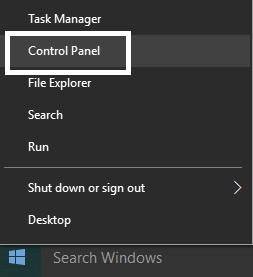
2.Now click Hardware and Sound then click on Devices and Printers.

3.Click Add a printer from the top menu.

4.If you don’t see you printer listed click the link which says “ The printer that I want isn’t listed. “

5.From the next screen select “ Add a local printer or network printer with manual settings ” and click Next.

6.Select Create a new port and then from type of port drop-down select Local Port and then click Next.

7.Type the printer’s address in Printers port name field in the following format:
\IP address or the Computer Name\Printers Name
For example \192.168.1.120\HP LaserJet Pro M1136

8.Now click OK and then click Next.
9.Follow on-screen instructions to finish the process.
Method 3: Restart Print Spooler Service
1.Press Windows Key + R then type services.msc and hit Enter.

2.Find Print Spooler service in the list and double-click on it.
3.Make sure the Startup type is set to Automatic and the service is running, then click on Stop and then again click on start in order to restart the service.

4.Click Apply followed by OK.
5.After that, again try to add the printer and see if the you’re able to Fix Windows Cannot Connect to the Printer issue.
Method 4: Delete Incompatible Printer Drivers
1.Press Windows key + R then type printmanagement.msc and hit Enter.
2.From the left pane, click All Drivers.

3.Now in the right window pane, right-click on the printer driver and click Delete.
4.If you see more than one printer driver names, repeat the above steps.
- Again try to add the printer and install its drivers. See if you are able to Fix Windows Cannot Connect to the Printer issue, if not then continue with the next method.
Method 5: Registry Fix
1.First, you need to stop Printer Spooler service (Refer to method 3).
2.Press Windows Key + R then type regedit and hit Enter to open Registry Editor.
3.Navigate to the following registry key:
HKEY_LOCAL_MACHINE\SOFTWARE\Microsoft\Windows NT\CurrentVersion\Print\Providers\Client Side Rendering Print Provider
4.Now right-click on Client Side Rendering Print Provider and select Delete.

5.Now again start Printer Spooler service and reboot your PC to save changes.
- Fix Windows 10 Update Error 0x8007042c
- Fix Windows Update Error 0x80010108
- How To Fix Error 0X80010108 In Windows 10
- Fix Windows Update Error 0x800706d9
That’s it you have successfully Fix Windows Cannot Connect to the Printer issue but if you still have any questions regarding this article then feel free to ask them in comment’s section.
