Fix Printer Installation Error 0x00000057 [SOLVED]: Error 0x00000057 is related to printer installation which means when you try to install a printer on your machine it gives an error code 0x00000057. The main cause of this error is outdated or corrupt drivers of the printer on your system or the printer driver is failing to install.

The problem is something like this: First, you click on add printer then you click on Add network, wireless or Bluetooth printer and the printer appears on the selection list but when you click on Add, it immediately shows an error 0x00000057 and it can’t connect to the printer.
- Fix Printer Installation Error 0x00000057 [SOLVED]
- Method 1: Add a local printer through Network
- Method 2: Copy the FileRepository files from a working machine
- Method 3: Reinstall the Printer and Drivers manually
- Method 4: Add local server from Print Management
- Method 5: Rename Driver files
Fix Printer Installation Error 0x00000057 [SOLVED]
Method 1: Add a local printer through Network
1.Press Windows Key + X and select Control Panel.
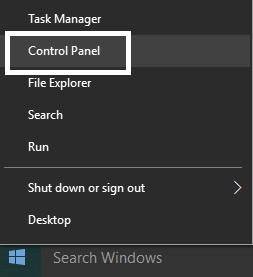
2.Now select Devices and Printers then click Add a Printer .

3.Select Create a new Port and use Local Port as the type.

4.Next, enter the Network Path to the Printer (ie. \ComputerName\SharedPrinterName) as the Port Name.

5.Now choose the printer from the list and then select replace the driver that is currently installed .

6.Select whether or not to share the printer and then select whether you want to make this a default printer or not.

7.You have successfully installed your printer without any error.
Method 2: Copy the FileRepository files from a working machine
1.Go to a working machine with the same driver installed properly (working).
2.Press Windows Key + R then type “ regedit ” and hit enter to open Registry Editor.

3.Now navigate to the following location in registry editor:
HKLM\System\CurrentControlSet\Control\Print\Environments\Windows NT x86\Drivers\Version-3\

4.Find the subkey of the printer driver you are having issues with, Click on it and look for “ InfPath ” on the right column in the registry editor. Once found, note the path.
5.Next browse to C:\Windows\System32\DriverStore\FileRepository and locate the folder indicated in the InfPath.

6.Copy the content of the FileRepository folder to a USB flash drive.
7.Now go the computer which is giving Error 0x00000057 and navigate to C:\Windows\System32\DriverStore\FileRepository.
8.If the folder is empty this means your printer driver installation failed. Next, take full ownership of the folder .
9.Finally, copy the content from the USB flash drive to this folder.
10.Again try to install the driver and see if you’re able to Fix Printer Installation Error 0x00000057.
Method 3: Reinstall the Printer and Drivers manually
1.Press Windows Key + R then type “ services.msc ” and hit enter.

2.Find Print Spooler service then right click on it and select Stop.

3.Again press Windows Key + R then type printui.exe /s /t2 and hit enter.
4.In the Printer Server Properties window search for the printer which is causing this issue.
5.Next, remove the printer and when asked for confirmation to remove the driver as well, select yes.

6.Now again go to services.msc and right-click on Print Spooler and select Start.
7.Finally, again try to install the Printer.
Method 4: Add local server from Print Management
1.Press Windows Key + R then type MMC and hit enter to open Microsoft Management Console.
2.Next, Click on File then select Add/Remove Snap-in .

3.After that make the following selections:
Print Management> Click Add local server> Finish> OK

4.Now expand the Print Server then Local server and finally Click Drivers .

5.Locate the driver you are having issues with and delete it.
6.Reinstall the printer and you should be able to Fix Printer Installation Error 0x00000057.
Method 5: Rename Driver files
1.Press Windows Key + R then type “ %systemroot%\system32\driverstore ” and hit enter.
2.Next, make sure to rename the following:
infcache.1

infpub.dat

infstor.dat

infstrng.dat

3.If you are not able to rename these files you need to take ownership of the above files.
4.Finally, again try to install the printer drivers.
That’s it you have successfully Fix Printer Installation Error 0x00000057 but if you still have any queries regarding this post feel free to ask them in the comment’s section.
Fix Printer Installation Error 0x00000057 [SOLVED]: Error 0x00000057 is related to printer installation which means when you try to install a printer on your machine it gives an error code 0x00000057. The main cause of this error is outdated or corrupt drivers of the printer on your system or the printer driver is failing to install.
The problem is something like this: First, you click on add printer then you click on Add network, wireless or Bluetooth printer and the printer appears on the selection list but when you click on Add, it immediately shows an error 0x00000057 and it can’t connect to the printer.
- Fix Printer Installation Error 0x00000057 [SOLVED]
- Method 1: Add a local printer through Network
- Method 2: Copy the FileRepository files from a working machine
- Method 3: Reinstall the Printer and Drivers manually
- Method 4: Add local server from Print Management
- Method 5: Rename Driver files
Fix Printer Installation Error 0x00000057 [SOLVED]
Method 1: Add a local printer through Network
1.Press Windows Key + X and select Control Panel.
2.Now select Devices and Printers then click Add a Printer .
3.Select Create a new Port and use Local Port as the type.
4.Next, enter the Network Path to the Printer (ie. \ComputerName\SharedPrinterName) as the Port Name.
5.Now choose the printer from the list and then select replace the driver that is currently installed .
6.Select whether or not to share the printer and then select whether you want to make this a default printer or not.
7.You have successfully installed your printer without any error.
Method 2: Copy the FileRepository files from a working machine
1.Go to a working machine with the same driver installed properly (working).
2.Press Windows Key + R then type “ regedit ” and hit enter to open Registry Editor.
3.Now navigate to the following location in registry editor:
HKLM\System\CurrentControlSet\Control\Print\Environments\Windows NT x86\Drivers\Version-3\
4.Find the subkey of the printer driver you are having issues with, Click on it and look for “ InfPath ” on the right column in the registry editor. Once found, note the path.
5.Next browse to C:\Windows\System32\DriverStore\FileRepository and locate the folder indicated in the InfPath.
6.Copy the content of the FileRepository folder to a USB flash drive.
7.Now go the computer which is giving Error 0x00000057 and navigate to C:\Windows\System32\DriverStore\FileRepository.
8.If the folder is empty this means your printer driver installation failed. Next, take full ownership of the folder .
9.Finally, copy the content from the USB flash drive to this folder.
10.Again try to install the driver and see if you’re able to Fix Printer Installation Error 0x00000057.
Method 3: Reinstall the Printer and Drivers manually
1.Press Windows Key + R then type “ services.msc ” and hit enter.
2.Find Print Spooler service then right click on it and select Stop.
3.Again press Windows Key + R then type printui.exe /s /t2 and hit enter.
4.In the Printer Server Properties window search for the printer which is causing this issue.
5.Next, remove the printer and when asked for confirmation to remove the driver as well, select yes.
6.Now again go to services.msc and right-click on Print Spooler and select Start.
7.Finally, again try to install the Printer.
Method 4: Add local server from Print Management
1.Press Windows Key + R then type MMC and hit enter to open Microsoft Management Console.
2.Next, Click on File then select Add/Remove Snap-in .
3.After that make the following selections:
Print Management> Click Add local server> Finish> OK
4.Now expand the Print Server then Local server and finally Click Drivers .
5.Locate the driver you are having issues with and delete it.
6.Reinstall the printer and you should be able to Fix Printer Installation Error 0x00000057.
Method 5: Rename Driver files
1.Press Windows Key + R then type “ %systemroot%\system32\driverstore ” and hit enter.
2.Next, make sure to rename the following:
infcache.1

infpub.dat

infstor.dat

infstrng.dat
3.If you are not able to rename these files you need to take ownership of the above files.
4.Finally, again try to install the printer drivers.
That’s it you have successfully Fix Printer Installation Error 0x00000057 but if you still have any queries regarding this post feel free to ask them in the comment’s section.
Microsoft frequently rolls out updates for Windows 10 to improve the operating system on various functionalities such as system efficiency, security, stability, etc. Although each bug brings a host of improvements to the operating system, it also brings new bugs that plague many users. One of these is the Windows update released in March 2021, update KB500080. This update caused many issues with the printer drivers already installed in the system. Users reported errors like Windows update for printer drivers not working. These printer installation issues were so prominent and serious that some users even reported receiving BSOD (Blue Screen of Death – the screen displayed after a system crash due to Windows failure) while printing. This made printing impossible. If you are wondering how to solve this Windows update can’t get list of devices issue, you are at the right article. Here, we discuss the possible causes and some potential solutions so we can tackle this error. Let’s get started!

- How to Fix Printer Installation Issues in Windows 10
- Method 1: Discharge Printer
- Method 2: Run Printer Troubleshooter
- Method 3: Update Device Drivers
- Method 4: Manually Install Generic Drivers
- Method 5: Restart Print Spooler Service
- Method 6: Install Drivers from Windows Update Catalog
- Method 7: Reinstall Printer
How to Fix Printer Installation Issues in Windows 10
Before getting onto the fixes, let us see some causes for this issue:
- Printer is old and has no latest software support
- Windows update bug
- Issues with printer service
- Issues with printer drivers and software
- Printer is incorrectly connected
Method 1: Discharge Printer
You can try discharging the printer of all electricity by removing it from the main switch, removing it from the computer for 2–5 minutes, and connecting it back again. Make sure to properly connect the printer to the main switch and the computer before turning it off, and check if the issue is fixed.
Method 2: Run Printer Troubleshooter
There is an in-built Windows troubleshooter for printer issues. You can access it easily by accessing settings. Running printer troubleshooter will resolve Windows update for printer drivers not working issue.
Press Windows + I keys simultaneously to launch Settings .
Click on the Update & Security tile, as shown.
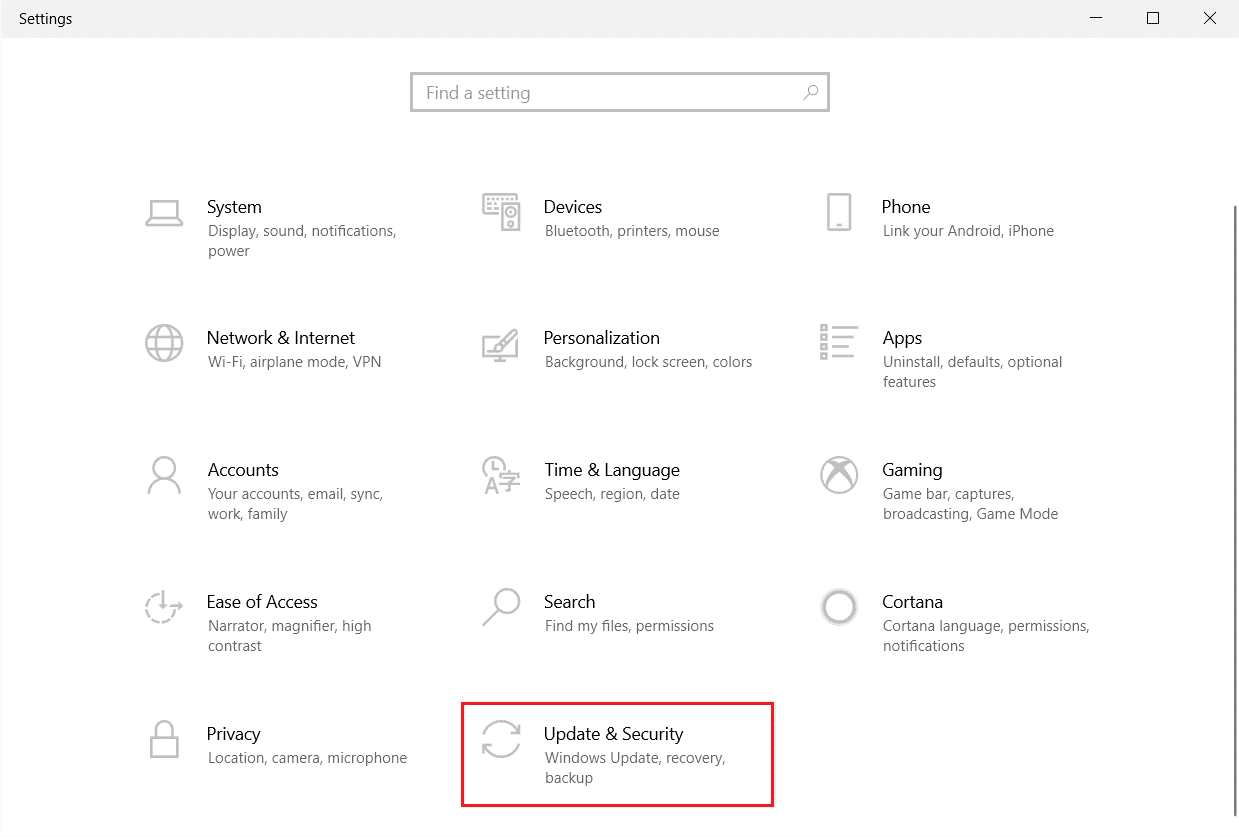
Go to Troubleshoot menu in the left pane.
Select Printer troubleshooter and click on Run the troubleshooter button shown highlighted below.

- Wait for the troubleshooter to detect and fix the problem. Once the process is complete, click Apply this fix and restart your PC .
Windows will automatically search for any problems and attempt to fix them automatically. Also, you can run Hardware and Devices Troubleshooter on Windows 10 to resolve the issue.

Method 3: Update Device Drivers
As Windows users reported errors after the Windows update, there could be problems with the printer driver. Updating printer drivers could be a potential fix. Various methods to update the printer drivers are highlighted below if one of them does not work for you.
Read our guide on How to Update Device Drivers on Windows 10 and implement the different methods given in this link for printer devices.

Note : If your printer came with an installation disc, it could be a driver installation disc. Insert it into your DVD/CD driver and follow the onscreen instructions to install the driver.
Method 4: Manually Install Generic Drivers
If you have an old printer or your manufacturer has not yet released a driver for Windows 10, printer installation issues can occur. This can be an ongoing issue since the printer will be unusable without proper usable driver software. In this scenario, Windows will automatically install Generic drivers suitable for your printer. If not, then you can install them manually.
- Press the Windows key , type Device Manager , and click on Open .
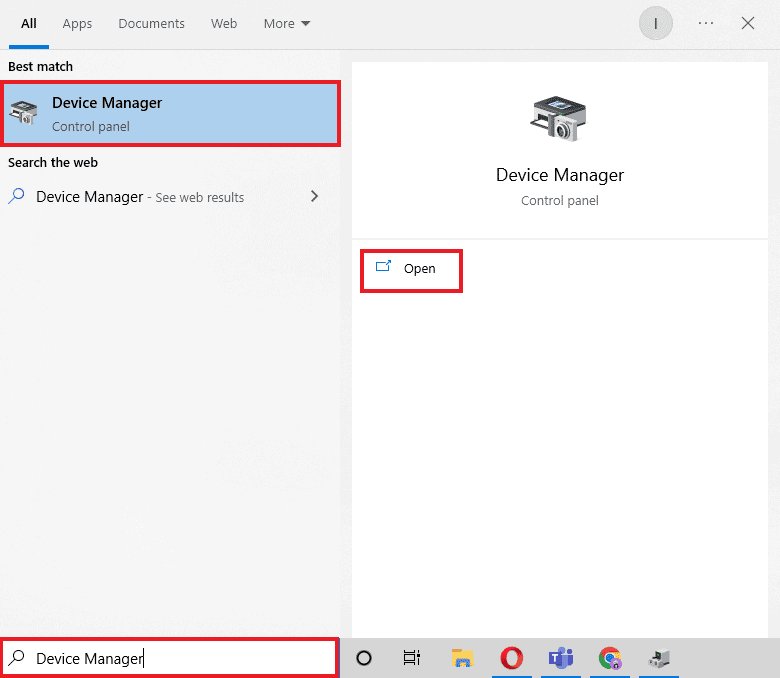
- Under the Print queues section, right-click on Microsoft XPS writer and select the Update driver option.

- Click on the Browse my computer for driver software option.

- Next, click on Let me pick from a list of available drivers on my computer .

- Finally, choose Generic software device and click on Next .

This will install the required driver and fix the printer installation issue.
Method 5: Restart Print Spooler Service
When a Windows user sends print requests to the printer, the print spooler is the software that manages these requests sent by the user. Resetting it can be a potential solution. Follow the below steps:
Hit the Windows + R keys together to open the Run dialog box.
Type services.msc and click on OK to launch the Services window.

- Right-click on Print Spooler and click on Stop to stop the service.

Now, navigate to the Run dialog box again by simultaneously pressing Windows + R keys .
Enter the below command and click on OK .
%WINDIR%\system32\spool\printers

Select all the files in the folder by holding Ctrl + A keys simultaneously.
Now, press Shift + Delete to delete all the files present in that folder permanently.
Go back to the Services window and double-click on the Print Spooler service.

Make sure the Startup type drop-down is set to Automatic .
Finally, click on Start under the Service status section.

- Click on Apply > OK to confirm.
Check if Windows Update can’t get list of devices issue gets resolved or not.
Method 6: Install Drivers from Windows Update Catalog
Sometimes, using a generic driver does not help and might still throw up printer installation issues. If you face issues with the printer and you have an old printer, then you can try an official Microsoft Windows Update Catalog. Here, the updates are archived so year-old drivers can easily download and use them. Let us see how to use it.
Go to the Microsoft Catalog website in a browser.
Type the model of your printer (e.g. HP LaserJet 4000 ) and click on Search to search drivers for your hardware.
If you find the driver for your hardware, click on Download .

- Here, click on the cab link to download the driver.

Right-click on the downloaded file and choose Extract .
Update your printer driver manually by locating the folder where you extracted the drivers.
Method 7: Reinstall Printer
You can reinstall the printer completely from the start to see if that works. This involves removing the printer and device driver with all powers and connecting them back.
- Hit the Windows key , type Control Panel , then click on Open .

- Set View by > Category , then click on View devices and printers .

Under the Printers section, right-click on your printer .
Choose the Remove device option.

Click on Yes in the UAC prompt to remove the device.
Now, reboot the PC and reconnect your printer.
Go to Devices and Printers and right click on the printer and select Set as default printer .

This will solve printer installation issues.
Recommended:
- Fix Daemon Tools Unable to Access Image File MDF
- Fix Epson Scanner Cannot Communicate in Windows 10
- Fix Error Printing in Windows 10
- Where is the WPS Button on Canon Printer?
We hope that this article was helpful, and you were able to resolve printer installation issues in Windows 10. If you have any doubts or suggestions, comment below. Also, let us know what you want to learn next.
Fix Printer Installation Error 0x00000057 [SOLVED]: Error 0x00000057 is related to printer installation which means when you try to install a printer on your machine it gives an error code 0x00000057. The main cause of this error is outdated or corrupt drivers of the printer on your system or the printer driver is failing to install.
The problem is something like this: First, you click on add printer then you click on Add network, wireless or Bluetooth printer and the printer appears on the selection list but when you click on Add, it immediately shows an error 0x00000057 and it can’t connect to the printer.
- Fix Printer Installation Error 0x00000057 [SOLVED]
- Method 1: Add a local printer through Network
- Method 2: Copy the FileRepository files from a working machine
- Method 3: Reinstall the Printer and Drivers manually
- Method 4: Add local server from Print Management
- Method 5: Rename Driver files
Fix Printer Installation Error 0x00000057 [SOLVED]
Method 1: Add a local printer through Network
1.Press Windows Key + X and select Control Panel.
2.Now select Devices and Printers then click Add a Printer .
3.Select Create a new Port and use Local Port as the type.
4.Next, enter the Network Path to the Printer (ie. \ComputerName\SharedPrinterName) as the Port Name.
5.Now choose the printer from the list and then select replace the driver that is currently installed .
6.Select whether or not to share the printer and then select whether you want to make this a default printer or not.
7.You have successfully installed your printer without any error.
Method 2: Copy the FileRepository files from a working machine
1.Go to a working machine with the same driver installed properly (working).
2.Press Windows Key + R then type “ regedit ” and hit enter to open Registry Editor.
3.Now navigate to the following location in registry editor:
HKLM\System\CurrentControlSet\Control\Print\Environments\Windows NT x86\Drivers\Version-3\
4.Find the subkey of the printer driver you are having issues with, Click on it and look for “ InfPath ” on the right column in the registry editor. Once found, note the path.
5.Next browse to C:\Windows\System32\DriverStore\FileRepository and locate the folder indicated in the InfPath.
6.Copy the content of the FileRepository folder to a USB flash drive.
7.Now go the computer which is giving Error 0x00000057 and navigate to C:\Windows\System32\DriverStore\FileRepository.
8.If the folder is empty this means your printer driver installation failed. Next, take full ownership of the folder .
9.Finally, copy the content from the USB flash drive to this folder.
10.Again try to install the driver and see if you’re able to Fix Printer Installation Error 0x00000057.
Method 3: Reinstall the Printer and Drivers manually
1.Press Windows Key + R then type “ services.msc ” and hit enter.
2.Find Print Spooler service then right click on it and select Stop.
3.Again press Windows Key + R then type printui.exe /s /t2 and hit enter.
4.In the Printer Server Properties window search for the printer which is causing this issue.
5.Next, remove the printer and when asked for confirmation to remove the driver as well, select yes.
6.Now again go to services.msc and right-click on Print Spooler and select Start.
7.Finally, again try to install the Printer.
Method 4: Add local server from Print Management
1.Press Windows Key + R then type MMC and hit enter to open Microsoft Management Console.
2.Next, Click on File then select Add/Remove Snap-in .
3.After that make the following selections:
Print Management> Click Add local server> Finish> OK
4.Now expand the Print Server then Local server and finally Click Drivers .
5.Locate the driver you are having issues with and delete it.
6.Reinstall the printer and you should be able to Fix Printer Installation Error 0x00000057.
Method 5: Rename Driver files
1.Press Windows Key + R then type “ %systemroot%\system32\driverstore ” and hit enter.
2.Next, make sure to rename the following:
infcache.1

infpub.dat

infstor.dat

infstrng.dat
3.If you are not able to rename these files you need to take ownership of the above files.
4.Finally, again try to install the printer drivers.
That’s it you have successfully Fix Printer Installation Error 0x00000057 but if you still have any queries regarding this post feel free to ask them in the comment’s section.
Fix Printer Installation Error 0x00000057 [SOLVED]: Error 0x00000057 is related to printer installation which means when you try to install a printer on your machine it gives an error code 0x00000057. The main cause of this error is outdated or corrupt drivers of the printer on your system or the printer driver is failing to install.
The problem is something like this: First, you click on add printer then you click on Add network, wireless or Bluetooth printer and the printer appears on the selection list but when you click on Add, it immediately shows an error 0x00000057 and it can’t connect to the printer.
- Fix Printer Installation Error 0x00000057 [SOLVED]
- Method 1: Add a local printer through Network
- Method 2: Copy the FileRepository files from a working machine
- Method 3: Reinstall the Printer and Drivers manually
- Method 4: Add local server from Print Management
- Method 5: Rename Driver files
Fix Printer Installation Error 0x00000057 [SOLVED]
Method 1: Add a local printer through Network
1.Press Windows Key + X and select Control Panel.
2.Now select Devices and Printers then click Add a Printer .
3.Select Create a new Port and use Local Port as the type.
4.Next, enter the Network Path to the Printer (ie. \ComputerName\SharedPrinterName) as the Port Name.
5.Now choose the printer from the list and then select replace the driver that is currently installed .
6.Select whether or not to share the printer and then select whether you want to make this a default printer or not.
7.You have successfully installed your printer without any error.
Method 2: Copy the FileRepository files from a working machine
1.Go to a working machine with the same driver installed properly (working).
2.Press Windows Key + R then type “ regedit ” and hit enter to open Registry Editor.
3.Now navigate to the following location in registry editor:
HKLM\System\CurrentControlSet\Control\Print\Environments\Windows NT x86\Drivers\Version-3\
4.Find the subkey of the printer driver you are having issues with, Click on it and look for “ InfPath ” on the right column in the registry editor. Once found, note the path.
5.Next browse to C:\Windows\System32\DriverStore\FileRepository and locate the folder indicated in the InfPath.
6.Copy the content of the FileRepository folder to a USB flash drive.
7.Now go the computer which is giving Error 0x00000057 and navigate to C:\Windows\System32\DriverStore\FileRepository.
8.If the folder is empty this means your printer driver installation failed. Next, take full ownership of the folder .
9.Finally, copy the content from the USB flash drive to this folder.
10.Again try to install the driver and see if you’re able to Fix Printer Installation Error 0x00000057.
Method 3: Reinstall the Printer and Drivers manually
1.Press Windows Key + R then type “ services.msc ” and hit enter.
2.Find Print Spooler service then right click on it and select Stop.
3.Again press Windows Key + R then type printui.exe /s /t2 and hit enter.
4.In the Printer Server Properties window search for the printer which is causing this issue.
5.Next, remove the printer and when asked for confirmation to remove the driver as well, select yes.
6.Now again go to services.msc and right-click on Print Spooler and select Start.
7.Finally, again try to install the Printer.
Method 4: Add local server from Print Management
1.Press Windows Key + R then type MMC and hit enter to open Microsoft Management Console.
2.Next, Click on File then select Add/Remove Snap-in .
3.After that make the following selections:
Print Management> Click Add local server> Finish> OK
4.Now expand the Print Server then Local server and finally Click Drivers .
5.Locate the driver you are having issues with and delete it.
6.Reinstall the printer and you should be able to Fix Printer Installation Error 0x00000057.
Method 5: Rename Driver files
1.Press Windows Key + R then type “ %systemroot%\system32\driverstore ” and hit enter.
2.Next, make sure to rename the following:
infcache.1

infpub.dat

infstor.dat

infstrng.dat
3.If you are not able to rename these files you need to take ownership of the above files.
4.Finally, again try to install the printer drivers.
That’s it you have successfully Fix Printer Installation Error 0x00000057 but if you still have any queries regarding this post feel free to ask them in the comment’s section.
Fix Printer Installation Error 0x00000057 [SOLVED]: Error 0x00000057 is related to printer installation which means when you try to install a printer on your machine it gives an error code 0x00000057. The main cause of this error is outdated or corrupt drivers of the printer on your system or the printer driver is failing to install.
The problem is something like this: First, you click on add printer then you click on Add network, wireless or Bluetooth printer and the printer appears on the selection list but when you click on Add, it immediately shows an error 0x00000057 and it can’t connect to the printer.
- Fix Printer Installation Error 0x00000057 [SOLVED]
- Method 1: Add a local printer through Network
- Method 2: Copy the FileRepository files from a working machine
- Method 3: Reinstall the Printer and Drivers manually
- Method 4: Add local server from Print Management
- Method 5: Rename Driver files
Fix Printer Installation Error 0x00000057 [SOLVED]
Method 1: Add a local printer through Network
1.Press Windows Key + X and select Control Panel.
2.Now select Devices and Printers then click Add a Printer .
3.Select Create a new Port and use Local Port as the type.
4.Next, enter the Network Path to the Printer (ie. \ComputerName\SharedPrinterName) as the Port Name.
5.Now choose the printer from the list and then select replace the driver that is currently installed .
6.Select whether or not to share the printer and then select whether you want to make this a default printer or not.
7.You have successfully installed your printer without any error.
Method 2: Copy the FileRepository files from a working machine
1.Go to a working machine with the same driver installed properly (working).
2.Press Windows Key + R then type “ regedit ” and hit enter to open Registry Editor.
3.Now navigate to the following location in registry editor:
HKLM\System\CurrentControlSet\Control\Print\Environments\Windows NT x86\Drivers\Version-3\
4.Find the subkey of the printer driver you are having issues with, Click on it and look for “ InfPath ” on the right column in the registry editor. Once found, note the path.
5.Next browse to C:\Windows\System32\DriverStore\FileRepository and locate the folder indicated in the InfPath.
6.Copy the content of the FileRepository folder to a USB flash drive.
7.Now go the computer which is giving Error 0x00000057 and navigate to C:\Windows\System32\DriverStore\FileRepository.
8.If the folder is empty this means your printer driver installation failed. Next, take full ownership of the folder .
9.Finally, copy the content from the USB flash drive to this folder.
10.Again try to install the driver and see if you’re able to Fix Printer Installation Error 0x00000057.
Method 3: Reinstall the Printer and Drivers manually
1.Press Windows Key + R then type “ services.msc ” and hit enter.
2.Find Print Spooler service then right click on it and select Stop.
3.Again press Windows Key + R then type printui.exe /s /t2 and hit enter.
4.In the Printer Server Properties window search for the printer which is causing this issue.
5.Next, remove the printer and when asked for confirmation to remove the driver as well, select yes.
6.Now again go to services.msc and right-click on Print Spooler and select Start.
7.Finally, again try to install the Printer.
Method 4: Add local server from Print Management
1.Press Windows Key + R then type MMC and hit enter to open Microsoft Management Console.
2.Next, Click on File then select Add/Remove Snap-in .
3.After that make the following selections:
Print Management> Click Add local server> Finish> OK
4.Now expand the Print Server then Local server and finally Click Drivers .
5.Locate the driver you are having issues with and delete it.
6.Reinstall the printer and you should be able to Fix Printer Installation Error 0x00000057.
Method 5: Rename Driver files
1.Press Windows Key + R then type “ %systemroot%\system32\driverstore ” and hit enter.
2.Next, make sure to rename the following:
infcache.1

infpub.dat

infstor.dat

infstrng.dat
3.If you are not able to rename these files you need to take ownership of the above files.
4.Finally, again try to install the printer drivers.
That’s it you have successfully Fix Printer Installation Error 0x00000057 but if you still have any queries regarding this post feel free to ask them in the comment’s section.
