If you have recently updated or upgraded to Windows 10 then while searching through Registry Editor, it will take forever to perform the search, and when you click cancel, the regedit.exe crashes. And when the Registry Editor crashes it gives an error message saying “ The Registry editor has stopped working “. The mains issue seems to be the key length of the registry keys set to 255 bytes maximum. Now when this value is exceeded during the search, then the Regedit.exe crashes.

During the registry search, one or more value must have a length more than the 255 bytes, and once the subkey is found, the registry editor keeps running in an endless loop. When you try to cancel the search, the regedit.exe crashes because it doesn’t really have any other option. So without wasting any time let’s see how to Fix Regedit.exe Crashes when searching through Registry with the help of the below-listed guide.
- Fix Regedit.exe Crashes when searching through Registry
- Method 1: Run SFC and DISM Tool
- Method 2: Replace regedit.exe
- Method 3: Use Third-Party Registry Editor
Fix Regedit.exe Crashes when searching through Registry
Make sure to create a restore point just in case something goes wrong.
Method 1: Run SFC and DISM Tool
- Open Command Prompt. The user can perform this step by searching for ‘cmd’ and then press Enter.

- Now type the following in the cmd and hit enter:
Sfc /scannow

sfc /scannow /offbootdir=c:\ /offwindir=c:\windows (If above fails then try this one)
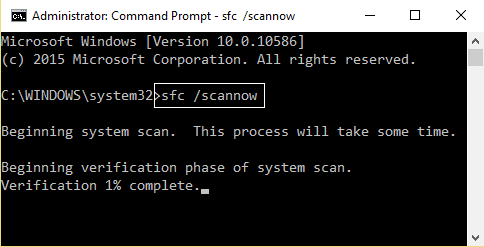
Wait for the above process to finish and once done, restart your PC.
Again open cmd and type the following command and hit enter after each one:
Dism /Online /Cleanup-Image /CheckHealth

Dism /Online /Cleanup-Image /ScanHealth

Dism /Online /Cleanup-Image /RestoreHealth
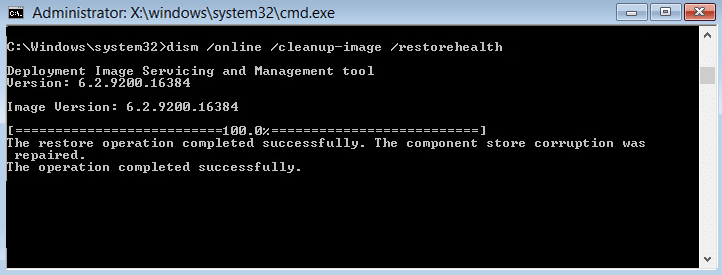
Let the DISM command run and wait for it to finish.
If the above command doesn’t work, then try on the below:
Dism /Image:C:\offline /Cleanup-Image /RestoreHealth /Source:c:\test\mount\windows

Dism /Online /Cleanup-Image /RestoreHealth /Source:c:\test\mount\windows /LimitAccess
Note: Replace the C:\RepairSource\Windows with your repair source (Windows Installation or Recovery Disc).
- Reboot your PC to save changes and see if you’re able to Fix Regedit.exe Crashes when searching through Registry.
Method 2: Replace regedit.exe
First, navigate to the C:\Windows.old folder if the folder doesn’t exist, then continue.
If you don’t have the above folder, then you need to download the regedit_W10-1511-10240.zip.
Extract the above file on the desktop and then open Command Prompt. The user can perform this step by searching for ‘cmd’ and then press Enter.
Type the following command into cmd and hit Enter:
takeown /f “C:\Windows\regedit.exe”
icacls “C:\Windows\regedit.exe” /grant “%username%”:F

Press Windows Key + E to open File Explorer then navigate to C:\Windows folder.
Find regedit.exe then rename it to regeditOld.exe and then close the file explorer.

- Now if you have C:\Windows.old\Windows folder then copy the regedit.exe from it to C:\Windows folder. If not, then copy the regedit.exe from the above-extracted zip file to C:\Windows folder.

8.Reboot your PC to save changes.
9.Launch Registry Editor and you could search for strings which have the size larger than 255 bytes.
Method 3: Use Third-Party Registry Editor
If you don’t want to follow such complex steps, you could easily use third party Registry Editor, which seems to work just fine and doesn’t have a 255-byte limit. Below are some of the popular third-party Registry Editors:
Regscanner
O&O RegEditor

Recommended:
- How to fix Printer not activated Error Code 20
- Fix Numeric Keypad Not Working in Windows 10
- Fix CD/DVD Drive not able to read discs
- Schedule Computer Shutdown using Task Scheduler
That’s it you have successfully Fix Regedit.exe Crashes when searching through Registry but if you still have any questions regarding this post then feel free to ask them in the comment’s section.
How to fix Printer not activated Error Code 20: If you’re facing the error message “Printer not activated – Error Code 20” then you’re at the right place as today we are going to see how to fix the issue. The issue is generally seen in systems in which user have upgraded from earlier version of Windows or using the QuickBooks software. In anyway case, let’s see how to fix Printer not activated Error Code 20 with the help of the below-listed guide.

- How to fix Printer not activated Error Code 20
- Method 1: Set the Default Printer
- Method 2: Re-install the USB Composite Device from Device Manager
- Method 3: Run Printer Troubleshooter
- Method 4: Registry Fix
- Method 5: Grant Permission using PowerShell
- Method 6: Reinstall QuickBook
How to fix Printer not activated Error Code 20
Make sure to create a restore point just in case something goes wrong.
Method 1: Set the Default Printer
1.Type control in Windows Search then click on Control Panel.
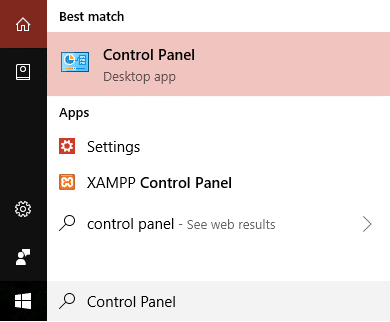
2.Click Hardware and Sound and then select Devices and Printers.

3.Right-click on your printer and select Set as a default printer.

4.Restart your PC to save changes.
Method 2: Re-install the USB Composite Device from Device Manager
1.Press Windows Key + R then type devmgmt.msc and hit Enter.

2.Expand Universal Serial Bus Controllers.
3.Right-click on USB Composite Device and select Uninstall.

4.If asks for confirmation select Yes/OK.
- Disconnect the Printer USB from the PC and then reconnect it.
6.Follow the instructions in the Found New Hardware wizard to install the drivers.

7.Right-click the printer icon, and then click Print Test Page to print a Windows self-test page.
8.Restart your PC to save changes.
Method 3: Run Printer Troubleshooter
1.type “troubleshooting” in Windows Search bar and click on Troubleshooting.
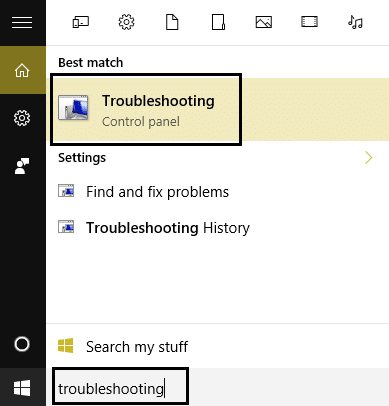
6.Next, from the left window pane select View all.
7.Then from the Troubleshoot computer problems list select Printer.

8.Follow on-screen instruction and let the Printer Troubleshooter run.
9.Restart your PC and you may be able to Fix Printer not activated Error Code 20.
Method 4: Registry Fix
1.Press Windows Key + R then type regedit and hit Enter to open Registry Editor.

2.Navigate to the following registry key:
HKEY_CURRENT_CONFIG\Software
3.Right-click on Software folder then select Permissions.

4.Now in the permission window, ensure that Administrator and users have Full Control checked, if not then checkmark them.

5.Click Apply followed by OK.
6.Restart your PC to save changes and see if you’re able to fix the issue.
Method 5: Grant Permission using PowerShell
1.Type powershell in Windows Search then right-click on PowerShell and select Run as Administrator.

2.Now type the following command in PowerShell and hit Enter:
PowerShell.exe -NoProfile -NoLogo -NonInteractive -Command “$key = [Microsoft.Win32.Registry]::CurrentConfig.OpenSubKey(‘Software’,[Microsoft.Win32.RegistryKeyPermissionCheck]::ReadWriteSubTree,[System.Security.AccessControl.RegistryRights]::ChangePermissions); $acl =$key.GetAccessControl(); $rule = New-Object System.Security.AccessControl.RegistryAccessRule (‘Users’,’FullControl’,’ObjectInherit,ContainerInherit’,’None’,’Allow’); $acl.SetAccessRule($rule); $key.SetAccessControl($acl);”

3.Reboot your PC to save changes.
Method 6: Reinstall QuickBook
1.Press Windows Key + R then type appwiz.cpl and hit Enter.

2.Find QuickBook from the list and uninstall it.
3.Next, download QuickBooks from here .
4.Run the installer and follow on-screen instructions to install QuickBook.
5.Restart your PC.
Recommended:
- Fix BAD_SYSTEM_CONFIG_INFO Error
- Fix Webcam not working after Windows 10 Anniversary Update
- How to Fix PNP Detected Fatal Error Windows 10
- Fix ERR_EMPTY_RESPONSE Google Chrome Error
That’s it you have successfully Fix Printer not activated Error Code 20 but if you still have any queries regarding this post then feel free to ask them in the comment’s section.
