
- How to Fix SADES Headset Not Working in Windows 10
- Method 1: Clean Headphone Jack
- Method 2: Use Another Port
- Method 3: Run Audio Troubleshooter
- Method 4: Set SADES Headset as Default Device
- Method 5: Unmute Headphone Mic
- Method 6: Increase Microphone Volume
- Method 7: Allow Apps to Access Microphone
- Method 8: Update Audio Drivers
- Method 9: Rollback Audio Driver Updates
- Method 10: Download SADES Headset Drivers
How to Fix SADES Headset Not Working in Windows 10
Before troubleshooting, let us see some points on why this issue occurs
- Microphone disabled
- Low volume in microphone
- Outdated audio drivers and SADES headset drivers
- Windows update conflicts
Method 1: Clean Headphone Jack
Headphone jacks are prone to dirt and dust particles. In this situation, clean the headphone jack with cotton soaked in isopropyl alcohol and let it dry completely.
- In the case of a Headphone socket, you can use compressed air to blow out any dust particles that may be trapped inside.
- Similarly, the microphone can also get clogged up with dirt over time. This can lead to issues. You can try cleaning with a toothbrush gently.
Method 2: Use Another Port
In case your current headphone connection port is broken, then SADES headset will not be working. Try connecting to a different headphone port to rule out if there is any fault with your current headphone jack and fix the issue.
Method 3: Run Audio Troubleshooter
You can try the Windows troubleshooter for recording audio to see if it solves SADES headset not working issue.
Press the Windows + I keys together to open the Settings menu.
Click on the Update & Security menu.

- In the left pane, click on Troubleshoot .

- Navigate to Recording Audio troubleshooter and select it. Finally, click on Run the troubleshooter to launch the troubleshooting process.

- Wait for the troubleshooter to detect issues if any.
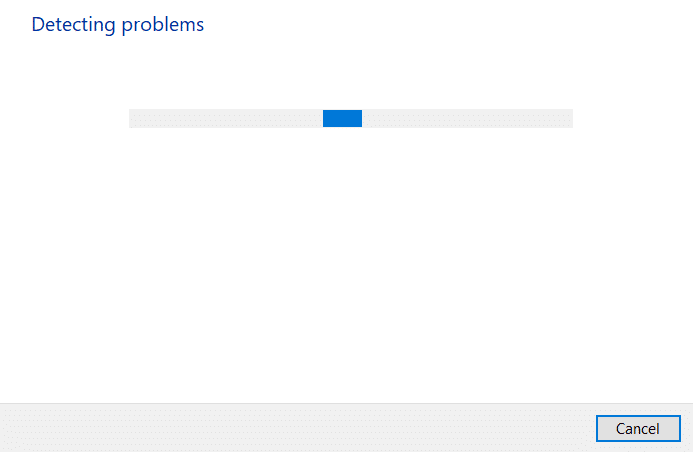
- Follow the on-screen instructions to apply the fix .
Method 4: Set SADES Headset as Default Device
After inserting the SADES Headset, make sure the device is set to default. If it is not set to default, follow these steps.
- Hit the Windows key , type Control Panel and click on Open .

- Click on the View by dropdown and select Large icons .

- Then, click on Sound .

- Go to the Recording tab.

- Right-click on empty space and click on Show Disabled Devices .

- If it is disabled, then right-click on Microphone Array and click Enable .

- Now, right-click on the Microphone Array and click on Set as Default Device . This will fix SADES headset not working issue.

Method 5: Unmute Headphone Mic
Most headphones come with an inbuilt hardware button that can be enabled or disabled in the headphone itself. Follow the given steps to check whether the headphone mic is muted or not.
Press the Windows + I keys together to open the Settings menu.
Click on System .

- Then, click on Sound in the left side pane.

- Make sure the mic is selected under Choose your input device . Finally, Test your microphone by speaking into it and make sure that you receive the sound.

Method 6: Increase Microphone Volume
It can be easy to confuse a mute microphone and a low-volume microphone. Low-volume microphone outputs a very low amount of output. There is a setting in Windows to change the microphone volume, If you would like to know more, read our guide on How to Increase Microphone Volume in Windows 10 to get an idea.

Method 7: Allow Apps to Access Microphone
Windows Update periodically updates the existing drivers and updates drivers for new hardware. Sometimes, after a recent Windows update, the audio drivers cause settings for the microphone to change. In this scenario try the below steps to fix SADES headset mic not working on Windows 10 problem.
Launch the Windows Settings .
Click on Privacy .

- Click on Microphone in the left pane.

- Make sure the toggle for Allow apps to access your microphone is turned on .

- Scroll down, and you can choose which program has access to your microphone, you can provide permissions for them by turning the toggle on.

Method 8: Update Audio Drivers
Sometimes the problem with your headset starts to appear when the audio driver is not updated. Read our guide on How to Update Realtek HD Audio Drivers in Windows 10 and follow the steps accordingly for your audio driver.

Method 9: Rollback Audio Driver Updates
All the current version drivers will be deleted from your PC and the previous version of them will be installed when you roll back your audio drivers. This is a helpful feature when any new driver is incompatible with the system.
Follow the steps as instructed in our guide How to Rollback Drivers on Windows 10 to fix SADES headset not working issue.

Method 10: Download SADES Headset Drivers
SADES headsets are designed to install drivers automatically when first inserted in the PC. In any case, if no specific SADES driver is installed then you can follow the below steps for downloading the drivers for your headset to fix SADES headset mic not working on Windows 10 issue.
Go to the SADES Headsets driver page .
On the webpage, different SADES headset series will be present. Find the one that is suitable for your headset.
Click on More below the headset.

- Finally, click on the download arrow to download the driver.

Extract the downloaded zip file and run the installer file in the extracted folder.
Click on the Next > button in the SADES Realtek Audio wizard.

- Wait for the drivers to be installed.

- Finally, reboot your PC .
Q1. Why is my SADES headset mic not working?
Ans. Make sure the mic is not muted in your headset, and clean the headphone connector before connecting it. Set the microphone as the default device. Read the article above to get an idea of how to do these methods.
Q2. My mic is working but my friends complain that my voice is very low, how to solve it?
Recommended:
- How to Get SHEIN Points for Free
- Fix Premiere Pro There Was an Error Decompressing Audio or Video
- How to Fix Razer Audio Visualizer Not Working
- Fix SADES Headset Not Recognised by Windows 10 Problem
We hope the above article on how to fix SADES headset not working was helpful and you were able to solve your problem. Please let us know which one of the methods worked for you. Feel free to drop a comment below if you have any suggestions or queries.
