
- How to Fix The Group or Resource is Not in the Correct State to Perform the Requested Operation
- Method 1: Perform Clean Boot
- Method 2: Run Program Compatibility Troubleshooter
- Method 3: Update Network Driver
- Method 4: Repair System Files
- Method 5: Modify Network Sharing Setting
- Method 6: Perform System Restore
- Method 7: Reset PC
How to Fix The Group or Resource is Not in the Correct State to Perform the Requested Operation
Here we have listed the possible reasons that cause the said error.
- Outdated Network Driver
- Incorrect Network Settings
- Windows Update Bugs
- Conflicted Programs
- Corrupt System Files
Follow the given troubleshooting methods to fix the issue in Windows 10 .
Method 1: Perform Clean Boot
The most basic thing to do is to clean boot the Windows. This can solve any bugs with the Windows boot. Follow our guide to perform clean boot in Windows 10 .

Method 2: Run Program Compatibility Troubleshooter
If you face the group or resource is not in the correct state to perform the requested operation error while running any programs, then try to run program compatibility troubleshooter to fix any issues with the programs. Following are the steps to run the program compatibility troubleshooter.
Press Windows + I keys simultaneously to launch Settings .
Click on the Update & Security setting.
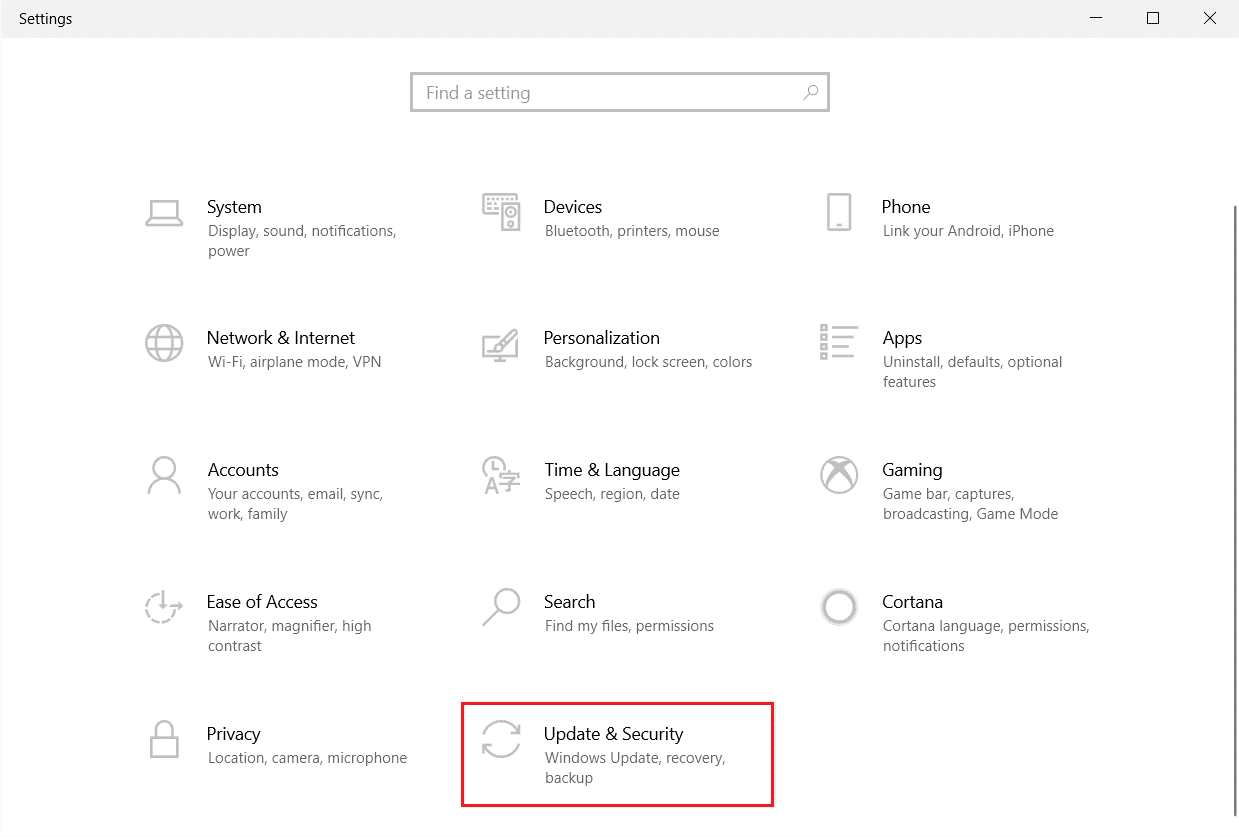
Go to Troubleshoot menu in the left pane.
Select the Program Compatibility Troubleshooter and click on Run the troubleshooter .

- Wait for the troubleshooter to detect issues if any.

- Finally, click on Try recommended settings option.

Method 3: Update Network Driver
Corrupt Network driver is one of the main reasons that causes the group or resource is not in the correct state to perform the requested operation error. So to solve this problem, you need to update the network device drivers. Read our guide on how to update network drivers on Windows 10 .

Method 4: Repair System Files
Errors in your system files can be fixed by running SFC (System File Checker) and DISM (Deployment Image Servicing and Management) scans. This will solve the issues while using File Explorer. Follow our guide to repair system files on Windows 10 .

Method 5: Modify Network Sharing Setting
While using a mobile hotspot you may face the group or resource is not in the correct state to perform the requested operation error. You need to modify your network sharing settings if it is so. Here are the steps to allow other network users to connect to your network.
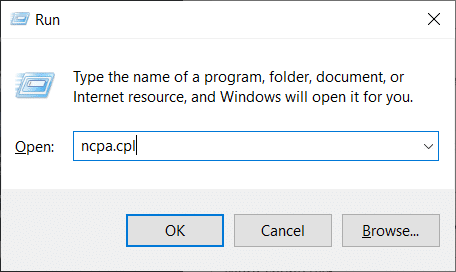
Launch the Run dialog box by pressing Windows + R keys together.
Type ncpa.cpl and hit Enter key to open Network Connections window.
- Right-click on your active network adapter and click on Properties .

Go to the Sharing tab.
Here, check the Allow other network users to connect through this computer’s internet connection option.

Method 6: Perform System Restore
Another method is to restore your computer to its previous version to fix the group or resource is not in the correct state to perform the requested operation error. To do so, follow our guide on How to use System Restore on Windows 10 and implement the instructions as demonstrated. In the end, your computer will be restored to a previous state where it does not face any errors at all.

Method 7: Reset PC
If your computer deals with severe corrupt Windows components, an efficient way to clean all these corrupt components and boot your data is to repair the PC as instructed in our guide How to Reset Windows 10 Without Losing Data . Follow as instructed in this article and at the end, you would have fixed the discussed error.

Recommended:
- Fix An Error Occurred While Loading a Higher Quality Version of this Photo on iPhone
- Fix Nvbackend.exe Error in Windows 10
- Fix Java TM Platform SE Binary Not Responding in Windows 10
- Fix We Couldn’t Connect to the Update Service in Windows 10
