Your PC has a set of two drivers, normal drivers are responsible for communication between your OS and hardware whereas, other kernel-mode drivers are necessary for booting the Operating System. The win32kfull.sys file is one of the kernel-mode drivers in your PC. Any problems in win32kfull.sys file happens when you have hardware issues in your computer. In some instances, you may face win32kfull.sys BSOD Windows 10 issue when you boot your PC. This is very frustrating since you cannot use your PC when needed. Hopefully to bring your PC back to normal when facing the Blue Screen of Death error, hold the power button for 5 to 10 seconds . Windows might automatically fix the problem and restart your computer. If not, we are here to help you with the best troubleshooting methods to fix win32kfull.sys Blue Screen error on Windows 10 PC.

- How to Fix win32kfull.sys BSOD in Windows 10
- What Causes win32kfull.sys Blue Screen Error?
- Method 1: Run Printer Troubleshooter
- Method 2: Repair System Files
- Method 3: Use Windows Memory Diagnostic Tool
- Method 5: Run Malware Scan
- Method 6: Update Drivers
- Method 7: Update Windows
- Method 8: Uninstall Recently Installed Programs
- Method 9: Uninstall Recent Updates
- Method 10: Clean Boot PC
- Method 11: Perform System Restore
- Method 12: Reset PC
How to Fix win32kfull.sys BSOD in Windows 10
This is the full context of another common error:
“SYSTEM_SERVICE_EXCEPTION (win32kbase.sys)
APC_INDEX_MIXMATCH
PAGE_FAULT_IN_NONPAGED_AREA”
As discussed earlier, win32kfull.sys files are kernel-mode drivers responsible for booting your Windows. These drivers are responsible for establishing a connection between internal and external hardware devices like a printer. You may also face this error code in apps such as Blue Screen error in Edge .
You will receive one of the following messages when you face BSOD error due to win32kfull.sys files:
- STOP 0×00000050: PAGE_FAULT_IN_NONPAGED_AREA – win32kfull.sys
Whenever you face this error, this indicates that your PC has detected some error and it has been powered off to prevent any damages. This occurs due to heavy load and when corrupt system memory is referenced.
- STOP 0x0000001E: KMODE_EXCEPTION_NOT_HANDLED – win32kfull.sys
This error occurs due to misconfigured drivers. It often results in blue screen error which can be fixed by following the below-discussed troubleshooting methods.
- STOP 0x0000000A: IRQL_NOT_LESS_EQUAL – win32kfull.sys
This error occurs when your PC tries to break the never-ending loop of interrupts. All the interrupts are prioritized to prevent the deadlock of recurring requests. Running the hardware troubleshooter and reinstalling incompatible drivers will help you resolve the error.
Irrespective of all these errors and their varieties, you may use this troubleshooting guide to fix all types of issues from win32kfull.sys file.
What Causes win32kfull.sys Blue Screen Error?
Here are some common reasons that causes win32kfull.sys BSOD Windows 10 problem. Try to analyze the causes so that you can fix the problem according to them:
- Presence of outdated or incompatible drivers in your PC, will lead to win32kfull.sys BSOD.
- If the PC has any faulty registry keys while installing/uninstalling any incompatible program, the error is more likely to happen.
- Presence of malware in PC and any conflicts between hardware and devices.
- If there are any corrupt or missing program files , you will face win32kfull.sys BSOD Windows 10 error.
- Corrupt RAM and memory issues in PC.
Method 1: Run Printer Troubleshooter
Few of you might face win32kfull.sys BSOD error while printing documents . In this case, conflicts between the hardware and the OS contribute to the problem. You can solve this by running the corresponding troubleshooter as discussed below:
Press Windows + I keys simultaneously to open Settings .
Click pn Update & Security .

- Click Troubleshoot . Then, select Printer and click on Run the troubleshooter .

- Your system will undergo a screening process. Wait for the process to be complete, and if any issue is found in your system, click Apply this fix and follow the instructions given in the successive prompts.

- Finally, restart your PC
Method 2: Repair System Files
The System File Checker tool is a helpful tool to repair any corrupt files in your computer. All the damaged system files are automatically sorted and repaired when you execute a simple command line. Also, you could restore the essential missing files by using the SFC command tool. To run SFC and DISM tools, follow the below-mentioned steps.
- Hit the Windows key , type Command Prompt and click on Run as administrator .

Click on Yes in the User Account Control prompt.
Type chkdsk C: /f /r /x command and hit Enter key .

If you are prompted with a message, Chkdsk cannot run…the volume is… in use process , then, type Y and hit the Enter key .
Again, type the command: sfc /scannow and press Enter key to run the System File Checker scan.

Note: A system scan will be initiated and it will take a couple of minutes to finish. Meanwhile, you can continue performing other activities but be mindful of not accidentally closing the window.
After completing the scan, it will show either of these messages:
- Windows Resource Protection did not find any integrity violations.
- Windows Resource Protection could not perform the requested operation.
- Windows Resource Protection found corrupt files and successfully repaired them.
- Windows Resource Protection found corrupt files but was unable to fix some of them.
Once the scan is finished, restart your PC .
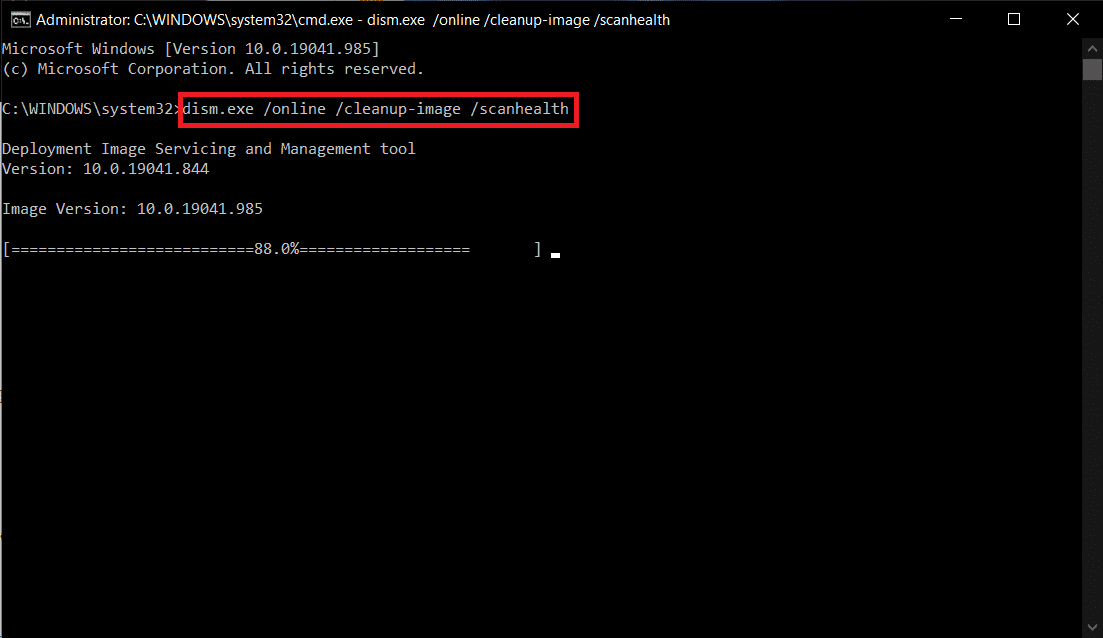
Again, launch Command Prompt as administrator and execute the given commands one after the other:
dism.exe /Online /cleanup-image /scanhealth

dism.exe /Online /cleanup-image /restorehealth

dism.exe /Online /cleanup-image /startcomponentcleanup
Note: You must have a working internet connection to execute DISM commands properly.
Method 3: Use Windows Memory Diagnostic Tool
The Windows Memory Diagnostic Tool is a free memory test program to ensure any issues with the system memory triggering win32kfull.sys BSOD. This tool is easy to use, and the system will be rebooted after sorting the errors. Follow the below-mentioned steps to use Windows Memory Diagnostic tool.
- Hit your Windows key and type Windows Memory Diagnostic in the search bar and Open.

- Click on Restart now and check for problems (recommended) option to scan your computer for memory problems.
Note: Save your work and close any open programs before restarting.

- Now, after a restart, Windows Memory Diagnostics Tool will open up. Then, hit the F1 key to open Options .

- Here, use the arrow keys to navigate to the Extended option and hit F10 to Apply .
Note: The Extended tests include all the standard tests plus MATS+ (cache disabled). Stride38, WSCHCKR, WStride-6. CHCKR4, WCHCKR3, ERAND, Stride6 (Cache disabled), and CHCKRS .

- Wait until the memory test is completed (this might take several minutes) and check if any errors are reported. If any, note down the errors (troubleshoot them accordingly) and hit ESC to Exit the tool.

Method 5: Run Malware Scan
The win32kfull.sys BSOD may occur due to malware attacks on your PC. The bugs that intruded in the PC might infect and corrupt the essential .sys files leading to the discussed error. Wondering How do I Run a Virus Scan on my Computer? Here’s How to Remove Malware from your PC in Windows 10 .
Method 6: Update Drivers
The win32kfull.sys BSOD error might occur when you have outdated drivers. Often, incompatible drivers also lead to the same issue. To avoid any errors, update all the drivers in your PC as instructed below:
- Hit the Windows key and type Device Manager , click on Open .

- You will see the Network adapters on the main panel; double-click on it to expand it.

- Right-click on the network driver (e.g. Intel(R) Dual Band Wireless-AC 3168 ) and click Update driver .

- Now, click on Search automatically for drivers options to locate and install a driver automatically.

5A. Now, the drivers will be updated to the latest version if they are not updated.
5B. If they are already in an updated stage, the screen displays the following message, The best drivers for your device are already installed . Click on Close to exit the window.

Method 7: Update Windows
Microsoft is trying it’s improving all of its versions of Windows to bring a PC without any errors. You can fix the bugs and patch-related problems in your Windows 10 computer by updating it as follows:
Press Windows + I keys simultaneously to launch Settings .
Click on the Update & Security tile, as shown.
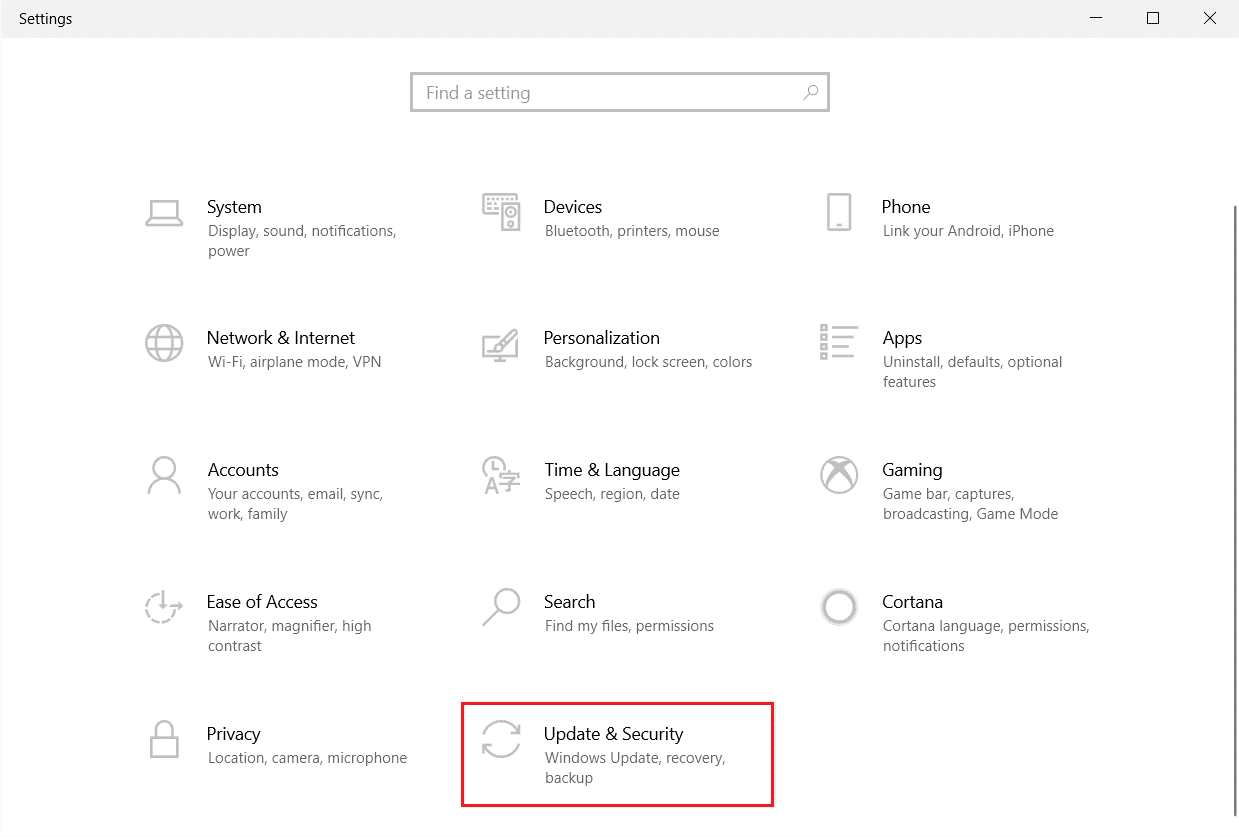
- In the Windows Update tab, click on Check for updates button.

4A. If a new update is available, then click Install now and follow the on-screen instructions. Restart your PC when done.

4B. Otherwise, it will show You’re up to date message as shown.

Method 8: Uninstall Recently Installed Programs
If you have installed a new program recently on your PC and then experiencing win32kfull.sys Blue Screen error, then it indicates that the program is incompatible with your PC. Here’s how to do so:
Follow our guide on How to Boot to Safe Mode in Windows 10 here.
Now hit the Windows key , type apps and features , and click on Open .

- Click on the conflicting/suspicious app (e.g. Battle.net) and select Uninstall option, as depicted below.

Click on Uninstall again to confirm the same.
Finally, restart your PC .
Method 9: Uninstall Recent Updates
If you face the said problem after updating Windows OS, your internet surfing experience might be incompatible with the new update and, in this case, uninstall recent updates on PC. You will also get the stability of your PC after uninstalling a faulty update. Here is how to do it.
Press and hold Windows + R keys together to open Run dialog box.
Type appwiz.cpl as shown and hit Enter .

- Click on View installed updates .

- Select the most recent update and click on Uninstall .

- Confirm the prompt, if any, and reboot your PC .
Method 10:CleanBoot PC
The issues concerning the win32kfull.sys BSOD Windows 10 can be fixed by a clean boot of all essential services and files in your Windows 10 system, as explained in this method.
Note: Make sure you login as an administrator to perform Windows clean boot.
- Launch the Run dialog box, type the msconfig and click the OK button.

The System Configuration window appears. Next, switch to the Services tab.
Check the box next to Hide all Microsoft services , and click on Disable all button as shown highlighted.

- Switch to the Startup tab and click the link to Open Task Manager .

Now, the Task Manager window will pop up. Switch to the Startup tab.
Select the startup tasks which are not required and click Disable displayed in the bottom right corner.

- Exit the Task Manager and System Configuration window. Finally, restart your PC .
Method 11: Perform System Restore
You may face the discussed issue after updating your Operating System. If so, then you could restore your Windows 10 system to its previous version.
Method 12: Reset PC
If you did not attain any fix by following all the above-discussed methods, then there is the last chance to reset your PC as follows:
Press the Windows + I keys together to open Settings in your system.
Select Update & Security .

- Select the Recovery option and click on Get started.

- Now, choose an option from the Reset this PC window.
- Keep my files option will remove apps and settings but keep your personal files.
- Remove everything option will remove all your personal files, apps, and settings.

- Finally, follow the on-screen instructions to complete the reset process.
Recommended:
- Fix Taskbar Right Click Not Working
- Fix Windows 10 0xc004f075 Error
- Fix Bluetooth Driver Error in Windows 10
- Fix No WiFi Networks Found in Windows 10

- How to Fix Error Printing in Windows 10
- What Causes Error Printing Message?
- What Causes Printer Status Error Printing on Windows 10?
- Method 1: Troubleshoot Hardware Issues
- Method 2: Troubleshoot Printer Connection
- Method 3: Run Printer Troubleshooter
- Method 4: Verify Printer Port Settings
- Method 5: Disable Print Spooler Service
- Method 6: Change Print Spooler Service Recovery Options
- Method 7: Update Printer Drivers
- Method 8: Roll Back Printer Driver Updates
- Method 9: Reinstall Printer Drivers
- Method 10: Reinstall Printer Drivers in Compatibility mode
- Method 11: Update Windows
- Method 12: Reconnect Printer
How to Fix Error Printing in Windows 10
The Error Printing message is generally caused by a loose connection or outdated printer drivers. When this dialogue box appears on your screen, it could be accompanied by an error code for reference or no code. Make sure to not confuse this issue with the Missing or Damaged ink cartridge errors. These are the different steps that you can use on your Windows 10 computer to solve the Error Printing message errors.
What Causes Error Printing Message?
We have listed the possible reasons that may cause the said error message in your PC.
- Windows 10 network printer error
- Windows cannot connect to the printer
- Status error printing
- Printer in error state
- Error printing wireless printer
- Printer error 0x00000709 in Windows 10
- Error printing HP/Brother/Canon/Epson
- Error printing Windows 10/11/7
- Printing issues with Windows 10 update
- Error printing PDF Windows 10
- Error printing restarting Windows 10
What Causes Printer Status Error Printing on Windows 10?
Here are some indispensable reasons that cause error printing message on your Windows 10 PC. Read them carefully to find which one troubles you.
- Printer is not turned on
- Printer is not connected to your computer
- The Wi-Fi or USB connection is not set properly
- A loose connection or outdated USB drivers also causes trouble
- Few essential services are not running on your PC
Here are some amazing hacks that will help you fix error printing message. But, before following the below-mentioned methods, reboot your Windows 10 PC to resolve any temporary glitches associated with the device. If you did not attain any fix for the issue after rebooting your computer, follow the below-mentioned methods.
Method 1: Troubleshoot Hardware Issues
Paper and ink are two essential components in the printing process. You have to place the paper on the tray and this will be pulled out of the device. Once the paper is printed, it will be again pulled out of the device. If any of these factors do not meet, then you will face the discussed problem.
If there is any damage to the paper tray, the device will fail to pull the paper, and result in an error printing Windows 10 message. Check if the paper tray is empty and broken. Replace the paper tray if broken.
If you find the tray is knocked out of its position, you can fix this easily by placing the paper tray in proper position . On the other hand, if the tray is broken, seek professional help to repair it.

Method 2: Troubleshoot Printer Connection
When you face printer status error printing error, the device wants to tell users that there is something wrong with the communication established between the printer and the system through the USB cable or network connection. To solve printer status error Windows 10 issue ensure whether the following steps are satisfied or not.
To restart your printer , switch off the power supply of the printer & then switch it ON again.
Now again check the connection of your printer .
If you have connected your printer using a USB cable, make sure your cable is working properly and the connections to the ports are fitted tight . You could also switch the USB port to see if this resolves the problem.
If you have connected your printer through wired networks, check whether the connection to your cable is properly done or not . Also, you can check whether the signal to your printer is flashing or not.
If the connection of your system with the printer is made through a wireless network, make sure your printer is connected to your computer network & the wireless icon will lit-up to show that you are connected.

Method 3: Run Printer Troubleshooter
The easiest and quickest way to solve any problem with a device or a feature is to run the troubleshooter associated with it. Windows 10 includes a troubleshooter tool for a wide variety of issues, and printer problems are also one of them. The printer troubleshooter automatically performs several actions like restarting the print spooler service, clearing corrupt spooler files, checking whether the existing printer drivers are outdated or corrupt, etc.
Press Windows + I keys to open Settings .
Now, click on Update & Security .

Switch to the Troubleshoot settings page by clicking on the same from the left-hand panel.
Select Printer under the Get up and running menu and follow the on-screen instructions to run the printer troubleshooter.
Check if you have fixed error printing Windows 10 issue.
Method 4: Verify Printer Port Settings
Few users have suggested that printer status error Windows 10 can be resolved by tweaking some printer port settings as instructed below.
- Hit the Windows key and type Control panel . Then, click on Open .

- Set View by > Category , then click on the View devices and printers option.

- Now, right-click on your printer and select Properties .

Switch to the Ports tab and find the port to which your device is connected.
Then, click the checkbox that hosts the USB pin of the printer.
Save the changes by clicking Apply and OK .
Note: It is also quite possible that your printer is working just fine, but you have been sending the print request to the wrong printer. This might be the case if there are multiple printers installed on your computers. Set the one you are trying to use as the default printer to resolve the issue. Hence, right-click on your printer and select Set as default printer .

Method 5: Disable Print Spooler Service
A print spooler is a mediating file/tool that coordinates between your computer and the printer. The spooler manages all the print jobs you send to the printer and lets you delete a print job that is still being processed. Problems might be encountered if the Print Spooler service is corrupted or if the temporary files of the spooler become corrupt. Restarting the service and deleting these temporary files should help in fixing error printing Windows 10 problems on your computer.
- Before we delete the print spooler files, we will need to halt the Print Spooler service that constantly runs in the background. To do so, hit the Windows key and type Services . Then, click on Open .

- Scan the list of Local Services to find the Print Spooler service. Once found, right-click on the Print Spooler service and select Properties from the context menu (or double-click on a service to access its Properties)

- Click on the Stop button to stop the service.
Note: Minimize the Services window instead of closing as we will need to restart the service after deleting the temporary files.

- Now, open up the Windows File Explorer by hitting the Windows + E keys together and navigate to the following path .
C:\WINDOWS\system32\spool\printers
Note: You can also launch the run command box, type %WINDIR%\system32\spool\printers command and hit Enter key to reach the required destination directly.

Press Ctrl + A keys simultaneously to select all the files in the printers folder and hit the delete key on your keyboard to delete them.
Maximize/switch back to the Services application window and click on the Start button to restart the Print Spooler service.

You should now be able to fix printer status error printing message and be able to print your documents without any issues.
Method 6: Change Print Spooler Service Recovery Options
Any incorrect recovery settings configuration of the print spooler service may also cause printer status error printing with your device. Therefore, you need to make sure that recovery settings are correct otherwise Printer spooler will not start automatically.
Open the Services window as you did in the previous method.
Locate Print Spooler then right-click on it and select Properties.

- Switch to the Recovery tab and ensure that three failure tabs are set to Restart the Service.

- Click Apply followed by OK to save the settings. Now see if you’re able to fix printer status error Windows 10.
Method 7: Update Printer Drivers
Every computer peripheral has a set of software files associated with it to communicate with your computer and the OS effectively. These files are known as device drivers. These drivers are unique for each device and manufacturer. Also, it is important to have the correct set of drivers installed to use an external device without facing any issues. Drivers are also constantly updated to stay compatible with the new Windows versions. If your drivers are not updated to their latest versions, update them by following our guide How to Update Device Drivers on Windows 10 .

Method 8: Roll Back Printer Driver Updates
Sometimes, the current version of printer drivers may cause any conflicts and in this case, you have to restore previous versions of installed drivers. This process is called rollback of drivers and you can easily roll back your computer drivers to their previous state by following our guide How to Rollback Drivers on Windows 10 .

Wait until the previous versions of drivers are installed on your Windows 10 PC. Once done, check if you have fixed error printing Windows 10 issue.
Method 9: Reinstall Printer Drivers
Incompatible drivers must be reinstalled to resolve error printing message problems. You are advised to reinstall device drivers only if you cannot attain any fix by updating them. Steps to reinstall drivers are very easy and you can do so by using a third-party application or by implementing the steps manually as instructed in our guide How to Uninstall and Reinstall Drivers on Windows 10

After reinstalling printer drivers, check if you can hear audio from Logitech speakers.
Method 10: Reinstall Printer Drivers in Compatibility mode
Few users have suggested that re-installing printer drivers in compatibility mode have helped them fix printer status error printing issue. Here are a few instructions regarding the same.
- Click on the Windows key and type Device manager . Then, click on Open .

- Expand Print queues then right-click on your Printer device and select Uninstall device .

If you’re prompted to confirm then again click on the Uninstall button.
Now go to your printer driver download webpage (e.g. HP ) and download the latest drivers for your printer.
Right-click on the setup file and select Properties.

Note: If the drivers are in a zip file make sure to extract all the files and then right-click on the .exe file.
Switch to the Compatibility Tab and click on Run this program in Compatibility mode .
From the drop-down select Windows 7 or 8 and then click on Run this program as an administrator .

Finally, double-click on the setup file and wait for the drivers to be installed on your device.
Once finished, reboot the PC and see if you can fix printer status error Windows 10 issue.
Method 11: Update Windows
Also, if there are any bugs in your PC, they can only be fixed after a Windows update . Microsoft releases regular updates to fix all these bugs thereby fixing error printing Windows 10 issue. Hence, ensure if you have updated your Windows Operating System and if any updates are pending in action, use our guide How to Download and Install Windows 10 Latest Update

After updating your Windows Operating System, check whether printer status error Windows 10 issue is resolved.
Method 12: Reconnect Printer
If all these steps do not work to fix printer status error Windows 10, you might need to completely uninstall the existing drivers and the printer and then reinstall them. The process of doing the same is simple but rather lengthy but this seems to fix error printing message on your Windows PC. Anyway, below are the steps to remove and add your printer back.
- Open the Settings application by pressing the Windows + I keys together and select Devices as shown.

Move to the Printers & scanners settings in the left pane.
Find the problematic printer in the right-side panel and single click on it to access its options. Select Remove Device , let the process complete, and then close Settings.

- Type Print Management in the Windows search bar and click Open to launch the application.

- Double-click on All Printers (in the left panel or right panel, both are fine) and press Ctrl + A to select all connected printers.

- Right-click over any printer and select Delete .

Now, it is time to add the printer back, but first, unplug the printer cable from your computer and perform a restart. Once the computer boots back on, properly reconnect the printer.
Follow the above steps 1 and 2 to open the Printer & Scanner settings.
Click on the Add a printer & scanner button at the top of the window.

- Windows will now automatically start looking for any connected printers. If Windows successfully detects the connected printer, click on its entry in the search list and select Add device to add it back otherwise, click on The printer that I want isn’t listed hyperlink.

- In the following window, select the appropriate option by clicking on its radio button (For example, select My printer is a little older. Help me find it if your printer doesn’t use USB for connection or select Add a Bluetooth, wireless, or network discoverable printer to add a wireless printer) and click on Next .

- Follow the on-screen instructions to reinstall your printer .

Now that you have successfully reinstalled your printer, try printing a test page to ensure everything is right back on track.
Open up Windows Settings and click on Devices .
On the Printers and Scanners page, click on the printer you just added back and would like to test, followed by a click on the Manage button.

- Finally, click on the Print a test page option. Muffle your ears & listen carefully for the sound of your printer printing a page and rejoice.

Recommended:
- Fix Unable to Install GarageBand on iOS
- Fix Error Code 0x80d0000a in Windows 10
- Fix Photoshop Dynamiclink Not Available in Windows 10
- Where is the WPS Button on Canon Printer?
