If you have recently updated your PC then you might see a strange problem where your Windows Setting window won’t open, even though you found yourself continuously clicking on the Setting link. Even if you press the shortcut keys (Windows Key + I) to open Settings, then Settings app will not launch or open. In some cases, users are reporting that the Windows Store app opens up in place of the Settings app, even though they are clicking on Settings.

Microsoft is aware of this issue and has launched a troubleshooter which seems to fix the issue in many cases but if unfortunately, you are still stuck with this problem then this guide is for you. So without wasting any time let’s see how to actually Fix Windows Settings won’t open in Windows 10 with the help of the below-listed troubleshooting guide.
- Fix Windows 10 Settings won’t open
- Method 1: Run Microsoft Troubleshooter
- Method 2: Make sure Windows is up to date
- Method 3: Create a New User Account
Fix Windows 10 Settings won’t open
Make sure to create a restore point just in case something goes wrong.
Update: Microsoft has released Cumulative Update for Windows 10 KB3081424 includes a fix that will prevent this issue from occurring.
Method 1: Run Microsoft Troubleshooter
Run the Troubleshooter and see if you are able to fix the issue.
Open Command Prompt . The user can perform this step by searching for ‘cmd’ and then press Enter.

- Type the following command into cmd and hit Enter:
wuauclt.exe /updatenow
Wait for the update process to start, if it doesn’t try the command a few more times.
Reboot your PC to save changes.
Method 2: Make sure Windows is up to date
- Press Windows Key + I to open Settings then click on Update & Security.

From the left-hand side, menu click on Windows Update.
Now click on the “ Check for updates ” button to check for any available updates.
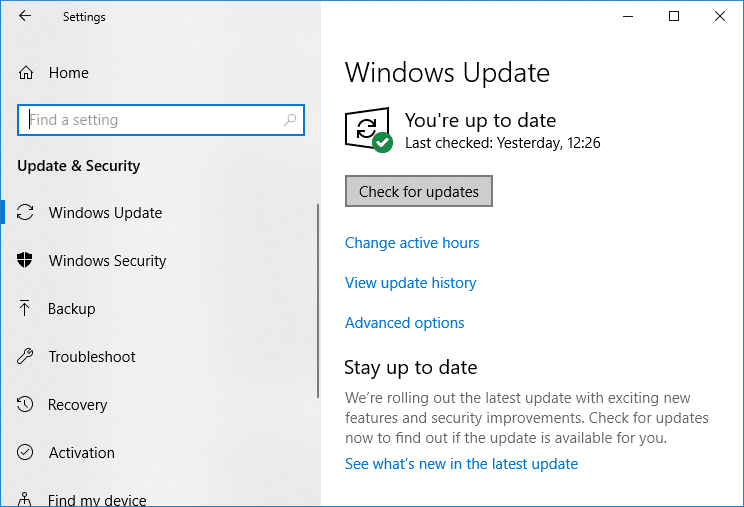
- If any updates are pending then click on Download & Install updates.
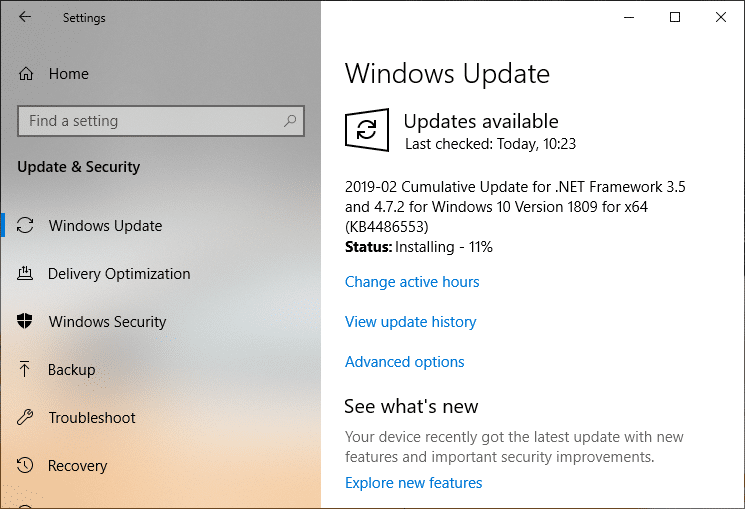
- Once the updates are downloaded, install them and your Windows will become up-to-date.
Method 3: Create a New User Account
- Open Command Prompt . The user can perform this step by searching for ‘cmd’ and then press Enter.
- Type the following command into cmd and hit Enter:
net user username password /add
Note: Replace username and password with the new account username and the password you want to set for that account.
- Once the user is created you will see a success message, now you need to add the new user account to the Administrator group. To do so type the following command in cmd and hit Enter:
net localgroup administrators username /add

Note: Replace username with the account username you set up in step 2.
Now press Ctrl + Alt + Del together and then click Sign out and then sign in to your new account with the username and password you specified in step 2.
Check if you are able to open the Settings app and if you are successful then copy your personal data & files to the new account.
Recommended:
- Fix Printer Installation Error 0x000003eb
- How To Fix NETWORK_FAILED in Chrome
- Fix Google Chrome error He’s Dead, Jim!
- Fix ERR_NETWORK_ACCESS_DENIED in Chrome
That’s it you have successfully Fix Windows Settings won’t open but if you still have any queries regarding this guide then feel free to ask them in the comment’s section.
Fix Printer Installation Error 0x000003eb: If you are trying to install a printer but can’t do so because of the error code 0x000003eb then you are at the right place as today we are going to discuss on how to fix this issue. The error message doesn’t give you much information as it just says unable to install the printer and gives you the error code 0x000003eb.
Unable to install printer. Operation could not be completed (error 0x000003eb)

But if you troubleshoot the issue you must have come to a conclusion that this must be a problem with printer drivers being incompatible or corrupt. And you are right, the printer connectivity or installation error 0x000003eb occurs because the drivers are somehow got corrupted or incompatible. So without wasting any time let’s see how to actually Fix Printer Installation Error 0x000003eb.
- Fix Printer Installation Error 0x000003eb
- Method 1: Make sure Windows Installer Service is Running
- Method 2: Perform Clean Boot
- Method 3: Registry Fix
Fix Printer Installation Error 0x000003eb
Make sure to create a restore point just in case something goes wrong.
Method 1: Make sure Windows Installer Service is Running
1.Press Windows Key + R then type services.msc and hit Enter.

2.Find Windows Installer service in the list and double click on it.
3.Make sure the Startup type is set to Automatic and click Start , if the service is not already running.

4.Click Apply followed by OK.
5.Again try to install the printer.
Method 2: Perform Clean Boot
Note: Make sure to unplug any external devices from your PC and then try to install the printer.
Sometimes 3rd party software can conflict with Windows and therefore cause Error 0x000003eb In Windows 10. In order Fix this issue , you need to perform a clean boot in your PC and diagnose the issue step by step.
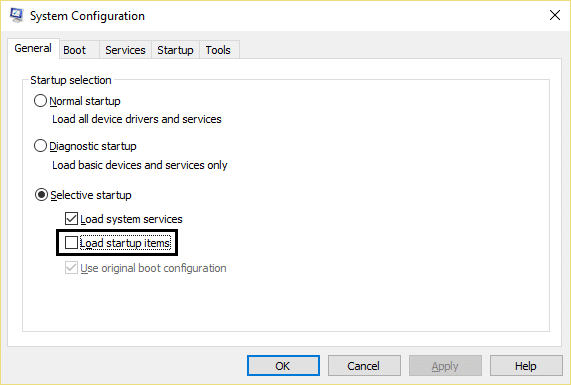
Once you have performed the clean boot, make sure to install Printer and see if you are able to Fix Printer Installation Error 0x000003eb.
Method 3: Registry Fix
Note: Backup your Registry before performing the below-listed steps.
1.Press Windows Key + R then type service.msc and hit Enter.
2.Double click on Print Spooler service and click on Stop , in order to stop Print Spooler service.

3.Click Apply followed by OK.
4.Now press Windows Key + R then type regedit and hit Enter to open Registry Editor.

5.Navigate to the following registry key according to your system architecture:
For 32-bit system: HKEY_LOCAL_MACHINE\SYSTEM\CurrentControlSet\Control\Print\Environments\Windows NT x86\Drivers\Version-3
For 64-bit system: HKEY_LOCAL_MACHINE\SYSTEM\CurrentControlSet\Control\Print\Environments\Windows x64\Drivers\Version-3

6.Delete all the keys listed under version-3 , by right-clicking on them and select Delete.
7.Press Windows Key + R then type the following and hit Enter:
C:\Windows\System32\spool\drivers\W32X86
8.Rename the folder name 3 to 3.old.

9.Again Start the Print Spooler service and try to install your printers.
If you are still not able to install your printer then make sure to first uninstall your printer completely and then again install it with new drivers. Make sure to use the CD wizard which came with the printer rather than the Add Printer option in Windows.
- Fix Background Intelligent Transfer Service Missing from services
- How To Fix NETWORK_FAILED in Chrome
- Fix Google Chrome error He’s Dead, Jim!
- Fix ERR_NETWORK_ACCESS_DENIED in Chrome
That’s it you have successfully Fix Printer Installation Error 0x000003eb but if you still have any queries regarding this guide then feel free to ask them in the comment’s section.
