While trying to download system updates on your Windows 10 device, you may receive errors such as Windows 10 update error 0xc1900204. This error does not mean your system is infected with malware but still can affect your system’s performance. Windows 10 error code 0xc1900204 appears when users cannot update their Windows 10 systems. There could be various reasons for error 0xc1900204 blocks Windows 10 updates on your system; some are listed below.

- How to Fix Windows 10 Update Error 0xc1900204
- Method 1: Run Windows Update Troubleshooter
- Method 2: Reset Windows Update Component
- Method 3: Troubleshoot Registry Editor
- Method 4: Repair System Files
- Method 5: Manually Install Windows Updates
- Method 6: Perform In-Place Upgrade
- Method 7: Disable Windows Defender Firewall
How to Fix Windows 10 Update Error 0xc1900204
There could be multiple reasons for this error to occur on your computer; some of these are,
- Issues with Windows Update Services
- Problems with the program registry.
- The issue with the default display language.
- The issue with system files.
- The issues with Windows 10 update.
- The issues with antivirus.
The following guide will provide methods to fix your computer’s issues with Windows 10 update issues.
Method 1: Run Windows Update Troubleshooter
Windows 10 has a wide range of troubleshooters; you can use these to resolve a vast number of issues on your PC. For example, you can even try to fix Windows 10 error code 0xc1900204 with Windows 10 troubleshooter. Follow these simple steps to use this method.
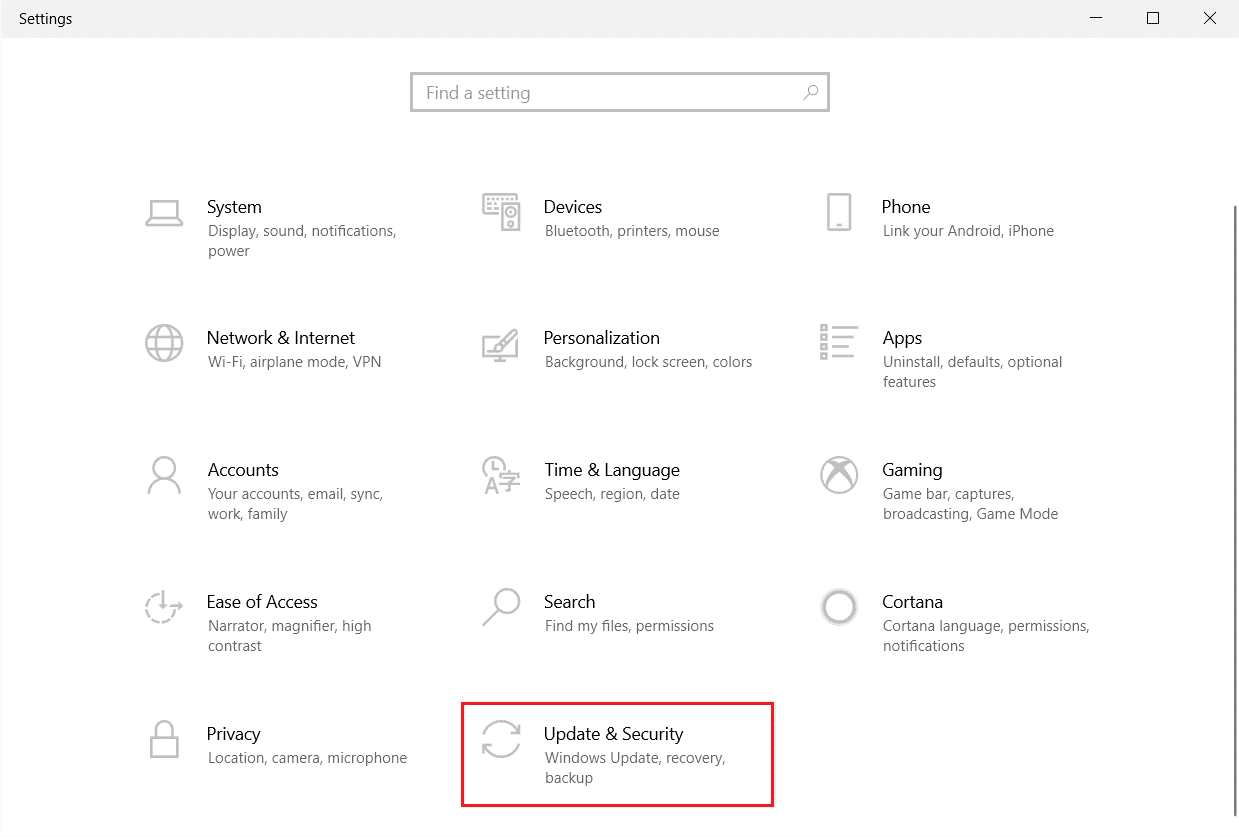
Press Windows + I keys simultaneously to launch Settings .
Click on the Update & Security tile, as shown.
Go to Troubleshoot menu in the left pane.
Select Windows Update troubleshooter and click on Run the troubleshooter button shown highlighted below.

Once the troubleshooting is finished, check if the issue has been resolved.
Method 2: Reset Windows Update Component
Windows Update requires certain services to work properly; a user may receive error 0xc1900204 blocks windows 10 updates when the Windows Update has an issue with a service. You can avoid this error by simply resetting the Windows Update service components. Follow these steps to apply this method.
- Press the Windows key , type windows powershell , then click on Open .

- Here, type the following commands and press the Enter key after each of them
net stop wuauserv

net stop cryptSvc

net stop bits

net stop msiserver

ren C:WindowsSoftwareDistribution SoftwareDistribution.old

ren C:WindowsSystem32catroot2 Catroot2.oldnet start wuauserv

net start cryptSvc

net start bits

net start msiserver
Note: These commands will stop the BITS, Cryptographic, MSI Installer, and Windows Update Services on your system.

Once all these commands have been typed in, check if the problem has been resolved. If not, go to the following method.
Method 3: Troubleshoot Registry Editor
You can try to use the Registry Editor to make changes to your PC to solve this issue. There are the following two methods that you can try to avoid this issue.
Option I: Modify Registry Settings
If the Windows 10 update error 0xc1900204 issue remains, you can try changing settings in your Windows registry. To apply this method, you can follow these simple steps.
Hit the Windows + R keys simultaneously to open the Run dialog box.
Type Regedit and hit the Enter key to launch the Registry Editor .

- In the Registry Window, open HKEY_LOCAL_MACHINE .

- Then, double-click on SOFTWARE key folder.

- Next, open the Microsoft folder.

- Now, locate Windows key folder and open it.

- Finally, open the CurrentVersion key folder.

- In the CurrentVersion folder, double-click on the ProgramFilesDir .

- Here in the Value Data section, give the location where you would like your Program to be saved.

- Exit the Registry Editor and restart the PC .
Option II: Check for Default Display Language
Many Windows 10 users received this error because their PC’s default display language was not set as English. If this is the case with your system, you can change this setting from the Registry Editor. In addition, you can follow these simple steps to fix this issue.
Press the Windows + R keys together to open the Run dialog box.
In the Run dialog box, insert Regedit to open Registry Editor .

- In the Registry Editor, locate HKEY_LOCAL_MACHINE.

- Now, open the SYSTEM key folder.

- Now, locate CurrentControlSet key folder and open it.

- Then, double-click on the Control folder.

- Next, go to the NIs folder.

- Finally, open the Language key folder.

- In the Right panel, double-click on InstallLanguage .

- In the Value data field, enter 0409 and click on OK .
Note: 0409 is a code of EN-US language.

Method 4: Repair System Files
A corrupt system file can also cause this error to occur. You can always go for an SFC scan to check if such a file is causing problems on your PC. To resolve the issue with this method, follow these simple steps.
Press Windows + R keys together to open the Run dialog box.
In the Run dialog box, type cmd to open the Command Prompt .

- In the Command Prompt , type the sfc/scannow command and press the Enter key .

- Wait for the scan to complete and restart the PC .
This method will look for corrupt system files and fix them so you do not get Windows 10 update error 0xc1900204. If you still get the same error, try moving on to the following method.
Method 5: Manually Install Windows Updates
If you can not download an update due to the recurring error, you can try to download a Windows update manually. You can follow these simple steps to apply this method.
Press Windows + I keys together to launch Settings.
Click on Update & Security.
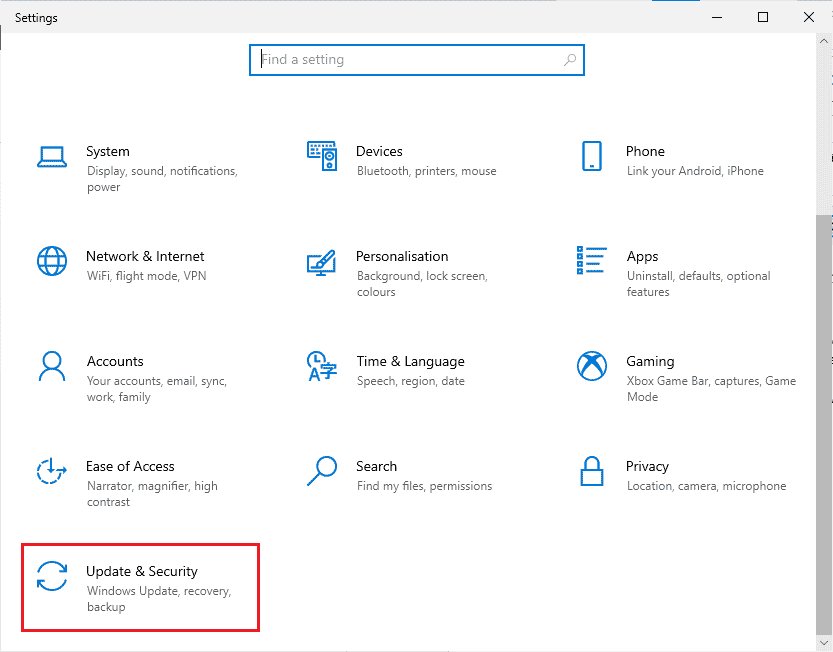
- Click on View update history.

- Note the KB number from the latest Windows update.

- Open your Web Browser.

- In the search bar, type www.catalog.update.microsoft.com to open Microsoft’s Update Catalogs .

- In the search bar, write the KB number and click Search .

- From the search results, select the latest update and click Download .

Method 6: Perform In-Place Upgrade
If you continue to get error 0xc1900204 blocks Windows 10 updates, you can try to perform an in-place upgrade on your computer. You can use these steps to apply this method.
Download the Media Creation Tool from the official site .
Open the Media Creation Tool, select Upgrade this PC now, and click next.

Wait for progress to finish.
Install the available update.

Method 7: Disable Windows Defender Firewall
Sometimes your antivirus interferes with your system’s file causing it to show you errors while updating your system. You can avoid this by checking and disabling your antivirus by following these steps.
- Press the Windows key, type Windows Security and click on Open .

- Click on Firewall & network protection.

- Click on Private Network .

- Turn off Microsoft Defender Firewall .

Q1. Why can’t I update Windows 10?
Ans. There can be various reasons for Windows 10 not downloading updates. Common reasons include Windows update services and program registry.
Q2. Can antivirus cause issues with my PC?
Ans. Yes , there can be situations where your third-party antivirus can interfere with your system’s program files and cause various errors.
Q3. Can I fix the Windows 10 issue from Registry Editor?
Ans. Yes , you can try to fix Windows 10 update errors by going and modifying settings from Windows Registry Editor.
Recommended:
- Fix Photoshop Dynamiclink Not Available in Windows 10
- Fix Hard Disk Problems in Windows 10
- How to Fix We’re Sorry But Word Has Run into an Error in Windows 10
- Fix Windows Update Service Could Not be Stopped
We hope this guide was helpful, and you were able to fix Windows 10 update error 0xc1900204 issues. Comment down and let us know which method worked for you. Also, if you have questions, queries, or suggestions, feel free to share them with us.
