It is advised to regularly update your Windows PC to safeguard it from cyber-attacks. But sometimes when you try to update your Windows 10 computer, you get prompted with the error code Windows update 0x8007000d error. It hinders the update process and makes it impossible to upgrade to Windows 11 by causing setup cannot continue due to a corrupted installation file error. Nevertheless, this guide will help you understand how to fix 0x8007000d Windows 10 errors. Keep reading the article for solutions.

- How to Fix Windows Update 0x8007000d Error
- Method 1: Clean Disk Space
- Method 2: Run Malware Scan
- Method 3: Run Windows Update Troubleshooter
- Method 4: Use Windows 10 Update Assistant
- Method 5: Download Updates Manually
- Method 6: Repair Corrupt Files
- Method 7: Run SC Command Line
- Method 8: Enable Windows Update Service
- Method 9: Restart Windows Update Service
- Method 10: Delete Software Distribution Files in Safe Mode
- Method 11: Reset Windows Update Components
- Method 12: Disable Antivirus (Temporarily)
- Method 13: Reset PC
How to Fix Windows Update 0x8007000d Error
You may encounter several error codes while updating your PC. Apart from Windows 7, it happens on Windows 10 and 11 too. Many users have reported that they cannot install KB3124200, KB4586853, KB4592438 versions of Windows 10 specifically. Here are some reasons
- Missing or corrupt files
- Virus or malware
- Incomplete or Outdated Windows Update Components
- Antivirus program interference and/or unstable internet connection
Method 1: Clean Disk Space
Windows PC might not install updates if your computer does not have enough space. By cleaning disk space which deletes all temporary files, installation logs, cache, etc. can fix setup cannot continue due to a corrupted installation prompt.
Press and hold Windows + I keys together to open Windows Settings .
Now, click on System as shown below.

- In the left pane, click on Storage tab and in the right pane, select the Configure Storage Sense or run it now link as highlighted.

- In the next window, scroll down to Free up space now section and select Clean now option as shown.

Now with all unnecessary files removed, try updating the Windows and check if the issue is fixed.
Method 2: Run Malware Scan
Many times errors like setup cannot continue due to a corrupted installation file are caused by Viruses and Malware. Check that your PC is periodically scanned as follows:
Press the Windows + I keys together to open the Settings .
Click on Update & Security , as shown.

Click on Windows Security in the left pane.
Next, select the Virus & threat protection option under Protection areas .

- Click on Scan Options , as shown.

- Choose Quick Scan or Full Scan option as per your preference and click on Scan Now.

7A. After the scan is completed. All the threats will be enlisted. Click on Start Actions under Current threats to remove or repair threats.

7B. If you do not have any threats on your system, No current threats will be shown as highlighted below.

Windows Defender Firewall will fix all the virus and malware related issues.
Method 3: Run Windows Update Troubleshooter
You can also run the Windows Update Troubleshooter. It is a built-in feature made to fix all update errors. It will repair Windows Update-related temporary files and services and reset Windows Update components . Here are the instructions to run Windows Update troubleshooter.
Press Windows + I keys simultaneously to launch Settings .
Click on the Update & Security tile, as shown.
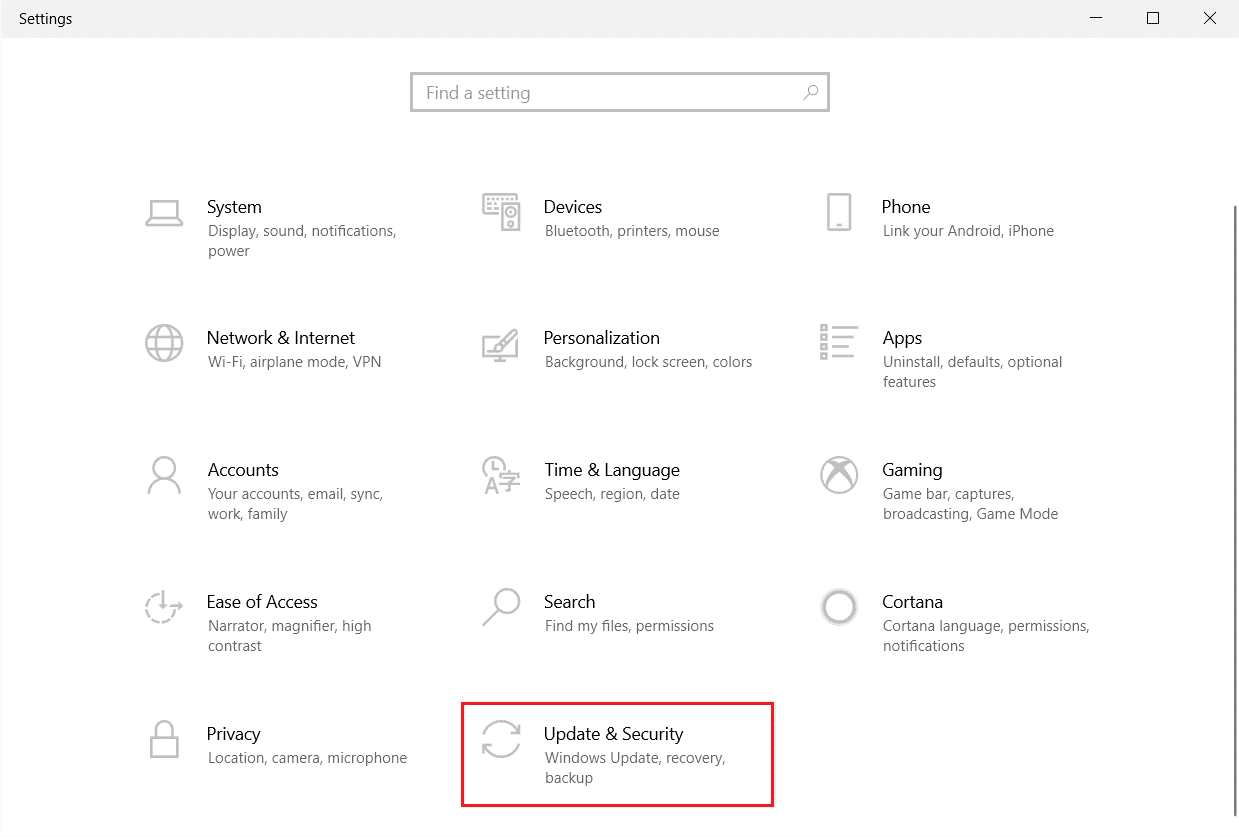
Go to Troubleshoot menu in the left pane.
Select Windows Update troubleshooter and click on Run the troubleshooter button shown highlighted below.

- Wait for the troubleshooter to detect and fix the problem. Once the process is complete, restart your PC .
Note: You can also run the Program Compatibility Troubleshooter listed under Find and fix other problems. This will find and fix problems related with compatibility of older programs on the version of Windows.

Method 4: Use Windows 10 Update Assistant
You can try an alternative way of updating Windows 10 PC if you have any troubles with previous versions. Firstly, uninstall any possible recent updates and use Windows 10 Update Assistant as instructed below
Press and hold Windows + R keys together to open the Run dialog box.
Now, type appwiz.cpl as shown and hit Enter .

- Click on View installed updates in the left pane as shown here.

- Now, select the most recent problematic update and click on Uninstall option as shown below.

- Confirm the prompt, if any. Now, press and hold Windows + E keys together to open File Explorer . Navigate to the following path.
C:/windows/softwaredistribution/download
- Delete all the files and folders in the path. Select all the files and click on the Delete icon as shown.

- Visit the Windows 10 Update download page . Click on the Update now option as shown.

The update may slow down in between 60-85 % of the process. Wait until the update process is successful and restart your PC .
Press the Windows + I keys together to open Settings in your system.
Select Update & Security .

- Select Check for Updates from the right panel. Make sure you are prompted with You’re up to date message as depicted.

Note: If you use Mixed Reality software on your PC, please uninstall it. This software interferes with the Windows Update process and causes Windows update 0x8007000d error.
Method 5: Download Updates Manually
If still the error is not resolved then you can manually download the updates as instructed below. Before doing this, you have to identify the KB number of your PC that is popping up with 0x8007000d Windows 10 error.
Press the Windows + I keys together to open Settings in your system.
Now, select Update & Security .

- Click on the View update history option as highlighted below.

- In the list, note down the KB number of the update that has failed to install due to the error message.

- Type the KB number in the Microsoft Update Catalog search bar.

- Find the update that is compatible with your system and click on ADD to download and install the update manually.
Method 6: Repair Corrupt Files
If Windows update 0x8007000d is showing up then it might be because of corrupt files on your computer. You can use features like SFC (System File Checker) and DISM (Deployment Image Servicing and Management) to scan and remove harmful corrupt files.
- Hit the Windows key , type Command Prompt and click on Run as administrator .

Click on Yes in the User Account Control prompt.
Type sfc /scannow and press Enter key to run System File Checker scan.

Note: A system scan will be initiated and it will take a couple of minutes to finish. Meanwhile, you can continue performing other activities but be mindful of not accidentally closing the window.
After completing the scan, it will show either of these messages:
- Windows Resource Protection did not find any integrity violations.
- Windows Resource Protection could not perform the requested operation.
- Windows Resource Protection found corrupt files and successfully repaired them.
- Windows Resource Protection found corrupt files but was unable to fix some of them.
Once the scan is finished, restart your PC .
Again, launch Command Prompt as administrator and execute the given commands one after the other:
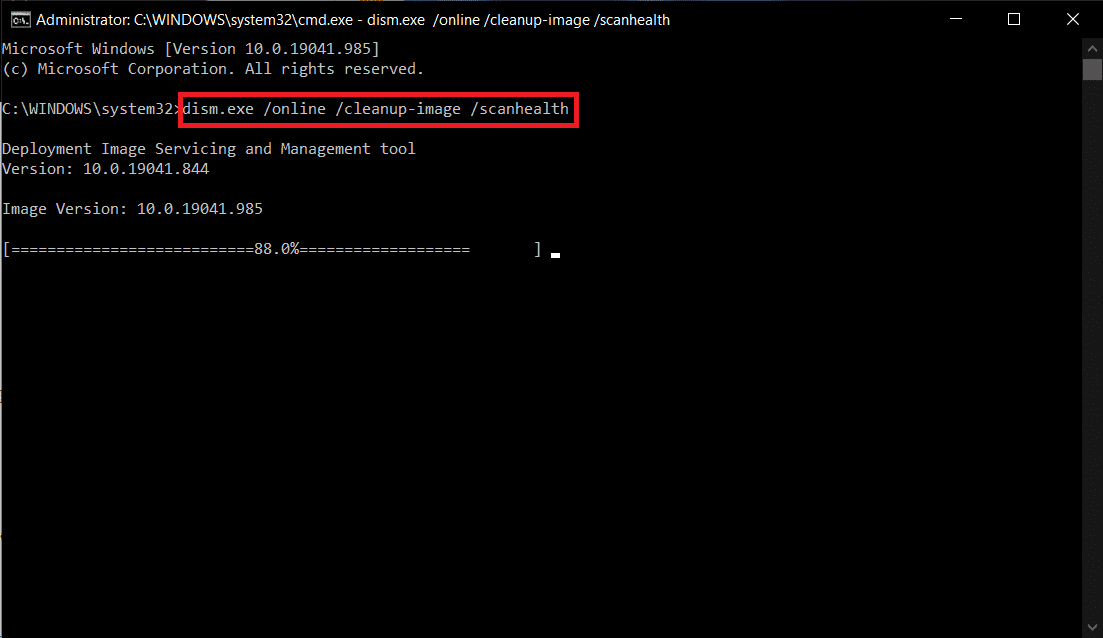
dism.exe /Online /cleanup-image /scanhealth

dism.exe /Online /cleanup-image /restorehealth

dism.exe /Online /cleanup-image /startcomponentcleanup
Note: You must have a working internet connection to execute DISM commands properly.
Method 7: Run SC Command Line
You can also fix 0x8007000d Windows error by using SC command that is used to configure, query, stop, start, delete, and add system services on the Windows command line.
Launch Command Prompt as administrator.
Type the command the following commands one by one and hit enter .
SC config wuauserv start= auto

SC config bits start= auto

SC config cryptsvc start= auto

SC config trustedinstaller start= auto

- Once the commands are executed, restart your PC
Method 8: Enable Windows Update Service
To fix 0x8007000d error, esnure that Windows Update services are running. If not, enable them as follows:
- Hit the Windows key and type Services and click on Run as administrator .

Scroll down and select the Windows Update service.
Right-click on Properties as depicted in the below picture.
Note: You can also double-click on Windows Update Services to open the Properties window.

- Set the Startup type to Automatic, as shown below.

- Click on Apply > OK to save the changes.
Method 9: Restart Windows Update Service
Alternately, you can fix setup cannot continue due to a corrupted installation file error by manually restarting the Windows Update Service.
Launch the Services window as before.
Scroll down the screen and right-click on Windows Update.
Here, click on Stop if the current status displays Running .

- You will receive a prompt, Windows is attempting to stop the following service on Local Computer… Wait for the prompt to be completed. It will take around 3 to 5 seconds.

- Open the File Explorer by clicking Windows + E keys together. Now, navigate to the following path.
C:\Windows\SoftwareDistribution\DataStore
Select all the files and folders by pressing Control+ A keys together and right-click on the empty space.
Select Delete option to remove all the files and folders from the DataStore location.

- Now, navigate to the path, C:\Windows\SoftwareDistribution\Download, and Delete all the files in the Downloads location as mentioned in the previous step.

Go back to the Services window and right-click on Windows Update.
Select the Start option as depicted in the below picture.

- You will receive a prompt, Windows is attempting to start the following service on Local Computer… Wait for 3 to 5 seconds and close the Services window.

Method 10: Delete Software Distribution Files in Safe Mode
If the problem is not solved by manually deleting the components of the Software Distribution Folder or if you have faced any errors while removing the files,
boot your Windows 10 PC in safe mode .
Press and hold Windows + E keys together to open File Explorer . Navigate to the following location.
C:\Windows\SoftwareDistribution
- Select all the files in the Software Distribution folder and Delete them.

- Then, restart your PC and try updating the Windows Update.
Method 11: Reset Windows Update Components
To resolve all update-related issues, there is another effective troubleshooting method, resetting Windows Update components . It repairs BITS , Cryptographic, MSI Installer, Windows Update services, and updates folders like SoftwareDistribution and Catroot2.
Follow steps 1 from 4A.
Type the command the following commands one by one and hit enter .
net stop wuauserv

net stop cryptSvc

net stop bits

net stop msiserver

ren C:\Windows\SoftwareDistribution SoftwareDistribution.old

ren C:\Windows\System32\catroot2 Catroot2.old

net start wuauserv

net start cryptSvc

net start bits

net start msiserver

Wait for the commands to be executed and check if error 0x8007000d Windows 10 is fixed.
Method 12: Disable Antivirus (Temporarily)
Sometimes, an over-aggressive antivirus suite will interfere with the update process causing 0x8007000d Windows 10 update error 0xc1900204 or setup cannot continue due to a corrupted installation error. Hence, if you are using a third-party antivirus software, then disable it temporarily and check if you have fixed the issue. It is important that you enable it again after you have resolved your issue for protection against viruses.
Note: Different Antivirus programs will have different settings for this method. As an example we are using Avast Free Antivirus.
- Navigate to the Antivirus icon in the Taskbar and right-click on it.

- Select Avast shields control option and you can temporarily disable Avast using the below options:
- Disable for 10 minutes
- Disable for 1 hour
- Disable until computer is restarted
- Disable permanently

- Choose the option according to your convenience and confirm the prompt displayed on the screen.

- In the main window you will see the note All your shields are turned off denoting that you have disabled the antivirus. To activate it again, click on TURN ON .

Method 13: Reset PC
If none of the above methods work for you, then this is the last resort. You can reset your PC to finally fix this error. Here is how to do it.
Navigate to Windows Settings and select Update & Security .
Select the Recovery option from the left pane and click on Get started in the right pane.

- Now, choose an option from Reset this PC window.
- Keep my files option will remove apps and settings but will keep your personal files.
- Remove everything option will remove all your personal files, apps, and settings.

- Finally, follow the on-screen instructions to complete the reset process.
Recommended: Fix Windows Could Not Search for New Updates
