Fix Windows Update Error 0x80246002: Even with the latest version of Microsoft OS which is Windows 10, users are still facing the issue with updating Windows. When you try to update Windows from Settings you would face Error 0x80246002 and you won’t be able to update. This problem is not limited to this as you could also face the Error 0x80246002 while installing Windows update, in any case, Windows update fails and you won’t be able to download new features, security patches and bug fixes which would ultimately make your system vulnerable to hackers.

There is no single cause as to why Windows Update Error 0x80246002 occur but it seems it is caused because of Windows Defender not being able to update, SoftwareDistribution folder being corrupt, Microsoft Server has large requests from users etc. So without wasting any time let’s see how to actually Fix Windows Update Error 0x80246002 with the below-listed troubleshooting steps.
- Fix Windows Update Error 0x80246002
- Method 1: Rename SoftwareDistribution Folder
- Method 2: Run Windows Update Troubleshooter
- Method 3: Update Windows Defender Manually
- Method 4: Manually download the update from Microsoft Update Catalog
- Method 5: Run DISM Tool
Fix Windows Update Error 0x80246002
Make sure to create a restore point just in case something goes wrong.
Method 1: Rename SoftwareDistribution Folder
1.Press Windows Key + X then select Command Prompt (Admin).
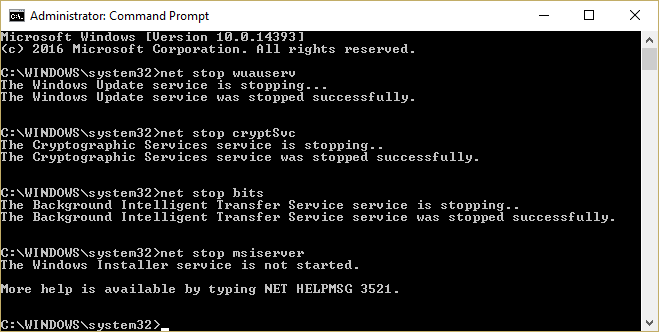
2.Now type the following commands to stop Windows Update Services and then hit Enter after each one:
net stop wuauserv net stop cryptSvc net stop bits net stop msiserver
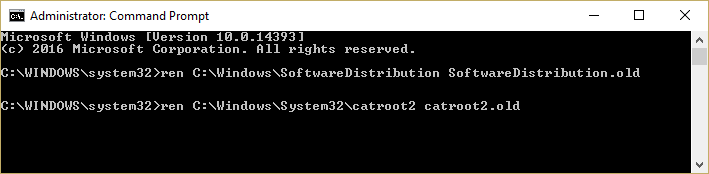
3.Next, type the following command to rename SoftwareDistribution Folder and then hit Enter:
ren C:\Windows\SoftwareDistribution SoftwareDistribution.old ren C:\Windows\System32\catroot2 catroot2.old
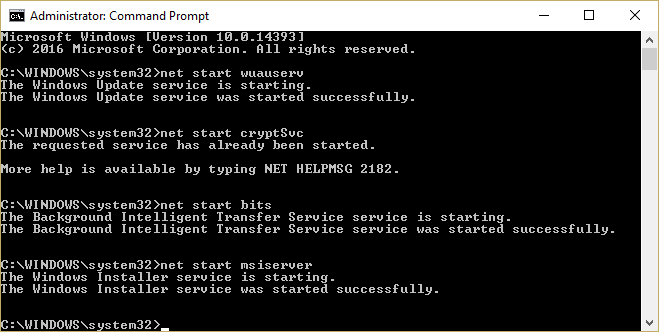
4.Finally, type the following command to start Windows Update Services and hit Enter after each one:
net start wuauserv net start cryptSvc net start bits net start msiserver
5.Reboot your PC to save changes.
6.Press Windows Key + I then select Update & Security.
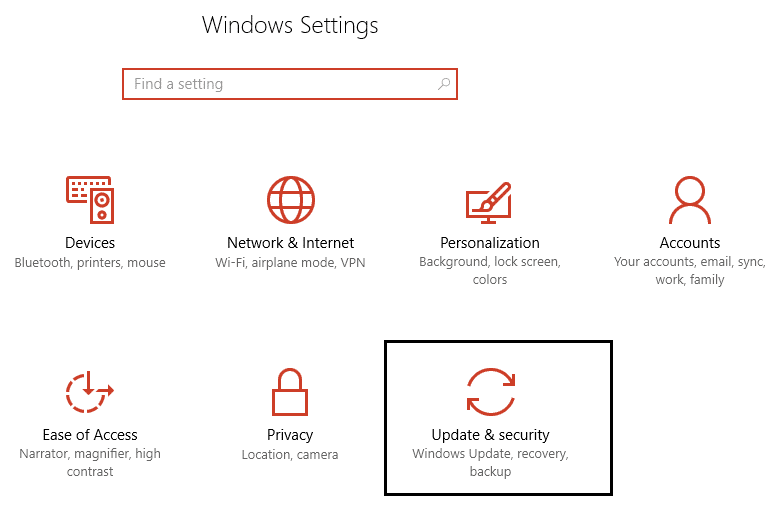
7.Next, again click Check for updates and make sure to install any pending updates.

8.After the updates are installed reboot your PC.
Method 2: Run Windows Update Troubleshooter
1.Type “troubleshooting” in Windows Search bar and click on Troubleshooting.
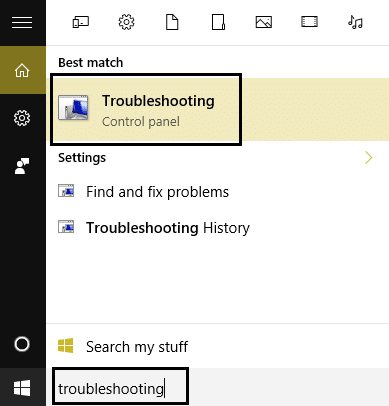
2.Next, from the left window pane select View all.
3.Then from the Troubleshoot computer problems list select Windows Update.
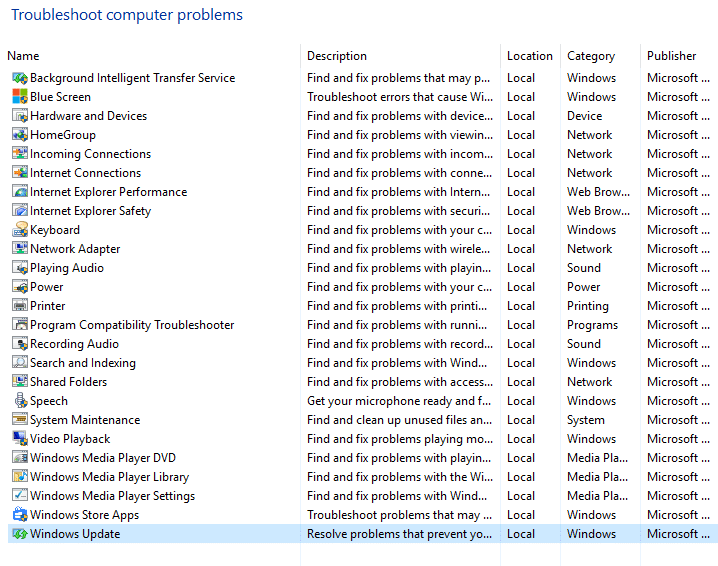
4.Follow on-screen instruction and let the Windows Update Troubleshoot run.
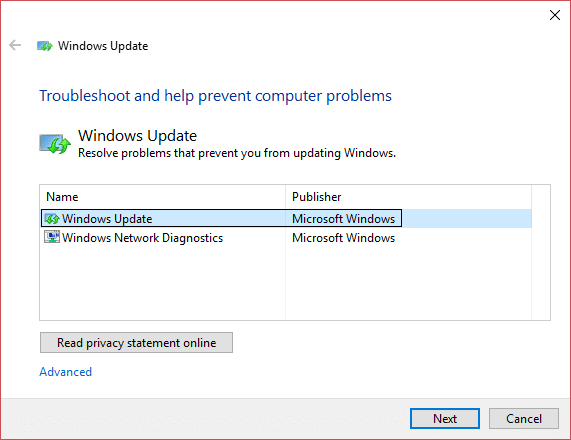
5.Restart your PC to save changes.
This should help you to Fix Windows Update Error 0x80246002 but if not then continue with the next method.
Method 3: Update Windows Defender Manually
1.Press Windows Key + Q and then type Windows Defender in the search bar.

2.Click on the Windows Defender in the search result.
3.Navigate to Update tab and update Windows Defender Definition .
Note: If you have turned off Windows Defender then make sure to turn it on again and install the pending updates, once done then you could again turn it back off.

4.Reboot your PC to save changea and again try to update Windows.
Method 4: Manuallydownload theupdate from Microsoft Update Catalog
1.If you still can’t download the update then let’s try to manually download the update.
2.Open Incognito Windows in Google Chrome or Microsoft Edge and go to this link .
8.Search for the specific Update code for example, in this case, it will be KB4015438.

9.Click Download in front of your update title “ Cumulative Update for Windows 10 Version 1607 for x64-based Systems (KB4015438).”
10.A new window will pop-up where you have to again click on the download link.
11.Download and install the Windows update KB4015438.
Method 5: Run DISM Tool
1.Press Windows Key + X and click on Command Prompt(Admin).
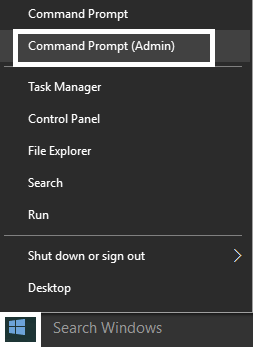
2.Type the following and press enter:
DISM /Online /Cleanup-Image /RestoreHealth
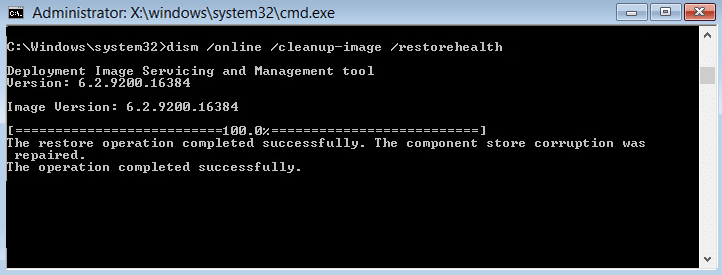
3.Let the DISM command run and wait for it to finish.
- Now again run this command in order to Fix Windows Update Error 0x80246002:
DISM /image:C:\ /cleanup-image /revertpendingactions
5.Reboot your PC to save changes.
- Fix Reconnect your drive warning on Windows 10
- How To Fix Autoplay not working in Windows 10
- Fix Spinning Blue Circle Next to Mouse Cursor
- Fix Desktop Icons Changed to Tile View Mode
That’s it you have successfully Fix Windows Update Error 0x80246002 but if you still have any questions regarding this guide then feel free to ask them in the comment’s section.
Fix Spinning Blue Circle Next to Mouse Cursor: If you have recently upgraded to Windows 10 then chances are you may have faced this issue where a constant blue flashing loading circle appears next to your Mouse cursor. The main reason why this spinning blue circle appears next to your mouse pointer is because of a task that seems to be constantly running in the background and not letting the user to conduct their task smoothly. This may happen when a task running in the background is not completing as it should be and hence it keeps on using the Windows resource to load its processes.

User’s affected with this problem seems to be using Fingerprint scanner which is causing all the trouble for them but the issue not limited to this as this problem can also be caused because of outdated, corrupted or incompatible 3rd party software drivers. So without wasting any time let’s see how to actually Fix Spinning Blue Circle Next to Mouse Cursor issue in Windows 10 with the below-listed troubleshooting guide.
- Fix Spinning Blue Circle Next to Mouse Cursor
- Method 1: Perform a Clean Boot
- Method 2: Stop OneDrive Syncing process
- Method 3: Repair MS Office Installation
- Method 4: End Spooler process
- Method 5: Kill Nvidia Streamer Service
- Method 6: Temporarily disable Antivirus and Firewall
- Method 7: Disable Mouse Sonar
- Method 8: For HP users or for users who have biometric devices
- Method 9: Uninstall Asus Smart Gesture
Fix Spinning Blue Circle Next to Mouse Cursor
Make sure to create a restore point just in case something goes wrong.
Method 1: Perform a Clean Boot
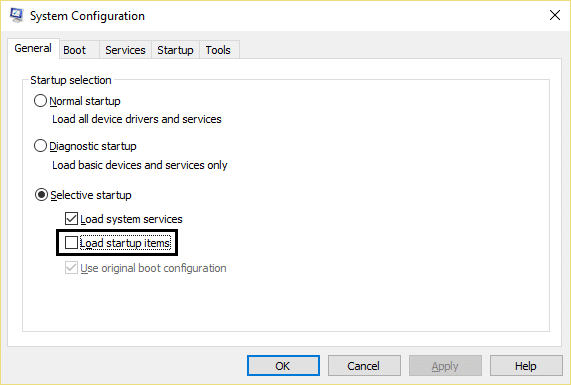
Sometimes 3rd party software can conflict with Windows Cursor and therefore, the Spinning Blue Circle Next to Mouse Cursor can occur because of this issue. In order to fix Spinning Blue Circle Next to Mouse Cursor problem, you need to perform a clean boot in your PC and diagnose the issue step by step.
Method 2: Stop OneDrive Syncing process
Sometimes this issue can occur because of OneDrive syncing process, so in order to resolve this issue right-click on OneDrive icon and hit Stop Syncing. If you still stuck then uninstall everything related to OneDrive.This should Fix Spinning Blue Circle Next to Mouse Cursor issue without any problem but if you’re still stuck on the issue then continue with the next method.

Method 3: Repair MS Office Installation
- Type control in Windows Search then click on Control Panel from the search result.

- Now click Uninstall a program and select MS Office from the list.

Right-click on Microsoft Office and select Change.
Then select Repair from the list of options and follow the on-screen instruction to complete the repair process.

5.Reboot your PC to fix the issue.
Method 4: End Spooler process
If you have accidentally clicked the print option while there is no printer attached to your system this could cause the spinning blue circle next to the mouse cursor issue in Windows 10. What happens when you click the print option, the print process called as spool or spooler service started running in the background and as there is no printer attached it keeps on running even if you reboot your PC, it again picks up the spooling process in order to complete the print process.
- Press Ctrl + Shift + Esc key together to open Task Manager.

Find the process with the name spool or spooler then right-click on it and select End Task.
Close the Task Manager and check if the issue is resolved or not.
Method 5: Kill Nvidia Streamer Service
Open Task Manager and kill the service called Nvidia Streamer then check if the problem is resolved or not.
Method 6: Temporarily disable Antivirus and Firewall
Sometimes the Antivirus program can cause NVIDIA Drivers Constantly Crash and in order to verify this is not the case here, you need to disable your antivirus for a limited time so that you can check if the error still appears when the antivirus is off.
- Right-click on the Antivirus Program icon from the system tray and select Disable.
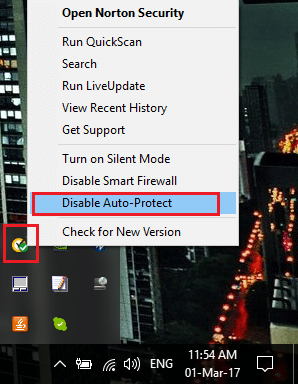
- Next, select the time frame for which the Antivirus will remain disabled.

Note: Choose the smallest amount of time possible for example 15 minutes or 30 minutes.
Once done, check if the error resolves or not.
Type control in Windows Search then click on Control Panel from the search result.
Next, click on System and Security.
Then click on Windows Firewall.
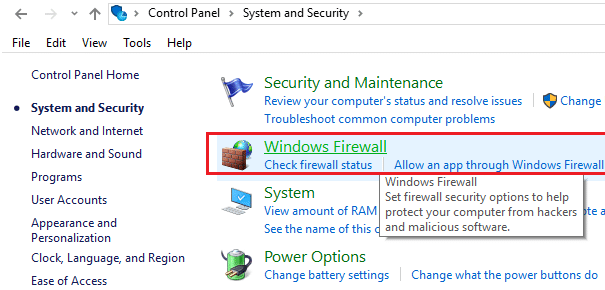
- Now from the left window pane click on Turn Windows Firewall on or off.

- Select Turn off Windows Firewall and restart your PC. This would definitely Fix Spinning Blue Circle Next to Mouse Cursor problem.
If the above method doesn’t work make sure to follow the exact same steps to turn on your Firewall again.
Method 7: Disable Mouse Sonar
- Again open Control Panel then click Hardware and Sound.

- Under Hardware and Sound click on Mouse under Devices and Printers.

- Switch to the Pointer Options and uncheck “ Show location of pointer when I press the CTRL key. ”

Click Apply followed by OK.
Reboot your PC to save changes.
Method 8: For HP users or for users who have biometric devices
- Press Windows Key + R then type devmgmt.msc and hit Enter to open Device Manager.

- Now expand Biometric Devices and then right-click on Validity Sensor.

Select Disable from the context menu and close Device Manager.
Reboot your PC and this should fix the issue, if not then continue.
If you’re on an HP laptop, launch HP SimplePass.
Click on the gear icon on the top and Uncheck LaunchSite under Personal Settings.

- Next, click Ok and close HP SimplePass. Restart your PC to save changes.
Method 9: Uninstall Asus Smart Gesture
If you have an ASUS PC then the main culprit in your case seems to be the software called Asus Smart Gesture. Before uninstalling you could end the process for this service from Task Manager, if it didn’t resolve the issue then you can go ahead with the uninstallation of Asus Smart Gesture software.
- Fix Reconnect your drive warning on Windows 10
- How To Fix Autoplay not working in Windows 10
- Fix Error 1962 No Operating System Found
- Fix Driver WUDFRd failed to load
That’s it you have successfully Fix Spinning Blue Circle Next to Mouse Cursor but if you still have any questions regarding this guide then feel free to ask them in the comment’s section.
