If you’re not able to run Windows Update because of error 80070103 with the error message “Windows update ran into a problem”, then you’re at the right place as today we are going to discuss on how to fix the issue. Windows Update Error 80070103 means the Windows is trying to install a device driver already present on your system or in some cases; the drive present is corrupted or incompatible.

Now the solution to this issue is manually updating the device drivers which Windows fails with Windows Update. So without wasting any time let’s see how to actually Fix Windows Update Error 80070103 with the help of below-listed troubleshooting guide.
- Fix Windows Update Error 80070103
- Method 1: Manually Update the device drivers
- Method 2: Reinstall the drivers from manufacturer’s website
- Method 3: Uninstall the problematic device drivers
- Method 4: Rename SoftwareDistribution Folder
- Method 5: Reset Windows Update Components
Fix Windows Update Error 80070103
Method 1: Manually Update the device drivers
- Press Windows Key + I to open Settings then click on Update & security.

- From the left-hand menu, select Windows Update, then click on View installed update history.

- Look for the update which Fails to install and note the device name . For example: let’s say the driver is Realtek – Network – Realtek PCIe FE Family Controller.

- If you can’t find above, press Windows Key + R then type appwiz.cpl and hit Enter.

- From the left-hand menu, select View installed updates and then check for the update which fails.

- Now press Windows Key + R then type devmgmt.msc and hit Enter to open Device Manager.

- Expand Network Adapter then right-click on Realtek PCIe FE Family Controller and Update Driver.

- Select “ Search automatically for updated driver software ” and let it automatically install any new drivers available.
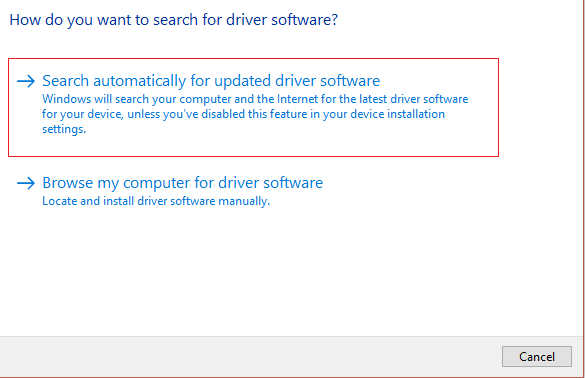
Reboot your PC to save changes and again check if you’re able to Fix Windows Update Error 0x800705b3 or 80070103 or not.
If not, go to Device Manager and select Update Driver for Realtek PCIe FE Family Controller.
This time select “ Browse my computer for driver software. ”

12.Now click “ Let me pick from a list of available drivers on my computer. ”

Select the latest Realtek PCIe FE Family Controller driver and click Next.
Let it install the new drivers and reboot your PC.
Method 2: Reinstall the drivers from manufacturer’s website
If you are still facing the error 80070103, you could try downloading the latest drivers from the manufacturer’s website and installing it. This should help you in fixing the issue altogether.
Method 3: Uninstall the problematic device drivers
- Press Windows Key + R then type devmgmt.msc and hit Enter.
- Expand Network Adapter then right-click on Realtek PCIe FE Family Controller and select Uninstall.

On the next window, select Delete the driver software for this device and click OK.
Reboot your PC and Windows will automatically install the default drivers.
Method 4: Rename SoftwareDistribution Folder
- Open Command Prompt . The user can perform this step by searching for ‘cmd’ and then press Enter.

- Now type the following commands to stop Windows Update Services and then hit Enter after each one:
net stop wuauserv net stop cryptSvc net stop bits net stop msiserver
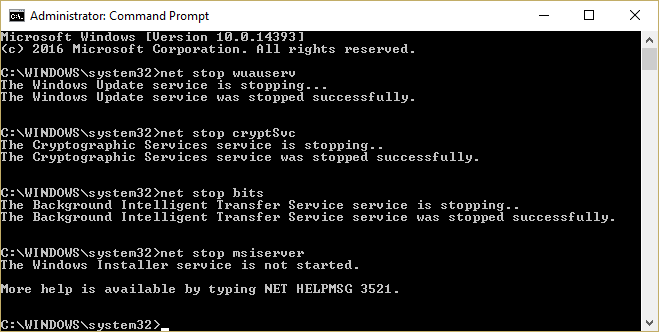
- Next, type the following command to rename SoftwareDistribution Folder and then hit Enter:
ren C:\Windows\SoftwareDistribution SoftwareDistribution.old ren C:\Windows\System32\catroot2 catroot2.old
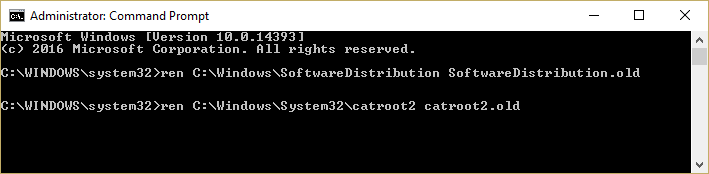
- Finally, type the following command to start Windows Update Services and hit Enter after each one:
net start wuauserv net start cryptSvc net start bits net start msiserver
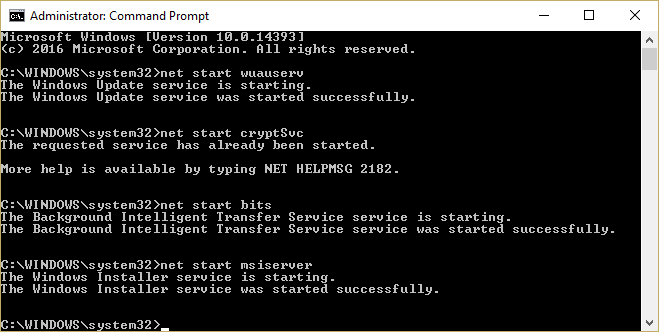
- Reboot your PC to save changes and check if you can fix Windows Update Error 80070103.
Method 5: Reset Windows Update Components
Open Command Prompt . The user can perform this step by searching for ‘cmd’ and then press Enter.
Type the following command into cmd and hit Enter after each one:
net stop bits net stop wuauserv net stop appidsvc net stop cryptsvc
- Delete the qmgr*.dat files, to do this again open cmd and type:
Del “%ALLUSERSPROFILE%\Application Data\Microsoft\Network\Downloader\qmgr*.dat”
- Type the following into cmd and hit Enter:
cd /d %windir%\system32

- Reregister the BITS files and the Windows Update files . Type each of the following commands individually in cmd and hit Enter after each one:
regsvr32.exe atl.dll

regsvr32.exe urlmon.dll

regsvr32.exe mshtml.dll

regsvr32.exe shdocvw.dll

regsvr32.exe browseui.dll

regsvr32.exe jscript.dll

regsvr32.exe vbscript.dll

regsvr32.exe scrrun.dll

regsvr32.exe msxml.dll

regsvr32.exe msxml3.dll

regsvr32.exe msxml6.dll

regsvr32.exe actxprxy.dll

regsvr32.exe softpub.dll

regsvr32.exe wintrust.dll

regsvr32.exe dssenh.dll

regsvr32.exe rsaenh.dll

regsvr32.exe gpkcsp.dll

regsvr32.exe sccbase.dll

regsvr32.exe slbcsp.dll

regsvr32.exe cryptdlg.dll

regsvr32.exe oleaut32.dll

regsvr32.exe ole32.dll

regsvr32.exe shell32.dll

regsvr32.exe initpki.dll

regsvr32.exe wuapi.dll

regsvr32.exe wuaueng.dll

regsvr32.exe wuaueng1.dll

regsvr32.exe wucltui.dll

regsvr32.exe wups.dll

regsvr32.exe wups2.dll

regsvr32.exe wuweb.dll

regsvr32.exe qmgr.dll

regsvr32.exe qmgrprxy.dll

regsvr32.exe wucltux.dll

regsvr32.exe muweb.dll

regsvr32.exe wuwebv.dll
- To reset Winsock:
netsh winsock reset

- Reset the BITS service and the Windows Update service to the default security descriptor:
sc.exe sdset bits D:(A;;CCLCSWRPWPDTLOCRRC;;;SY)(A;;CCDCLCSWRPWPDTLOCRSDRCWDWO;;;BA)(A;;CCLCSWLOCRRC;;;AU)(A;;CCLCSWRPWPDTLOCRRC;;;PU)
sc.exe sdset wuauserv D:(A;;CCLCSWRPWPDTLOCRRC;;;SY)(A;;CCDCLCSWRPWPDTLOCRSDRCWDWO;;;BA)(A;;CCLCSWLOCRRC;;;AU)(A;;CCLCSWRPWPDTLOCRRC;;;PU)
- Again start the Windows update services:
net start bits net start wuauserv net start appidsvc net start cryptsvc
Install the latest Windows Update Agent.
Reboot your PC and see if you’re able to Fix Windows Update Error 80070103.
Recommended:
- Fix Windows 10 Update Error 0x80070422
- How To Fix Error 0x80004005 on Windows 10
- How to create a password reset disk in Windows 10
- Fix Windows 10 Store Error Code 0x80072efd
That’s it you have successfully Fix Windows Update Error 80070103 but if you still have any questions regarding this post then feel free to ask them in the comment’s section.
