If you’re facing a blue screen of death (BSOD) error 0xc0000225 with the message that “Windows\system32\winload.efi is missing or corrupt” then you’re at the right place as today we are going to fix this issue. The issue generally occurs with PC freezing for some time and then eventually you will see the BSOD error message. The main problem occurs when you can’t boot up your PC, and then you try to run Startup or Automatic Repair, you will see the error message “ winload.efi missing or corrupt “.
The most common winload.efi errors that can appear on your PC are:
Winload.efi error

Winload.efi is missing

Winload.efi not found

Winload.efi failed to load

Failed to register winload.efi

Runtime Error: winload.efi

Error loading winload.efi

Winload.efi is missing or contains errors

There was a problem starting [path]\winload.efi. The specified module could not be found

This program can’t start because winload.efi is missing from your computer

The error is caused by corrupt BCD information, corrupt boot records, incorrect boot order, secure boot enabled etc. So without wasting any time, let’s see how to fix winload.efi missing or corrupt error with the help of below-listed troubleshooting guide.
- Fix winload.efi missing or corrupt error
- Method 1: Rebuild the BCD
- Method 2: Boot your PC into Last Known Good Configuration
- Method 3: Disable Secure Boot
- Method 4: Run SFC and CHKDSK
- Method 5: Run Startup or Automatic Repair
- Method 6: Disable early launch anti-malware protection
- Method 7: Set Correct Boot Order
Fix winload.efi missing or corrupt error
Method 1: Rebuild the BCD
Insert the Windows 10 bootable installation DVD or USB and restart your PC.
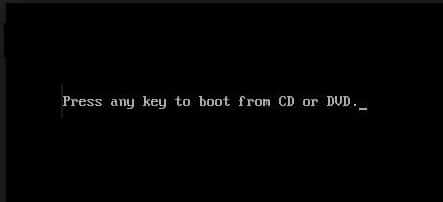
When prompted to Press any key to boot from CD or DVD, press any key to continue.
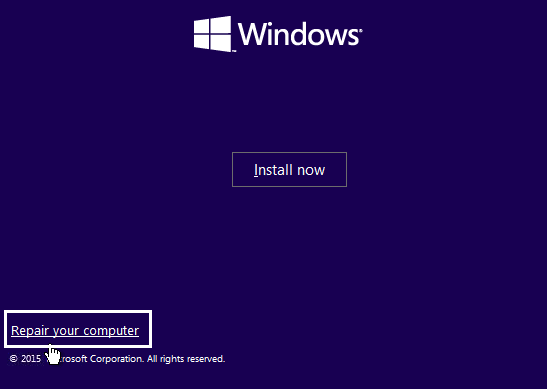
- Select your language preferences, and click Next. Click Repair your computer in the bottom-left.
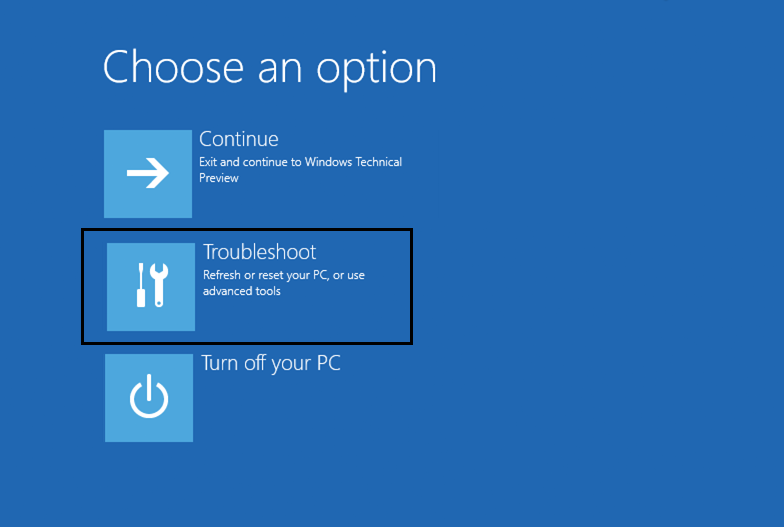
- On choose an option screen, click Troubleshoot .
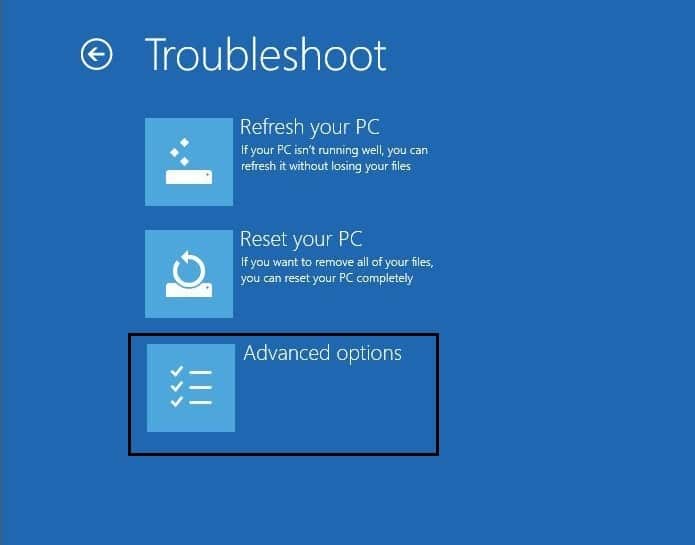
- On Troubleshoot screen, click the Advanced option .
- On the Advanced options screen, click on Command Prompt.
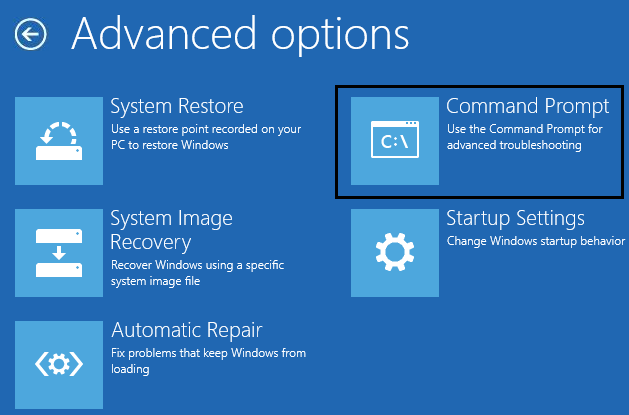
- Now type the following commands one by one and hit enter after each one:
bootrec.exe /fixmbr

bootrec.exe /fixboot

bootrec.exe /rebuildBcd

- If the above command fails, then enter the following commands in cmd:
bcdedit /export C:\BCD_Backup

c:

cd boot

attrib bcd -s -h -r

ren c:\boot\bcd bcd.old

bootrec /RebuildBcd

Finally, exit the cmd and restart your Windows.
This method seems to Fix winload.efi missing or corrupt error but if it doesn’t work for you then continue.
Method 2: Boot your PC into Last Known Good Configuration
Using the above method, open Command Prompt then follow this method.
When the Command Prompt (CMD) open type C: and hit enter.
Now type the following command:
BCDEDIT /SET {DEFAULT} BOOTMENUPOLICY LEGACY
- And hit enter to Enable Legacy Advanced Boot Menu.

Close Command Prompt and back on the Choose an option screen, click Continue to restart Windows 10.
Finally, don’t forget to eject your Windows 10 installation DVD to get Boot options.
On Boot Options screen choose “ Last Known Good Configuration (Advanced). ”

This would Fix winload.efi missing or corrupt error, if not then continue with the next method.
Method 3: Disable Secure Boot
- Restart your PC and tap F2 or DEL depending upon your PC to open Boot Setup.
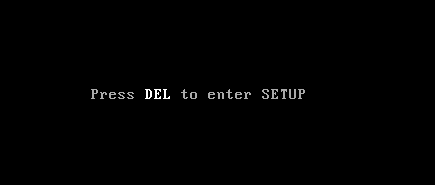
- Find the Secure Boot setting, and if possible, set it to Disabled. This option is usually in either the Security tab, the Boot tab, or the Authentication tab.

#WARNING: After disabling Secure Boot it may be difficult to re-activate Secure Boot without restoring your PC to the factory state.
- Restart your PC and see if you’re able to fix the issue.
Method 4: Run SFC and CHKDSK
- Again go to command prompt using the method 1, click on command prompt in the Advanced options screen.
sfc /scannow

chkdsk C: /f /r /x
Note: Make sure you use the drive letter where Windows is currently installed. Also in the above command C: is the drive on which we want to check disk, /f stands for a flag which chkdsk the permission to fix any errors associated with the drive, /r let chkdsk search for bad sectors and perform recovery and /x instructs the check disk to dismount the drive before beginning the process.

- Exit the command prompt and restart your PC.
Method 5: Run Startup or Automatic Repair
Insert the Windows 10 bootable installation DVD and restart your PC.
When prompted to Press any key to boot from CD or DVD , press any key to continue.
- Select your language preferences, and click Next . Click Repair your computer in the bottom-left.
- On choose an option screen, click Troubleshoot .
- On Troubleshoot screen , click the Advanced option.
- On the Advanced options screen, click Automatic Repair or Startup Repair .
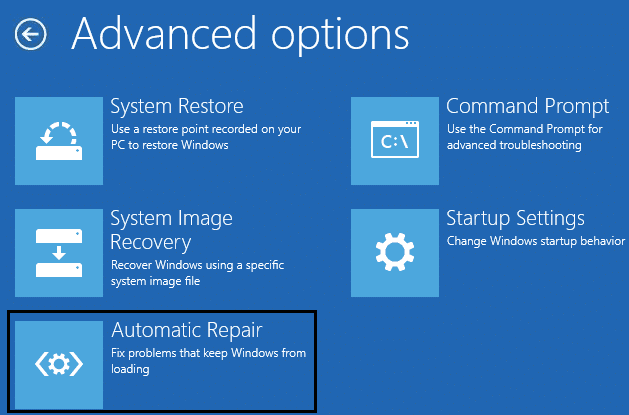
- Wait till the Windows Automatic/Startup Repairs complete.
Method 6: Disable early launch anti-malware protection
- Go to Advanced Options screen using the above method then choose Startup Settings.

- Now, from the Startup Settings, click on the Restart button in the bottom.

- Once the Windows 10 reboots, press F8 to select “ Disable early launch anti-malware protection “.

- See if you’re able to Fix winload.efi missing or corrupt error.
Method 7: Set Correct Boot Order
- When your computer starts (Before the boot screen or the error screen), repeatedly press Delete or F1 or F2 key (Depending upon your computer’s manufacturer) to enter BIOS setup .
- Once you are in BIOS setup select Boot tab from the list of options.

Now make sure that the computer Hard disk or SSD is set as a top priority in the Boot order. If not, use up or down arrow keys to set hard disk at the top,, which means the computer will first boot from it rather than any other source.
Finally, press F10 to save this change and exit.
Recommended:
- How to Change Mouse Pointer in Windows 10
- Fix Searchindexer.exe High CPU Usage
- How to Disable Data Logging on Windows 10
- How to Enable AHCI Mode in Windows 10
That’s it you have successfully Fix winload.efi missing or corrupt error but if you still have any questions regarding this post then feel free to ask them in the comment’s section.
