Microsoft employed Windows Genuine Advantage (WGA) in Windows XP to prevent users from downloading and installing Windows 10 for free by blocking access to their PCs. Although these days, Windows only nags you in a few tiny ways. You may be able to upgrade to a licensed version of Windows 10 for a fee after you install it. In this post, we’ll show you how to permanently activate Windows 10 for free with its Digital License or even without key.

- How to Activate Windows 10 Without Product Key or License
- Option 1: Through Installation Media Tool
- Option 2: Through Command Prompt
- How to Activate Windows 10 with Product Key
- Pro Tip: How to Find Your Windows 10 Edition
How to Activate Windows 10 Without Product Key or License
Microsoft has made it possible for anybody to download and install Windows 10 for free, even without a product key. These versions continue to work with a few small deviations or errors. However, you won’t be able to activate Windows 10 without a key. You can identify inactive versions as:
- A watermark will appear in the bottom-right area of your screen. You’ll also get a message telling you to Activate Windows.
- At the bottom of the Settings app, the same option will be seen stating Activate Windows .

Thankfully, there would be no annoying pop-ups though.
Option 1: Through Installation Media Tool
- To begin, you’ll need to obtain a copy of Windows 10 . You can get a copy of it directly from the Microsoft website , and you don’t even need a product key.

2A. Use Windows 10 download program that will assist you in creating a USB stick to install Windows 10.
2B. If you’re not using Windows, you may download ISO file straight from the Windows 10 ISO download page .

Follow the on-screen instructions to install Windows 10.
One of the first displays you’ll encounter will ask for your product key in order to Activate Windows.
5A. You can continue the installation process by clicking the I don’t have a product key option at the bottom of the window.
5B. Later in the process, you may be prompted to input a product key . If so, seek for a similar little link to bypass that page.
- If you don’t see this option, you can proceed by providing a KMS client setup key .
Note: Unless you’re in a business with a Key Management Service, these keys won’t provide you an active copy of Windows, but they will get you through the Windows installation process.
- You can install either Windows 10 Home or Windows 10 Pro as per your needs.
- Windows 10 Home
- Windows 10 Pro

Note: Keep in mind that upgrading to Windows 10 Home is cheaper than upgrading to the Pro version later.
Option 2: Through Command Prompt
Additionally, you can activate Windows by running certain commands as explained below:
- In the Windows search field, type Command Prompt , choose Run as administrator .
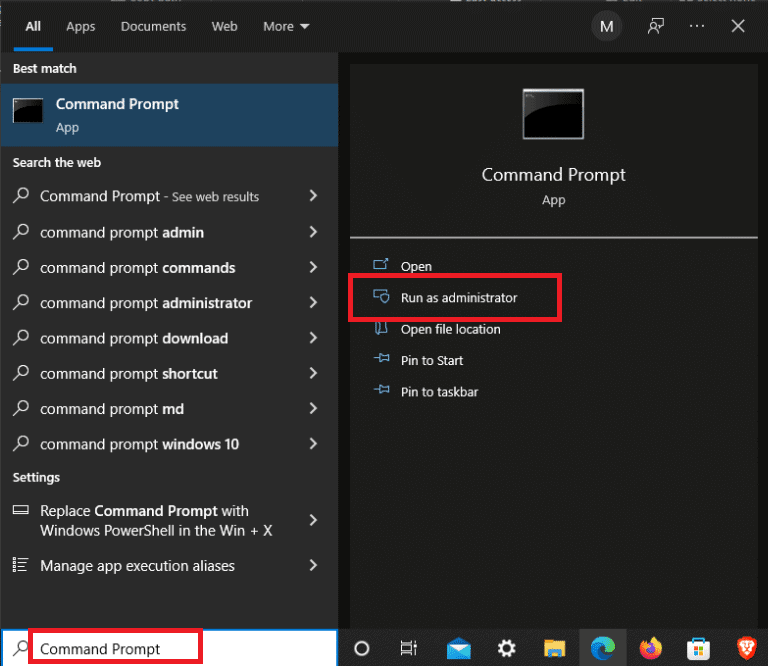
- Type the slmgr.vbs /upk command and press the Enter key .

- To install the product key, run the command below.
slmgr /ipk NPPR9-FWDCX-D2C8J-H872K-XXXXX

- Continue to input the command to set the machine name to zh.us.to.
slmgr /skms zh.us.to

- Type slmgr /ato to activate Windows 10.

How to Activate Windows 10 with Product Key
Similarly, you can activate Windows using Command Prompt with the help of Product key as follows:
Launch Command Prompt as administrator.
Type the following commands and press the Enter key after each command.
slmgr /ipk VK7JG-NPHTM-C97JM-9MPGT-XXXXX

slmgr /skms kms.xspace.in

slmgr /ato

Pro Tip: How to Find Your Windows 10 Edition
Prior to activating Windows 10, you must first determine your Windows 10 edition. Here’s how you can do it:
Press the Windows + I keys simultaneously to open Settings .
Click on System setting.

- Then, click on About to read about all details pertaining to your Windows 10 device.

Recommended: How to Fix Unable to Activate iPhone
