
How to Add Table of Contents in Google Docs
Method 1: By Selecting Text Styles
Method 2: By Adding Bookmarks
How to Edit Table of Contents in Google Docs
Method 1: Add New Headings/SubHeadings
Method 2: Delete Headings/SubHeadings
The table of contents makes the content well-organized and helps to present data in a neat and orderly fashion.
It makes the text seem presentable and engaging .
You can skip to a particular section , by tapping/clicking on the desired subheading.
It is a great way to develop your writing and editing skills.
Note: The steps mentioned in this post were implemented on Safari, but they remain the same, irrespective of the web browser you use.
Method 1: By Selecting Text Styles
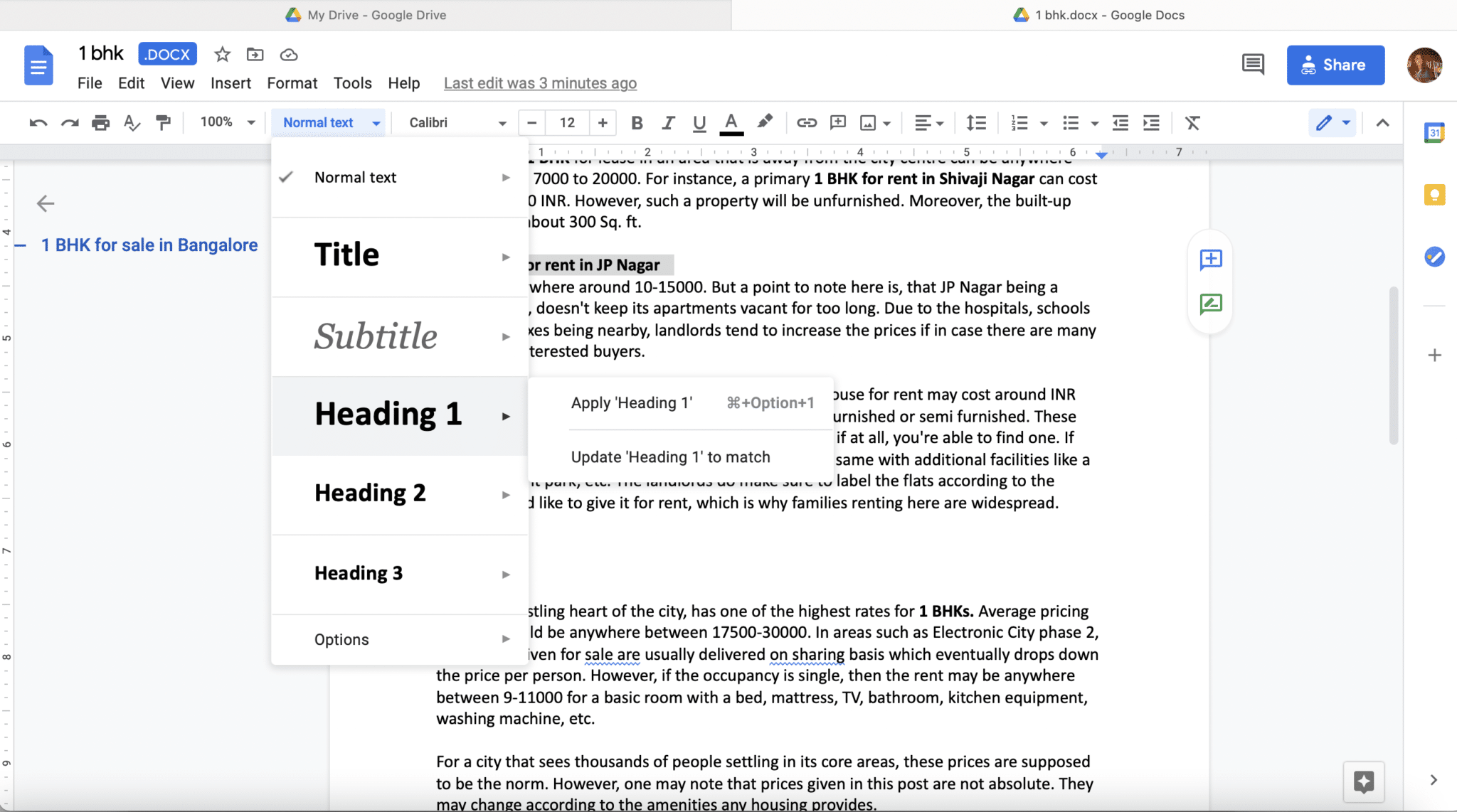
- In the Toolbar, select the required Heading Style from the Normal Text drop-down menu. The options listed here are: Ttile, Subtitle , Heading 1, Heading 2, and Heading 3 .
Note: Heading 1 is usually used for the Main heading followed by Heading 2, which is used for subheadings .
- From the Toolbar, click on Insert > T able of c ontents , as illustrated below.
Note: You can choose to create it With blue links or With page numbers , as need be.


Method 2: By Adding Bookmarks
Create a document Title anywhere in the entire document by selecting the text and then, selecting text style as Title .
Select this title and click on Insert > B ookmark , as shown.

Repeat the steps mentioned above for Subtitle, Headings, and Subheadings in the document.
Once done, click on Insert and select T able of contents , as earlier.
Method 1: Add New Headings/SubHeadings
- Add additional subheadings or headings and relevant text.
Method 2: Delete Headings/SubHeadings
You can use the same set of instructions to delete a particular heading as well.
- Edit the document and delete the Heading/subheadings using the Backspace key.
- Click on the cell where you want to insert the hyperlink. Then, tap on Insert > Insert Link .
- Alternately, use the keyboard shortcut Ctrl+K to select this option.
- Now a dialogue box will appear with two options: Paste a link, or search and S heets in this spreadsheet . Select the latter.
- Select the sheet where you would like to create the hyperlink and click on Apply .
Recommended:
- Merge Multiple Google Drive & Google Photos Accounts
- How to Recover Deleted Google Docs
- 7 Ways to Fix Slow Google Maps
- How to Add a Page in Google Docs
