
- How to Cancel Adobe Acrobat Subscription
- How to Sign In an Adobe Account?
- Is Adobe Acrobat Pro Subscription Only?
- Can You Cancel Adobe PDF Subscription?
- Is It Hard to Cancel Adobe Subscription?
- Is There a Cancellation Fee for Adobe Acrobat?
- How Can You Cancel Your Adobe Subscription?
- How Can You Cancel Your Adobe Annual Plan Without Fees?
- Why is Adobe Charging You a Cancellation Fee?
- Why Can’t You Cancel Adobe Subscription?
- How Can You Cancel Adobe Acrobat Pro Trial?
- How Can You Cancel Your Adobe Acrobat Pro Subscription?
- How Can You Unsubscribe from Adobe Acrobat?
How to Cancel Adobe Acrobat Subscription
You can cancel your Adobe Acrobat subscription from the official Adobe website and Creative Cloud desktop app . Keep reading further to find the steps exemplifying the same in detail with useful illustrations for better understanding.
How to Sign In an Adobe Account?
You can sign in to your Adobe account from the official Adobe website and from the Creative Cloud desktop application as well. Let us see both of these methods with detailed steps.
Option I: Through Adobe Official Website
Follow the steps mentioned below to sign in to your Adobe account via the official Adobe website.
Visit the Adobe website on your browser.
Sign in to your Adobe account using any of the following methods:
- Email address
- Google Account
- Facebook Account
- Apple Account

Option II: Via Creative Cloud Desktop App
As said earlier, you can also sign in using the Creative Cloud desktop app. To do so, kindly follow the steps specified:
- Open the Creative Cloud application on your desktop.
Note : If you don’t have the application, Download Creative Cloud from the Adobe Creative Cloud download page.

- Enter your Email address and Password and click on Sign in to immediately access your Adobe account from the Creative Cloud app.
Note : You can also use the Facebook or Google accounts to Sign in to your Adobe account.

Is Adobe Acrobat Pro Subscription Only?
Yes . Adobe Acrobat Pro is principally subscription-based and any of the following plans can be purchased according to the user’s preference:
| Plans | Sub Plans | Pricing |
|---|---|---|
| Individuals | Acrobat Pro DC | US$14.99/mo |
| Acrobat Standard DC | US$12.99/mo | |
| Business | Acrobat DC for teams | US$15.70/license/mo |
| Students & Teachers | Acrobat Pro DC | US$14.99/mo |
| Creative Cloud All Apps for Students & Teachers | US$19.99/mo |
However, Adobe 2020 desktop software can be bought as a one-time purchase .
Can You Cancel Adobe PDF Subscription?
Yes . You can cancel your Adobe PDF subscription from your Adobe Account page . Also, you can contact Adobe Customer Care to request the cancelation of your desired Adobe subscription from your account.

Also Read : How to Cancel My Tinder Gold Subscription
Is It Hard to Cancel Adobe Subscription?
No , canceling an Adobe subscription is fairly easy, albeit a little peculiar. You can easily cancel your subscription via the Adobe Account page or by intimating your desire to cancel on the registered customer care helpline . If you cancel within 14 days of the commencement of your order, you will be fully refunded but if the time of cancellation exceeds 14 days post the initialization of your contract, you will be refunded a lump sum of 50% and the service will continue till the cessation of your billing period.
Is There a Cancellation Fee for Adobe Acrobat?
Yes , there is a cancellation fee for Adobe Acrobat subscription. If you cancel within 14 days of the commencement of your order, you will be fully refunded. But if the time of cancellation exceeds 14 days post the initialization of your subscription, you will be refunded a lump sum of 50% and the service will continue till the cessation of your billing period.
How Can You Cancel Your Adobe Subscription?
Read and follow the steps mentioned below to cancel your Adobe subscription.
Visit the Adobe website on your browser and Sign in to your Adobe account.
Click on the Profile icon from the top right corner of the page.

- Then, click on View Account .

- Under Your plan section, click on Manage plan , as shown below.

- Click on Cancel your plan from the End your service option, as highlighted.

- On the subsequent newly opened browser page, Enter your password for the Adobe account and click on Continue .

- Select the desired reasons for your cancellation and click on Continue .

- Again, click on Continue from the Canceling your plan today means page.

- Click on No thanks from the consider offers page.

- Lastly, click on Confirm from the confirmation page of your plan cancellation.

You have successfully canceled the Adobe subscription.
How Can You Cancel Your Adobe Annual Plan Without Fees?
If you cancel the Adobe plan during the trial period , you will not be charged any fee. Follow the steps below to learn how to cancel Adobe Acrobat subscription without any fees.
Sign in to your Adobe account from the Adobe website .
Click on the Profile icon > View Account from the top right corner of the page.
Click on Manage plan under the Your plan section.
For the End your service option, click on Cancel your plan .
Enter your Adobe account password on the subsequent browser page.
Then, click on Continue and select the desired reasons for your cancellation.
Then again, click on Continue .
Again, click on Continue > No thanks from the subsequent pages.
On the last confirmation page, click on Confirm to finally cancel your Adobe annual plan.
Also Read : 25 Best Adobe Premiere Pro Free Alternatives
Why is Adobe Charging You a Cancellation Fee?
Adobe charges a cancellation fee as is stipulated in the Adobe Subscription and Cancellation Terms . You cannot evade those charges if you’ve agreed to the contracted terms. If you are canceling your plan after the free trial period , Adobe is entitled to charge you 50% of the subscription fee , as mentioned in the terms of the cancellation fee for Adobe Acrobat.

Why Can’t You Cancel Adobe Subscription?
You will be unable to cancel your Adobe subscription because:
- Payment may be still being processed
- The internet connection malfunctioned
How Can You Cancel Adobe Acrobat Pro Trial?
You can read and follow the below-listed steps to cancel your channel Adobe Acrobat Pro trial.
Navigate the Adobe website on your browser.
Then, Sign in to your Adobe account with the account credentials .
- Click on the Profile icon from the top right corner of the page.
Then, click on View Account > Manage plan .
Next, click on Cancel your plan .
From the newly opened page, Enter your password for the Adobe account and click on Continue .
Choose the desired reasons for cancellation and click on Continue from the further two pages.
From the consider offers page, click on No thanks from the bottom of the page.
- Finally, click on Confirm to complete the Adobe Acrobat Pro trial cancellation.
Also Read : Top 21 Best Alternatives to Adobe InDesign
How Can You Cancel Your Adobe Acrobat Pro Subscription?
To cancel your Adobe Acrobat Pro subscription from the Adobe website, you can consider following the below steps:
Note : Make sure you are signed in to your Adobe account before performing the following steps.
On the Adobe website , click on the Profile icon > View Account from the top right corner.
From the Your plan section, click on Manage plan .
Next, click on Cancel your plan , as depicted below.
Then, proceed to Enter your password for your Adobe account and click on Continue .
Further, click on Continue again after selecting the desired reasons for your cancellation.
Click on No thanks > Confirm .
Also Read : How to Change Highlight Color in Adobe Acrobat Reader
Go to the Adobe website on your desktop browser.
Sign in to your Adobe account and click on the Profile icon .
Then, click on View Account .
Click on Manage plan , as shown below.
Click on Cancel your plan and Enter your password for the Adobe account.
Then, click on Continue .
Next, choose the desired reasons for your cancellation and click on Continue , as illustrated below.
- Then, click on Continue > No thanks > Confirm from the succeeding pages.
Recommended :
- How to Cancel Instacart Subscription
- How to Unlock Huawei Modem
- How Much Is It to Cancel Planet Fitness
- Fix Can’t Print PDF Files from Adobe Reader
If you’re facing issues in printing your PDF files on Adobe Reader then don’t worry as the problem can be easily solved by updating printer’s driver, setting your printer as the default printer, etc. But before continuing you should try to print another PDF file and if you’re able to print successfully then the PDF file you were earlier trying to print was corrupted. But if you still can’t print pdf files from adobe reader then continue with the advanced troubleshooting guide.
- Fix Can’t Print PDF Files from Adobe Reader
- Method 1: Miscellaneous Fixes
- Method 2: Update Printers driver
- Method 3: Set your Printer as the Default Printer
- Method 4: Try to print PDF as an image
- Method 5: Save another copy of the PDF file
- Method 6: Reinstall your Printer Drivers
- Method 7: Re-install Acrobat Reader
Fix Can’t Print PDF Files from Adobe Reader
Make sure to create a restore point just in case something goes wrong.
Method 1: Miscellaneous Fixes
1.Try to print the webpage you’re currently on, press Ctrl + P and print the document and see if you’re able to.

2.Instead of PDF file try to print a text or images file , if you’re are able to print then the problem is with Adobe Reader and updating it might fix the issue.

3.Power Cycle the Printer:
- Restart your PC and power off the Printer then disconnect it from the PC.
- Don’t start the Printer, just press and hold the power button of the printer for 10 seconds.
- Now connect the printer to the PC then power ON the PC and once the system starts, you can power ON your printer.
Method 2: Update Printers driver
To update the printer driver follow these steps.
1.Press Windows key + X then select Device Manager.

2.Expand Print queues then select the printer for which you want to update the drivers.
3.Right-click on the selected Printer and select Update driver.

4.Select Search automatically for updated driver software.
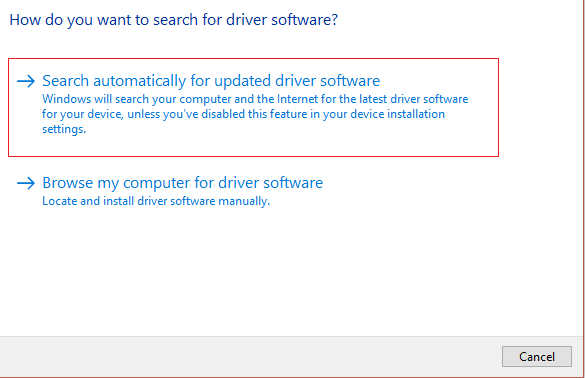
5.Windows will automatically install the latest drivers available for your printer.

Manually Install the Latest Printer Drivers
1.Press Windows Key + R then type “ services.msc ” and hit enter.

2.Find Print Spooler service then right-click on it and select Stop.

3.Again press Windows Key + R then type printui.exe /s /t2 and hit enter.
4.In the Printer Server Properties window search for the printer that is causing this issue, select it and then click on the Remove button.
5.Next, remove the printer and when asked for confirmation to remove the driver as well, select yes.

6.Now again go to services.msc and right-click on Print Spooler and select Start.

7.Next, navigate to your printer manufacturer’s website like HP , Dell , Canon , download and install the latest printer drivers from the website.
For example , in case you have an HP printer then you need to visit HP Software and Drivers Downloads page . Where you can easily download the latest drivers for your HP printer.
8.If you’re still not able to fix slow network printing error or can’t Print PDF Files from Adobe Reader then you can use the printer software that came with your printer. Usually, these utilities can detect the printer on the network and fix any issues that are causing the printer to appear offline.
For example, you can use HP Print and Scan Doctor to fix any issues regarding HP Printer.
Method 3: Set your Printer as the Default Printer
1.Press Windows Key + R then type control and hit Enter to open Control Panel.
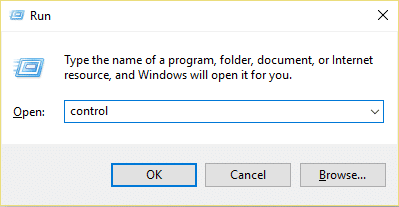
2.From the Control Panel click on Hardware and Sound.

3.Next, click on Device and Printers.

- Right-click on your Printer and select Set as default printer.

5.Restart your PC to save changes.
Method 4: Try to print PDF as an image
1.First, open your PDF file in Acrobat Reader.

2.Now from the Adobe Reader toolbar click on the print icon or press Ctrl + P.
3.From the print window, click on the Advanced button.

4.In the Advanced Print Setup window checkmark “ Print As Image ” and click OK.
<img loading=“lazy” src=“https://techcult.com/wp-content/uploads/2019/10/From-the-print-window-click-on-the-Advanced-button.png" onerror=“this.onerror=null;this.src=‘https://blogger.googleusercontent.com/img/a/AVvXsEhe7F7TRXHtjiKvHb5vS7DmnxvpHiDyoYyYvm1nHB3Qp2_w3BnM6A2eq4v7FYxCC9bfZt3a9vIMtAYEKUiaDQbHMg-ViyGmRIj39MLp0bGFfgfYw1Dc9q_H-T0wiTm3l0Uq42dETrN9eC8aGJ9_IORZsxST1AcLR7np1koOfcc7tnHa4S8Mwz_xD9d0=s16000';" alt=“In the Advanced Print Setup window checkmark “Print As Image” and click OK - 44”>
5.Next, click the Print button and see if you’re able to print the PDF file as an image.

Method 5: Save another copy of the PDF file
1.Open the PDF file in Acrobat Reader then press Shift + Ctrl + S to open Save As dialog box.

Note: From the Acrobat Reader menu click on File and select Save As.
2.Navigate to where you want to save the file, type a new name and click Save.

3.Now try to print this newly created PDF and see if you’re able to Fix Can’t Print PDF Files from Adobe Reader.
Method 6: Reinstall your Printer Drivers
1.Press Windows Key + R then type control printers and hit Enter to open Devices and Printers.

- Right-click on your printer and select “ Remove device ” from the context menu.

3.When the confirm dialog box appears , click Yes.

4.After the device is successfully removed, download the latest drivers from your printer manufacturer website .
5.Then reboot your PC and once the system restarts, press Windows Key + R then type control printers and hit Enter.
Note: Make sure your printer is connected to the PC via USB, ethernet or wirelessly.
6.Click on the “ Add a printer ” button under Device and Printers window.

7.Windows will automatically detect the printer, select your printer and click Next.

- Set your printer as default and click Finish.

This is how you can update the driver and after this, you can try to print the documents once again.
Method 7: Re-install Acrobat Reader
1.Press Windows Key + I to open Settings then click on Apps.

2.From the left hand make sure to select Apps & features.
3.Now from the “ Search this list ” box type Acrobat in it.

4.Click on Adobe Acrobat Reader DC then click on the Uninstall button under it.

5.Now download the latest version Adobe Acrobat Reader from the official website .
6.Install the latest version of Acrobat Reader on your PC and Reboot your PC.
7.Again try to print the PDF file and this time you will be able to print it without any issues.
Recommended:
- Fix Windows Media Player Server Execution Failed Error
- 3 Ways to Delete Files Protected by TrustedInstaller
- How to Connect a Bluetooth Device on Windows 10
- How to Format Hard Drive on Windows 10
I hope the above steps were able to help you Fix Can’t Print PDF Files from Adobe Reader but if you still have any queries regarding this guide then feel free to ask them in the comment’s section.

