DPI refers to Dots Per Inch. DPI is used to gauge an image’s resolution for both print and screen. The DPI, as its name implies, calculates how many dots fit into a linear inch. As a result, an image may display more information the higher the DPI. Therefore, to make picture look better looking what you can do is change DPI of image in Windows. For this, first, you should check image DPI in Windows 10 and get DPI of image to make sure if your image has to be edited or not. This article will assist you to understand this in detail further in this article.

- How to Change DPI of Image in Windows
- What is DPI in Image?
- How is DPI Calculated?
- Is DPI and PPI the Same?
- How to Check Image DPI in Windows 10?
- How to Change DPI of Image in Windows?
- How Can You Change DPI of Image in GIMP?
- How to Change DPI of Photo using Third-Party Software?
- How to Adjust DPI of Any Image?
- What are the Online Tools to Change DPI of Images?
How to Change DPI of Image in Windows
What is DPI in Image?
The term DPI refers to the quantity of printed dots that make up an inch of a printer-made picture.
How is DPI Calculated?
DPI, or dots per inch , is a phrase frequently used when referring to digital pictures. By dividing the total number of dots by the total number of inches across the image, or by multiplying the total number of dots by the total number of inches high , the DPI of a digital image is determined.
Is DPI and PPI the Same?
No, the two names do not have the same meaning and differ in several important ways.
- The term DPI refers to the quantity of printed dots that make up an inch of a printer-made picture.
- PPI is for pixels per inch , describing how many pixels make up an inch of a picture on a computer screen.
How to Check Image DPI in Windows 10?
To determine the DPU of an image, utilize the Paint program in Windows 10. In the Paint app, you may verify an image’s attributes, including DPI. Additionally, you may use applications like GIMP and IrfanView to get DPI of image.
Type MS Paint in the Windows search bar and click on Open .
Click on File > Open to open the desired image whose DPI value you wish to verify right now.
Then, select File from the menu.
After that, click on Image Properties .
Look for the Resolution field and verify the imported image’s current DPI there.

Also Read : How to Change Microsoft Account on Minecraft PE
How to Change DPI of Image in Windows?
Let’s the various method to change DPI for any image on your Windows PC or laptop.
Photoshop is an image editing software with the parent company as Adobe. For a variety of picture and video file types, it is the most extensively used software program for photo image modification and retouching. It is possible to alter both single photographs and huge collections of photos using Photoshop’s amazing features.
- Search Adobe Photoshop in the Windows Search bar and press the Enter key on your keyboard to open it.

- Click on File > Open . Then, select the desired image from your file folder

- From the top menu bar, click on Image .

- Select Image Size… from the drop-down menu

- Uncheck the Resample option

- Enter the desired resolution in the Resolution field to make changes in DPI.

- Click on OK .
How Can You Change DPI of Image in GIMP?
GIMP is a cross-platform image editor that may be used with Windows, macOS, GNU/Linux, and more. Because it is open-source software, you are free to modify it and share your modifications. It allows you to make new graphics, animated GIFs , erase picture backgrounds, crop, flip, rotate, and modify the size of the image. You can use this method to easily Change DPI of image in Windows.
Launch GIMP after downloading and installing it on your computer.
Click on File > Open to open the desired image you want to work on.

- Click on Image from the top bar.

- From drop-down menu, select Print Size . A dialog window will open where you can get DPI of image.

- Here, increase the X resolution value . This will also automatically increase the value of the Y resolution field.

Click on OK .
Now, you can both edit the original file and save as new image by using the Overwrite and Export as options.
Also Read : Change DPI Scaling Level for Displays in Windows 10
How to Change DPI of Photo using Third-Party Software?
You can use the IrfanView software to change the DPI of your desired photo. Let’s see the steps for this.
Download and open the IrfanView application on your PC or laptop.
Click on the Image option from the top bar, as shown.

- Select the Information… option from the Image menu.

- In the Resolution section, type new DPI values in the given boxes.

- Lastly, click on Change > OK .
How to Adjust DPI of Any Image?
There is one more way to image DPI in the Irfanview software. For this follow the below-given steps as this method works a bit like Image DPI change in GIMP.
Launch the IrfanView app on your computer.
Click on Image > Resize/Resample .

Mark the Adjust DPI based on new sizes box from the bottom left corner.
Enter the new DPI and click on OK .

- Save the edited image.
Also Read : How to Adjust Sound on TikTok
What are the Online Tools to Change DPI of Images?
Online tools come in handy at the time when you are struggling with time and want a quick resolution for your problem. In the same way, DPI changing online tools are great for you. You don’t need to have any kind of technical knowledge to work with these tools to change DPI of image online. We have constructed a list of the best DPI changing online tools to save you time.
- Convert Town : This online tool claims to convert anything to anything and is one of the best options in case you are searching for a good DPI changer
- Clideo : This tool gives you the choice of using a predefined DPI setting or using your own required numbers.
- Online DPI Converter : As the name suggests this online tool is specifically made to seamlessly convert the DPI of your images.

Recommended :
- How to Cancel Lyft Ride
- How to Change Nintendo Network ID Name
- How to Print Large Images on Multiple Pages in Windows 11
- 5 Ways to Adjust Screen Brightness in Windows 10
It is not rocket science to change an image DPI no matter whatsoever of the above method you use so please try out anyone as per your system compatibility and time limit. We hope the above guide on how to change DPI of image in Windows and check image DPI in Windows 10 helped you. Please feel free to comment if you need any further assistance. Also, let us know what you want to learn next.
A0 size papers are the largest size papers available to us as per ISO 216 paper size divisions. But how to print out a high-resolution image of this size? Especially when our systems can only print the largest sizes up to A3. Well, that points to a multi-page printout with combining a couple of pages will help you get the desired image. So this article will help you with how to print large images on multiple pages with understanding how to print image on multiple pages altogether on Windows 10 & 11.

- How to Print Large Image on Multiple Pages in Windows 10/11
- Method 1: With Microsoft Paint
- Method 2: Using Excel Spreadsheet
- Method 3: Via Microsoft Word
- Method 4: Through PDF Format
How to Print Large Image on Multiple Pages in Windows 10/11
Printing large images isn’t directly possible for large poster-sized images. Universally available sizes printable from Windows 10 and 11 are:
- US letter sizes and the US envelop sizes.
- A series (from A3 to A5), B4 to B6 print sizes, C size sheet, D size sheet, E size sheet.
- Envelop sizes, PRC envelops sizes, Japanese Envelop sizes, PRC sizes, Postcard sizes, and many more.
However, A3 is the largest direct printable size for the systems we are using now. And considering allowed print sizes in India, the Bureau of Indian Standards allows the ISO -A series size for drawing and other engineering works. This is why the largest size available in the country is A3x4 paper . After this brief but vital info about paper sizes, let’s move towards learning how to print large images on multiple pages.
Note: The methods and steps represented below are performed on Windows 11. The pictures, interface, and terminologies used are from Windows 11 which closely match Windows 10 too. Do verify before making any changes.
Method 1: With Microsoft Paint
Splitting a large image into numerous ones and printing it onto multiple pages can be easily done through Microsoft Paint. It is one of the ways to know how to print large image on multiple pages in Windows 10 and 11. To do so, follow these steps:
Locate your desired image in the File Explorer .
Right-click on it, and from the context menu, click the Open with > Paint app as depicted below.

- As the image opens in Paint, click on the File menu option from the top left corner.

- From the given list, select the Print option and then click on Page setup as shown.

- In the Page Setup window, choose your desired paper size from the Size: drop-down menu option.

6A. Adjust and verify the Orientation and Centring sections as per your output image preference.
6B. Type the number of pages required for the image to be split in the Fit to option box under the Scaling section. As shown below, if the image is required to be split into 16 separate images, type 4 by 4 page(s) in the boxes.

- After customization, click on the OK button.

- Next, click File > Print > Print as illustrated below.

Click on the printer you want to print with under the Select Printer section.
Then, click on Print . The copies will start to print according to the selection made.
Note: For demo purposes, we have selected the Microsoft Print to PDF option under the Select Printer section. Please select the printer available on your system to print your desired images.

Method 2: Using Excel Spreadsheet
Another way to learn how to print large image on multiple pages is by doing it on an Excel spreadsheet. You can print split images of a large one swiftly with Microsoft Excel as follows:
- Type Excel in the Windows search menu and click on Run as administrator .

- In the Excel window, go to Home and click on the Blank workbook option as shown.

- In the new blank workbook, click on the Insert tab.

- Click on the Pictures drop-down option and select This device to browse and pick your required image.

- A File explorer pop-up window will appear. Now, locate your picture and click on Insert .

- After the picture loads on the spreadsheet, click on the picture and hover on any of the corners when you see the cursor turn into an expanding arrow .

- Click and drag the image corners to increase its size.

- After you stretch the image to the desired size depicted in the Size section of the Picture Format ribbon, click on the File option.

9A. Click on the Print option and configure the Settings section as per your output image preferences.
9B. Verify the number of Pages your image will split in as per the size stretched and the Settings made.

Note: You can repeat steps 7, 8, and 9 to adjust the number of print copies you require of the image from the Settings until the desired preview is reached.
- Click on the Printer drop-down menu option to find and select the printer connected with your system.

- After completing these settings, select the number of copies from the Copies drop-down box. Then, click on the Print option to start the print.

Method 3: Via Microsoft Word
Microsoft Word is another alternative for you to know how to print large image on multiple pages. Follow the upcoming steps to do so:
- Type Word in the Windows search bar and click the Open option as shown below.

- Click on the View tab in the blank workbook.

- In the Page Movement section, select the Side to Side option shown highlighted.

- Click on the Insert tab and click the Pictures > This Device option as depicted below.

- Select and insert the desired image from the pop-up window into this Word file.

Right-click on the image and click the Wrap Text option.
To wrap and move the image freely in the Word file, select either Behind Text or In Front of Tex option.

- Then, stretch the image to desired width and height on the first page as shown.

- Similarly, add the same image on the second page and wrap the image as earlier.

- Stretch the second image to a degree where it will connect the first image as shown below.
Note: You can check the desired width and height in the Size section from the top right corner under Picture Format tab.

- Now, follow steps 8-11 from Method 2 for setting the image for printing and then start printing the image on multiple pages.
Method 4: Through PDF Format
PDF is another way with which you can split your larger resolution image into multiple images for printing. To get the answer to how to print large image on multiple pages questions, follow these steps:
Note: The following steps are performed on Adobe Acrobat DC . Make sure to have this software installed in your system before performing the upcoming steps.
Locate your desired image in the File Explorer .
Right-click on it, and from the context menu, click the Open with > Choose another app option as depicted below.
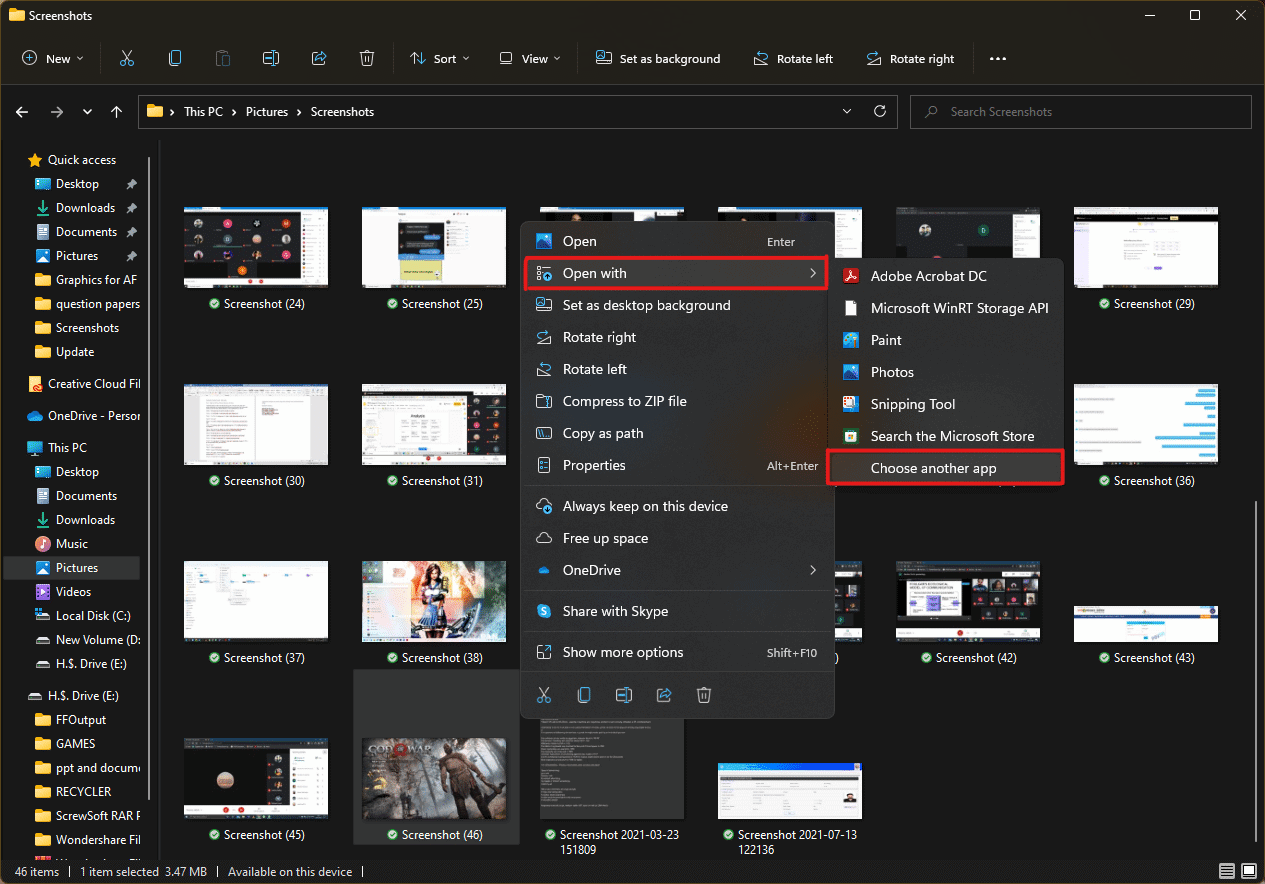
- How do you want to open this file? pop-up will appear with a list of installed apps in the system. Find and select Adobe Acrobat DC and click on OK .
Note: You can click on More apps to further expand the list of apps if you didn’t find Adobe Acrobat earlier.

- After the image opens in Adobe Acrobat, press the key combination Ctrl + P to open the Print window.

- Click on the Poster tab to split images.

- Click on the Page setup… button to configure the page sizes of the split images.

- Configure the Orientation settings and Paper size settings through the drop-down menu and click on OK .

- Select the printer a ttached to your system from the Printer drop-down menu option from the top left corner and click the Print option to start the printing process.

Recommended:
- How to Create a Hanging Indent in Word and Google Docs
- How to Reset Windows 11
- Fix Local Print Spooler Service Is Not Running
- How to Create PDF File in Windows 11
We hope you understood how to print large images on multiple pages in Windows 10/11 . Share your experiences in the comment section below with your queries and suggestions. Also, let us know which topic you want us to explore next.
