A Pointer or mouse cursor is a symbol or graphical image on the PC display representing the movement of the pointing device such as a mouse or touchpad. Basically, the mouse pointer allows users to navigate Windows with a mouse or touchpad easily. Now the pointer is essential for every PC users, and it also has some customization options such as shape, size or colour.

With the introduction of Windows 10, you can easily change the Pointer Scheme using Settings. If you don’t want to use the predefined Pointer scheme, you could use your own preferred pointer. So without wasting any time let’s see How to Change Mouse Pointer in Windows 10 with the help of below-listed troubleshooting guide.
- How to Change Mouse Pointer in Windows 10
- Method 1: Change Mouse Pointer Size and colour using Windows 10 Settings
- Method 2: Change Mouse Pointers via Mouse Properties
- Method 3: Install third-party Mouse Pointers
- Method 4: Change Mouse Pointers via Registry
How to Change Mouse Pointer in Windows 10
Make sure to create a restore point just in case something goes wrong.
Method 1: Change Mouse Pointer Size and colour using Windows 10 Settings
Note: Settings app has only basic customization for the mouse pointer.
- Press Windows Key + I to open Settings then click on Ease of Access.

From the left-hand menu, click on Mouse.
Now, on the right-hand side window, select the appropriate Pointer size, which has three attributes: standard, large, and extra-large.

Next, below Pointer size, you will see Pointer colour. Choose the appropriate Pointer colour, which also has these three attributes: white, black, and high contrast.
Reboot your PC to save changes.
Method 2: Change Mouse Pointers via Mouse Properties
- Press Windows Key + S to open search then type control and click on Control Panel.
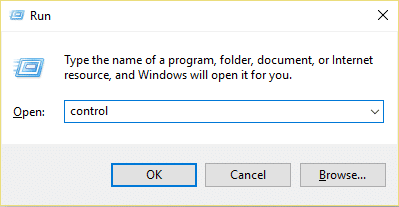
- Next, click on Hardware and Sound & then click Mouse under Devices and Printers.

Under Mouse Properties window switch to Pointers tab.
Now, under Scheme drop-down, select any one of the installed cursor themes .

Under the Pointer tab, you will find Customize, using which you can customize individual cursors.
So select the desired cursor from the list, for example, “ Normal Select ” and then click Browse.

- Choose the cursor according to your preferences from the list and then click Open.

Note: You can choose an animated cursor (.ani file) or a static cursor image (.cur file).
Once you are done with the changes, you could save this cursor scheme for future use. Just click the Save As button below Scheme drop-down.
Name the scheme something like custom_cursor (just an example you can name the scheme anything) and click OK.

Click Apply, followed by OK.
Reboot your PC to save changes, and you have successfully learned How to change Mouse Pointer in Windows 10.
If you need to reset it to default in the future, open Mouse Properties then click Use Default below the customize settings.
Method 3: Install third-party Mouse Pointers
Download Mouse Pointers from a safe & trusted source, as they can be a malicious download.
Extract the downloaded pointer files to C:\Windows\Pointers or C:\Windows\Cursors.

Note: The pointer file will be either an animated cursor file (.ani file) or a static cursor image file (.cur file).
From the above method, follow the steps from 1 to 3 to open Mouse Properties.
Now in the Pointers tab, select the Normal Select under Customize, then click Browse.
- Select your custom pointer from the list and click Open.
Click Apply, followed by OK.
Reboot your PC to save changes.
Method 4: Change Mouse Pointers via Registry
- Press Windows Key + R then type regedit and hit Enter to open Registry Editor.

- Navigate to the following registry key:
HKEY_CURRENT_USER\Control Panel\Cursors
- To select a Pointer Scheme, make sure you select Cursors then in the right window pane double click on (Default) string.

- Now change the value in the Value data field according to the name of the pointer schemes in the below-listed table:
leave blank for None

Magnified

Windows Black (extra large)

Windows Black (large)

Windows Black

Windows Default (extra large)

Windows Default (large)

Windows Default

Windows Inverted (extra large)

Windows Inverted (large)

Windows Inverted

Windows Standard (extra large)

Windows Standard (large)
- Type any name according to the Pointer scheme you want to set and click OK.

- To customize individual pointers, modify the following string values:
Arrow - pointer for Normal Select

Help - pointer for Help Select

AppStarting - pointer for Working in Background

Wait - pointer for Busy

Crosshair - pointer for Precision Select

IBeam - pointer for Text Select

NWPen - pointer for Handwriting

No - pointer for Unavailable

SizeNS - pointer for Vertical Resize

SizeWE - pointer for Horizontal Resize

SizeNWSE - pointer for Diagonal Resize 1

SizeNESW - pointer for Diagonal Resize 2

SizeAll - pointer for Move

UpArrow - pointer for Alternate Select

Hand - pointer for Link Select
- Double-click on any of the above expandable string then type in the full path of the .ani or .cur file you want to use for the pointer and click OK.

- Close Registry Editor and reboot your PC.
Recommended:
- How to Switch to tablet mode in Windows 10
- Fix Searchindexer.exe High CPU Usage
- How to Disable Data Logging on Windows 10
- How to Enable AHCI Mode in Windows 10
That’s it you have successfully learned How to change Mouse Pointer in Windows 10 but if you still have any questions regarding this post then feel free to ask them in the comment’s section.
