Caller ID is a smartphone feature that displays the owner’s name and the caller’s phone number. A caller’s phone number is displayed on the recipient’s phone before the call is answered, thanks to caller ID technology. When buying a new phone, a caller ID is issued to you by your carrier. And now, you may want to learn how to reset caller ID on iPhone or caller ID on iPhone. You have reached the right place! We are bringing you a helpful guide that will teach you how to change your caller ID on iPhone with the step-by-step procedure.

- How to Change Caller ID on iPhone
- Can I Change My Outgoing Caller ID?
- How to Change Caller ID on iPhone?
- How Do I Change My Outgoing Caller ID on My iPhone?
- How Do I Change the Name That Appears on Caller ID?
- Why is My Caller ID Showing a Different Name iPhone?
- Why Does the Wrong Name Show Up on Caller ID?
- How Do I Remove My Name from Caller ID?
How to Change Caller ID on iPhone
Read this article till the end to learn if you can really change caller ID and how to hide it on your iPhone.
Note : The following methods were performed on iPhone 11 (version 15.5) .
Can I Change My Outgoing Caller ID?
No , since the phone carrier company maintains the Caller ID, there are no other options for changing it. You would require to use external apps, such as AT&T or T-Mobile to make changes to your caller ID.
How to Change Caller ID on iPhone?
You can’t change your caller ID as your ID is set by the carrier and not through your iPhone. You can only turn your caller ID on and off but cannot change it through iPhone settings. Follow the steps below to change your caller ID status to hide :
- Open the Settings app on your iPhone.
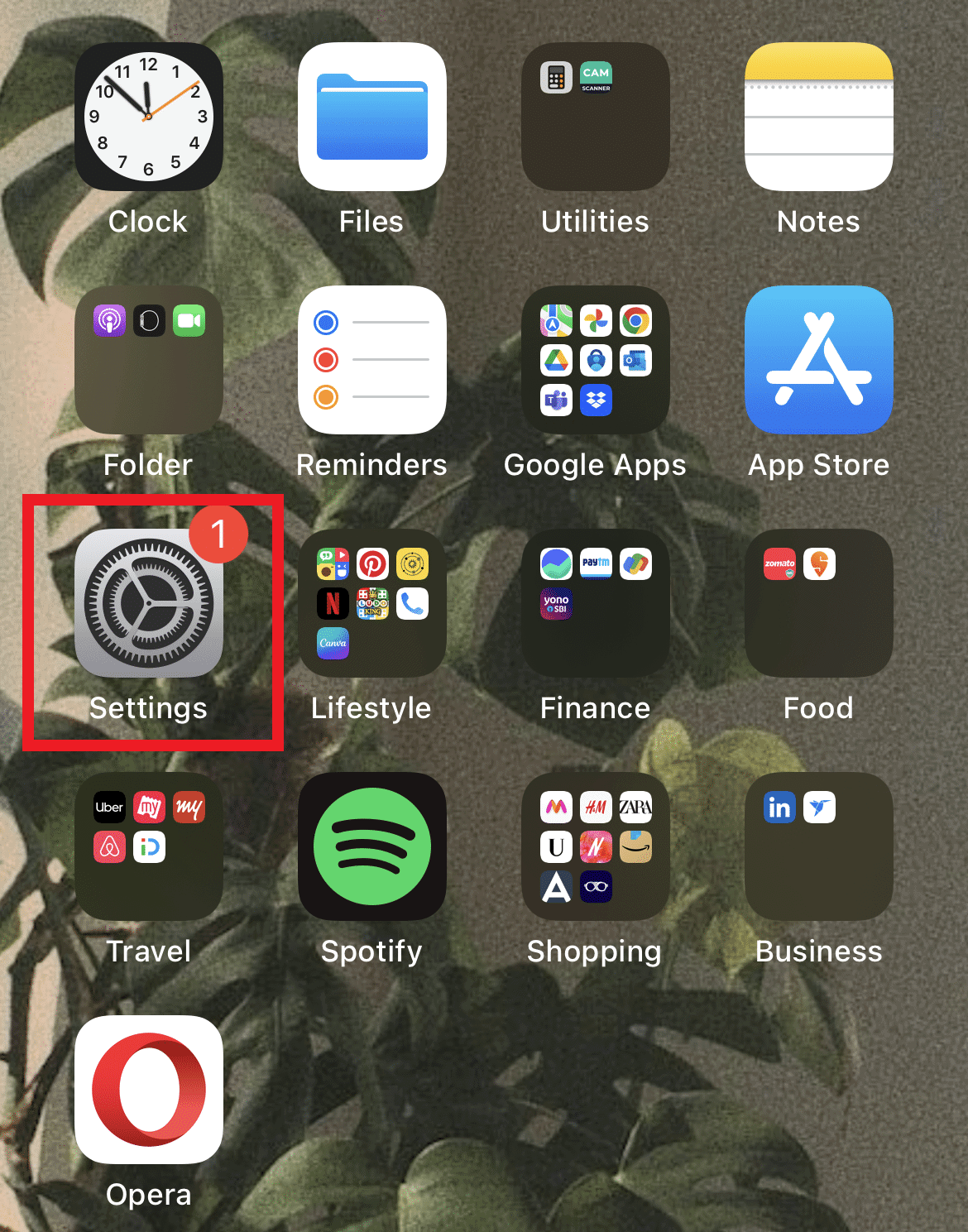
- Swipe down and tap on Phone .

- Tap on Show My Caller ID .
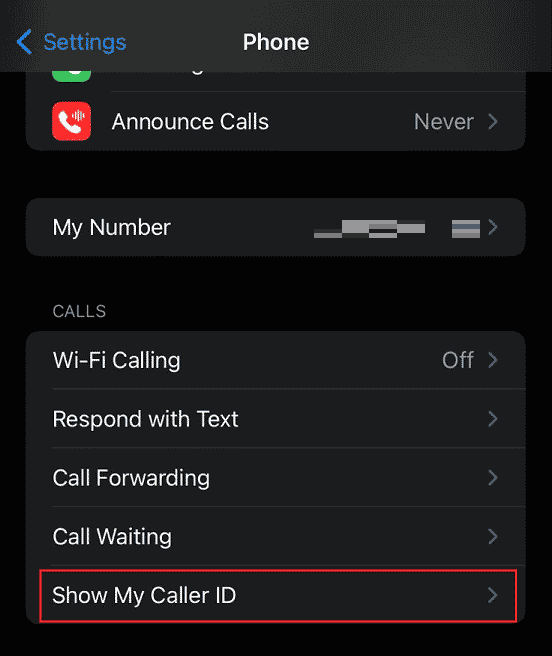
- Turn off the toggle for the Show My Caller ID option, as shown below.

Also Read : What is Little Moon Next to Text on iPhone?
How Do I Change My Outgoing Caller ID on My iPhone?
You can’t change the caller ID for others from your iPhone. But you can hide your caller ID with the help of the following steps.
- Open the Settings app and tap on Phone .
Then, tap on Show My Caller ID from the options list.
Tap on the Show My Caller ID toggle option to turn it off .
It will result in your call recipients seeing the No Caller ID instead of your name when you call them.
How Do I Change the Name That Appears on Caller ID?
While asking how to change your caller ID on iPhone, you might ask about changing the name. You can change your caller ID name using apps like T-Mobile . If you have the T-Mobile network on your phone with the T-Mobile app installed, follow the upcoming steps to change your caller ID name.
Open the T-Mobile app on your phone.
Tap on the MORE tab.

- Tap on Profile settings .

Then, tap on the Caller ID name .
Choose a line and enter the new First and Last name to change the current ones.
Finally, tap on the Save Caller ID name to save the changes.
Also Read : How to Turn On 5G on iPhone 11
Why is My Caller ID Showing a Different Name iPhone?
Your iPhone may display a caller ID inaccurately due to outdated carrier settings or incorrect formatting by your original carrier. You can alter your carrier settings to correct this.
Why Does the Wrong Name Show Up on Caller ID?
Unfortunately, the desired caller ID formatting varies between carriers. The caller ID information may change along the route since calls may pass via multiple networks .
How Do I Remove My Name from Caller ID?
To remove or reset caller ID on iPhone, follow the steps mentioned below:
Launch the Settings on your iPhone.
Swipe down and tap on Phone > Show My Caller ID .
- Then, turn off the toggle for the Show My Caller ID option.
Recommended :
- How to Delete a Banned TikTok Account
- How to Change Your Name on Instagram
- How To Hide Your Phone Number on Caller ID on Android
- How to Unlist Your Number from Truecaller
You might have noticed a little moon next to text on your iPhone, and surely you would have wondered what does that icon mean? Why is it here, and what does it indicate? There are many Google searches on light gray crescent moon iPhone as users are obsessively looking for answers about what is the exact function of this symbol. So today, we will explore all about the crescent moon with the detailed steps to get rid of the little moon next to text.

- What is Little Moon Next to Text on iPhone?
- What Does Crescent Moon Mean in iPhone Messages?
- What is the Meaning of Light Gray Crescent Moon Next to Someone’s Name in Text on iOS?
- Why is There a Moon Next To My Text on iPhone? What Does a Moon Next to a Contact Mean?
- What Do the Different Colors of the Half Moon Mean?
- How Do I Get Rid of the Crescent Moon on My iPhone 11?
- How Do I Remove the Moon Next to a Text?
What is Little Moon Next to Text on iPhone?
Read this article till the end to learn about the little moon next to text and also the steps demonstrating to disable it on iPhone using the illustrations for better understanding.
What Does Crescent Moon Mean in iPhone Messages?
While many signs or signals on your phone screen can put you in doubt, like the crescent moon in the Messages app on iPhone. The little moon next to the text in Messages means that the corresponding conversation has been muted . This option hides the alerts from the associated user on the iMessage app. Apple launched this feature so users can mute unwanted conversations , such as marketing offers or spam messages.
What is the Meaning of Light Gray Crescent Moon Next to Someone’s Name in Text on iOS?
There is nothing to worry about when you see the little moon next to a text or next to someone’s name in text on iOS. It is just an indication that you might have hidden the alerts for a specific conversation . And the Do Not Disturb mode with that particular contact has been switched on. There is also a Blue moon next to the text, which means a conversation is unread. As soon as you read the conversation, the Blue moon next to the text turns gray.
Why is There a Moon Next To My Text on iPhone? What Does a Moon Next to a Contact Mean?
The moon next to the text on iPhone means whenever the corresponding number would text you, the notification for it will not appear in the notification bar . It happens because the conversation with that particular person has been muted . It only happens with the particular contact you have enabled the Hide Alerts option. Also, this is completely reversible, and you don’t need to worry about it.
Also Read : What is Odin Mode on Samsung Phone?
What Do the Different Colors of the Half Moon Mean?
If you have been noticing different colored half moons on your iPhone screen , you have to understand that every colored moon holds a different meaning. Basically, you will see two colored half moons, named: Blue and Gray .
- Gray Moon : It means that you have muted the conversation with that particular person . Also, the gray moon on the status bar indicates that the Do Not Disturb mode has been switched on your iPhone.
- Blue Moon : If you observe a blue-colored moon in your iPhone messages, it means that a particular muted conversation has not been opened yet . In short, unread conversations and messages contain a blue-colored moon. As soon as you open these messages, the blue moon turns gray.
How Do I Get Rid of the Crescent Moon on My iPhone 11?
Along with the little moon next to text, the crescent moon appears on the iPhone Lock Screen . Follow the steps below to get rid of the crescent moon on your iPhone by turning off the Do Not Disturb mode:
Method 1: From Control Center
Below are the steps listed to disable the Do Not Disturb feature from the Control Center.
Pull down the screen to open the Control Center menu.
Tap on the crescent moon icon to turn off the Do Not Disturb feature.

Also Read : How to Turn Off AirPlay on iPhone
Method 2: From Settings
You can also turn off the Do Not Disturb mode from the iPhone settings menu , as explained below.
- Open the Settings app on your iPhone.

- Tap on the Do Not Disturb option.

- Tap on the Do Not Disturb toggle to turn it off.

Also Read : How to Disable Pop-ups on Safari on iPhone
How Do I Remove the Moon Next to a Text?
As pointed out earlier, the gray crescent moon next to a text on your iPhone is just an indication of the muted conversation. To unmute the conversation, follow the steps mentioned below.
- Open the Messages app on your iPhone.

Tap on the desired message for which the alerts have been hidden.
Then, tap on the i icon from the top right corner, as shown below.

- Tap on the Hide Alerts toggle to turn it off.

Recommended :
- Fix Error Printing in Windows 10
- Fix Unable to Install GarageBand on iOS
- How to Mark a Text Message as Unread on iPhone
- Fix iPhone Message Notification Not Working
