
- How to Disable Pop-ups on Safari on iPhone
- What to do when you see an unwanted pop-up on Safari?
- How to Enable Fraudulent Website Warning
- Additional Fix
- How to Avoid Pop-ups on Safari
- How to Enable Safari Pop-up Blocker iPhone
- How to Disable Safari Pop-up Blocker iPhone
How to Disable Pop-ups on Safari on iPhone
You can easily disable pop-ups on Safari on iPhone to make your surfing experience smooth and free of interruptions. Read till the end to learn about various tricks that will help you while using Safari.
What to do when you see an unwanted pop-up on Safari?
- Navigate to a New tab . Enter the desired search term and browse to a new site .
Note: If you cannot find a search field in iPhone/iPod/iPad, tap on the top of the screen and make it visible.
- Exit the tab where the pop-up appeared.
How to Enable Fraudulent Website Warning
From the Home screen , go to Settings.
Now, click on Safari .
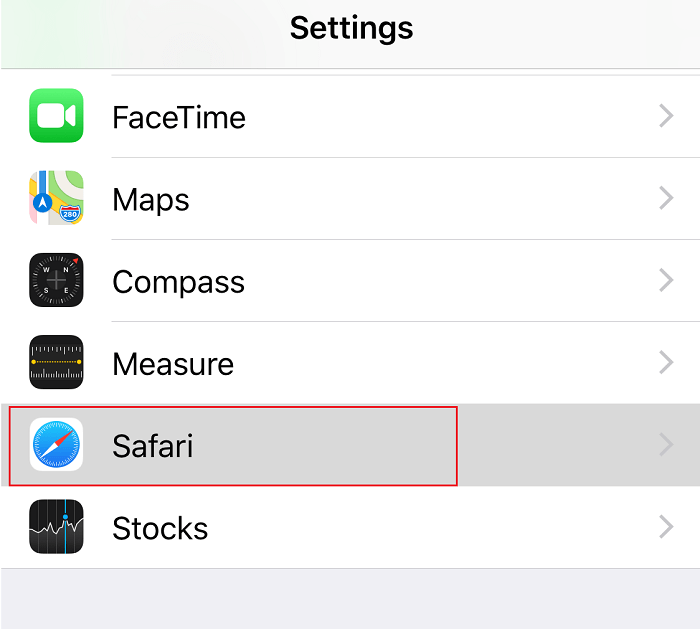
- Finally, toggle ON the option marked Fraudulent Website Warning , as depicted below.

Additional Fix
Note: You can check for unwanted extensions by searching for them in the Extensions tab in Safari Preferences.
How to Avoid Pop-ups on Safari
The following tips will help you to manage and avoid pop-ups on Safari.
- Use Latest Versions: Make sure you always use the latest version of all apps on your Apple device.
- Update iOS: New updates in the operating system improve your system performance and offer enhanced security. Security updates are offered during software updates and might include pop-up control mechanisms.
- Install Verified Apps: If you want to install any new applications on your iOS device, the safest place is the App Store by Apple. For applications that cannot be downloaded from the App Store, please download them from the developer rather than via an external link or advertisement.
In short, keep your device updated to the latest version and download applications only from the App Store or directly from the developer. Get the latest Apple Security updates here .
How to Enable Safari Pop-up Blocker iPhone
Navigate to Settings from Home Screen.
Here, click on Safari.
- To enable the pop-up blocker, toggle ON Block Pop-ups option, as highlighted.

Here onwards, pop-ups will always be blocked.
How to Disable Safari Pop-up Blocker iPhone
Tap on Settings > Safari , as earlier.
To disable the pop-up blocker, turn the toggle OFF for Block Pop-ups .
Recommended:
- How to Block Pop-ups in Safari on Mac
- 5 Ways to Fix Safari Won’t Open on Mac
- How to Fix Apple Virus Warning Message
- Fix App Store Missing on iPhone
