
- How to Downgrade from Android 14 to Android 13
- Step I: Install Android SDK
- Step II: Enable USB Debugging
- Step III: Unlock Bootloader
- Step IV: Use Android Flash Tool
How to Downgrade from Android 14 to Android 13
If you want to downgrade from one Android version to another, you first need to back up all your device data as the process will erase all of them. So please make sure that you back up your data. Now, follow the steps below:
Note : Android phones don’t have the same Settings options, and they vary from manufacturer to manufacturer. Hence, ensure the correct settings before changing any on your device. We are using Motorola G71 5G for explaining this article, your settings might be different from this one.
Step I: Install Android SDK
First, you need to install the official Android SDK on your computer. This will help you to make a connection between your pc and your Android smartphone via ADB. After downloading Android SDK Platform tools , you need to follow the next step.

Step II: Enable USB Debugging
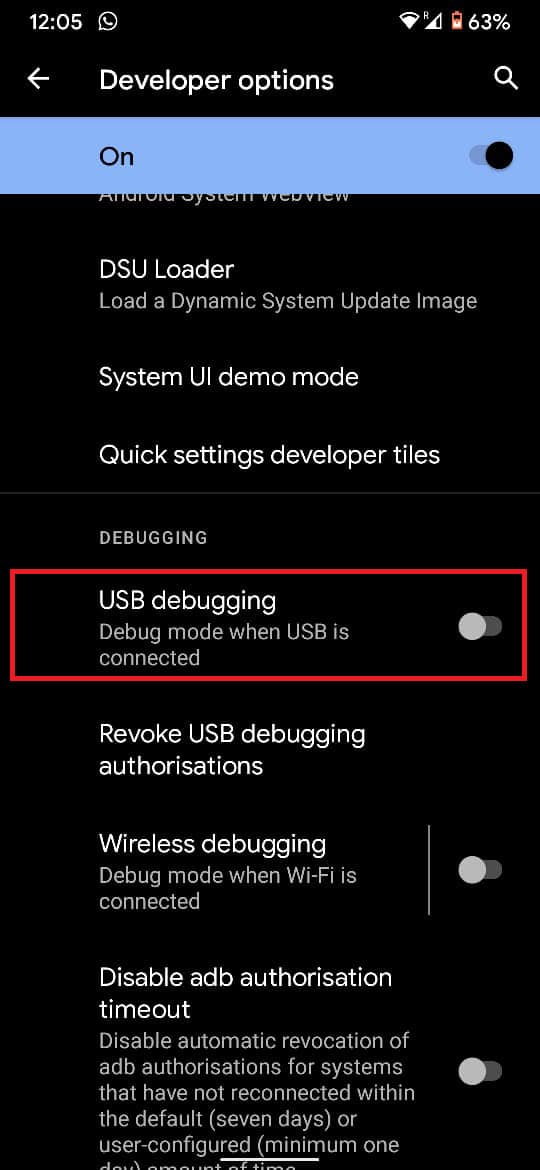
Now, you need to enable the Developer option and then USB debugging . You can read this article to know how to Enable or Disable Developer Options on Android Phone . To turn on USB debugging, follow the steps below to continue to Downgrade from Android 14 to Android 13.
- Open Settings and tap on System .

- Tap the Developer Option .

- Find USB debugging and turn it on.
Step III: Unlock Bootloader
The next step to unlock the bootloader to downgrade from Android 14 to Android 13 might seem like a technical thing. However, we have a detailed article on How to Unlock Bootloader Via Fastboot on Android on our website. Read this guide and implement the same.
Step IV: Use Android Flash Tool
After following the above directions, you need to downgrade to Android 13 using the official page of Android Flashtool.
Connect your Android device to your PC via USB .
Open the official website of Android Flash Tool on your PC.

- Click on Get started .
Note : If the site is asking you to download the Android USB driver, then download it from the given link or if already installed, then click on the Already installed option.
Click on Add new device .
Select your device name from the pop-up screen.
Allow the USB Debugging prompt in your smartphone.
Choose the latest version of Android 13.
Click on the pencil icon to see available built.
Click on Install build .
Click on Confirm .
It will download the Android version to your device. You need to wait for the process to get finished and you will get notified after completion.
Note : Please do not disconnect the device from the PC. Removing the USB can interfere with the process and harm your device.
Recommended:
- How to Create a Group in Teams
- How to Rotate Image in Canva
- How to Use GPS Survey App Surveying with Android Smartphone Application
- Fix Android No Command Error
We hope this helped you to understand how to downgrade from Android 14 to Android 13 . If you still have any questions, then don’t forget to reach us via the comment section. You can also save our site to your bookmark for more interesting articles like this. Thank you for reading.
