
- How to Download and Install Windows 10 Latest Update
- Method 1: Through Windows Settings
- Method 2: Manually Download Updates
How to Download and Install Windows 10 Latest Update
You can update Windows 10 automatically by changing the settings to automatically install updates or download them manually according to their respective KB number. In this guide, we have shown all possible ways to update Windows 10.
Method 1: Through Windows Settings
Follow the given steps to update Windows 10 through in-built settings app:
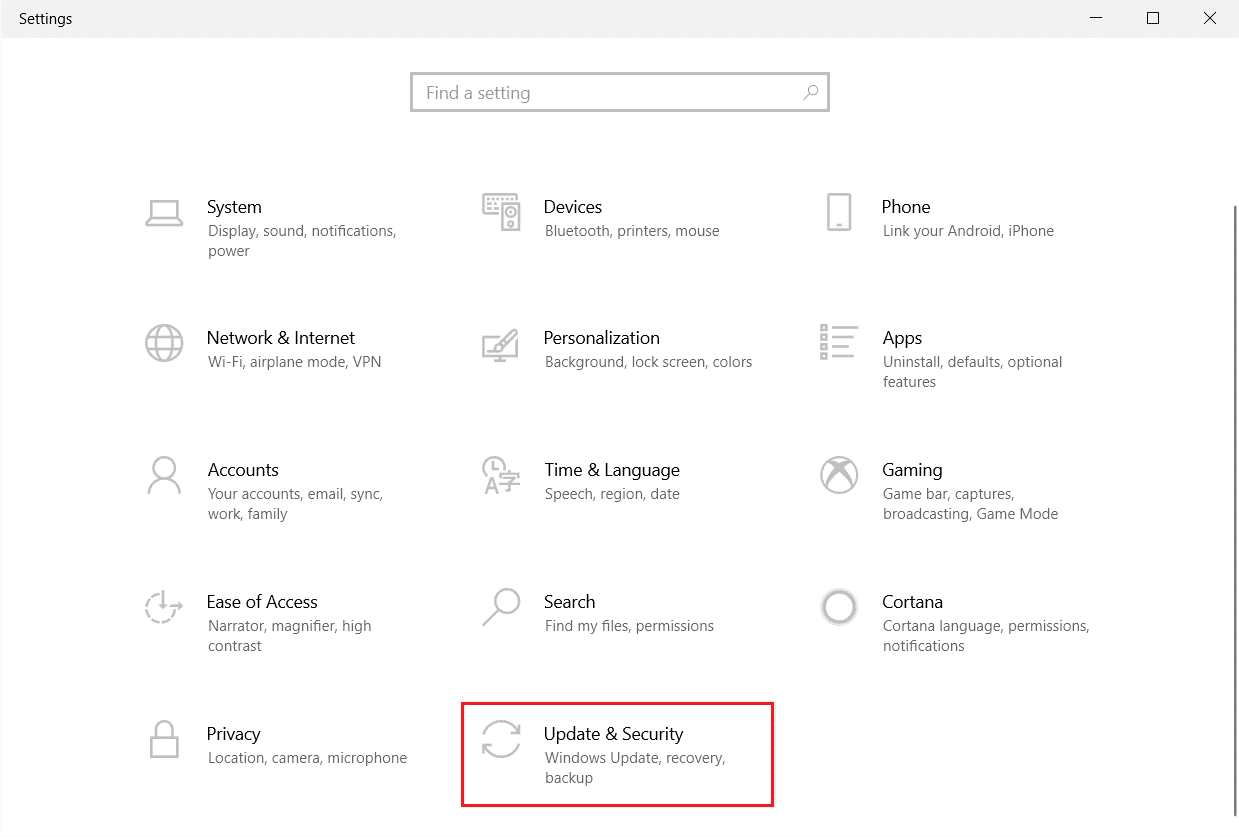
Press Windows + I keys simultaneously to launch Settings .
Click on the Update & Security tile, as shown.
- In the Windows Update tab, click on Check for updates button.

4A. If a new update is available, then click Install Now and follow the instructions to update.

4B. Otherwise, if the Windows is up-to-date, then it will show You’re up to date message.

Method 2: Manually Download Updates
You can also manually download updates with the help of KB number as well.
- Open Settings & select Update & Security .

- Click on the View update history option.

In the list, note down the KB number that is pending to be downloaded due to an error message or otherwise.
Next, go to the Microsoft Update Catalog website.

- Enter the (Knowledge Base) KB Number in the search bar in the top right-hand corner and click on Search button shown highlighted.

- Select the desired Update from the given list, as shown.

Note: The complete information about the update can be viewed on the Update Details screen.

- Click on the corresponding Download button of the particular update.

- In the window that appears, click on the hyperlink to download the respective update.

Once downloaded, press Windows + E keys to open File Explorer . Double click on the .msu file from the folder where it was saved.
Choose Open with Windows Update Standalone Installer (default) option and click OK .

- Click on Yes to confirm and allow Windows to install the desired update.
Note: It may take a few minutes for the installation to be completed and after that, you will receive a notification regarding the same.
- Finally, reboot your PC after saving your unsaved data to implement the update.
Recommended:
- Fix Could Not Create the Java Virtual Machine in Windows 10
- How to Fix Windows Update 0x80070057 Error
- Top 10 Worst Operating Systems
- How to Perform Windows Defender Definition Update
