Active Directory manages Windows Server Technical Preview. It is a tool used by administrators to grant permission and to access resources on the network. It is not installed on Windows PCs, by default. However, you can get it online from the official website of Microsoft and install it on your device. Are you confused about how to use Active Directory in Windows 10? If the answer is Yes, this article will help you on how to enable Active Directory in Windows 10 .

- How to Enable Active Directory in Windows 10
- Step 1: Install Remote Server Administration Tools (RSAT)
- Step 2: Enable Active Directory in Windows 10
How to Enable Active Directory in Windows 10
Please ensure that your system is connected to the internet, before implementing the below-mentioned steps.
Step 1: Install Remote Server Administration Tools (RSAT)
Note: RSAT is only supported on Windows 10 Professional and Windows 10 Enterprise versions. Other versions of Windows are not compatible with it.
Sign in to your system and wait for the system to start up properly.
Now, open a Browser e.g. Microsoft Edge, Chrome, etc.
Go to the Remote Server Administration Tools for Windows 10 page on the Microsoft website. This will open the web page containing the tool to be downloaded.

- Select your Language preference in the dropdown box as shown in the above picture. Then, click on Download which is displayed in a red-colored box.
Note: Selecting the desired language will dynamically change the complete page content to that language.
- Now, on the next page, choose the File Name you want to download. The File Size will be displayed on the right side of the screen. Refer to the picture below.

- Once you have selected the file, it will be displayed in the Download Summary . Now, click on Next.

Click on the Control + J keys to view the progress of the downloads in the Chrome browser.
Wait for the download to be completed; go to Downloads in your system.
Install RSAT using the downloaded file. Double-click on the downloaded file and it will ask for permission, click on the “ Yes ” button.

- Once you have installed RSAT , your system is ready to use Active Directory.
Step 2: Enable Active Directory in Windows 10
Active Directory can be easily accessed with the help of Remote Server Administration Tools. Follow the below-mentioned steps to activate Active Directory in Windows 10:
- Go to the Search menu and type Control Panel.

Click on Open as depicted in the above picture.
You will see the control panel window on the screen. Now, click on Programs.

- Now, the Programs windows will pop up on the screen. Click on Turn Windows features on or off as shown below.

- Now, scroll down, checkmark “ Remote Server Administration Tools .” Then click on the + icon next to it.

Under Remote Server Administration Tools, checkmark ‘ Role Administration Tools. ‘
Next, click on the + symbol next to the Role Administration Tools.
Here, select AD DS and AD LDS Tools . Once you check the boxes, some files will be installed in your system.
- Restart your PC to save changes.
Wait for some time for the process to be completed. Once done, your PC will restart and Active Directory will be enabled on your system. You will be able to access the tool from Windows Administrative Tools.
Recommended:
- The directory name is an invalid error [SOLVED]
- Disable Active Hours for Windows 10 Update
- How to Fix Printer Not Responding in Windows 10
- 3 Ways to Add Yahoo Mail to Android
Does your printer fail to respond when you give the print command? If yes, there is no need to panic as you are not alone. Numerous people have encountered this problem while attempting to print documents from Windows 10 computer. A corrupt, obsolete, or damaged printer driver is the primary cause of this vexing Printer not responding error . The good news is that you can quickly resolve this issue by implementing the step-by-step methods listed in this guide.
Why is my device showing Printer driver is unavailable?
There are several reasons for the printer to become unresponsive and you can begin by testing the following:
- Check if the printer cables are properly attached to the computer
- Check if the printer is connected to Wi-Fi
- Make sure that the ink cartridges are not empty
- Check your system for alert lights or error messages
- If you just upgraded your computer from Windows 7 or 8 to Windows 10 and started facing printer issues, the update may have corrupted the printer driver
- It is possible that the original printer driver is incompatible with the latest version of Windows OS
Microsoft had stated that when Windows 10 was released, there would be no built-in backward compatibility with some apps and applications. However, numerous printer manufacturers were unable to update their drivers in time, which complicated the situation further.

What is the use of a printer driver?
Prior to understanding how to resolve the Printer not responding issue , it is imperative to learn about the printer drivers. It is a simple application that is mounted on the Windows 10 computer that allows interaction between the PC and the printer.
It performs two critical roles:
- The first function is to act as a link between the printer and your device. It allows your computer to recognize the printer hardware, its features, and specifics.
- Secondly, the driver is accountable for converting the print job data to signals which can be understood & implemented by the printer.
Each printer comes with its own special driver that is tailored to different operating system profiles such as Windows 7, Windows 8, or Windows 10. If your printer is not programmed correctly or mounts the wrong system driver, the computer would be unable to find it & process a print job.
Certain printers, on the other hand, can utilize generic drivers offered by Windows 10. This enables you to print without the need to install external vendor drivers.
- Fix Printer Not Responding Error in Windows 10
- Method 1: Run Windows Update
- Method 2: Update Your Printer Drivers
- Method 3: Reinstall Printer Driver
- Special Mention: Only for Plug–and–Play Printers
Fix Printer Not Responding Error in Windows 10
If you’re unable to print any internal document or a file that you downloaded from the internet then you may be facing the Printer driver is unavailable error. To resolve the printer not responding error, you can follow the below-listed troubleshooting steps.
Method 1: Run Windows Update
One possible reason for your Windows 10 computer to display the ‘Printer Driver is Unavailable’ error is because you are running an out-of-date operating system. To update your Windows OS, follow the below steps:
- Click the Start button and navigate to the Settings icon.

- Select Update & Security .

- Windows will check for updates and, if found, will automatically download and install them.

- Now, Restart your computer once the update process is complete.
You can now check if you’re able to fix printer is not responding error.
Method 2: Update Your Printer Drivers
To update your printer drivers, you can download the latest drivers from the manufacturer’s website. Drivers can also be downloaded from the manufacturer’s support site. To install the printer drivers downloaded from the manufacturer’s website, follow these steps:
- Search for Control Panel in the Windows search bar then click on the Control Panel from the search results.

- Make sure to select ‘ Large Icons ‘ from the ‘ View by: ‘ dropdown. Now look for Device Manager and click on it.

- Under the Device Manager window, locate the printer for which you want to install drivers for.

- Right-click the name of the printer and select Update Driver Software from the accompanying pop-up menu.

A new window will appear. If you’ve already downloaded drivers from the manufacturer’s website, choose the Browse my computer for driver software option.
Next, click on the Browse button and navigate to the place where you have downloaded the printer drivers from the manufacturer’s website.

Follow the on-screen instructions to install the drivers manually.
If you don’t have the downloaded drivers then select the option labeled Search automatically for updated driver software.
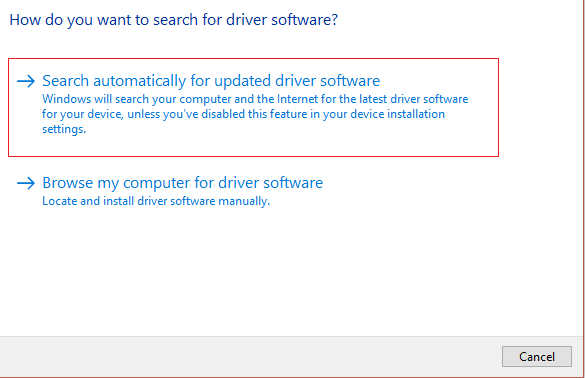
- Follow on-screen instructions to install the latest printer drivers.
Restart your PC and see if you’re able to fix the printer not responding issue.
Method 3: Reinstall Printer Driver
If you cannot print your document because of the error message ‘printer driver is unavailable,’ the best course of action would be to reinstall the printer driver. Follow these steps to fix printer is not responding error:
- Press Windows Key +R then type devmgmt.msc and click on OK.

- The Device Manager window will open. Expand Print queues and find your printer device.

Right-click on your printer device (with which you are facing the issue) and select Uninstall device option.
Remove the device from printer queues and restart your PC to finish the uninstallation.
After restarting your device, re-open Device Manager and click on Action .

- From the Action menu select Scan for hardware changes .

Windows will now reinstall the appropriate printer driver on your computer. Finally, restart the device and see if your printer is responding and you’re able to print your documents.
Special Mention: Only for Plug–and–Play Printers
After you reinstall the printer drivers, Windows will automatically detect your Printer. If it recognizes the printer, proceed with the on-screen instructions .
Unplug the printer from your computer. Also, remove any cords and wires that are connected between them.
Reconnect all and follow the Setup Wizard process.
If the Wizard is unavailable, navigate to Start > Settings > Devices > Printers & Scanners > Add a Printer or Scanner.

Q1. What should I do if my Printer Driver is not Installing?
If nothing happens when you double-click the installation file, try the following:
Click on Start , then navigate to Settings > Devices > Printers & scanners.
Select Print Server Properties under Related Settings.
Verify that your printer is specified under the Drivers tab.
If your printer is not visible, click Add under the Welcome to the Add Printer Driver Wizard then click on Next.
Pick the Device Architecture in the Processor Selection dialogue box. Once done, click Next.
Pick your Printer Manufacturer from the left pane. Then choose your Printer Driver from the right pane.
Finally, click on Finish and follow the on-screen instructions to add your driver.
Q2. How do I download the driver from the manufacture’s website?
Consult the service website for your printer manufacturer. To do so, conduct an internet search for the manufacturer of your printer followed by the term support, e.g., HP support .
Driver updates are available and accessible from a printer manufacturer’s website under the Drivers category. Certain support websites enable you to check specifically as per printer model code. Find and download the most recent driver for your printer and install it according to manufacturer installation directions.
A vast majority of drivers are executable files that you can simply install by double-clicking on them. After you have downloaded the file, begin the installation. Then, proceed with these steps to re-install the printer drivers:
Click on Start, then navigate to Settings > Devices > Printers & scanners.
Locate the printer under Printers & scanners. Select it, and then click on Remove device.
After deleting your printer, reinstall it using the Add a printer or scanner option.
Q3. What is the meaning of Printer Driver Unavailable?
The error printer driver is unavailable indicates that the driver mounted on your computer is incompatible with your printer or is outdated. If the machine is unable to identify the drivers, you will be unable to activate or print from your printer .
Recommended:
- How to Get Your Printer Back Online in Windows 10
- How to Print When You Don’t Have a Printer
- Fix Volume Automatically Goes Down or Up in Windows 10
- How to Link Facebook to Twitter
