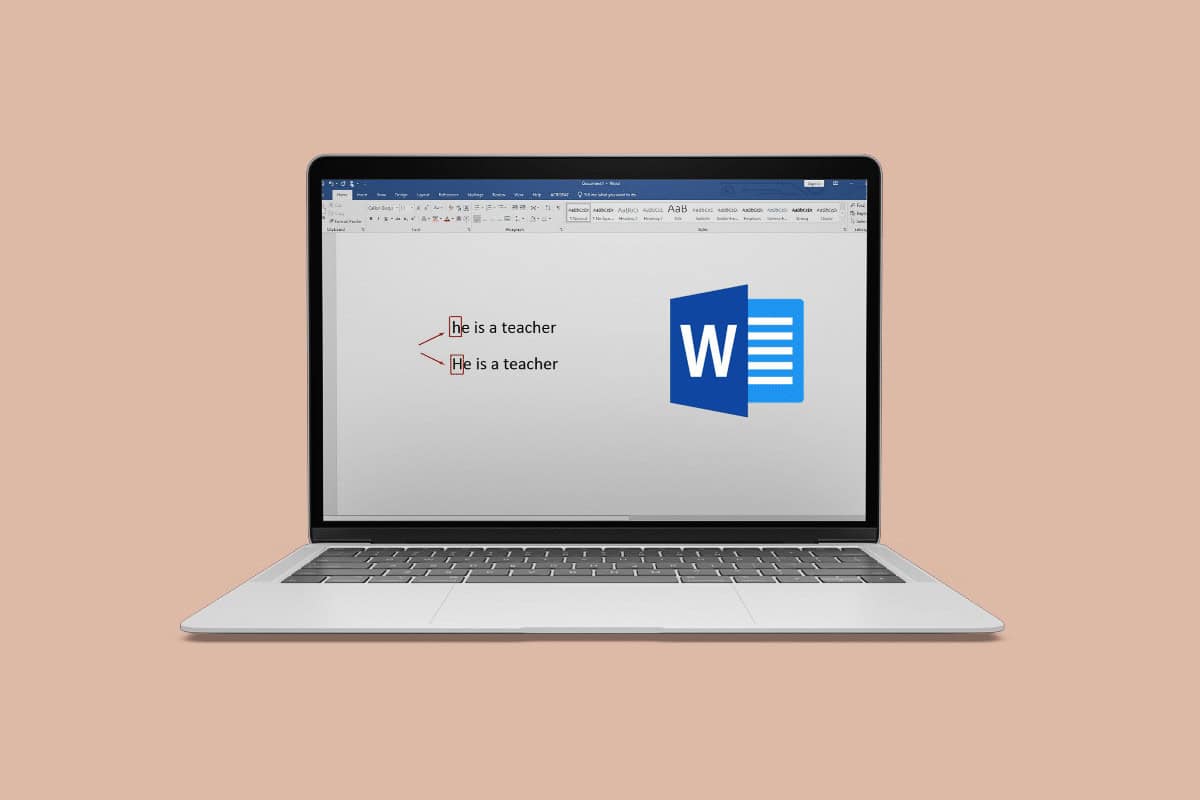
Features of MS Word have been of great help to everyone using it regularly. Auto capitalization is one feature that makes working on MS Word much more accessible. In MS Word, the feature of auto capitalization has both advantages and disadvantages. Some users do not require these features, according to their word demands. Therefore, it turns out to be more annoying for users than being an aid. In this article, we are going to discuss auto capitalization word. You will also learn how to turn on automatic capitalization in word.
- How to Enable/Disable Auto Capitalization in Word
- Shortcut for Capital Letters in Word
- Method 1: Use Shortcut Keys
- Method 2: Use Ribbon
- How to Turn Off Automatic Capitalization in Word?
- How to Turn On Automatic Capitalization in Word?
- How to Turn Off Auto Capitalization Word Online?
- How to Turn On Auto-Capitalization in Word Online?
How to Enable/Disable Auto Capitalization in Word
Auto capitalization in word is a feature of MS Word that enables you to capitalize the first letter of every sentence. Next, we will discuss shortcut for capital letters in word.
Quick Answer You can use keyboard shortcut and ribbon options to enable capitalization in MS Word. However, if you want to disable auto-capitalization use the following steps: 1. Launch MS Word and click on FILE . 2. Click on the Options and then click on Proofing . 3. Click on AutoCorrect Options and Uncheck all the boxes, finally click on OK .
Shortcut for Capital Letters in Word
We have listed down two methods that you can use as shortcuts for capital letters in the word:
Method 1: Use Shortcut Keys
The steps to the method are listed below:
- Select the words on MS Word that needs to be capitalized.

- Press the Shift + F3 keys simultaneously once to see the lowercase letters change into uppercase letters .

You can follow these steps to change the uppercase letters to lowercase.
Note: This method only applies to Microsoft 365, MS Word 2019, 16, 13, and 10.
Now that you have understood the first shortcut method for capital letters in word. Let’s look at the following method, which can be used for the same.
Method 2: Use Ribbon
Using the ribbon on the home tab is another method to change the text case. Follow the steps below.
- Select the text that you want to change to uppercase.

- Click on the case drop-down icon in the Home tab.

- Now, click on the UPPERCASE option .

You can use keys for this method. All you need to do is press Alt + H + 7 + U to change the text case to uppercase and Alt + H + 7 + L to change the text case to lowercase letters. This was the second method that explained shortcuts for capital letters in a word. Next, we can learn how to turn off automatic capitalization in words.
How to Turn Off Automatic Capitalization in Word?
As mentioned, if the auto capitalization in word is not working in your favour, you can turn it off with just a few clicks. If you are wondering how to turn it off, then you can follow the steps that have been listed below:
- Launch MS Word on your Desktop .

- Click on FILE .

- Click on the Options on the left-hand side bottom of the screen.

- Now, click on Proofing .

- Click on AutoCorrect Options… .

- Uncheck all the boxes or selectively uncheck the boxes according to your needs.

- Click on OK .

This is how you turn off the auto-capitalization in MS Word. Now
How to Turn On Automatic Capitalization in Word?
To turn on the automatic capitalization in word, you need to follow the same steps as you did for turning off the automatic capitalization and a few more. Follow the steps to know how you can turn on the auto capitalization.
Note: Follow the steps from 1 to 6 and continue the steps discussed below.
- Check all the boxes or check the required boxes.

- Now click on OK to turn on the auto capitalization.

These steps explain how to turn on automatic capitalization in MS Word. Next, in the article, you will learn how to turn off auto capitalization word online.
How to Turn Off Auto Capitalization Word Online?
Follow these methods to turn off auto capitalization.
- Visit Word online on your browser.

- In the search bar, type auto correct and select AutoCorrect options from the search result.

- Now uncheck all the boxes or a few according to your preference.

- Click on OK .

These were the steps to your question about how to turn off auto-capitalization words online. Moving on, you will also find out how to turn on the auto-capitalization.
How to Turn On Auto-Capitalization in Word Online?
Note: Follow the first 2 steps from the article section that explains how to turn off the auto-capitalization in word online. Now you can follow the below-mentioned steps.
- Check the boxes that you want to turn on.

- Click on OK .

This is how you turn on auto capitalization in Word Online with just a few simple and easy steps. Now that you have learned about the turning on and off settings on MS Word and Word online, we hope the auto-capitalization feature will not bother you anymore.
Recommended:
- Fix Cloudflare 403 Forbidden Error
- Fix Google Meet Disconnecting Frequently on Android
- 12 Ways to Fix Unreadable Content in Microsoft Word
- How to Integrate ChatGPT into Microsoft Word
