The problem of can’t find the app on iPhone has been brought up by numerous people who have experienced it. Numerous factors could be at play in the iPhone app disappearing, but we’ve provided a list of potential solutions that can help you get your device’s missing app icons back. Examining the potential answers, let’s begin with the troubleshooting methods to fix this issue.

- How to Fix Can’t Find App on iPhone
- Method 1: Basic Troubleshooting Methods
- Method 2: Find App in Folder
- Method 3: Command Siri to Open App
- Method 4: Use Spotlight Search
- Method 5: Find App in App Library
- Method 6: Unhide Home Screen Page
- Method 7: Find Installed App on App Store
- Method 8: Unhide Purchased Apps
- Method 9: Disable Offload Apps Feature
- Method 10: Unhide Restricted Apps
- Method 11: Unlink Home Screen from Focus
- Method 12: Free Up Storage Space
- Method 13: Reset Home Screen Layout
How to Fix Can’t Find App on iPhone
Sometimes when you update your iOS, some apps go missing. These apps frequently revert to the default position on the home screen. So, check your home screen first if you are collecting your apps into groups and folders. It doesn’t matter if your iPhone has a hidden app, a missing app, or if you’ve just deleted an app, you can still find it. Follow the methods below to fix the iPhone app disappeared error.
Quick Answer Follow the below steps to find missing apps on your iPhone: 1. Tap and hold on the empty space on Home Screen . 2. Tap on the dotted icons at the bottom. 3. Select the home screen pages and tap on Done to reveal the pages.
Method 1: Basic Troubleshooting Methods
Before moving forward with the advanced troubleshooting methods, you can begin with some basic hacks that will help you to fix can’t find apps on iPhone issue using simple steps.
1A. Restart iPhone
There will be times when you may come across this error. In this case, you can try to restart or reboot your device to refresh the system from freezing and glitches. You can check out our article on How to Restart iPhone X to learn how to restart.

1B. Force Restart iPhone
If you are facing the issue, you should try to force restart your iPhone. When you force restart your device, the error apps disappeared from iPhone home screen iOS 14 can be fixed. To know how you can force restart your iPhone, check out our article on How to Force Restart iPhone X .

Method 2: Find App in Folder
Do you like to organize your apps within folders according to specific categories? If so, it is possible that your lost or hidden apps are within these folders as it is quite common to forget about them. Accordingly, don’t forget to swipe through every screen in each folder because you need to keep in mind that each folder may contain multiple pages or screens. Look for a series of tiny dots in the bottom center of each folder these represent the number of new pages in that folder.

Method 3: Command Siri to Open App
You can ask Siri to open the apps that have disappeared from the Home Screen. Siri can open apps for you and it’s straightforward. Just ask! You can simply say Hey, Siri open my Spotify App (replace Spotify with any other desired app name which you are searching on your iPhone). You can set up Siri with the help of the following steps to command it to open any of your phone apps.
Open the Settings app on your iPhone.
Then, tap on the Siri & Search option.

- Turn on the toggle for the Listen for “Hey Siri” option.

Also Read : How to Reset Siri on iPhone
Method 4: Use Spotlight Search
If you rarely use an app, you may not want it to get added to your Home Screen. In this case, follow the steps below to swiftly find and open the downloaded app.
To access the Search bar, swipe down from the center of your Home Screen .
Tap on the Search option from the bottom center of the screen, as shown.

- In the search field, type the missing app name .

- Tap on the search results to launch the app on your iPhone.
Method 5: Find App in App Library
If none of the above-mentioned methods helped you to find the missing app icon on your iPhone, you can try this method. All of the iPhone apps, even those that are not on the Home Screen, can be found in the App Library. To locate the missing apps, follow these steps:
Go to the rightmost page of the Home Screen and swipe from right to left to open App Library .
Tap on the search bar to get a list of apps in alphabetical order.

Type the app name in the search bar .
Finally, tap and hold the app icon and choose the Add to Home Screen option.
Also Read : How to Put App Back on Home Screen on iPhone
Method 6: Unhide Home Screen Page
It’s possible that you may have hidden the Home Screen Page that contains the app icon if you can find the app using Spotlight Search and the App Library but cannot seem to find its icon. To reveal the home screen, abide by these steps:
Tap and hold anywhere on the empty space on Home Screen .
Now, tap on the dotted icons from the bottom to edit the Home Screen pages.

- Select the home screen pages to select them and tap on Done .

Method 7: Find Installed App on App Store
If the problem with app icons disappearing only affects one or two apps, check to see if the app is actually installed on your device by opening the App Store. Here are the steps to find apps missing from your iPhone home screen through App Store:
Open the App Store app on your iPhone.
Tap on the Search tab and search for the desired app using the search bar.

3A. If you do not see the Open option, this means that you have not installed the app on your device. For this, simply tap on the Get option and wait until the app is successfully downloaded and installed.
3B. If the Open option is available and the app is still unavailable on your device, move on to the next troubleshooting method.
Also Read : Top 50 Best Free iPhone Apps
Method 8: Unhide Purchased Apps
If the app isn’t available in the App Store, why is it showing up on your home screen? That suggests that you might have hidden your purchases. If that is the case, neither you nor any additional family sharing members will be able to access the apps in the App Store. Here is how to unhide them and fix can’t find app on iPhone error:
Open App Store on your iPhone.
Now, tap on your Profile picture in the top right corner.
Then, tap on your Apple ID from the top.
Swipe down and tap on Hidden Purchases .

- Lastly, tap on the Unhide option present next to the desired app .
Method 9: Disable Offload Apps Feature
The feature Offload Unused Apps was introduced in iOS 11. It is an easy way for users to save and optimize their storage. This feature accordingly offloads the apps that you don’t use anymore or you use that app very rarely when you’re low on storage. These apps remain on your home screen, but the icon appears greyed out and will have the small cloud logo next to them. Follow the steps below to disable offload apps to fix can’t find app on iPhone error:
Navigate to Settings on your iPhone.
Then, tap on App Store .

- Turn off the toggle for the Offload Unused Apps option.

Also Read : How to Install Same App Twice without Parallel Space on iPhone
Method 10: Unhide Restricted Apps
By hiding the app icons, the iPhone’s screen time feature can help you set a limit on how much time you spend using each app. Using this feature, you can conceal applications like Mail, Safari, Camera, etc. On the off chance that you restricted any of these apps on your iPhone, they won’t show up in the spotlight search or the App library.
Navigate to Settings on your iPhone and tap on Screen Time .
Tap on Content & Privacy Restrictions .

- Then, tap on Allowed Apps and toggle on all the apps.

Now, return to the Content & Privacy Restrictions screen and tap on Content Restrictions .
Lastly, go to Apps and select Allow .

Method 11: Unlink Home Screen from Focus
If your iPhone’s entire home screen keeps disappearing, you might have connected Home Screens to Focus Profiles. In essence, you can configure which Home Screen pages show up and which ones disappear when a specific Focus Profile is enabled. Follow the steps below to fix this issue:
Open Settings on your iPhone and tap on Focus .
Now, tap on each Focus profile one by one.

- Tap on the Choose option under the home screen preview in CUSTOMISE SCREENS section.

- Then, tap on the selection box under the selected Home Screen page to uncheck it.

- Lastly, repeat the steps for all the Focus profiles .
Also Read : Fix App Store Missing on iPhone
Method 12: Free Up Storage Space
This is another method that has worked out for many iPhone apps missing from home screen issue. Follow the steps below to clear up the storage space and to fix can’t find app on iPhone error:
Open the Settings app on your iPhone.
Then, tap on General > iPhone Storage .

After that, a list of apps will appear with the specified details like the space used by each on your iPhone.
Tap on Show All to see the suggestions list and proceed accordingly.
- iOS will push you to utilize the iCloud Photo Library , which stores your photos in the cloud.
- It will also recommend Auto Delete Old Conversations from the iMessage app.
- However, the best solution is to Offload Unused Apps .
When you run out of storage space, it instantly offloads apps that are rarely used and performs iPhone system storage cleanup. Offloading is a method that deletes the application but maintains the papers and data, which are irreparable. The deleted app can be easily re-downloaded if and when needed. iOS will also inform you about the amount of space you would free up if you use this feature.
Note 1 : Disabling Offload Unused Apps must be done from Settings > iTunes & App Store . It cannot be undone from this menu.
Note 2 : Examine the storage space occupied by various media, apps, messages, and so on. You need to make sure that the iPhone has at least 1GB of free storage space to work with.
Method 13: Reset Home Screen Layout
This is another quick method to locate your missing apps like Camera, App Store, etc is to arrange them in alphabetical order. All you need to do is reset your Home Screen by the following the steps below:
Open Settings on your iPhone.
Then, tap on the General option.

- Now, swipe down to the bottom and select Transfer or Reset iPhone .

- Tap on Reset .

- Next, tap on Reset Home Screen Layout from the resulting menu.

- From the following popup, tap on Reset Home Screen to confirm the action.
Recommended :
- How to Cancel Amazon Prime Video
- 20 Best Music Making Apps for iPhone and iPad
- 8 Ways to Fix Safari App Disappeared from iPad or iPhone
- How to Open Applications Folder on Mac
A0 size papers are the largest size papers available to us as per ISO 216 paper size divisions. But how to print out a high-resolution image of this size? Especially when our systems can only print the largest sizes up to A3. Well, that points to a multi-page printout with combining a couple of pages will help you get the desired image. So this article will help you with how to print large images on multiple pages with understanding how to print image on multiple pages altogether on Windows 10 & 11.

- How to Print Large Image on Multiple Pages in Windows 10/11
- Method 1: With Microsoft Paint
- Method 2: Using Excel Spreadsheet
- Method 3: Via Microsoft Word
- Method 4: Through PDF Format
How to Print Large Image on Multiple Pages in Windows 10/11
Printing large images isn’t directly possible for large poster-sized images. Universally available sizes printable from Windows 10 and 11 are:
- US letter sizes and the US envelop sizes.
- A series (from A3 to A5), B4 to B6 print sizes, C size sheet, D size sheet, E size sheet.
- Envelop sizes, PRC envelops sizes, Japanese Envelop sizes, PRC sizes, Postcard sizes, and many more.
However, A3 is the largest direct printable size for the systems we are using now. And considering allowed print sizes in India, the Bureau of Indian Standards allows the ISO -A series size for drawing and other engineering works. This is why the largest size available in the country is A3x4 paper . After this brief but vital info about paper sizes, let’s move towards learning how to print large images on multiple pages.
Note: The methods and steps represented below are performed on Windows 11. The pictures, interface, and terminologies used are from Windows 11 which closely match Windows 10 too. Do verify before making any changes.
Method 1: With Microsoft Paint
Splitting a large image into numerous ones and printing it onto multiple pages can be easily done through Microsoft Paint. It is one of the ways to know how to print large image on multiple pages in Windows 10 and 11. To do so, follow these steps:
Locate your desired image in the File Explorer .
Right-click on it, and from the context menu, click the Open with > Paint app as depicted below.

- As the image opens in Paint, click on the File menu option from the top left corner.

- From the given list, select the Print option and then click on Page setup as shown.

- In the Page Setup window, choose your desired paper size from the Size: drop-down menu option.

6A. Adjust and verify the Orientation and Centring sections as per your output image preference.
6B. Type the number of pages required for the image to be split in the Fit to option box under the Scaling section. As shown below, if the image is required to be split into 16 separate images, type 4 by 4 page(s) in the boxes.

- After customization, click on the OK button.

- Next, click File > Print > Print as illustrated below.

Click on the printer you want to print with under the Select Printer section.
Then, click on Print . The copies will start to print according to the selection made.
Note: For demo purposes, we have selected the Microsoft Print to PDF option under the Select Printer section. Please select the printer available on your system to print your desired images.

Method 2: Using Excel Spreadsheet
Another way to learn how to print large image on multiple pages is by doing it on an Excel spreadsheet. You can print split images of a large one swiftly with Microsoft Excel as follows:
- Type Excel in the Windows search menu and click on Run as administrator .

- In the Excel window, go to Home and click on the Blank workbook option as shown.

- In the new blank workbook, click on the Insert tab.

- Click on the Pictures drop-down option and select This device to browse and pick your required image.

- A File explorer pop-up window will appear. Now, locate your picture and click on Insert .

- After the picture loads on the spreadsheet, click on the picture and hover on any of the corners when you see the cursor turn into an expanding arrow .

- Click and drag the image corners to increase its size.

- After you stretch the image to the desired size depicted in the Size section of the Picture Format ribbon, click on the File option.

9A. Click on the Print option and configure the Settings section as per your output image preferences.
9B. Verify the number of Pages your image will split in as per the size stretched and the Settings made.

Note: You can repeat steps 7, 8, and 9 to adjust the number of print copies you require of the image from the Settings until the desired preview is reached.
- Click on the Printer drop-down menu option to find and select the printer connected with your system.

- After completing these settings, select the number of copies from the Copies drop-down box. Then, click on the Print option to start the print.

Method 3: Via Microsoft Word
Microsoft Word is another alternative for you to know how to print large image on multiple pages. Follow the upcoming steps to do so:
- Type Word in the Windows search bar and click the Open option as shown below.

- Click on the View tab in the blank workbook.

- In the Page Movement section, select the Side to Side option shown highlighted.

- Click on the Insert tab and click the Pictures > This Device option as depicted below.

- Select and insert the desired image from the pop-up window into this Word file.

Right-click on the image and click the Wrap Text option.
To wrap and move the image freely in the Word file, select either Behind Text or In Front of Tex option.

- Then, stretch the image to desired width and height on the first page as shown.

- Similarly, add the same image on the second page and wrap the image as earlier.

- Stretch the second image to a degree where it will connect the first image as shown below.
Note: You can check the desired width and height in the Size section from the top right corner under Picture Format tab.

- Now, follow steps 8-11 from Method 2 for setting the image for printing and then start printing the image on multiple pages.
Method 4: Through PDF Format
PDF is another way with which you can split your larger resolution image into multiple images for printing. To get the answer to how to print large image on multiple pages questions, follow these steps:
Note: The following steps are performed on Adobe Acrobat DC . Make sure to have this software installed in your system before performing the upcoming steps.
Locate your desired image in the File Explorer .
Right-click on it, and from the context menu, click the Open with > Choose another app option as depicted below.
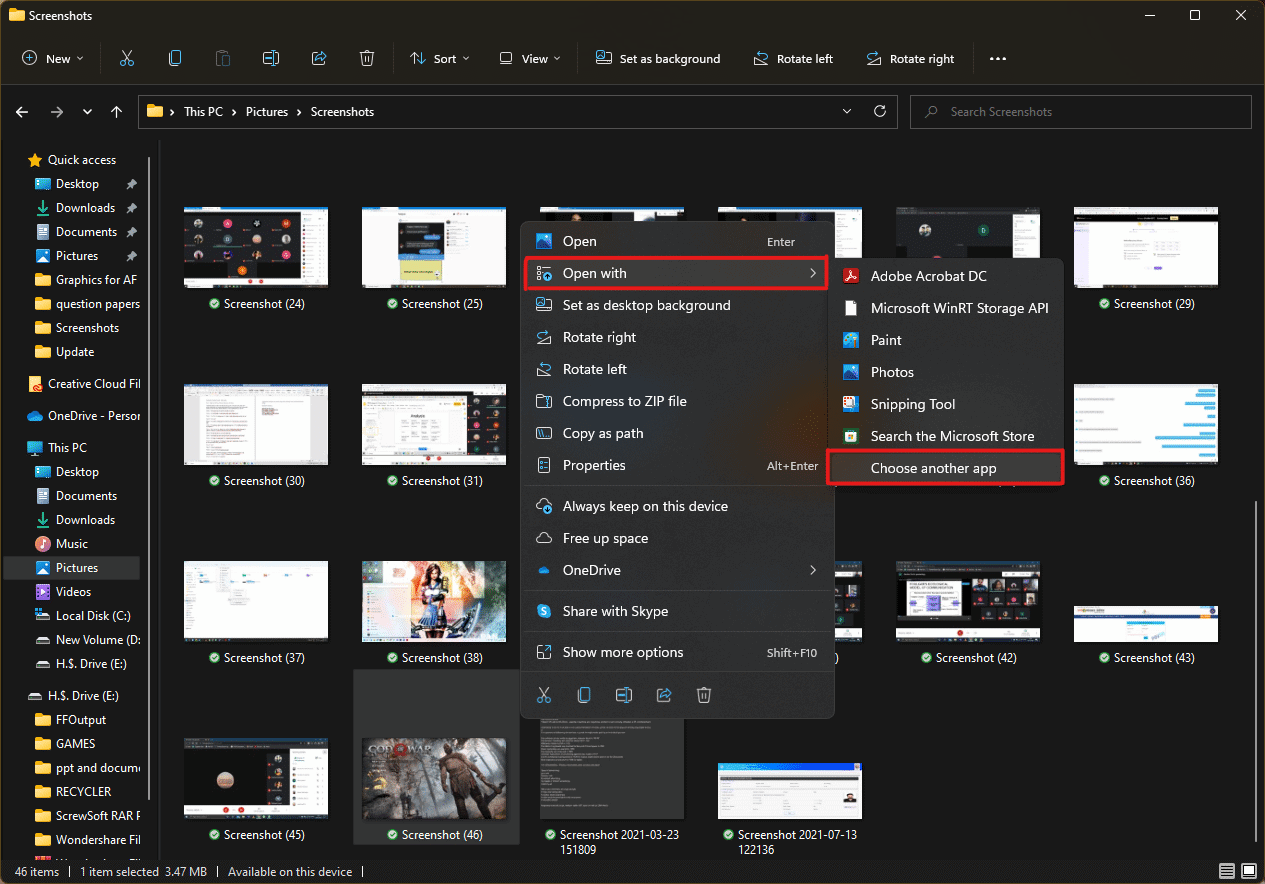
- How do you want to open this file? pop-up will appear with a list of installed apps in the system. Find and select Adobe Acrobat DC and click on OK .
Note: You can click on More apps to further expand the list of apps if you didn’t find Adobe Acrobat earlier.

- After the image opens in Adobe Acrobat, press the key combination Ctrl + P to open the Print window.

- Click on the Poster tab to split images.

- Click on the Page setup… button to configure the page sizes of the split images.

- Configure the Orientation settings and Paper size settings through the drop-down menu and click on OK .

- Select the printer a ttached to your system from the Printer drop-down menu option from the top left corner and click the Print option to start the printing process.

Recommended:
- How to Create a Hanging Indent in Word and Google Docs
- How to Reset Windows 11
- Fix Local Print Spooler Service Is Not Running
- How to Create PDF File in Windows 11
We hope you understood how to print large images on multiple pages in Windows 10/11 . Share your experiences in the comment section below with your queries and suggestions. Also, let us know which topic you want us to explore next.
