Google Chrome is not only a useful, reliable, and fast browser that most people use as their default browser for a variety of extensions but it also offers multiple other features that are very convenient to use. Inarguably, it is one of the most used online services. Google Chrome also provides users to print any open tabs in Chrome using Google Cloud Print. While it is a great feature, some users have been struggling to use this ability to print directly from Chrome. If you are someone facing the same issue, then we have brought you a perfect guide that will help you fix can’t print from Chrome issue on your PC. In our today’s guide, we will cover points on topics like the reasons behind Chrome print preview not working and multiple fixes for Chrome print preview not loading. So, if you have no idea how to fix the Chrome print loading preview stuck, let us begin with our guide right away and get you familiar with different ways to resolve this issue.

- How to Fix Can’t Print from Chrome
- Methods to Fix Chrome Print Preview Not Loading
- Method 1: Basic Troubleshooting Methods
- Method 2: Clear Browsing Data
- Method 3: Remove Printers Not in Use
- Method 4: Run SFC and DISM Scan
- Method 5: Disable Antivirus
- Method 6: Change Temp Folder Permissions
- Method 7: Update/Reinstall Drivers
- Method 8: Run Troubleshooter
- Method 9: Reset Chrome
- Method 10: Reinstall Chrome
How to Fix Can’t Print from Chrome
If your Chrome print preview is not working in Windows 10/11, there can be several reasons behind it.
- Corrupt browsing data on your PC can be the very first reason behind this issue.
- Another reason can be misconfigured settings of your browser.
- Conflicting processes and applications can also interfere with the Chrome print feature.
- For some users, the problem persists due to the faulty printer as well.
Methods to Fix Chrome Print Preview Not Loading
If you have been struggling to make your Chrome printing feature work due to an error, we are here with some reliable and tested fixes that will help you to get back to printing easily. Let us have a look at these Chrome printing fixes below:
Method 1: Basic Troubleshooting Methods
- Use Ctrl + Shift + P Shortcut
The very first method or rather a workaround that can be attempted in case you can’t print from Chrome is to use the shortcut, Ctrl + Shift + P. It is also one of the fastest ways to fix this issue. Follow the steps below to imply this shortcut:
Launch the Google Chrome browser on your PC and open the file that you would like to print.
Now, press Ctrl + Shift + P keys together to give the print command.
Now, select the preferred printing destination and other settings .

- Restart Google Chrome
If the workaround did not fix anything for you and you are still struggling with the Chrome print loading preview stuck issue then you must try restarting your Chrome browser. Restarting the browser helps in troubleshooting minor glitches that may be behind this problem. To restart Chrome, follow the steps below:
Launch Google Chrome on your system.
Now, type chrome://restart in the address bar at the top of the browser screen and press enter.

This will help you to close all the tabs and extensions running on the browser and then restart them.
Method 2: Clear Browsing Data
The next fix involves clearing the browsing data of your Google Chrome browser. As is possible with other browsers too, Google Chrome can also accumulate cache and cookies that improve your browsing experience. However, when this stored data becomes corrupt or old, it can interfere with the browser’s functions, one of which is printing. So, you must clear all the browsing data from Chrome. You can learn about How to Clear Browsing History in Any Browser with the help of our guide.

Method 3: Remove Printers Not in Use
Another thing that needs to be considered and taken care of is the listed printers under Chrome. Google Chrome Print service has more than one active listed printer which is sometimes considered to be a problem for users who try to print directly from Chrome. If so, you can try to remove some of the unused printers with the help of the following steps:
Launch Settings of your system by pressing the Windows + I key.
Now, click on Bluetooth & devices option.

- Then, launch the Printers & scanners option.

- Now, click on the printer you wish to remove and click on the Remove button.

You can repeat the process to remove multiple printers.
Method 4: Run SFC and DISM Scan
Another easy way to resolve Chrome print preview not working is by running an SFC and DISM scan on files on your PC. This is because corrupted files that are missing can also be a potential cause behind the problem. Therefore, running these scans can check & fix any errors that are diagnosed. To know more about these scans, you can go through our guide on How to Repair System Files on Windows 10 .

Method 5: Disable Antivirus
Even though antivirus is not a prominent cause behind why you can’t print from Chrome but it is still a potential reason. Sometimes, this protective application on your system can prevent Chrome from printing files in case you are using a wireless printer. To resolve the issue, you can try disabling the antivirus program of your system such as McAfee and Bitdefender . Know How to Disable Antivirus Temporarily on Windows 10 with the help of our guide.

Method 6: Change Temp Folder Permissions
The Chrome print preview not loading issue can also be resolved by tweaking the Temp folder (within the AppData update) permissions on your computer. Providing yourself with full control over the Temp folder helps in restoring the ability to print directly from Chrome.
Open File Explorer on your computer by pressing Windows + E keys together.
Now, navigate to C:\Users\YourUserName\AppData\Local folder.
Then, right-click on the Temp folder to open Properties from its menu.

- Now, in the Security tab click on the Edit button.

Next, check the box for Full control and click on OK .
Finally, reboot your system and check if you can now print files.
Method 7: Update/Reinstall Drivers
The next method to resolve Chrome print loading preview stuck involves updating or reinstalling drivers of your system. If the drivers of your PC are outdated or incompatible, they can cause issues with the printing function of Chrome. To know all about How to Update Device Drivers on Windows 10 , check our guide, and then apply the same on your PC. Also, to reinstall drivers you can read our guide on how to uninstall and reinstall drivers on Windows 10 .

Method 8: Run Troubleshooter
You can also try running the in-built troubleshooter of your system to fix the Chrome printing issues. If this issue is on the system level, it can only be dealt with by running the printer troubleshooter.
Launch Settings of your PC with the help of the Windows + I key.
Now, search Troubleshoot settings at the top and press enter.

Next, click on Other troubleshooters .
Now, click on the Run option next to Printer .

- Finally, follow the on-screen instructions to troubleshoot the issue.
Method 9: Reset Chrome
One of the last fixes that can be used if you still can’t print from Chrome is to reset Chrome to its default settings. You can follow the below-mentioned steps to reset Chrome:
Launch the Google Chrome browser and go to chrome://settings/reset .
Next, click on the Restore settings to their original defaults option in the window.

- Now, confirm the reset by clicking on the Reset settings button.

- Finally, launch the website again and check if the printing issue has been resolved now.
Method 10: Reinstall Chrome
Lastly, you can also try reinstalling the Google Chrome browser if none of the methods have worked for you till now. This reinstallation can be done using the steps below:
- Click on the Windows icon, enter apps and features in the search bar, and click on Open .

Now, search Chrome from the list.
Next, click on Chrome and select Uninstall buttons as shown in the picture below.

- Then, again press the Windows key, enter %localappdata% , and click on Open .

- Now, double-click on the Google folder.

- In it, right-click on the Chrome folder and select Delete .

- Again, click on the Windows icon, enter %appdata% this time, and click on Open .

Now, repeat steps 5 and 6 .
Finally, restart your computer.
Once done, download the latest version of Google Chrome on your PC.

- Then, install the Chrome setup to your system.

Q1. Where can I find the print button in Google Chrome?
Ans. There is no dedicated button present in Google Chrome for print. This feature can be added from the multitude of extensions that are available in the Chrome library.
Q2. How can I print a web page in Chrome?
Ans. You can simply print a web page in Chrome by using the print command , depending on the layout of the web page.
Q3. How can I print a PDF in Chrome?
Ans. You can print a PDF in Chrome by saving the documents first as a PDF . Afterward, you can choose your printer and complete the action.
Q4. Is enabling printing important on Google Chrome?
Ans. No , you do not need to enable printing on Google Chrome. Once you have set up your printer, you can directly print your files without any additional setup or configuration.
Q5. What can cause print failure?
Ans. Printing failure is commonly related to software issues, hardware failures, driver problems, and overuse .
Recommended :
- How to See Your Liked Posts on Facebook App
- How to Disable Cache in Chrome Developer Tools
- How to Print When You Don’t Have a Printer
- How To Clear Print Queue In Windows 10?
Microsoft frequently rolls out updates for Windows 10 to improve the operating system on various functionalities such as system efficiency, security, stability, etc. Although each bug brings a host of improvements to the operating system, it also brings new bugs that plague many users. One of these is the Windows update released in March 2021, update KB500080. This update caused many issues with the printer drivers already installed in the system. Users reported errors like Windows update for printer drivers not working. These printer installation issues were so prominent and serious that some users even reported receiving BSOD (Blue Screen of Death – the screen displayed after a system crash due to Windows failure) while printing. This made printing impossible. If you are wondering how to solve this Windows update can’t get list of devices issue, you are at the right article. Here, we discuss the possible causes and some potential solutions so we can tackle this error. Let’s get started!

- How to Fix Printer Installation Issues in Windows 10
- Method 1: Discharge Printer
- Method 2: Run Printer Troubleshooter
- Method 3: Update Device Drivers
- Method 4: Manually Install Generic Drivers
- Method 5: Restart Print Spooler Service
- Method 6: Install Drivers from Windows Update Catalog
- Method 7: Reinstall Printer
How to Fix Printer Installation Issues in Windows 10
Before getting onto the fixes, let us see some causes for this issue:
- Printer is old and has no latest software support
- Windows update bug
- Issues with printer service
- Issues with printer drivers and software
- Printer is incorrectly connected
Method 1: Discharge Printer
You can try discharging the printer of all electricity by removing it from the main switch, removing it from the computer for 2–5 minutes, and connecting it back again. Make sure to properly connect the printer to the main switch and the computer before turning it off, and check if the issue is fixed.
Method 2: Run Printer Troubleshooter
There is an in-built Windows troubleshooter for printer issues. You can access it easily by accessing settings. Running printer troubleshooter will resolve Windows update for printer drivers not working issue.
Press Windows + I keys simultaneously to launch Settings .
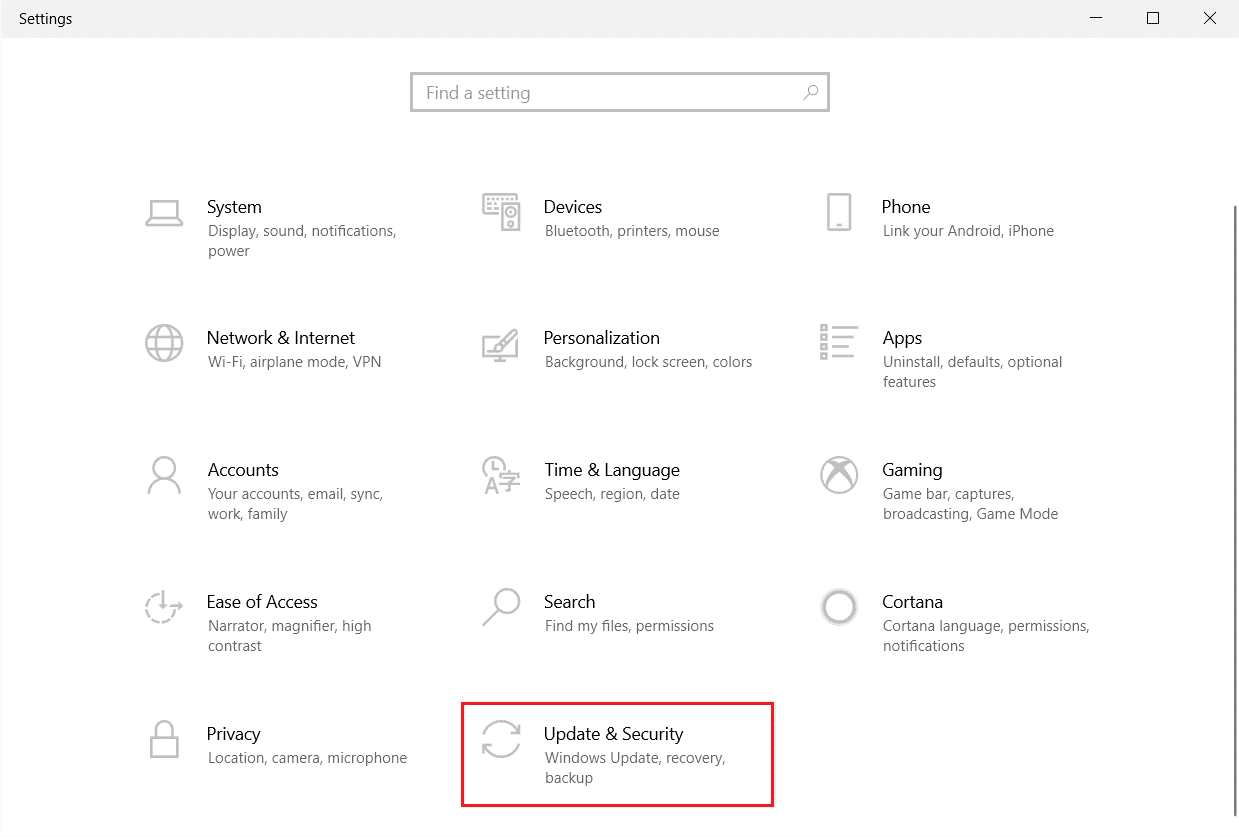
Click on the Update & Security tile, as shown.
Go to Troubleshoot menu in the left pane.
Select Printer troubleshooter and click on Run the troubleshooter button shown highlighted below.

- Wait for the troubleshooter to detect and fix the problem. Once the process is complete, click Apply this fix and restart your PC .
Windows will automatically search for any problems and attempt to fix them automatically. Also, you can run Hardware and Devices Troubleshooter on Windows 10 to resolve the issue.

Method 3: Update Device Drivers
As Windows users reported errors after the Windows update, there could be problems with the printer driver. Updating printer drivers could be a potential fix. Various methods to update the printer drivers are highlighted below if one of them does not work for you.
Read our guide on How to Update Device Drivers on Windows 10 and implement the different methods given in this link for printer devices.

Note : If your printer came with an installation disc, it could be a driver installation disc. Insert it into your DVD/CD driver and follow the onscreen instructions to install the driver.
Method 4: Manually Install Generic Drivers
If you have an old printer or your manufacturer has not yet released a driver for Windows 10, printer installation issues can occur. This can be an ongoing issue since the printer will be unusable without proper usable driver software. In this scenario, Windows will automatically install Generic drivers suitable for your printer. If not, then you can install them manually.
- Press the Windows key , type Device Manager , and click on Open .
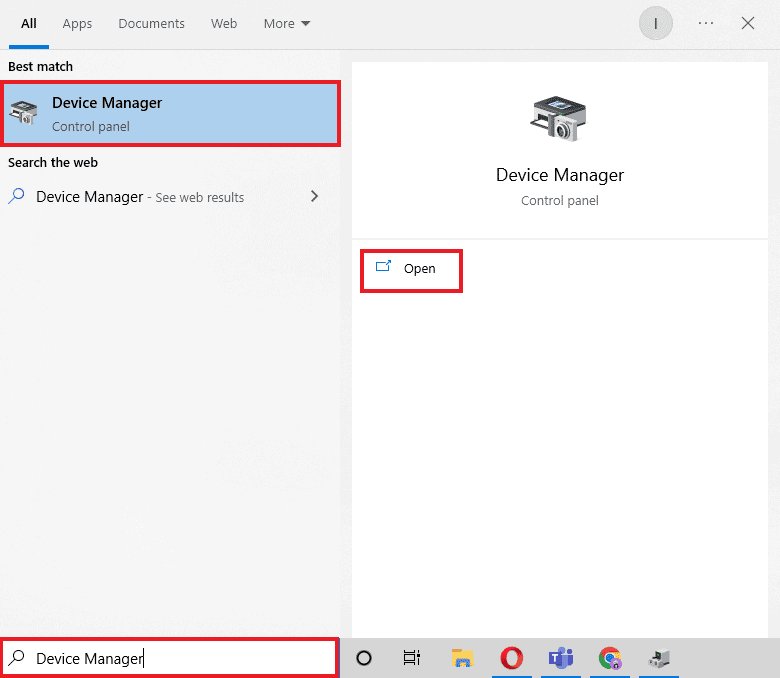
- Under the Print queues section, right-click on Microsoft XPS writer and select the Update driver option.

- Click on the Browse my computer for driver software option.

- Next, click on Let me pick from a list of available drivers on my computer .

- Finally, choose Generic software device and click on Next .

This will install the required driver and fix the printer installation issue.
Method 5: Restart Print Spooler Service
When a Windows user sends print requests to the printer, the print spooler is the software that manages these requests sent by the user. Resetting it can be a potential solution. Follow the below steps:
Hit the Windows + R keys together to open the Run dialog box.
Type services.msc and click on OK to launch the Services window.

- Right-click on Print Spooler and click on Stop to stop the service.

Now, navigate to the Run dialog box again by simultaneously pressing Windows + R keys .
Enter the below command and click on OK .
%WINDIR%\system32\spool\printers

Select all the files in the folder by holding Ctrl + A keys simultaneously.
Now, press Shift + Delete to delete all the files present in that folder permanently.
Go back to the Services window and double-click on the Print Spooler service.

Make sure the Startup type drop-down is set to Automatic .
Finally, click on Start under the Service status section.

- Click on Apply > OK to confirm.
Check if Windows Update can’t get list of devices issue gets resolved or not.
Method 6: Install Drivers from Windows Update Catalog
Sometimes, using a generic driver does not help and might still throw up printer installation issues. If you face issues with the printer and you have an old printer, then you can try an official Microsoft Windows Update Catalog. Here, the updates are archived so year-old drivers can easily download and use them. Let us see how to use it.
Go to the Microsoft Catalog website in a browser.
Type the model of your printer (e.g. HP LaserJet 4000 ) and click on Search to search drivers for your hardware.
If you find the driver for your hardware, click on Download .

- Here, click on the cab link to download the driver.

Right-click on the downloaded file and choose Extract .
Update your printer driver manually by locating the folder where you extracted the drivers.
Method 7: Reinstall Printer
You can reinstall the printer completely from the start to see if that works. This involves removing the printer and device driver with all powers and connecting them back.
- Hit the Windows key , type Control Panel , then click on Open .

- Set View by > Category , then click on View devices and printers .

Under the Printers section, right-click on your printer .
Choose the Remove device option.

Click on Yes in the UAC prompt to remove the device.
Now, reboot the PC and reconnect your printer.
Go to Devices and Printers and right click on the printer and select Set as default printer .

This will solve printer installation issues.
Recommended:
- Fix Daemon Tools Unable to Access Image File MDF
- Fix Epson Scanner Cannot Communicate in Windows 10
- Fix Error Printing in Windows 10
- Where is the WPS Button on Canon Printer?
We hope that this article was helpful, and you were able to resolve printer installation issues in Windows 10. If you have any doubts or suggestions, comment below. Also, let us know what you want to learn next.

- How to Fix Error Printing in Windows 10
- What Causes Error Printing Message?
- What Causes Printer Status Error Printing on Windows 10?
- Method 1: Troubleshoot Hardware Issues
- Method 2: Troubleshoot Printer Connection
- Method 3: Run Printer Troubleshooter
- Method 4: Verify Printer Port Settings
- Method 5: Disable Print Spooler Service
- Method 6: Change Print Spooler Service Recovery Options
- Method 7: Update Printer Drivers
- Method 8: Roll Back Printer Driver Updates
- Method 9: Reinstall Printer Drivers
- Method 10: Reinstall Printer Drivers in Compatibility mode
- Method 11: Update Windows
- Method 12: Reconnect Printer
How to Fix Error Printing in Windows 10
The Error Printing message is generally caused by a loose connection or outdated printer drivers. When this dialogue box appears on your screen, it could be accompanied by an error code for reference or no code. Make sure to not confuse this issue with the Missing or Damaged ink cartridge errors. These are the different steps that you can use on your Windows 10 computer to solve the Error Printing message errors.
What Causes Error Printing Message?
We have listed the possible reasons that may cause the said error message in your PC.
- Windows 10 network printer error
- Windows cannot connect to the printer
- Status error printing
- Printer in error state
- Error printing wireless printer
- Printer error 0x00000709 in Windows 10
- Error printing HP/Brother/Canon/Epson
- Error printing Windows 10/11/7
- Printing issues with Windows 10 update
- Error printing PDF Windows 10
- Error printing restarting Windows 10
What Causes Printer Status Error Printing on Windows 10?
Here are some indispensable reasons that cause error printing message on your Windows 10 PC. Read them carefully to find which one troubles you.
- Printer is not turned on
- Printer is not connected to your computer
- The Wi-Fi or USB connection is not set properly
- A loose connection or outdated USB drivers also causes trouble
- Few essential services are not running on your PC
Here are some amazing hacks that will help you fix error printing message. But, before following the below-mentioned methods, reboot your Windows 10 PC to resolve any temporary glitches associated with the device. If you did not attain any fix for the issue after rebooting your computer, follow the below-mentioned methods.
Method 1: Troubleshoot Hardware Issues
Paper and ink are two essential components in the printing process. You have to place the paper on the tray and this will be pulled out of the device. Once the paper is printed, it will be again pulled out of the device. If any of these factors do not meet, then you will face the discussed problem.
If there is any damage to the paper tray, the device will fail to pull the paper, and result in an error printing Windows 10 message. Check if the paper tray is empty and broken. Replace the paper tray if broken.
If you find the tray is knocked out of its position, you can fix this easily by placing the paper tray in proper position . On the other hand, if the tray is broken, seek professional help to repair it.

Method 2: Troubleshoot Printer Connection
When you face printer status error printing error, the device wants to tell users that there is something wrong with the communication established between the printer and the system through the USB cable or network connection. To solve printer status error Windows 10 issue ensure whether the following steps are satisfied or not.
To restart your printer , switch off the power supply of the printer & then switch it ON again.
Now again check the connection of your printer .
If you have connected your printer using a USB cable, make sure your cable is working properly and the connections to the ports are fitted tight . You could also switch the USB port to see if this resolves the problem.
If you have connected your printer through wired networks, check whether the connection to your cable is properly done or not . Also, you can check whether the signal to your printer is flashing or not.
If the connection of your system with the printer is made through a wireless network, make sure your printer is connected to your computer network & the wireless icon will lit-up to show that you are connected.

Method 3: Run Printer Troubleshooter
The easiest and quickest way to solve any problem with a device or a feature is to run the troubleshooter associated with it. Windows 10 includes a troubleshooter tool for a wide variety of issues, and printer problems are also one of them. The printer troubleshooter automatically performs several actions like restarting the print spooler service, clearing corrupt spooler files, checking whether the existing printer drivers are outdated or corrupt, etc.
Press Windows + I keys to open Settings .
Now, click on Update & Security .

Switch to the Troubleshoot settings page by clicking on the same from the left-hand panel.
Select Printer under the Get up and running menu and follow the on-screen instructions to run the printer troubleshooter.
Check if you have fixed error printing Windows 10 issue.
Method 4: Verify Printer Port Settings
Few users have suggested that printer status error Windows 10 can be resolved by tweaking some printer port settings as instructed below.
- Hit the Windows key and type Control panel . Then, click on Open .

- Set View by > Category , then click on the View devices and printers option.

- Now, right-click on your printer and select Properties .

Switch to the Ports tab and find the port to which your device is connected.
Then, click the checkbox that hosts the USB pin of the printer.
Save the changes by clicking Apply and OK .
Note: It is also quite possible that your printer is working just fine, but you have been sending the print request to the wrong printer. This might be the case if there are multiple printers installed on your computers. Set the one you are trying to use as the default printer to resolve the issue. Hence, right-click on your printer and select Set as default printer .

Method 5: Disable Print Spooler Service
A print spooler is a mediating file/tool that coordinates between your computer and the printer. The spooler manages all the print jobs you send to the printer and lets you delete a print job that is still being processed. Problems might be encountered if the Print Spooler service is corrupted or if the temporary files of the spooler become corrupt. Restarting the service and deleting these temporary files should help in fixing error printing Windows 10 problems on your computer.
- Before we delete the print spooler files, we will need to halt the Print Spooler service that constantly runs in the background. To do so, hit the Windows key and type Services . Then, click on Open .

- Scan the list of Local Services to find the Print Spooler service. Once found, right-click on the Print Spooler service and select Properties from the context menu (or double-click on a service to access its Properties)

- Click on the Stop button to stop the service.
Note: Minimize the Services window instead of closing as we will need to restart the service after deleting the temporary files.

- Now, open up the Windows File Explorer by hitting the Windows + E keys together and navigate to the following path .
C:\WINDOWS\system32\spool\printers
Note: You can also launch the run command box, type %WINDIR%\system32\spool\printers command and hit Enter key to reach the required destination directly.

Press Ctrl + A keys simultaneously to select all the files in the printers folder and hit the delete key on your keyboard to delete them.
Maximize/switch back to the Services application window and click on the Start button to restart the Print Spooler service.

You should now be able to fix printer status error printing message and be able to print your documents without any issues.
Method 6: Change Print Spooler Service Recovery Options
Any incorrect recovery settings configuration of the print spooler service may also cause printer status error printing with your device. Therefore, you need to make sure that recovery settings are correct otherwise Printer spooler will not start automatically.
Open the Services window as you did in the previous method.
Locate Print Spooler then right-click on it and select Properties.

- Switch to the Recovery tab and ensure that three failure tabs are set to Restart the Service.

- Click Apply followed by OK to save the settings. Now see if you’re able to fix printer status error Windows 10.
Method 7: Update Printer Drivers
Every computer peripheral has a set of software files associated with it to communicate with your computer and the OS effectively. These files are known as device drivers. These drivers are unique for each device and manufacturer. Also, it is important to have the correct set of drivers installed to use an external device without facing any issues. Drivers are also constantly updated to stay compatible with the new Windows versions. If your drivers are not updated to their latest versions, update them by following our guide How to Update Device Drivers on Windows 10 .

Method 8: Roll Back Printer Driver Updates
Sometimes, the current version of printer drivers may cause any conflicts and in this case, you have to restore previous versions of installed drivers. This process is called rollback of drivers and you can easily roll back your computer drivers to their previous state by following our guide How to Rollback Drivers on Windows 10 .

Wait until the previous versions of drivers are installed on your Windows 10 PC. Once done, check if you have fixed error printing Windows 10 issue.
Method 9: Reinstall Printer Drivers
Incompatible drivers must be reinstalled to resolve error printing message problems. You are advised to reinstall device drivers only if you cannot attain any fix by updating them. Steps to reinstall drivers are very easy and you can do so by using a third-party application or by implementing the steps manually as instructed in our guide How to Uninstall and Reinstall Drivers on Windows 10

After reinstalling printer drivers, check if you can hear audio from Logitech speakers.
Method 10: Reinstall Printer Drivers in Compatibility mode
Few users have suggested that re-installing printer drivers in compatibility mode have helped them fix printer status error printing issue. Here are a few instructions regarding the same.
- Click on the Windows key and type Device manager . Then, click on Open .

- Expand Print queues then right-click on your Printer device and select Uninstall device .

If you’re prompted to confirm then again click on the Uninstall button.
Now go to your printer driver download webpage (e.g. HP ) and download the latest drivers for your printer.
Right-click on the setup file and select Properties.

Note: If the drivers are in a zip file make sure to extract all the files and then right-click on the .exe file.
Switch to the Compatibility Tab and click on Run this program in Compatibility mode .
From the drop-down select Windows 7 or 8 and then click on Run this program as an administrator .

Finally, double-click on the setup file and wait for the drivers to be installed on your device.
Once finished, reboot the PC and see if you can fix printer status error Windows 10 issue.
Method 11: Update Windows
Also, if there are any bugs in your PC, they can only be fixed after a Windows update . Microsoft releases regular updates to fix all these bugs thereby fixing error printing Windows 10 issue. Hence, ensure if you have updated your Windows Operating System and if any updates are pending in action, use our guide How to Download and Install Windows 10 Latest Update

After updating your Windows Operating System, check whether printer status error Windows 10 issue is resolved.
Method 12: Reconnect Printer
If all these steps do not work to fix printer status error Windows 10, you might need to completely uninstall the existing drivers and the printer and then reinstall them. The process of doing the same is simple but rather lengthy but this seems to fix error printing message on your Windows PC. Anyway, below are the steps to remove and add your printer back.
- Open the Settings application by pressing the Windows + I keys together and select Devices as shown.

Move to the Printers & scanners settings in the left pane.
Find the problematic printer in the right-side panel and single click on it to access its options. Select Remove Device , let the process complete, and then close Settings.

- Type Print Management in the Windows search bar and click Open to launch the application.

- Double-click on All Printers (in the left panel or right panel, both are fine) and press Ctrl + A to select all connected printers.

- Right-click over any printer and select Delete .

Now, it is time to add the printer back, but first, unplug the printer cable from your computer and perform a restart. Once the computer boots back on, properly reconnect the printer.
Follow the above steps 1 and 2 to open the Printer & Scanner settings.
Click on the Add a printer & scanner button at the top of the window.

- Windows will now automatically start looking for any connected printers. If Windows successfully detects the connected printer, click on its entry in the search list and select Add device to add it back otherwise, click on The printer that I want isn’t listed hyperlink.

- In the following window, select the appropriate option by clicking on its radio button (For example, select My printer is a little older. Help me find it if your printer doesn’t use USB for connection or select Add a Bluetooth, wireless, or network discoverable printer to add a wireless printer) and click on Next .

- Follow the on-screen instructions to reinstall your printer .

Now that you have successfully reinstalled your printer, try printing a test page to ensure everything is right back on track.
Open up Windows Settings and click on Devices .
On the Printers and Scanners page, click on the printer you just added back and would like to test, followed by a click on the Manage button.

- Finally, click on the Print a test page option. Muffle your ears & listen carefully for the sound of your printer printing a page and rejoice.

Recommended:
- Fix Unable to Install GarageBand on iOS
- Fix Error Code 0x80d0000a in Windows 10
- Fix Photoshop Dynamiclink Not Available in Windows 10
- Where is the WPS Button on Canon Printer?
A0 size papers are the largest size papers available to us as per ISO 216 paper size divisions. But how to print out a high-resolution image of this size? Especially when our systems can only print the largest sizes up to A3. Well, that points to a multi-page printout with combining a couple of pages will help you get the desired image. So this article will help you with how to print large images on multiple pages with understanding how to print image on multiple pages altogether on Windows 10 & 11.

- How to Print Large Image on Multiple Pages in Windows 10/11
- Method 1: With Microsoft Paint
- Method 2: Using Excel Spreadsheet
- Method 3: Via Microsoft Word
- Method 4: Through PDF Format
How to Print Large Image on Multiple Pages in Windows 10/11
Printing large images isn’t directly possible for large poster-sized images. Universally available sizes printable from Windows 10 and 11 are:
- US letter sizes and the US envelop sizes.
- A series (from A3 to A5), B4 to B6 print sizes, C size sheet, D size sheet, E size sheet.
- Envelop sizes, PRC envelops sizes, Japanese Envelop sizes, PRC sizes, Postcard sizes, and many more.
However, A3 is the largest direct printable size for the systems we are using now. And considering allowed print sizes in India, the Bureau of Indian Standards allows the ISO -A series size for drawing and other engineering works. This is why the largest size available in the country is A3x4 paper . After this brief but vital info about paper sizes, let’s move towards learning how to print large images on multiple pages.
Note: The methods and steps represented below are performed on Windows 11. The pictures, interface, and terminologies used are from Windows 11 which closely match Windows 10 too. Do verify before making any changes.
Method 1: With Microsoft Paint
Splitting a large image into numerous ones and printing it onto multiple pages can be easily done through Microsoft Paint. It is one of the ways to know how to print large image on multiple pages in Windows 10 and 11. To do so, follow these steps:
Locate your desired image in the File Explorer .
Right-click on it, and from the context menu, click the Open with > Paint app as depicted below.

- As the image opens in Paint, click on the File menu option from the top left corner.

- From the given list, select the Print option and then click on Page setup as shown.

- In the Page Setup window, choose your desired paper size from the Size: drop-down menu option.

6A. Adjust and verify the Orientation and Centring sections as per your output image preference.
6B. Type the number of pages required for the image to be split in the Fit to option box under the Scaling section. As shown below, if the image is required to be split into 16 separate images, type 4 by 4 page(s) in the boxes.

- After customization, click on the OK button.

- Next, click File > Print > Print as illustrated below.

Click on the printer you want to print with under the Select Printer section.
Then, click on Print . The copies will start to print according to the selection made.
Note: For demo purposes, we have selected the Microsoft Print to PDF option under the Select Printer section. Please select the printer available on your system to print your desired images.

Method 2: Using Excel Spreadsheet
Another way to learn how to print large image on multiple pages is by doing it on an Excel spreadsheet. You can print split images of a large one swiftly with Microsoft Excel as follows:
- Type Excel in the Windows search menu and click on Run as administrator .

- In the Excel window, go to Home and click on the Blank workbook option as shown.

- In the new blank workbook, click on the Insert tab.

- Click on the Pictures drop-down option and select This device to browse and pick your required image.

- A File explorer pop-up window will appear. Now, locate your picture and click on Insert .

- After the picture loads on the spreadsheet, click on the picture and hover on any of the corners when you see the cursor turn into an expanding arrow .

- Click and drag the image corners to increase its size.

- After you stretch the image to the desired size depicted in the Size section of the Picture Format ribbon, click on the File option.

9A. Click on the Print option and configure the Settings section as per your output image preferences.
9B. Verify the number of Pages your image will split in as per the size stretched and the Settings made.

Note: You can repeat steps 7, 8, and 9 to adjust the number of print copies you require of the image from the Settings until the desired preview is reached.
- Click on the Printer drop-down menu option to find and select the printer connected with your system.

- After completing these settings, select the number of copies from the Copies drop-down box. Then, click on the Print option to start the print.

Method 3: Via Microsoft Word
Microsoft Word is another alternative for you to know how to print large image on multiple pages. Follow the upcoming steps to do so:
- Type Word in the Windows search bar and click the Open option as shown below.

- Click on the View tab in the blank workbook.

- In the Page Movement section, select the Side to Side option shown highlighted.

- Click on the Insert tab and click the Pictures > This Device option as depicted below.

- Select and insert the desired image from the pop-up window into this Word file.

Right-click on the image and click the Wrap Text option.
To wrap and move the image freely in the Word file, select either Behind Text or In Front of Tex option.

- Then, stretch the image to desired width and height on the first page as shown.

- Similarly, add the same image on the second page and wrap the image as earlier.

- Stretch the second image to a degree where it will connect the first image as shown below.
Note: You can check the desired width and height in the Size section from the top right corner under Picture Format tab.

- Now, follow steps 8-11 from Method 2 for setting the image for printing and then start printing the image on multiple pages.
Method 4: Through PDF Format
PDF is another way with which you can split your larger resolution image into multiple images for printing. To get the answer to how to print large image on multiple pages questions, follow these steps:
Note: The following steps are performed on Adobe Acrobat DC . Make sure to have this software installed in your system before performing the upcoming steps.
Locate your desired image in the File Explorer .
Right-click on it, and from the context menu, click the Open with > Choose another app option as depicted below.
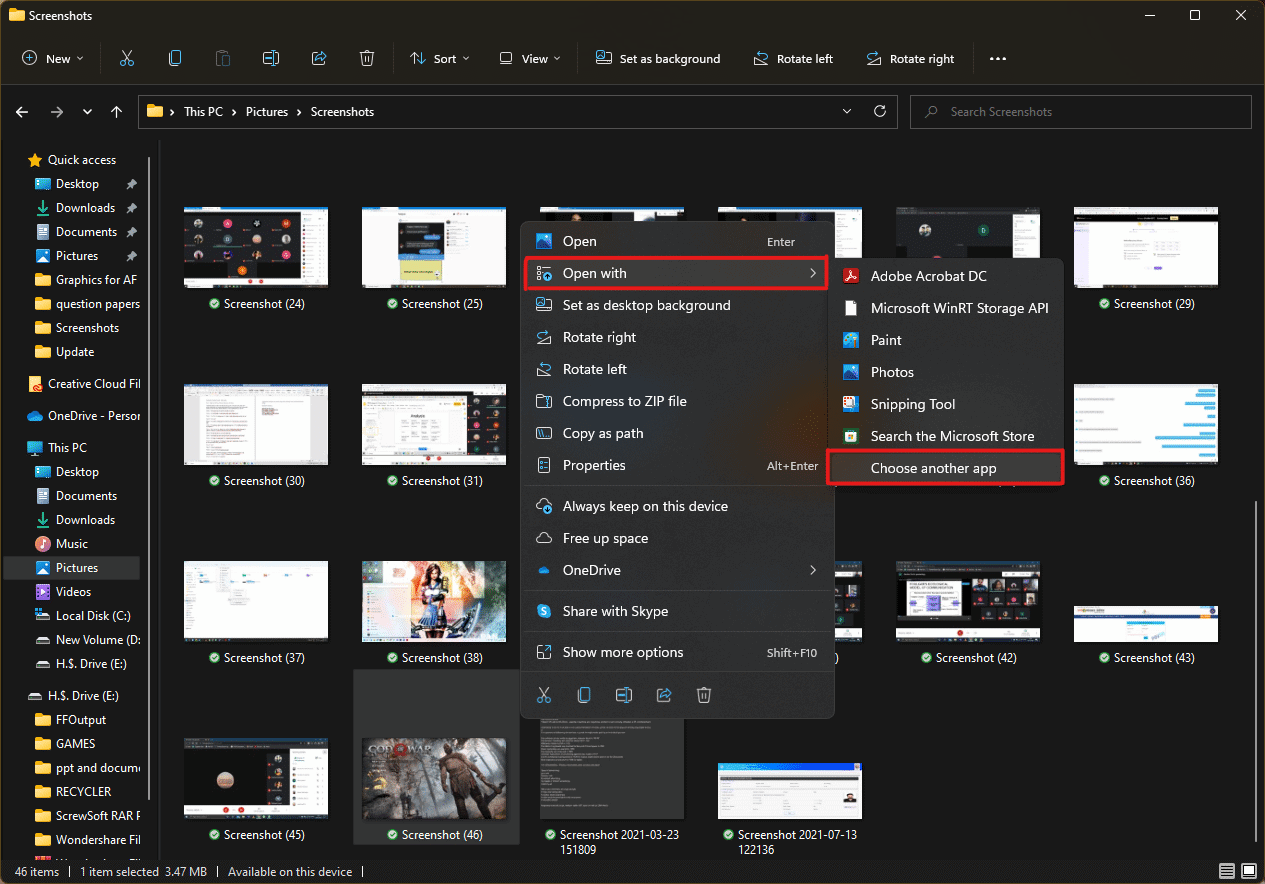
- How do you want to open this file? pop-up will appear with a list of installed apps in the system. Find and select Adobe Acrobat DC and click on OK .
Note: You can click on More apps to further expand the list of apps if you didn’t find Adobe Acrobat earlier.

- After the image opens in Adobe Acrobat, press the key combination Ctrl + P to open the Print window.

- Click on the Poster tab to split images.

- Click on the Page setup… button to configure the page sizes of the split images.

- Configure the Orientation settings and Paper size settings through the drop-down menu and click on OK .

- Select the printer a ttached to your system from the Printer drop-down menu option from the top left corner and click the Print option to start the printing process.

Recommended:
- How to Create a Hanging Indent in Word and Google Docs
- How to Reset Windows 11
- Fix Local Print Spooler Service Is Not Running
- How to Create PDF File in Windows 11
We hope you understood how to print large images on multiple pages in Windows 10/11 . Share your experiences in the comment section below with your queries and suggestions. Also, let us know which topic you want us to explore next.
The recent surge of online activity has prompted the downfall of the printer. In an era, where everything can be viewed online with ease, the relevance of the gigantic and bulky printer has started to decrease. However, we are yet to reach a stage where we can neglect the printing device altogether. Until then, if you do not possess the heavy Inkjet and want something printed urgently, here’s a guide to help you decipher how to print documents when you don’t have a printer.

- How to Print Documents When You Don’t Have a Printer
- Method 1: Print Documents as PDF files
- Method 2: Print Webpages as PDF files
- Method 3: Search for Wireless Printers Near You
- Method 4: Find Other Printing Services Around Your Location
- Method 5: Use Google Cloud Print
How to Print Documents When You Don’t Have a Printer
Method 1: Print Documents as PDF files
PDF is a universally accepted format that keeps the document exactly the same across different platforms and devices . There is a possibility that the PDF file of the document you need to print will do the trick instead. Even if softcopies are not an option in your situation, the PDF file makes it easy for you to save web pages and transfer them as documents for future printing. Here’s how you can print to PDF on your PC without a printer:
- Open the Word document that you want to print and click on the File option on the top left corner of the screen.

- From the options that appear, click on ‘Print.’ Alternatively, you can press Ctrl + P to open Print Menu

- Click on the ‘Printer’ drop-down menu and select ‘ Microsoft Print to PDF.’

- Once selected, click on ‘Print’ to continue.

- In the window that appears, type in the name of the PDF file and select the destination folder. Then click on ‘Save.’

- The PDF file will be printed without a printer in the destination folder.
Method 2: Print Webpages as PDF files
Browsers today have adapted to the requirements of the modern-day and introduced new features on their application. One such feature gives users the ability to print webpages as PDF documents on their PC. Here’s how you can print web pages as PDFs:
Open your browser and open the webpage you want to print.
Click on the three dots on the top right corner of the screen.

- From the various options, click on ‘Print.’ You can use the shortcut in the browser as well.

In the print window that opens up, click on the drop-down list in front of the ‘Destination’ menu.
Select ‘Save as PDF.’ You can then proceed to select the pages you want to download and the layout of the print.

- Once done, click on ‘Print’ and a window will appear asking you to select the destination folder. Select the folder and rename the file accordingly and then click on ‘Save’ again.

- The page will be printed as a PDF file without a printer.
Method 3: Search for Wireless Printers Near You
Even if you personally don’t own a printer, all hope is not lost. There is a remote possibility that someone in your neighbourhood or building owns a wireless printer. Once you have found a printer, you can ask the owner to let you take a print out. Here’s how you can scan for printers near you and print without owning a printer:
Press Windows Key + I to open the Settings app on your Windows device.
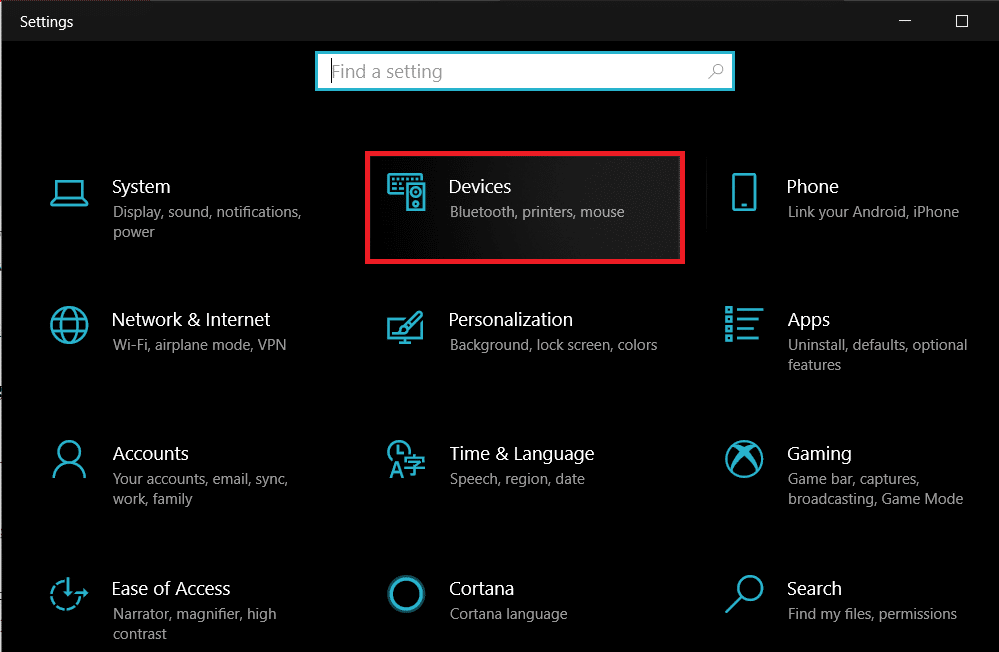
Click on ‘Devices.’
- From the panel on the left, click on the ‘Printers and Scanners’

- Click on ‘ Add a printer or scanner’ and your PC will find any printers that are operating near you.

Method 4: Find Other Printing Services Around Your Location
Some shops and services serve the specific purpose of getting print outs for their customers. You can search for print shops near your location and print documents there. Alternatively, you can head onto your University library or access the printer in your office to take urgent print outs. Printing options are also available in most internet cafes and public libraries. You can also use services such as PrintDog and UPrint that deliver large print outs to your home.
Method 5: Use Google Cloud Print
If you have a wireless printer at your home and are out of town, you can remotely print pages from your home printer. Head onto the Google Cloud Print website and see if your printer is eligible. Sign in to the app with your Google account and add your printer. Thereafter, while printing, click on the ‘Printers’ option and select your wireless printer to print documents remotely.
Q1. Where to print documents when you don’t have a printer?
With most documents beings shared and viewed through the screen, the printed page no longer holds the same value and the printer no longer seems worth the money. Having said that, there are still times where a hard copy of a document is required for a certain task. During instances like these, you can try using public printing services or ask your neighbours if they could give access to their printers for a brief period.
Q2. When you need to print something urgently, but there is no printer?
Such situations have happened to most of us. Try downloading the PDF of the document or webpage you want to print. The PDF should work as an alternative most of the time. If not, mail the PDF to any printing service near you and ask them to keep a print out ready. You will have to physically go and collect the printout but it is the fastest way possible.
Q3. How can I print from my phone without a printer?
You can print web pages and documents as PDF files from your phone and then print them as hard copies later. On the browser, tap on the three dots on the top right corner and select the ‘share’ option. From the various options available, tap on ‘Print’ and the webpage will be saved as a PDF. The same procedure can be used for Word documents.
Q4. Is there a printer that doesn’t need a computer?
Nowadays, wireless printers are the new norm. These printers often do not require physical connections with PCs or other devices and can download images and documents remotely.
Recommended:
- How To Clear Print Queue In Windows 10?
- Fix Common Printer Problems in Windows 10
- Share files and printers without HomeGroup on Windows 10
- How to Sync Google Calendar with Outlook
Are you in dire need of printing a document but can’t do so because of a stuck print job in Windows 10? Here are some ways to clear the print queue in Windows 10 easily.
Printers may appear easy to use but can be very flimsy at times. Handling print Queue when you urgently want to use a printer can be quite frustrating. The print queue not only prevents the present document but all future documents from printing. The problem is not hard to detect either. If the message ‘Printing’ remains indefinitely even though the paper is not stuck and the ink is right, then certainly there is a Print queue issue. There are certain ways that can be used to clear the print queue in Windows 10 .

- Why does a print job gets stuck in Windows 10?
- How To Clear Print Queue In Windows 10?
- Method 1: Manually Clearing and Restarting the Print Spooler
- Method 2: Clear Print Queue using a Batch File for the Print Spooler
- Method 3: Clear Print Queue Using Command Prompt
- Method 4: Use the Management Console
Why does a print job gets stuck in Windows 10?
The answer lies in the fact that the printing document isn’t directly sent for printing. The document is first received at the spooler , i.e., a program used to manage and queue the print jobs. This spooler is particularly helpful while rearranging the order of print jobs or deleting them entirely. A stuck print job prevents the documents in the queue from printing, which affects all the documents further down the queue.
Often you can solve the error by deleting the print job from the queue. To delete a stuck print job in Windows 10, go to ‘Printers’ in the setting and click on ‘ Open Queue .’ Cancel the print job causing a problem, and you are good to go. If you can’t delete a particular print job, then try deleting the entire print queue. If this doesn’t work either, then try restarting all your devices. Unplug all your connections and plug them to reboot your device completely. This is the first approach that you should have for a stuck print job. If these traditional methods don’t work, then here are some other detailed methods for clearing a print job in Windows 10.
How To Clear Print Queue In Windows 10?
There are a few methods that can be employed to clear a print job in Windows 10. Clearing and restarting the Print Spooler is one of the best methods to use for fixing the stuck print job. It doesn’t delete your documents but creates an illusion that the documents are being sent for the first time to the printer. The process is done by stopping the Print Spooler until you clear the entire temporary cache used by the spooler and then starting it again. This can be accomplished by using a manual method or by making a batch file.
Method 1: Manually Clearing and Restarting the Print Spooler
- Type ‘ Services .’ in the Windows search bar and open the ‘ Services ’ app.

- Find ‘ Print Spooler ’ in the menu and double-click to open the Properties .

- Click on ‘ Stop ’ in the Properties tab and minimize the window to use it again later.

- Open ‘ File Explorer ’ and go to the below address location:
C:\Windows\System 32\spool\PRINTERS

You may be asked for permission to access the location. Click on ‘ Continue ’ to move forward.
Once you reach the destination, select all the files and press Delete on your keyboard.
Now go back to the Spooler properties window and click on ‘ Start .’

Click on ‘ Ok ’ and close the ‘ Services ’ app.
This will restart the spooler, and all the documents would be sent to the printer for printing.
Method 2: Clear Print Queue using a Batch File for the Print Spooler
Creating a batch file is a viable option if your print jobs frequently get stuck. Using the Services app every now and then can be a hassle that can be solved by a batch file.
Open a text editor like Notepad on your computer.
Paste the commands below as separate lines.
Net stop spooler

Del/Q/F/S “%windir%\System32\spool\PRINTERS\*.*”

Net start spooler

- Click on ‘ File ’ and choose ‘ Save as .’ Name the file with the extension ‘ .bat ’ at the end and choose ‘ All files (.) ’ in the ‘ Save as type ’ menu. Click on Save , and you are good to go.

- Simply double-click on the batch file, and the work will be done . You can place it at the most accessible place on your desktop for easy access.
Method 3: Clear Print Queue Using Command Prompt
You can delete a stuck print job in Windows 10 by using Command Prompt as well. Using the method will stop and start the print spooler again.
- Type ‘ cmd ’ in the search bar. Right-click on the ‘ Command Prompt ’ app and choose the run as administrator option.

- Type the command ‘net stop spooler ’, which will stop the spooler.

- Again type the following command and hit Enter:
Del %systemroot%\system32\spool\printers\*/Q
This will do the same task as the methods above.
Start the spooler again by typing the command ‘ net start spooler ’ and press enter .
Method 4: Use the Management Console
You can use the service.msc, shortcut in the management console to clear the print queue in Windows 10. This method will stop the spooler and clear it to delete a stuck print job:
Press the Windows Key + R key together to open the run window.
Type ‘ Services.msc ’ and hit Enter .
Note: You can also access the ‘ Services ’ window via Windows Management. Right-click the Windows icon and choose Computer Management. Choose Services and Application then double-click on Services.

- In the Services window, right-click on Print Spooler and select Properties.

- Click on the ‘ Stop ’ button to stop the Print Spooler service.

Minimize the window and open file explorer. Type the address ‘C:\ Windows\ System32\ Spool\ Printers’ or navigate to the address manually.
Select all the files in the folder and delete them. They were the files that were in the print queue at the instance.
Go back to the Services window and click on the ‘ Start ’ button.

Recommended:
- Fix Common Printer Problems in Windows 10
- Fix Printer Driver is unavailable on Windows 10
- How To Lock Or Unlock Cells In Excel?
- How to Fix Whatsapp Images Not Showing In Gallery
We hope the above guide was helpful and you were able to successfully clear the print queue in Windows 10. If you’re still stuck, then there may be compatibility issues with the printer and the data to be printed. Outdated printer drivers can also be an issue. You can also run the Windows Printer Troubleshooter to identify the correct problem. It will help you fix the errors in the print jobs . Follow the methods above to delete a stuck print job and clear the print queue in Windows 10, and you shouldn’t have any problems.
Google Chrome is not only a useful, reliable, and fast browser that most people use as their default browser for a variety of extensions but it also offers multiple other features that are very convenient to use. Inarguably, it is one of the most used online services. Google Chrome also provides users to print any open tabs in Chrome using Google Cloud Print. While it is a great feature, some users have been struggling to use this ability to print directly from Chrome. If you are someone facing the same issue, then we have brought you a perfect guide that will help you fix can’t print from Chrome issue on your PC. In our today’s guide, we will cover points on topics like the reasons behind Chrome print preview not working and multiple fixes for Chrome print preview not loading. So, if you have no idea how to fix the Chrome print loading preview stuck, let us begin with our guide right away and get you familiar with different ways to resolve this issue.
- How to Fix Can’t Print from Chrome
- Methods to Fix Chrome Print Preview Not Loading
- Method 1: Basic Troubleshooting Methods
- Method 2: Clear Browsing Data
- Method 3: Remove Printers Not in Use
- Method 4: Run SFC and DISM Scan
- Method 5: Disable Antivirus
- Method 6: Change Temp Folder Permissions
- Method 7: Update/Reinstall Drivers
- Method 8: Run Troubleshooter
- Method 9: Reset Chrome
- Method 10: Reinstall Chrome
How to Fix Can’t Print from Chrome
If your Chrome print preview is not working in Windows 10/11, there can be several reasons behind it.
- Corrupt browsing data on your PC can be the very first reason behind this issue.
- Another reason can be misconfigured settings of your browser.
- Conflicting processes and applications can also interfere with the Chrome print feature.
- For some users, the problem persists due to the faulty printer as well.
Methods to Fix Chrome Print Preview Not Loading
If you have been struggling to make your Chrome printing feature work due to an error, we are here with some reliable and tested fixes that will help you to get back to printing easily. Let us have a look at these Chrome printing fixes below:
Method 1: Basic Troubleshooting Methods
- Use Ctrl + Shift + P Shortcut
The very first method or rather a workaround that can be attempted in case you can’t print from Chrome is to use the shortcut, Ctrl + Shift + P. It is also one of the fastest ways to fix this issue. Follow the steps below to imply this shortcut:
Launch the Google Chrome browser on your PC and open the file that you would like to print.
Now, press Ctrl + Shift + P keys together to give the print command.
Now, select the preferred printing destination and other settings .
- Restart Google Chrome
If the workaround did not fix anything for you and you are still struggling with the Chrome print loading preview stuck issue then you must try restarting your Chrome browser. Restarting the browser helps in troubleshooting minor glitches that may be behind this problem. To restart Chrome, follow the steps below:
Launch Google Chrome on your system.
Now, type chrome://restart in the address bar at the top of the browser screen and press enter.
This will help you to close all the tabs and extensions running on the browser and then restart them.
Method 2: Clear Browsing Data
The next fix involves clearing the browsing data of your Google Chrome browser. As is possible with other browsers too, Google Chrome can also accumulate cache and cookies that improve your browsing experience. However, when this stored data becomes corrupt or old, it can interfere with the browser’s functions, one of which is printing. So, you must clear all the browsing data from Chrome. You can learn about How to Clear Browsing History in Any Browser with the help of our guide.
Method 3: Remove Printers Not in Use
Another thing that needs to be considered and taken care of is the listed printers under Chrome. Google Chrome Print service has more than one active listed printer which is sometimes considered to be a problem for users who try to print directly from Chrome. If so, you can try to remove some of the unused printers with the help of the following steps:
Launch Settings of your system by pressing the Windows + I key.
Now, click on Bluetooth & devices option.
- Then, launch the Printers & scanners option.
- Now, click on the printer you wish to remove and click on the Remove button.
You can repeat the process to remove multiple printers.
Method 4: Run SFC and DISM Scan
Another easy way to resolve Chrome print preview not working is by running an SFC and DISM scan on files on your PC. This is because corrupted files that are missing can also be a potential cause behind the problem. Therefore, running these scans can check & fix any errors that are diagnosed. To know more about these scans, you can go through our guide on How to Repair System Files on Windows 10 .
Method 5: Disable Antivirus
Even though antivirus is not a prominent cause behind why you can’t print from Chrome but it is still a potential reason. Sometimes, this protective application on your system can prevent Chrome from printing files in case you are using a wireless printer. To resolve the issue, you can try disabling the antivirus program of your system such as McAfee and Bitdefender . Know How to Disable Antivirus Temporarily on Windows 10 with the help of our guide.
Method 6: Change Temp Folder Permissions
The Chrome print preview not loading issue can also be resolved by tweaking the Temp folder (within the AppData update) permissions on your computer. Providing yourself with full control over the Temp folder helps in restoring the ability to print directly from Chrome.
Open File Explorer on your computer by pressing Windows + E keys together.
Now, navigate to C:\Users\YourUserName\AppData\Local folder.
Then, right-click on the Temp folder to open Properties from its menu.
- Now, in the Security tab click on the Edit button.
Next, check the box for Full control and click on OK .
Finally, reboot your system and check if you can now print files.
Method 7: Update/Reinstall Drivers
The next method to resolve Chrome print loading preview stuck involves updating or reinstalling drivers of your system. If the drivers of your PC are outdated or incompatible, they can cause issues with the printing function of Chrome. To know all about How to Update Device Drivers on Windows 10 , check our guide, and then apply the same on your PC. Also, to reinstall drivers you can read our guide on how to uninstall and reinstall drivers on Windows 10 .
Method 8: Run Troubleshooter
You can also try running the in-built troubleshooter of your system to fix the Chrome printing issues. If this issue is on the system level, it can only be dealt with by running the printer troubleshooter.
Launch Settings of your PC with the help of the Windows + I key.
Now, search Troubleshoot settings at the top and press enter.
Next, click on Other troubleshooters .
Now, click on the Run option next to Printer .
- Finally, follow the on-screen instructions to troubleshoot the issue.
Method 9: Reset Chrome
One of the last fixes that can be used if you still can’t print from Chrome is to reset Chrome to its default settings. You can follow the below-mentioned steps to reset Chrome:
Launch the Google Chrome browser and go to chrome://settings/reset .
Next, click on the Restore settings to their original defaults option in the window.
- Now, confirm the reset by clicking on the Reset settings button.
- Finally, launch the website again and check if the printing issue has been resolved now.
Method 10: Reinstall Chrome
Lastly, you can also try reinstalling the Google Chrome browser if none of the methods have worked for you till now. This reinstallation can be done using the steps below:
- Click on the Windows icon, enter apps and features in the search bar, and click on Open .
Now, search Chrome from the list.
Next, click on Chrome and select Uninstall buttons as shown in the picture below.
- Then, again press the Windows key, enter %localappdata% , and click on Open .
- Now, double-click on the Google folder.
- In it, right-click on the Chrome folder and select Delete .
- Again, click on the Windows icon, enter %appdata% this time, and click on Open .
Now, repeat steps 5 and 6 .
Finally, restart your computer.
Once done, download the latest version of Google Chrome on your PC.
- Then, install the Chrome setup to your system.
Q1. Where can I find the print button in Google Chrome?
Ans. There is no dedicated button present in Google Chrome for print. This feature can be added from the multitude of extensions that are available in the Chrome library.
Q2. How can I print a web page in Chrome?
Ans. You can simply print a web page in Chrome by using the print command , depending on the layout of the web page.
Q3. How can I print a PDF in Chrome?
Ans. You can print a PDF in Chrome by saving the documents first as a PDF . Afterward, you can choose your printer and complete the action.
Q4. Is enabling printing important on Google Chrome?
Ans. No , you do not need to enable printing on Google Chrome. Once you have set up your printer, you can directly print your files without any additional setup or configuration.
Q5. What can cause print failure?
Ans. Printing failure is commonly related to software issues, hardware failures, driver problems, and overuse .
Recommended :
- How to See Your Liked Posts on Facebook App
- How to Disable Cache in Chrome Developer Tools
- How to Print When You Don’t Have a Printer
- How To Clear Print Queue In Windows 10?
