Tired of Discord freezing at the most inconvenient moments? We’ve all been there. In this guide, we’ll tackle the frustrating issue of Discord freezing and provide you with practical solutions to get it back on track. Whether you’re in the middle of a gaming session or a crucial conversation, let’s troubleshoot and thaw out those Discord freezes on your system.

- What Causes Discord App to Become Unresponsive and Freeze?
- Basic Troubleshooting
- Method 1: Clear Browser Cache
- Method 2: Delete Discord Cache Folder
- Method 3: Run in Compatibility Mode
- Method 4: Turn Off Hardware Acceleration
- Method 5: Delete Keybinds
- Method 6: Reinstall Discord
What Causes Discord App to Become Unresponsive and Freeze?
We received the following feedback from our readers:
- Users claimed that their voice communication ends abruptly and the software stops responding to every input, leaving them with no choice but to reboot .
- Even attempting to shut it down using Task Manager fails in some situations, requiring users to restart the machine.
- Many users said that Discord not responding issue is tied to the Discord app because it only occurs when using the app.
- If your Hardware acceleration functionality is enabled, it might cause this issue.
- It might be caused by Discord app compatibility issues. The default key bindings in Discord have been modified in recent releases, which might be causing the program to stop.
Basic Troubleshooting
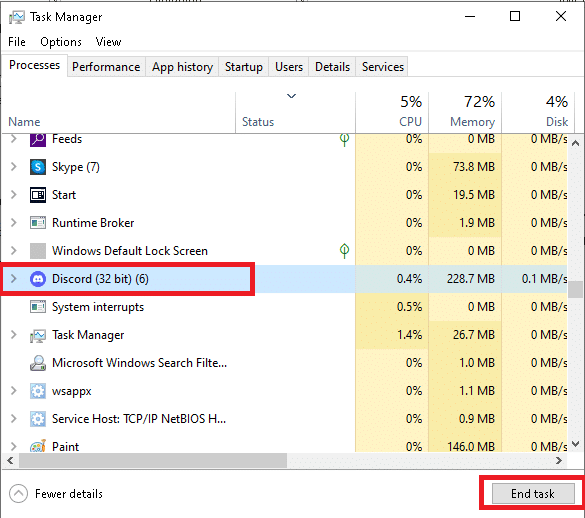
It is advised to restart your computer before performing the following troubleshooting procedures for this specific problem. Although you may experience this issue on a PC level, the traditional solution for Discord freezing is to terminate the process using Task Manager.
Launch Task Manager , press the Ctrl + Shift + Esc keys at the same time.
Locate the Discord process in the list and click on it,
Then, click End task , as shown highlighted.
Method 1: Clear Browser Cache
Discord is available as an app and via website. If you are having trouble with Discord program freezing in your web browser, making modifications to the website may help, and vice versa. Clear your browser cache as follows:
Note: The steps given below may differ according to your web browser. We have explained the steps for Google Chrome.
Open Chrome .
Click on the three dots icon and select More tools , as shown.
Here, click on Clear browsing data…

- Now, adjust the Time range and check the following options .
- Browsing history
- Cookies and other site data
- Cached images and files

- Finally, click Clear data .
Method 2: Delete Discord Cache Folder
Client preferences and other such data are saved in Discord using stored documents. In a single call, an application reserve segment is used several times. If your Discord reserve records are destroyed or degraded, they might cause your Discord server to freeze. The Discord freezing issue can be fixed by deleting the Discord cache files, as follows:
Press the Windows + R keys simultaneously to bring up the Run dialog window.
In the Run dialog box, type %appdata% and hit Enter.
Locate the Discord folder in the AppData Roaming folder .

- Right-click on the Discord folder and choose to Delete it as shown.

Method 3: Run in Compatibility Mode
Another reason for the Discord app to freeze is compatibility difficulties with your Windows operating system. In the app properties, there is the option to run the software in compatibility mode in order to fix Discord not responding issue.
Step I: Choose Run this program in compatibility mode
Go to the file location of Discord in File Explorer.
Then, right-click on the Discord app and choose Properties , as depicted below.
Switch to the Compatibility tab.
Check the Run this program in compatibility mode for option.

- Then, choose the previous Windows version which is compatible with Discord.

- Click Apply and then OK to save these changes.
You can try various Windows versions and check if Discord not responding issue persists or not. If this does not fix the issue, then try running the compatibility troubleshooter.
Step II: Choose Compatibility Troubleshooter
In Discord Properties Compatibility tab, click the Run compatibility troubleshooter button shown highlighted.
Click Try recommended settings or Troubleshoot program to run the troubleshooter.
Click Test the program… button and check your discord not responding issue is resolved or not.

- Then click Next to continue
5A. If this setting fixes your issue, choose Yes, save these settings for this program

5B. Alternatively if the issue persists then, report your problem to Microsoft.
Method 4: Turn Off Hardware Acceleration
Hardware acceleration is the process of a computer software offloading some computing tasks to specialized hardware components inside the system. This allows for more efficiency than would be feasible with apps operating on a single general-purpose CPU. While this improves performance of your computer, it might occasionally cause problems too.
Press Windows Key and type Discord , click on Open .
Click on the Settings icon in the left pane.

- Go to the Advanced tab and switch Off the toggle for Hardware acceleration, as depicted below.

Click Okay in the Change Hardware Acceleration window.
The Discord application will restart itself. Repeat steps 1-3 to check if Hardware acceleration is turned off.

.
Method 5: Delete Keybinds
The key bindings are one of the main reasons why Discord continues freezing. Key bindings are popular among gamers since they make gaming much more convenient. If you utilized key bindings in a previous version of the Discord client, this is most likely the source of the problem.
- Launch the Discord app and click on Settings icon as shown.
Go to the Keybinds tab in the left pane.
Choose one. A list will emerge, with a red cross icon next to each keybind. Click the red cross symbol to remove the key bind, as illustrated below.

- Repeat the same for each and restart your PC.
Method 6: Reinstall Discord
If none of the previous alternatives worked, the last option is to reinstall the Discord application.
Press Windows + I keys together to open Windows Settings .
Click on Apps from the given tiles
In the Apps & features tab, locate and click Discord. Then, click on Uninstall button.

Follow the directions displayed on the screen to complete the uninstallation.
Now go to the Discord website and click on Download for Windows button.

- Open the downloaded DiscordSetup.exe file and install the program.

- It will automatically update itself every time you launch the app as well.
Also Read : Best External Hard Drive for PC Gaming
Q1. Why is Discord crashing my PC so frequently?
Ans. Discord keeps crashing on your PC for a few different causes. It might be a problem in a Discord update, resulting in crashes. Another explanation for its strange behavior is that your game/app/cache files may be corrupt.
Q2. Is it possible to remove the Discord cache?
Ans. On Android, there is no need to look for the cache folder. Any app installed on your Android device includes a convenient button that allows you to erase its cache.

Q3. What is Discord hardware acceleration?
Ans. Hardware acceleration is the implementation of computer activities in hardware to reduce latency and boost throughput. Discord hardware acceleration exploits the GPU (Graphics Processing Unit) to help the app run faster.
Recommended:
- Fix Halo Infinite No Ping to our Data Centers Error in Windows 11
- How to Use Push to Talk on Discord
- How to Play Steam Games from Kodi
- How to Use Minecraft Colors Codes
