How to install Internet Explorer on Windows 10: Although Microsoft Edge is the default browser that is pre-installed on Windows 10 but many users still prefer to use Internet Explorer over other web browsers. As a user, you cannot uninstall Internet Explorer because it’s a Windows feature. But there are ways to turn on and off IE on Windows 10. If Internet Explorer is turned off in the Windows feature then you won’t be able to use IE on your system. IE will essentially be hidden until you again turn on Internet Explorer. In this article, you will learn about how to install/uninstall Internet Explorer in Windows 10.

- Internet Explorer is Missing on Windows 10?
- How to install Internet Explorer on Windows 10
- Method 1: Pin the IE to your Taskbar in Windows 10
- Method 2: Find Internet Explorer using Windows Accessories
- Method 3: Turn On/Off Internet Explorer
- Method 4: Install or Uninstall Internet Explorer on Windows 10
- Method 5: Use PowerShell to Install or Uninstall Internet Explorer
Internet Explorer is Missing on Windows 10?
Users are reporting that they are not being able to open Internet Explorer on their Windows 10 PC. Another case is when users are doing a clean installation of Windows 10 they are unable to find Internet Explorer. In reality, Internet Explorer is turned off in Windows feature, although you can’t uninstall Internet Explorer, but you can turn it off or on.
How to install Internet Explorer on Windows 10
Make sure to create a restore point just in case something goes wrong.
Method 1: Pin the IE to your Taskbar in Windows 10
1.Press Windows Key + S to bring up the search then type “ Internet Explorer “.

2.You will see that Internet Explorer will come in the top result of the search list.
3.Right-click on IE and choose the option “ Pin to taskbar ”.

4.Now, you will see the Internet Explorer icon on your taskbar using which you can easily access IE anytime you want.
Method 2: Find Internet Explorer using Windows Accessories
Another way to find & pin Internet Explorer on Desktop is by using Windows 10 Settings:
1.Go to the Start button then click on “ All Apps “. Or you can click on Apps under the Cortana search.


2.From there, you have to scroll down until you find the “ Windows Accessories ” folder.

3.Click on it and you will find Internet Explorer in the list.
5.Right-click on Internet Explorer & choose the option “ Pin to taskbar ”.

Method 3: Turn On/Off Internet Explorer
In this step, we will learn how you can Turn On or Off Internet Explorer on your PC. To do this the steps are –
1.Type control in Windows Search then click on Control Panel from the search result.

2.Click on “ Uninstall a program ” under Control Panel.
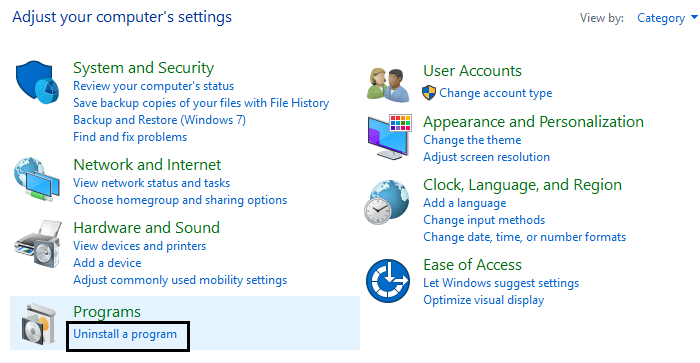
3.From the left-hand menu click on “ Turn Windows feature on or off “.

4.You will see a new pop up window will open (which is Windows Feature Window).
5.In the list, checkmark the box next to the Internet Explorer. This will turn ON the Internet Explorer on your system.

6.One done, click OK to save changes.
Note: It will take some time for Windows to apply the changes.

7.Reboot your PC to save changes.
Once the PC restart, you will notice that Internet Explorer is easily accessible through Windows search.
Method 4: Install or Uninstall Internet Explorer on Windows 10
1.Press Windows Key + I to open Settings then click on Apps.

2.From the left-hand side menu, click on Apps & features.
3.Now under Apps & features, click on “ Manage Optional Features ” or “ Optional Features “.

4.Scroll down the list and look for Internet Explorer.
5.Once you find it, you can either Uninstall Internet Explorer (if IE is installed) or install it (if IE is uninstalled) on your system.

6.Now click Install or Uninstall button depending upon the status of IE on your system.

7.Once finished, reboot your PC to save changes.
Method 5: Use PowerShell to Install or Uninstall Internet Explorer
Another way to Install or Uninstall Internet Explorer on Windows 10 is via PowerShell. To do this the steps you need to follow are –
1.Click the Start and search the term “ PowerShel l”.
2.Right-click the PowerShell application, and open it as “ Run as administrator ” mode.

3.Type the following command depending on your choice:
To Uninstall Internet Explorer:

Disable-WindowsOptionalFeature –FeatureName "Internet-Explorer-Optional-amd64" -Online


To Install Internet Explorer:

Enable-WindowsOptionalFeature –FeatureName "Internet-Explorer-Optional-amd64" -All –Online

4.Once you type any one of the above commands and hit Enter, it will then prompt you to restart your system. You have to type Y and press Enter.
5.Your system will reboot to apply changes.
Recommended:
- Mouse Lags or Freezes on Windows 10? 10 Effective ways to fix it!
- Fix Printer Driver is unavailable on Windows 10
- How to Fix Computer Shuts Down Randomly
- Fix Logitech Wireless Mouse Not Working
That’s if you have successfully learned How to Uninstall or Install Internet Explorer on Windows 10 but if you still have any questions regarding this article then please feel free to ask them in the comment section.
Fix Printer Driver is unavailable on Windows 10: If you’re not able to use your Printer and you face the error message that says “Driver is unavailable” then this means that the driver installed for your Printer is not compatible, outdated or corrupted. In any case, until you resolve this error you won’t be able to access your Printer. To view this message you need to head over to Devices and Printers then select your Printer and under Status, you will see “Driver is unavailable”.

This error message can be annoying, especially is you need to use the printer urgently. But don’t worry there are few easy fixes which can resolve this error and in no time you will be able to use your printer. So without wasting any time let’s see How to Fix Printer Driver is unavailable on Windows 10 with the help of the below-listed troubleshooting guide.
- Fix Printer Driver is unavailable on Windows 10
- Method 1: Uninstall the Printer Drivers
- Method 2: Make sure Windows is up to date
- Method 3: Verify the Admin Account
- Method 4: Install the Printer Drivers in Compatibility mode
- Method 5: Reinstall your Printer Drivers
- Method 6: Reset your PC
Fix Printer Driver is unavailable on Windows 10
Make sure to create a restore point just in case something goes wrong.
Method 1: Uninstall the Printer Drivers
1.Type control in Windows Search then click on the search result which says Control Panel.

2.From the Control Panel click on Hardware and Sound.

3.Next, click on Device and Printers.

4.Right-click on the printer device which shows the error “ Driver is unavailable ” and select Remove device.

5.Press Windows Key + R then type devmgmt.msc and hit Enter to open Device Manager.

6.Expand Print queues then right-click on your Printer device and select Uninstall.

Note: If you don’t have your device listed then don’t worry as it may already be removed when you remove the printer device from Devices and Printers.
7.Again click on Uninstall to confirm your actions and this will successfully remove the printer drivers from your PC.
8.Now press Windows Key + R then type appwiz.cpl and hit Enter.

9.From the Programs and Features window, uninstall any application related to your printer.

10.Disconnect your Printer from the PC, shut down your PC and router, power off your printer.
11.Wait for a few minutes then plug everything the back as it was earlier, make sure to connect your Printer to the PC using a USB cable and see if you’re able to Fix Printer Driver is unavailable on Windows 10.
Method 2: Make sure Windows is up to date
1.Press Windows Key + I to open Settings then click on Update & Security.

2.From the left-hand side, menu click on Windows Update.
3.Now click on the “ Check for updates ” button to check for any available updates.
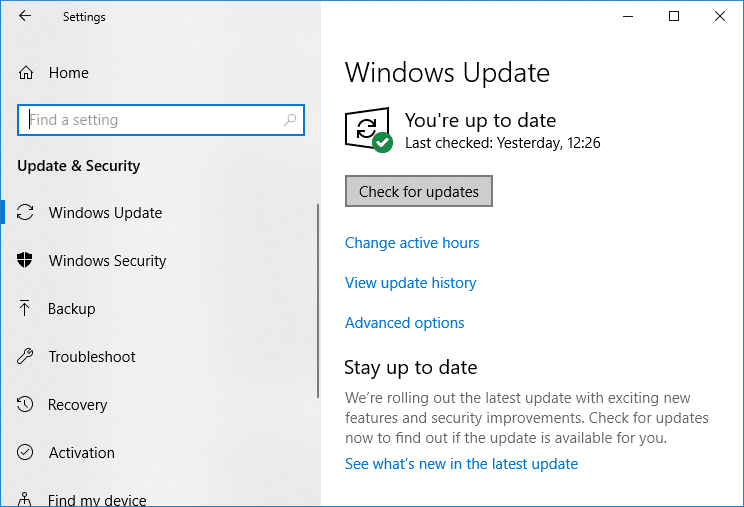
4.If any updates are pending then click on Download & Install updates.
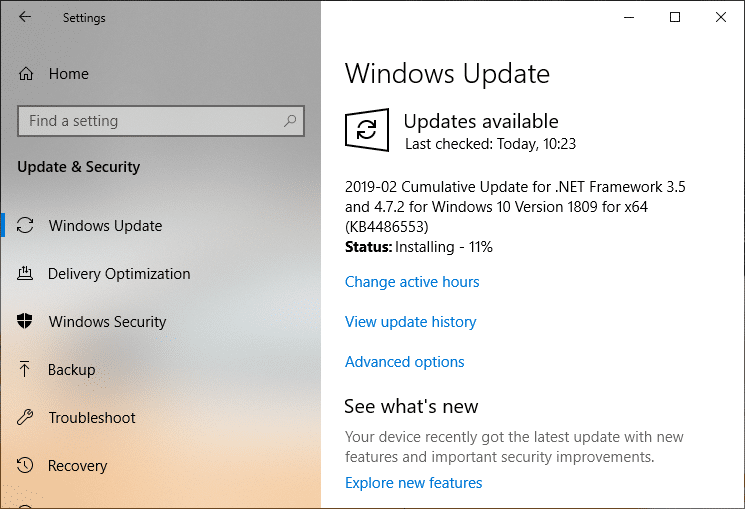
Once the updates are downloaded, install them and your Windows will become up-to-date.
Method 3: Verify the Admin Account
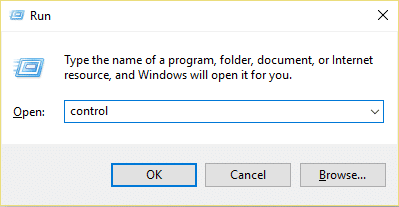
1.Press Windows Key + R then type control and hit Enter to open Control Panel.
2.Click on User Accounts then again click on User Accounts.

3.Now click on the “ Make changes to my account in PC settings ” link.

4.Click on the verify link and follow the on-screen instructions to verify your admin account.

5.Once finished, reboot your PC and again install the printer without any issues.
Method 4: Install the Printer Drivers in Compatibility mode
1.Press Windows Key + R then type devmgmt.msc and hit Enter to open Device Manager.
2.Expand Print queues then right-click on your Printer device and select Uninstall.
3.If you’re prompted to confirm then again click on the Uninstall button.
4.Now go to your printers manufacturer’s website and download the latest drivers for your printer.
5.Right-click on the setup file and select Properties.

Note: If the drivers are in a zip file make sure to unzip it then right-click on the .exe file.
6.Switch to the Compatibility Tab and checkmark “ Run this program in Compatibility mode “.
7.From the drop-down select Windows 7 or 8 and then checkmark “ Run this program as an administrator “.

8.Finally, double-click on the setup file and let the drivers install.
9.Once finished, reboot your PC and see if you’re able to fix the issue.
Method 5: Reinstall your Printer Drivers
1.Press Windows Key + R then type control printers and hit Enter to open Devices and Printers.

- Right-click on your printer and select “ Remove device ” from the context menu.
3.When the confirm dialog box appears , click Yes.

4.After the device is successfully removed, download the latest drivers from your printer manufacturer website .
5.Then reboot your PC and once the system restarts, press Windows Key + R then type control printers and hit Enter.
Note: Make sure your printer is connected to the PC via USB, Ethernet or wirelessly.
6.Click on the “ Add a printer ” button under Device and Printers window.

7.Windows will automatically detect the printer, select your printer and click Next.

- Set your printer as default and click Finish.

Method 6: Reset your PC
Recommended:
- Mouse Lags or Freezes on Windows 10? 10 Effective ways to fix it!
- 4 Ways to Clear Clipboard History in Windows 10
- How to Fix Computer Shuts Down Randomly
- Fix Logitech Wireless Mouse Not Working
That’s if you have successfully Fix Printer Driver is unavailable on Windows 10 but if you still have any questions regarding this article then please feel free to ask them in the comment section.
