Let us make you familiar with page orientation of Microsoft Word , and page orientation can be defined as how your document will be displayed or printed. There are 2 basic types of page orientation:
- Portrait (vertical) and
- Landscape (horizontal)
Lately, while writing a document in Word, I came across a clumsy problem where I had about 16 pages in the document and the middle somewhere I needed a page to be in Landscape orientation, where rest is all in portrait. Changing one page to landscape in MS Word is not a discerning task. But for this, you have to be well-known with concepts like section breaks.

- How to Make One Page Landscape in Word
- Method 1: Insert section breaks for setting the Orientation manually
- Method 2: Let Microsoft Word Do It for You
How to Make One Page Landscape in Word
Usually, Word documents have an orientation of page as portrait or a landscape. So, the question comes how to mix and match two orientations under the same document. Here are the steps and two methods explained in this article about how to change the page’s orientation and make One Page Landscape in Word.
Method 1: Insert section breaks for setting the Orientation manually
You can manually inform Microsoft Word to break any page rather than let the program decide. You have to insert a ‘ Next Page ’ section break at the start and end of the picture, table, text, or other objects for which you are changing the page orientation.
Click at the beginning of the region where you want the page to rotate (change orientation).
Choose the Layout tab from the “ Breaks” drop-down and select “Next Page”.

Repeat the above steps at the end of the area you want to rotate, and then continue.
Note: The section breaks and other formatting features can be visible using Ctrl+Shift+8 shortcut key , or you can click the Show/Hide Paragraph Marks button from the “ Paragraph ” section in the “Home” tab.

Now you should have a blank page in the middle of two pages of content:

Now bring your cursor on that particular page where you want the different orientation.
Open the “ Page Setup ” dialog box window by clicking the tiny arrow sited in the lower right corner of the “ Layout ” ribbon.

Switch to the “ Margins ” tab.
Select either “ Portrait ” or “ Landscape ” orientation from the Orientation section.

Pick an option from the “ Apply to: ” drop-down at the bottom of the window.
Click, OK.
Method 2: Let Microsoft Word Do It for You
This method will save your clicks if you allow MS Word to insert ‘section breaks’ automatically & do the task for you. But the intricacy in letting Word put your section breaks arises when you select text. If you do not highlight the whole paragraph, the unselected items such as several paragraphs, tables, images, or other items will be moved by Word onto another page.
First, select the items you’re planning to change in the new portrait or landscape orientation.
After selecting all the images, text & pages, you want to change to the new orientation, choose the “ Layout ” tab.
From the “ Page Setup ” section, open the “ Page Setup ” dialog box by clicking the tiny arrow sited in the lower right angle of that section.
From the new dialog box, switch to the “ Margins ” tab.
Select either “ Portrait ” or “ Landscape ” orientation.
Pick Selected Text from the “ Apply to: ” drop-down list at the bottom of the window.
- Click “OK”.
Note: The hidden breaks and other formatting features can be visible using Ctrl+Shift+8 shortcut key , or you can click the backward P button from the “ Paragraph ” section in the “Home” tab.
Recommended:
- How to Switch Between Browser Tabs Using Shortcut Key
- Forcefully Clear the Print Queue in Windows 10
- How to Fix Monitor Screen Flickering Issue
- Disable Indexing in Windows 10 (Tutorial)
I hope the above steps helped you learn How to Make One Page Landscape in Word, but if you still have any questions regarding this tutorial, please feel free to ask them in the comment’s section.
Forcefully Clear the Print Queue in Windows 10: Many of the printer users might have to face the circumstances where you are trying to print something but nothing happens. The reasons for not printing and the print job getting stuck can be many but there is one frequent cause that is when the printer queue has a stuck with its print jobs. Let me take a scenario where you previously tried to print something, but that time your printer was off. So, you skipped the printing of document at that moment & you forgot about it. Later or after few days, you again plan to give a print; but the job for printing is already listed in the queue and hence, as the queued job didn’t automatically get removed, you current print command will remain at the end of queue and won’t get print printed until all other listed jobs get printed.

There are cases when you can manually go in & remove the print job but this will keep on happening. In such type of scenario, you have to clear your system’s print queue manually following some specific steps. This article will show you how to Forcefully Clear the Print Queue in Windows 10 using the below-listed guide. In case your Microsoft Windows 7, 8, or 10 is having a lengthy list of corrupt print jobs, you can take adequate measure to Forcefully Clear the Print Queue by following the technique mentioned below.
- How to Forcefully Clear the Print Queue in Windows 10
- Method 1: Manually Clear Print Queue
- Method 2: Clear Print Queue Using Command Prompt
How to Forcefully Clear the Print Queue in Windows 10
Make sure to create a restore point just in case something goes wrong.
Method 1: Manually Clear Print Queue
1.Go to Start and search “ Control Panel ”.
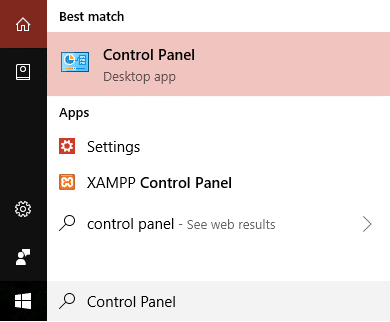
2.From “ Control Panel ”, go to “ Administrative Tools ”.

3.Double click the “ Services ” option. Scroll down in the list to search for “ Print Spooler ” service.

4.Now right-click on Print Spooler service and select “ Stop ”. In order to perform this, you have to be logged in as Administrator-mode.

5.It is to be noted that, at this stage, no user of this system will be able to print anything on any of your printers which are connected to this server.
6.Next, what you have to do is, to visit the following path: C:\Windows\System32\spool\PRINTERS

Alternatively, you can manually type “ %windir%\System32\spool\PRINTERS ” (without quotes) in your system Explorer’s address bar when your C drive is not having the default Windows partition.
7.From that directory, delete all the existing files from that folder . This action of your will clear all print queue jobs from your list. In case you are performing this on a server, it is a better thought to first make certain no other print jobs are in the list for processing, in association with any printers because the above step will also delete those print jobs from the queue as well.
8.One last thing left, is to go back to the “ Services ” window and from there right-click the Print Spooler service & choose “ Start ” for starting the print spooling service back again.

Method 2: Clear Print Queue Using Command Prompt
There is an alternate option also to perform the same entire cleaning queue process. Just you have to use a script, code it and execute it. What you can do is create a batch file (blank notepad > put the batch command > File > Save As > filename.bat as ‘All files’) with any file name (let suppose printspool.bat) and put the below-mentioned commands or you can even type them in the command prompt (cmd) also:
net stop spooler

del %systemroot%\System32\spool\printers\* /Q /F /S

net start spooler

Recommended:
- Logout of Gmail or Google Account Automatically (With Pictures)
- No Sound in Windows 10 PC [SOLVED]
- What is Checksum? And How to Calculate Checksums
- Disable Indexing in Windows 10 (Tutorial)
I hope the above steps were helpful and now you can Forcefully Clear the Print Queue in Windows 10 whenever you want but if you still have any questions regarding this tutorial then feel free to ask them in the comment’s section.
