With technology evolving day by day, it has become easy for people to access their emails through their phones.
Sometimes, having the softcopy is not enough and you might need it in the form of a physical copy.
Then, you might wonder can I print an email from my Android or iPhone device. Yes, you can!
In this article, we will walk you through the complete guide on how to do so.

- How to Print an Email from My Phone
- Option 1: On Android
- Option 2: On iPhone
- Option 3: Through USB
- How to Print or Save Email as PDF
- Where can I Print a Document from My Phone?
- Why Can’t I Print Email or Attachments from My Phone?
- Do I Need an App to Print Emails?
How to Print an Email from My Phone
Although everything nowadays is going online, sometimes having a physical copy is still handy.
Having an email as a hard copy can be of great convenience.
Note: Make sure your phone is connected to a printer using the same Wi-Fi network or Bluetooth .
Option 1: On Android
Follow the steps mentioned below to print an email on your Android phone:
Open the email you want to print. Here, we have opened the email from the Gmail app.
Tap on the three dots in the top right corner.
Choose Print .
Note: Choose Print all if you want to print with all the replies.
Tap on the Printer option and select the printer .
Now, tap on the Print button.

Option 2: On iPhone
The steps to print an email from an iPhone through Gmail are the same as Android, so refer to the section above.
You can print an email from an iOS device with or without AirPrint-compatible printers .
If you want to print an email from the Mail app, follow the below steps:
Open the mail you want to print.
Tap on the left arrow at the bottom and select Print .

Tap on the Printer option and select the printer .
Tap on Print at the top right corner.
Option 3: Through USB
Follow the steps mentioned below to print an email on phone through USB:
Connect one end of your USB to the printer and the other to your device .
Download the printer app on your device if it is required.
Just simply follow the steps mentioned above to print on your Android or iPhone.
How to Print or Save Email as PDF
You can easily download the email as a PDF to print later.
Option 1: On Android
To save an email as a PDF, the steps are similar to those given above.
Follow the steps 1-3 under Option 1: Android heading.
Tap on the three dots at the top right corner and choose Save as PDF .

Option 2: On iPhone
The steps are almost the same as following on Android.
Follow the steps 1-3 under Option 1: Android heading.
Tap on the share icon and choose Save to Files .

Where can I Print a Document from My Phone?
You can print a document from your home if you own a printer.
If you don’t have a printer at home , you can print it in different places like a cyber cafe, libraries, print shops, offices, etc.
Why Can’t I Print Email or Attachments from My Phone?
You may not be able to print an email from your device if the sender has enabled confidential mode .
Also, if your phone and printer are not connected to the same Wi-Fi network or Bluetooth .
Do I Need an App to Print Emails?
No , there is no compulsion that you need an app to print email.
You can directly print from the Mail or Gmail app.
To sum up, turning your electronic messages into hardcopy documents can prove to be a great ease for you.
Hope this article helped you with how to print an email from my phone.
Keep reading our blogs for more information. Leave your suggestions and queries below in the comment section.
Wireless printers have eliminated the use of cables as they can be easily connected to and operated via a PC or even a phone through Wi-Fi or Bluetooth. You can place your printer anywhere in your home or office and wirelessly command it from your phone to print any document, right with a tap. Now the bigger question is – how to connect your Android phone to a wireless printer and then print using it? We’ll answer and explain the same in this blog, so read till the end.

- How to Connect Your Phone to a Wireless Printer and Print Using It
- Method 1: Download Plugin
- Method 2: Connect via Wi-Fi
- Method 3: Connect via IP Address
- Method 4: Connect via Bluetooth
- How to Print from Phone Through Wireless Printer
- How to Print from Phone Through HP Wireless Printer Using HP Smart App
- How to Print from Android Phone to Wireless Printer Using Email
How to Connect YourPhone to a Wireless Printerand Print Using It
Most schools and offices have been operating online, especially in the past few years. Hence, there has been a hike in the search for worthy gadgets for students and employees . Amongst others are Wireless printers that give you the freedom to print from any corner of a pre-defined area. As our reliance on phones is increasing day by day, it just becomes easier when both devices are connected and offer a ready-to-print setup.
Note 1: Since smartphones don’t have the same Settings options, they vary from manufacturer to manufacturer. Hence, ensure the correct settings before changing any on your device. The steps were performed on the Samsung S20 FE 5G , as shown in the illustrations below.
Note 2: Make sure the printer is set up beforehand and is connected to the same network as your phone.
Follow the steps below:
Open Settings on your phone and tap on Connections .
Tap on More connection settings , followed by Printing .

- Toggle on Default Print Service and then tap on it.

You will see all the compatible printers on the network.
- Once your wireless printer is detected, tap on it and follow the onscreen instructions to connect your phone to it.
Now if your phone is unable to detect the printer, there are other ways to connect both.
Method 1: Download Plugin
You can download the companion app for your wireless printer easily on your Android phone to print from it. Follow the steps below:
Follow the path: Settings > Connections > More connection settings > Printing .
Tap on the Download plugin option.

You’ll see a list of companion apps for printers from almost all major brands.

Tap on your printer’s brand app and Install it from the Google Play Store .
Once installed, go back, tap on the plugin, and when the wireless printer is detected, connect the device to it.
Method 2: Connect via Wi-Fi
Wireless printers support Wi-Fi connection as well. In case the manufacturer has not released a plugin for your printer, you can also manually connect your phone to it via Wi-Fi direct service.
Navigate the path: Settings > Connections > More connection settings > Printing .
Toggle on Default Print Service and tap on it.
Tap the three dots icon at the top-right corner and select Add printer .

- Toggle on Wi-Fi Direct printing and tap on Find Wi-Fi Direct printers .

You can now select and connect your phone to the printer, once detected.
Method 3: Connect via IP Address
Another way to connect the printer to your mobile is through its IP address. However, it might be a little complex as you would need to find the printer’s IP address and the steps may vary depending on the router service you are connected to. Once you find the IP address of the printer, follow the steps below:
Follow Steps 1 to 3 from Method 2.
Tap on Add printer by IP address .

- In the text field, enter the IP address of the printer and tap on Add .
Method 4: Connect via Bluetooth
Some wireless printers also support Bluetooth connectivity, which helps you print when there are issues with the Wi-Fi connection or weaker internet connectivity. Follow the steps:
Turn on the printer’s Bluetooth.
Now, open Settings on your phone, tap on Connections and toggle on Bluetooth .

- Now tap on Bluetooth and from the list of Available devices, select the printer and pair them both.
How to Print from Phone Through Wireless Printer
So, now that your smartphone is connected to the printer successfully, it’s time to print files. You can follow the same steps for all wireless printers. Similarly, you can print files directly from Google Docs, Microsoft Word, and many more apps. We are choosing Google Docs here.
Open Google Docs and then the file you want to print.
Tap the three dots icon at the top right corner and select Share and export from the context menu.

- Now tap on Print .

In the drop-down menu, you can adjust the Colour , Paper size , Orientaion , and other settings as required.
Expand the Select a printer drop-down menu and tap on All printers…

- Now tap on Add printer , select your wireless printer from the list, and follow the on-screen instructions to start printing.
How to Print from Phone Through HP Wireless Printer Using HP Smart App
You can also use the HP Smart app . Not only does the app make it easy for you to print files and photos, but you can also use it as a document scanner app , manage your instant ink supplies, set shortcuts, and many more.
Open the HP Smart app.
Tap on Print Documents or Print Photos as preferred.

Select PDFs or My Photos and then select the file you want to file you want to print.
On the Preview page, tap on Print .

- Lastly, select the printer and follow the on-screen instructions.
How to Print from Android Phone to Wireless Printer Using Email
Many modern-day printers are coming up with a built-in feature where users can just send an email to their respective printer with the file that they want to print attached to it. After that, it will print the document automatically.
Note: Check if your printer has an email ID assigned to it.
Once you have found the email address of the printer, open the email client service, e.g., Gmail, and tap the Compose icon at the bottom-right corner.
In the To field, enter the printer’s email address.
Tap the attachment icon at the top, attach the document you want to print, and tap on the Send icon.

Once sent, the wireless printer will print your document.
Canva is the top choice for beginner-level graphic designers due to its user-friendly features. It’s not just designers who use the app. Local businesses, especially printing service providers, also use it to print their cards, flyers, and custom posters. We’ll guide you on how to easily print from Canva for free from the comfort of your home.

- How to Print from Canva for Free on PC
- How to Print Business Cards from Canva
- What are Tips for Printing from Canva?
- How Can You Build Your Brand Kit on Canva?
- What Other Kinds of Services does Canva Provide?
- Can I Use Premium Elements in Design for Free?
How to Print from Canva for Free on PC
To start printing designs using Canva, make sure your final design is ready and your printer is connected. Then, follow the steps below:
Go to Canva and open the design you want to print.
Click on File in the top-left corner of the screen.

- From View Settings , check on Show Margins and Show Print Bleed.

- Click on Share > Download .

- Select PDF Print type.

Open the PDF file and press Ctrl+P or click the Printer Icon at the top right of your screen.
Click the Print .

This way you can print your designs from Canva for free.
How to Print Business Cards from Canva
If you need help discovering a compelling design for your business cards and printing service, Canva can be your one-stop destination for all your needs. Canva offers thousands of ready-made business card templates that you can easily customize to suit your preferences. Let’s find out how to print business cards from Canva:
1 . Open Canva and click on Templates on the left sidebar .
- Select Business Cards > Business Cards .

- Choose a Business Card Template by double-tapping on it and clicking on Customize this template to customize your design.


Click on Print Business Cards at the top right of your screen.
Click on Continue > Checkout .
Provide your personal and shipment details , and confirm your order by clicking on Continue again.

Now you can print your business cards.
What are Tips for Printing from Canva?
To get the best quality prints from Canva, follow the given easy tips to ensure the utmost quality of your prints:
- Use Correct and High-Resolution Images: To ensure your designs maintain clarity and avoid pixelation when printed, make sure the images and graphics you use have a high resolution.
- Use Eye-Friendly Fonts: Avoid using decorative fonts, especially in small print sizes, as they can be challenging to read. By choosing fonts that prioritize readability, you ensure that your message is clear and easily comprehensible.
- Check for Bleeds: Bleed is the extra area extending beyond the design’s edge, allowing for trimming during the printing process. Canva makes it easy by providing a bleed option when you download your design as a PDF Print file. This ensures a professional and polished finish for your printed materials.
- Use Suitable Margins: Use appropriate margins to ensure your design elements are not cut off during printing.
- Choose Paper Type wisely: Select the appropriate paper type based on your design and intended use. For instance, glossy paper might suit photo-heavy designs, while matte paper works well for text-heavy documents.
- Proofread your Design: Before sending your design to print, take a moment to proofread it carefully for any errors or inconsistencies. Check for typos, misaligned elements, and potential color discrepancies.
How Can You Build Your Brand Kit on Canva?
You can create your own Brand Kit to maintain consistency in your visual designs, this includes storing logos, fonts, color palettes, and icons for quick and easy access. Here’s a simple guide to help you:
Note: You can build a Brand Kit only if you have a Canva Pro subscription.
Open Canva and sign in to your account on your desktop.
Once signed in, click on the Brand on the left sidebar menu.

- Click on Add New to create a Brand Kit.

Give a Name to your Brand Kit.
Now upload your logos whichever you will use in your designs as a watermark.

- Click Save to save your brand elements for future use.
By following these steps, you can easily maintain and build a brand kit in Canva to ensure that all your designs align with your brand identity.
What Other Kinds of Services does Canva Provide?
Canva is not just a photo editing tool, it’s more than that. You can do anything that can help your business grow. It provides many services and comes with thousands of premade design templates so you don’t need to stress about the design process much. Let’s explore what other kinds of services it offers:
- Create Presentations: It provides tools to help you craft visually stunning presentations complete with slides, graphics, and animations.
- Easy Collaborations: Canva allows you to collaborate seamlessly with other members on the same project in real-time. This collaborative feature enables team members to access your brand kit resources and work together efficiently. Teams can easily share and provide real-time feedback on designs, enhancing the collaborative process
- Print Certificates: Canva provides a variety of certificate templates that you can customize to suit your needs. Whether it’s for academic achievements, employee recognition, or any other purpose, simply choose a template and personalize it with your text, colors, and images.
- Design Social Media Posts: Are you in search of professionally designed content for your social media accounts? Look no further. Create eye-catching posts, stories, and banners, even if you’re not an expert.
- Insert Tables: You can even create, insert, and edit tables on Canva. Check out our guide on How to Insert and Edit Table in Canva: Stеp by Stеp Guidе to learn more
Can I Use Premium Elements in Design for Free?
Whether you’re a designer, educator, or business professional, Canva remains your go-to platform for seamless creativity. We hope you have learned how to print from Canva for free at home. Now it’s time to explore the endless creative possibilities it offers.
Printing Instagram photos from Target is a convenient way to turn your digital memories into physical keepsakes. Whether you’re looking to decorate your home, create a personalized gift, or simply have a tangible copy of your favorite moments, Target offers an easy and accessible solution. By using Target’s photo kiosks or their online platform, you can upload your Instagram photos directly from your phone or computer. With options for various print sizes and the possibility of picking up your prints in as little as one hour from your local Target photo lab, the process is designed for efficiency and ease.

- How To Print Instagram Photos From Target
- Can I get my Instagram Photos Printed?
- Where can I Print from Instagram?
- Can I Print a Screenshot from Instagram?
- Can I Print Someone Else’s Instagram Photos?
- Can you Print Photos in Target Store?
- Can you Print Pictures at Target from your Phone?
- Can I Print Passport Photo at Target?
- How do you Upload Photos to Target?
How To Print Instagram Photos From Target
Instagram is like a virtual album in which you can see your photos in a collection. To get a printed copy of the captured memories, you just need to select the target photo and print them through a printer. Get to know more about how you can print your photos from the Target app in the upcoming paragraphs.
Quick Answer To print Instagram photos from Target: 1. Open the Target website on your device. 2. Make an account on the official website. 3. Navigate to Photo Services to find plenty of products and templates. 4. Now, upload the picture and choose a layout. 5. Once done, either arrange store pick-up or delivery.
Can I get my Instagram Photos Printed?
Yes , you can get your Instagram photos printed by just downloading the photo. If you do not want to download, then simply select the share option and send the photo to the printer. After that, decide on the paper size, quality, and number of copies of the printed photo.
Where can I Print from Instagram?
There are a few apps through which you can directly get the print from Instagram, like Social Print Studio and Mixtiles . These apps allow you to take Instagram photos directly without having to go through a lengthy process.
Can I Print a Screenshot from Instagram?
Yes , you can print a screenshot from Instagram. Simply save the screenshot and send it to the person who has a printer and to get a screenshot print. But before taking the print decide what shape, size, and color you want.
Can I Print Someone Else’s Instagram Photos?
Yes , you can print someone else’s Instagram photo by saving it or taking a screenshot. But taking someone’s photo and printing it without permission is copyright infringement. Also, if the account is public or general then you can easily take a printout of the photo.
Can you Print Photos in Target Store?
Yes , you can print photos in the Target store as it offers a great quality printed photo. The target photo is ideal for the printing store as it offers premium-quality photos. It has wallet-size prints of 30 x 40.
Can you Print Pictures at Target from your Phone?
Yes , you can print pictures at Target from your phone because it offers you to directly print the photo. Also, it saves you time if you take print pictures at Target from your phone. So, you do not need to take the help of any other app.
Can I Print Passport Photo at Target?
Yes , you can print a passport photo at Target because it allows you to decide the shape and size of the photo. Before you take the print just decide in advance the size and the type.
How do you Upload Photos to Target?
Following are the steps to upload photos to Target:
- Open the Target website on your device.

Make an account on the official website.
Navigate to Photo Services to find plenty of products and templates.
Now, upload the picture and choose a layout.
Note: The size limit for photos is 100 MB with support for JPG and PNG formats.
- Once done, either arrange store pick-up or delivery.
You will receive your printed pictures in 2-5 business days . In case of pickup, you can receive your Instagram photos within an hour.
Recommended:
- How to Know If an Instagram Account is Fake
- How to View Full Size Instagram Photos
- How to Delete Photos in Instagram
So, through this article, we have cleared all your doubts and queries related to printing Instagram photos. We have given you complete detail and a step-by-step guide on how to print Instagram photos from Target. If you still have any doubts write them in the comment sections.
The recent surge of online activity has prompted the downfall of the printer. In an era, where everything can be viewed online with ease, the relevance of the gigantic and bulky printer has started to decrease. However, we are yet to reach a stage where we can neglect the printing device altogether. Until then, if you do not possess the heavy Inkjet and want something printed urgently, here’s a guide to help you decipher how to print documents when you don’t have a printer.

- How to Print Documents When You Don’t Have a Printer
- Method 1: Print Documents as PDF files
- Method 2: Print Webpages as PDF files
- Method 3: Search for Wireless Printers Near You
- Method 4: Find Other Printing Services Around Your Location
- Method 5: Use Google Cloud Print
How to Print Documents When You Don’t Have a Printer
Method 1: Print Documents as PDF files
PDF is a universally accepted format that keeps the document exactly the same across different platforms and devices . There is a possibility that the PDF file of the document you need to print will do the trick instead. Even if softcopies are not an option in your situation, the PDF file makes it easy for you to save web pages and transfer them as documents for future printing. Here’s how you can print to PDF on your PC without a printer:
- Open the Word document that you want to print and click on the File option on the top left corner of the screen.

- From the options that appear, click on ‘Print.’ Alternatively, you can press Ctrl + P to open Print Menu

- Click on the ‘Printer’ drop-down menu and select ‘ Microsoft Print to PDF.’

- Once selected, click on ‘Print’ to continue.

- In the window that appears, type in the name of the PDF file and select the destination folder. Then click on ‘Save.’

- The PDF file will be printed without a printer in the destination folder.
Method 2: Print Webpages as PDF files
Browsers today have adapted to the requirements of the modern-day and introduced new features on their application. One such feature gives users the ability to print webpages as PDF documents on their PC. Here’s how you can print web pages as PDFs:
Open your browser and open the webpage you want to print.
Click on the three dots on the top right corner of the screen.

- From the various options, click on ‘Print.’ You can use the shortcut in the browser as well.

In the print window that opens up, click on the drop-down list in front of the ‘Destination’ menu.
Select ‘Save as PDF.’ You can then proceed to select the pages you want to download and the layout of the print.

- Once done, click on ‘Print’ and a window will appear asking you to select the destination folder. Select the folder and rename the file accordingly and then click on ‘Save’ again.

- The page will be printed as a PDF file without a printer.
Method 3: Search for Wireless Printers Near You
Even if you personally don’t own a printer, all hope is not lost. There is a remote possibility that someone in your neighbourhood or building owns a wireless printer. Once you have found a printer, you can ask the owner to let you take a print out. Here’s how you can scan for printers near you and print without owning a printer:
Press Windows Key + I to open the Settings app on your Windows device.
Click on ‘Devices.’
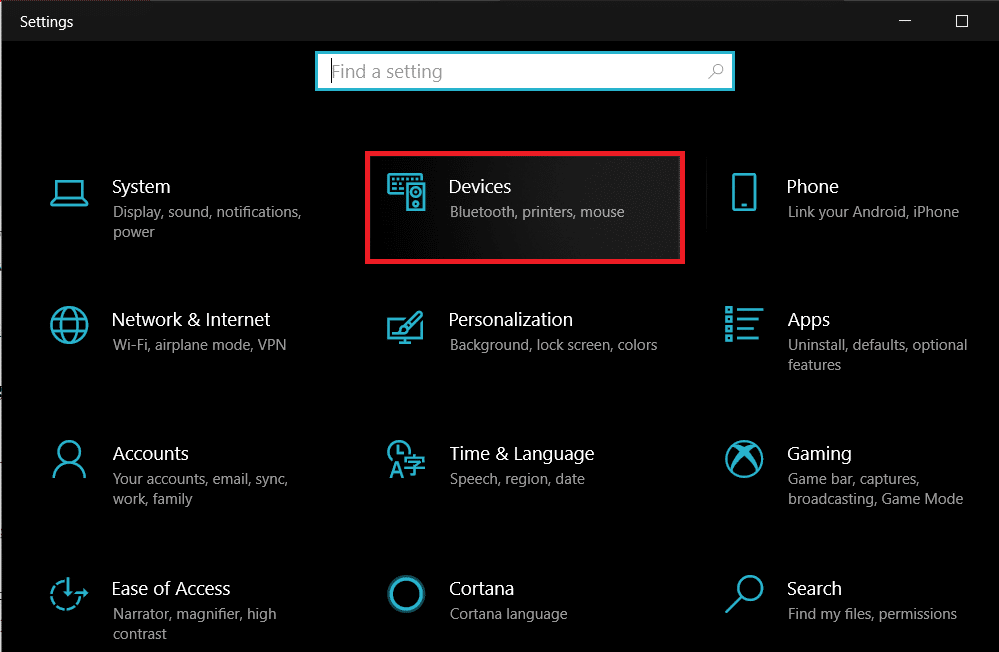
- From the panel on the left, click on the ‘Printers and Scanners’

- Click on ‘ Add a printer or scanner’ and your PC will find any printers that are operating near you.

Method 4: Find Other Printing Services Around Your Location
Some shops and services serve the specific purpose of getting print outs for their customers. You can search for print shops near your location and print documents there. Alternatively, you can head onto your University library or access the printer in your office to take urgent print outs. Printing options are also available in most internet cafes and public libraries. You can also use services such as PrintDog and UPrint that deliver large print outs to your home.
Method 5: Use Google Cloud Print
If you have a wireless printer at your home and are out of town, you can remotely print pages from your home printer. Head onto the Google Cloud Print website and see if your printer is eligible. Sign in to the app with your Google account and add your printer. Thereafter, while printing, click on the ‘Printers’ option and select your wireless printer to print documents remotely.
Q1. Where to print documents when you don’t have a printer?
With most documents beings shared and viewed through the screen, the printed page no longer holds the same value and the printer no longer seems worth the money. Having said that, there are still times where a hard copy of a document is required for a certain task. During instances like these, you can try using public printing services or ask your neighbours if they could give access to their printers for a brief period.
Q2. When you need to print something urgently, but there is no printer?
Such situations have happened to most of us. Try downloading the PDF of the document or webpage you want to print. The PDF should work as an alternative most of the time. If not, mail the PDF to any printing service near you and ask them to keep a print out ready. You will have to physically go and collect the printout but it is the fastest way possible.
Q3. How can I print from my phone without a printer?
You can print web pages and documents as PDF files from your phone and then print them as hard copies later. On the browser, tap on the three dots on the top right corner and select the ‘share’ option. From the various options available, tap on ‘Print’ and the webpage will be saved as a PDF. The same procedure can be used for Word documents.
Q4. Is there a printer that doesn’t need a computer?
Nowadays, wireless printers are the new norm. These printers often do not require physical connections with PCs or other devices and can download images and documents remotely.
Recommended:
- How To Clear Print Queue In Windows 10?
- Fix Common Printer Problems in Windows 10
- Share files and printers without HomeGroup on Windows 10
- How to Sync Google Calendar with Outlook
With technology evolving day by day, it has become easy for people to access their emails through their phones.
Sometimes, having the softcopy is not enough and you might need it in the form of a physical copy.
Then, you might wonder can I print an email from my Android or iPhone device. Yes, you can!
In this article, we will walk you through the complete guide on how to do so.
- How to Print an Email from My Phone
- Option 1: On Android
- Option 2: On iPhone
- Option 3: Through USB
- How to Print or Save Email as PDF
- Where can I Print a Document from My Phone?
- Why Can’t I Print Email or Attachments from My Phone?
- Do I Need an App to Print Emails?
How to Print an Email from My Phone
Although everything nowadays is going online, sometimes having a physical copy is still handy.
Having an email as a hard copy can be of great convenience.
Note: Make sure your phone is connected to a printer using the same Wi-Fi network or Bluetooth .
Option 1: On Android
Follow the steps mentioned below to print an email on your Android phone:
Open the email you want to print. Here, we have opened the email from the Gmail app.
Tap on the three dots in the top right corner.
Choose Print .
Note: Choose Print all if you want to print with all the replies.
Tap on the Printer option and select the printer .
Now, tap on the Print button.
Option 2: On iPhone
The steps to print an email from an iPhone through Gmail are the same as Android, so refer to the section above.
You can print an email from an iOS device with or without AirPrint-compatible printers .
If you want to print an email from the Mail app, follow the below steps:
Open the mail you want to print.
Tap on the left arrow at the bottom and select Print .
Tap on the Printer option and select the printer .
Tap on Print at the top right corner.
Option 3: Through USB
Follow the steps mentioned below to print an email on phone through USB:
Connect one end of your USB to the printer and the other to your device .
Download the printer app on your device if it is required.
Just simply follow the steps mentioned above to print on your Android or iPhone.
How to Print or Save Email as PDF
You can easily download the email as a PDF to print later.
Option 1: On Android
To save an email as a PDF, the steps are similar to those given above.
Follow the steps 1-3 under Option 1: Android heading.
Tap on the three dots at the top right corner and choose Save as PDF .
Option 2: On iPhone
The steps are almost the same as following on Android.
Follow the steps 1-3 under Option 1: Android heading.
Tap on the share icon and choose Save to Files .
Where can I Print a Document from My Phone?
You can print a document from your home if you own a printer.
If you don’t have a printer at home , you can print it in different places like a cyber cafe, libraries, print shops, offices, etc.
Why Can’t I Print Email or Attachments from My Phone?
You may not be able to print an email from your device if the sender has enabled confidential mode .
Also, if your phone and printer are not connected to the same Wi-Fi network or Bluetooth .
Do I Need an App to Print Emails?
No , there is no compulsion that you need an app to print email.
You can directly print from the Mail or Gmail app.
To sum up, turning your electronic messages into hardcopy documents can prove to be a great ease for you.
Hope this article helped you with how to print an email from my phone.
Keep reading our blogs for more information. Leave your suggestions and queries below in the comment section.
