There are many people in this world who own a Windows PC but would love to use iOS apps as well. They have enough legit reasons to justify their desire, of course. The apps have quite a few stellar features and are a delight to use. In case you are one of them as well, there are quite a few simulators, emulators, and virtual clones out there for this very purpose. Now that we have that out of the way, let us check out how to use them to run iOS apps on Windows 10 PC.

- How to Run iOS Apps On Windows 10 PC
- iOS Emulator – What is it?
- What is the Difference between an Emulator and a Simulator?
- iPadian
- Air iPhone Emulator
- SmartFace
- Appetize.io
- Xamarin Testflight
- iOS Simulator
- Xcode
- Corellium
- Xamarin Remoted iOS Simulator
- Electric Mobile Studio
- Ripple
- Additional Emulators
How to Run iOS Apps On Windows 10 PC
Well, let me break one fact to you. You will not find any legal ways in which you can run iOS apps on a Windows 10 PC. Are you getting disappointed? Don’t worry, we are here to tell you ways in which you can do it. You can find them from testers, YouTubers, and developers that are out there on the internet. Before we get into the real deal, first of all, let us take a moment to figure out what an iOS emulator is.
iOS Emulator – What is it?
An iOS emulator, to put in a nutshell, is a software that you can install on Windows 10 operating system on your PC. This emulator enables you to run iOS apps on your PC. Therefore, to make things easier for you, the iOS emulator is basically a virtual machine that helps in sustaining the operation of different apps that belong to a different operating system other than the one installed on your PC.
What is the Difference between an Emulator and a Simulator?
For the next section, let us talk about the difference between an emulator and a simulator.
So, basically, an emulator is something that works as a replacement for the original device . What that means is it can run the software as well as apps of the original device into another one without any need for modification.
- The software is most widely used by developers and users alike for test driving apps as they are user-friendly as well as flexible.
- In addition to that, non-iOS users also use this software for using iOS apps and experiencing iPhone and iPad interfaces without the need to buy the original device.
Coming to the simulator, it is a software that allows you to set up a similar environment of the operating system of the desired device. It does not, however, replicate the hardware.
- Therefore, some of the apps may work in a different way in a simulator, or may not run at all.
- The most useful feature of a simulator is that it enables the code to run smoother and faster. As a result, the launching process gets completed within a few seconds.
Now, let us talk about which are some of the best emulators for running iOS apps on a Windows 10 PC.
1. iPadian

The first emulator that I am going to talk to you about is iPadian . It is an iOS emulator that is offered free of charge to Apple users. It can conduct all the necessary operations with the utmost ease. Boasting off a pretty good rating and rave reviews, iPadian has an amazing reputation as well, adding to its benefits.
- The emulator comes with high processing speed.
- The user interface (UI) is simple and easy-to-use.
- In addition to that, the emulator also offers a web browser, a Facebook notification widget, YouTube, and many more apps.
- Not only that, but you will also get access to several games such as Angry Birds.
The desktop version has a look that is a combination of both iOS and Windows. Whenever you want to install and use any iOS app , you can do so by simply downloading them from the official App Store. With the help of the emulator, you will be able to install as well as use them just like on an iPad. In case you would like to go back to Windows, all you need to do is click on the Windows icon that is present in the bottom-right corner of the screen.
2. Air iPhone Emulator

Another amazing emulator for running iOS apps on a Windows 10 PC is the Air iPhone Emulator . It comes with the GUI of iPhone. In addition to that, it allows you to run iOS apps on your Windows 10 PC.
- The emulator has a user interface (UI) that is extremely easy to use as well as simple. Even a beginner or someone with a non-technical background can handle it pretty easily.
- For running this emulator, you are going to need the AIR framework for the application to the program.
- The emulator is available for free.
- Other than Windows 10, it also works well on Windows 7, Windows 8, and Windows 8.1.
3. SmartFace
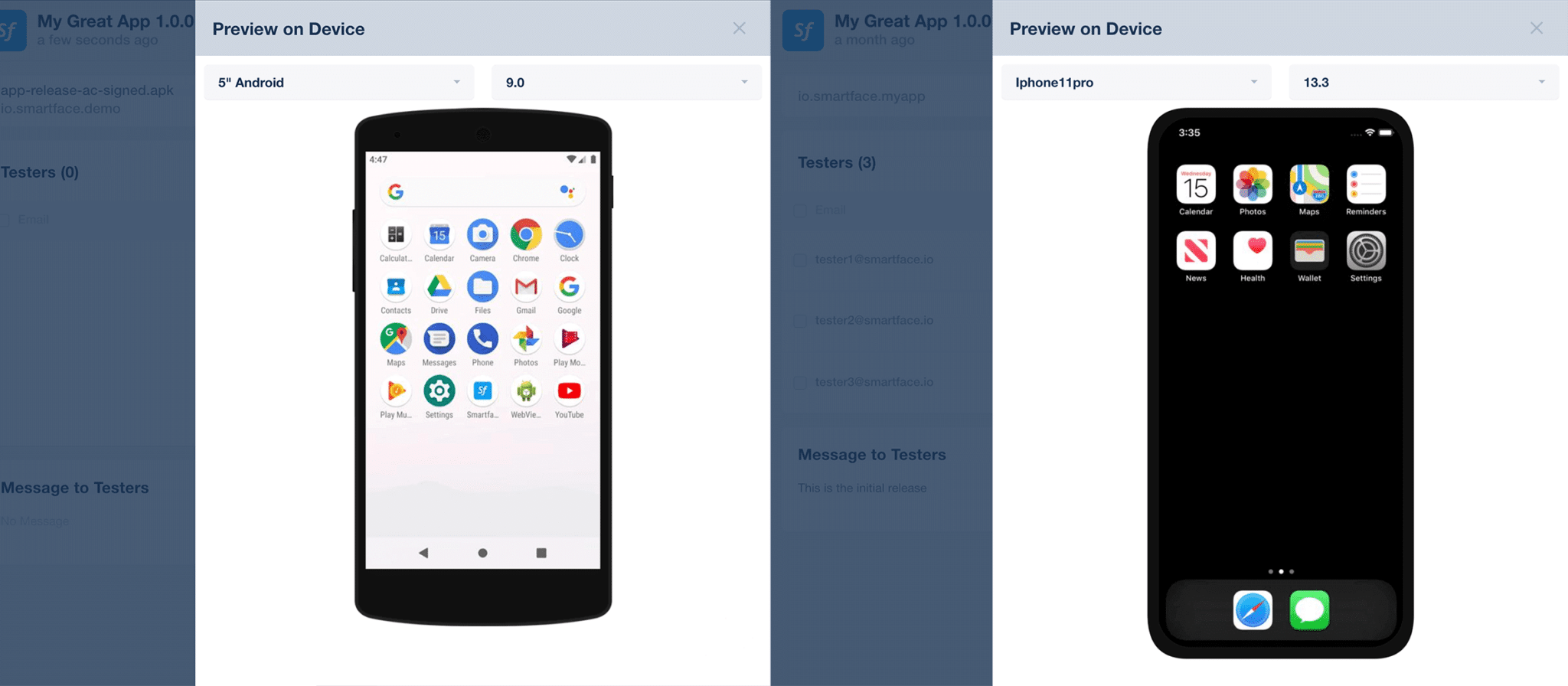
Are you a professional app developer? Then SmartFace is the best iOS emulator for you.
- This emulator lets you develop as well as test cross-platform apps along with cross-platform games. The emulator comes with a debugging mode for tracking down each and every bug you might have in your app.
- The best thing about it is that you would not even need a Mac.
- In addition, SmartFace also lets you debug all the Android apps.
The emulator is available in both free and paid versions .
- The free version – as you would imagine – does not have all the features even though it is a pretty good app in itself.
- On the other hand, you can make use of the paid version starting from $99. It comes with quite a few brilliant plugins as well as enterprise services.
4. Appetize.io

Are you searching for an emulator that is cloud-based? I present to you Appetize.io . The homepage of the emulator imitates that of an iPhone. The best thing about this emulator is its use in development as well as testing fields. It offers these awesome features:
- You can use the app for free for the first 100 minutes since the time you download it.
- After that time period, you are going to have to pay five cents for using it for a minute.
There are however the following drawbacks too:
- There is no option of visiting the App Store.
- Neither can you install any new apps on it.
- In addition to that, you also cannot install any games.
- You will be unable to use the camera and even the calling service.
5. Xamarin Testflight

Xamarin Tesflight is the best-suited emulator for you in case you are an iOS app developer yourself. The reason behind this is that the emulator is owned by Apple . You can test all the Xamarin iOS apps with the help of this emulator.
However, keep in mind, the apps that you wish to test must run on iOS 8.0 or above.
6. iOS Simulator

Want to create a virtual machine of your iPhone? Simply use the iPhone Simulator .
- However, keep in mind, that the emulator will only have apps that are default in the device such as Clock, Calculator, Compass, Note, and more.
- Additionally, you will not have any access to App Store either.
- Some of the apps such as Safari Browser are disabled in it as well.
7. Xcode

Xcode is the best option if you are looking for an option to develop and test apps on various iOS devices. The testing process is guided by the built-in emulators and it allows a high degree of customization allowing the code deployment feature when the apps are running within them.
- The notable feature of the emulator is that it does not require you to have prior knowledge of the coding, and you can easily run the apps on the virtual device.
- The emulator helps in running the apps on Windows PC quickly.
- It is supported across various platforms, in which you can select various devices, screen sizes, or different iOS versions.
8. Corellium

Another virtual device platform that runs on ARM servers on the cloud is Corellium .
- This is a browser-based emulator which allows easy code execution by mainly focusing on development.
- This is mostly used by security researchers to run a simulated iOS device using the iOS virtualization software within the browser.
There are certain limitations to it as well, namely:
- The method to set up and use the tool could be, however, challenging or complicated.
- Moreover, this is a paid emulator that requires expense of $99 per month.
9. Xamarin Remoted iOS Simulator

The Remoted iOS Simulator is the simplest emulator that allows the users to test the apps on Windows OS and works alongside Visual Studio 2017.
- The main features are that it is simple to use and it helps the app developers in interacting with the apps properly.
- Also, the impressive debugging features in the app allow you to alter the code and test the app before launching it in the e-market.
- Another notable aspect is that it offers a lot of nifty features like home, screenshots, shake gestures, and much more.
The only thing that differentiates this emulator from others is that you have to upload the files in the .dmg format manually.
10. Electric Mobile Studio

The Electric Mobile Studio is another emulator for developing and testing iOS applications and games.
- It is a windows-friendly iOS web development, profiling, and testing tool.
- The emulator can be used to test apps on iPad and iPhone both.
- Moreover, it provides a dozen of features to make the development and testing easier such as HTML5 feature and responsive design tools for hyper-productive design.
11. Ripple

Another web-browser-based iOS emulator that can be used for testing the apps and developing them is the Ripple .
- This emulator is usually supported by the Google Chrome web browser and is a cloud-based iPhone emulator.
- This extension can be used for testing HTML5 apps and cross-platform mobile phones.
- It helps the developers in using features like, HTML DOM inspection, JS debugging, and automated testing.
- It can run any app from iOS1 to iOS11 and is a very good alternative to the paid iPad emulator.
Additional Emulators
Adobe AIR

A developer tool that you can use to get the feel of using an iOS interface is Adobe AIR . Technically, it is not an emulator; it is a framework that allows the testers to create new instances of iOS GUI on Windows 10 PC.
- One of the limitations of this emulator is that there is a limit to replicating the hardware devices to your PC.
- Moreover, you may experience incompatibility issues.
LambdaTest

A web-based tool that is designed for app developers is the LambdaTest , in which the developers test the native iOS apps using a simulator. This is usually used for testing the iOS app on any iOS version.
- The User Interface of the emulator is clean and lightweight.
- You can upload an iOS app with a single click.
Obsolete or Not Recommended
- iDos Emulator
- MobiOne Studios
- App.io
Recommended:
- What is Error Code 36 on Mac?
- 10 Best Android Emulators for Windows and Mac
- How to Change Your Caller ID on iPhone
- How to Automatically Forward Text Messages to Another iPhone
This is everything you need to know about how to run iOS apps on Windows 10 PC. With this information at your hand, you can make the most of your Windows PC. Until next time, goodbye.
You might have noticed a little moon next to text on your iPhone, and surely you would have wondered what does that icon mean? Why is it here, and what does it indicate? There are many Google searches on light gray crescent moon iPhone as users are obsessively looking for answers about what is the exact function of this symbol. So today, we will explore all about the crescent moon with the detailed steps to get rid of the little moon next to text.

- What is Little Moon Next to Text on iPhone?
- What Does Crescent Moon Mean in iPhone Messages?
- What is the Meaning of Light Gray Crescent Moon Next to Someone’s Name in Text on iOS?
- Why is There a Moon Next To My Text on iPhone? What Does a Moon Next to a Contact Mean?
- What Do the Different Colors of the Half Moon Mean?
- How Do I Get Rid of the Crescent Moon on My iPhone 11?
- How Do I Remove the Moon Next to a Text?
What is Little Moon Next to Text on iPhone?
Read this article till the end to learn about the little moon next to text and also the steps demonstrating to disable it on iPhone using the illustrations for better understanding.
What Does Crescent Moon Mean in iPhone Messages?
While many signs or signals on your phone screen can put you in doubt, like the crescent moon in the Messages app on iPhone. The little moon next to the text in Messages means that the corresponding conversation has been muted . This option hides the alerts from the associated user on the iMessage app. Apple launched this feature so users can mute unwanted conversations , such as marketing offers or spam messages.
What is the Meaning of Light Gray Crescent Moon Next to Someone’s Name in Text on iOS?
There is nothing to worry about when you see the little moon next to a text or next to someone’s name in text on iOS. It is just an indication that you might have hidden the alerts for a specific conversation . And the Do Not Disturb mode with that particular contact has been switched on. There is also a Blue moon next to the text, which means a conversation is unread. As soon as you read the conversation, the Blue moon next to the text turns gray.
Why is There a Moon Next To My Text on iPhone? What Does a Moon Next to a Contact Mean?
The moon next to the text on iPhone means whenever the corresponding number would text you, the notification for it will not appear in the notification bar . It happens because the conversation with that particular person has been muted . It only happens with the particular contact you have enabled the Hide Alerts option. Also, this is completely reversible, and you don’t need to worry about it.
Also Read : What is Odin Mode on Samsung Phone?
What Do the Different Colors of the Half Moon Mean?
If you have been noticing different colored half moons on your iPhone screen , you have to understand that every colored moon holds a different meaning. Basically, you will see two colored half moons, named: Blue and Gray .
- Gray Moon : It means that you have muted the conversation with that particular person . Also, the gray moon on the status bar indicates that the Do Not Disturb mode has been switched on your iPhone.
- Blue Moon : If you observe a blue-colored moon in your iPhone messages, it means that a particular muted conversation has not been opened yet . In short, unread conversations and messages contain a blue-colored moon. As soon as you open these messages, the blue moon turns gray.
How Do I Get Rid of the Crescent Moon on My iPhone 11?
Along with the little moon next to text, the crescent moon appears on the iPhone Lock Screen . Follow the steps below to get rid of the crescent moon on your iPhone by turning off the Do Not Disturb mode:
Method 1: From Control Center
Below are the steps listed to disable the Do Not Disturb feature from the Control Center.
Pull down the screen to open the Control Center menu.
Tap on the crescent moon icon to turn off the Do Not Disturb feature.

Also Read : How to Turn Off AirPlay on iPhone
Method 2: From Settings
You can also turn off the Do Not Disturb mode from the iPhone settings menu , as explained below.
- Open the Settings app on your iPhone.

- Tap on the Do Not Disturb option.

- Tap on the Do Not Disturb toggle to turn it off.

Also Read : How to Disable Pop-ups on Safari on iPhone
How Do I Remove the Moon Next to a Text?
As pointed out earlier, the gray crescent moon next to a text on your iPhone is just an indication of the muted conversation. To unmute the conversation, follow the steps mentioned below.
- Open the Messages app on your iPhone.

Tap on the desired message for which the alerts have been hidden.
Then, tap on the i icon from the top right corner, as shown below.

- Tap on the Hide Alerts toggle to turn it off.

Recommended :
- Fix Error Printing in Windows 10
- Fix Unable to Install GarageBand on iOS
- How to Mark a Text Message as Unread on iPhone
- Fix iPhone Message Notification Not Working
