
- How to See When You Subscribed to a YouTube Channel
- Can I See on What Date I Subscribed to a YouTube Channel?
- How to See When You Subscribed to a YouTube Channel
- How to Check YouTube Subscription History on Web
- How to Check YouTube Subscription History on Mobile
- Where to Find YouTube Subscription History?
- Is There Any Third Party Tool to Check YouTube Subscription History?
- Is xxluke Safe?
- How to See YouTube Subscription History via xxluke
Quick Answer To see when you subscribed to a YouTube channel, you can follow these steps: 1. Access your Google My Activity page on your browser and select Other activity from left pane. 2. Navigate to the YouTube channel subscriptions section. 3. Then, click on View Subscriptions . 4. Scroll down to locate your desired channel with the date stamp .
- Most relevant
- New activity
- A-Z
So, as a result, determining the date of subscription to a YouTube channel is not feasible on the YouTube platform .
Also Read : How to View YouTube Comment History on Windows 10
Open the web browser and navigate to your Google My Activity page.
From the left pane, select Other activity .
Scroll down the page and click on the View Subscriptions option under the YouTube channel subscriptions section.

- Now, scroll down to the bottom of the page to see the newest to oldest subscriptions .

Also Read : How to Watch Deleted YouTube Videos
How to Check YouTube Subscription History on Web
You can check your YT subscription history on your Google My Activity webpage . Read and follow the steps mentioned above to do that easily.
How to Check YouTube Subscription History on Mobile
The process for obtaining subscription dates through the activity center of your Google account on your phone can be found below:
Open the Settings app on your Android phone.
Then, tap on Google .

- Then, tap on Manage your Google Account .

- Switch to the Data and privacy tab and tap on YouTube History .

- Swipe down to the bottom of the page and tap on the Manage history option.

Tap on the INTERACTIONS tab.
Tap on Channel subscriptions from the Other YouTube interactions section.

- Here, you will see your YouTube subscription history from newest to oldest .

Also Read : How to View YouTube Comment History on Android
Where to Find YouTube Subscription History?
As previously mentioned in the article, the functionality to view the date of subscription to a YouTube channel is not available on the YouTube website and the YouTube mobile application. However, you can find the history on your Google My Activity page .
Is There Any Third Party Tool to Check YouTube Subscription History?
Yes , there is a third-party tool to check your subscription history on YouTube. xxluke is widely recognized as one of the preeminent third-party utilities for examining the subscription history of a user’s YouTube account.
Is xxluke Safe?
Yes , the website xxluke can be deemed secure as it utilizes an active SSL certificate to facilitate secure communications between the user’s browser and the server. To obtain one’s subscription history, the user is only prompted to provide their YouTube URL. It is important to note that xxluke does not engage in any personal information harvesting . In addition, website analytics provider SimilarWeb reports that the xxluke website garners a monthly traffic volume of over 400,000 visitors.
How to See YouTube Subscription History via xxluke
Here are the steps to see your subscription history via xxluke YouTube subscription history cheker:
Note : Make sure you are signed into your YouTube account.
Visit the YouTube website and click on your profile icon from the top right corner.
Select Settings from the dropdown menu.
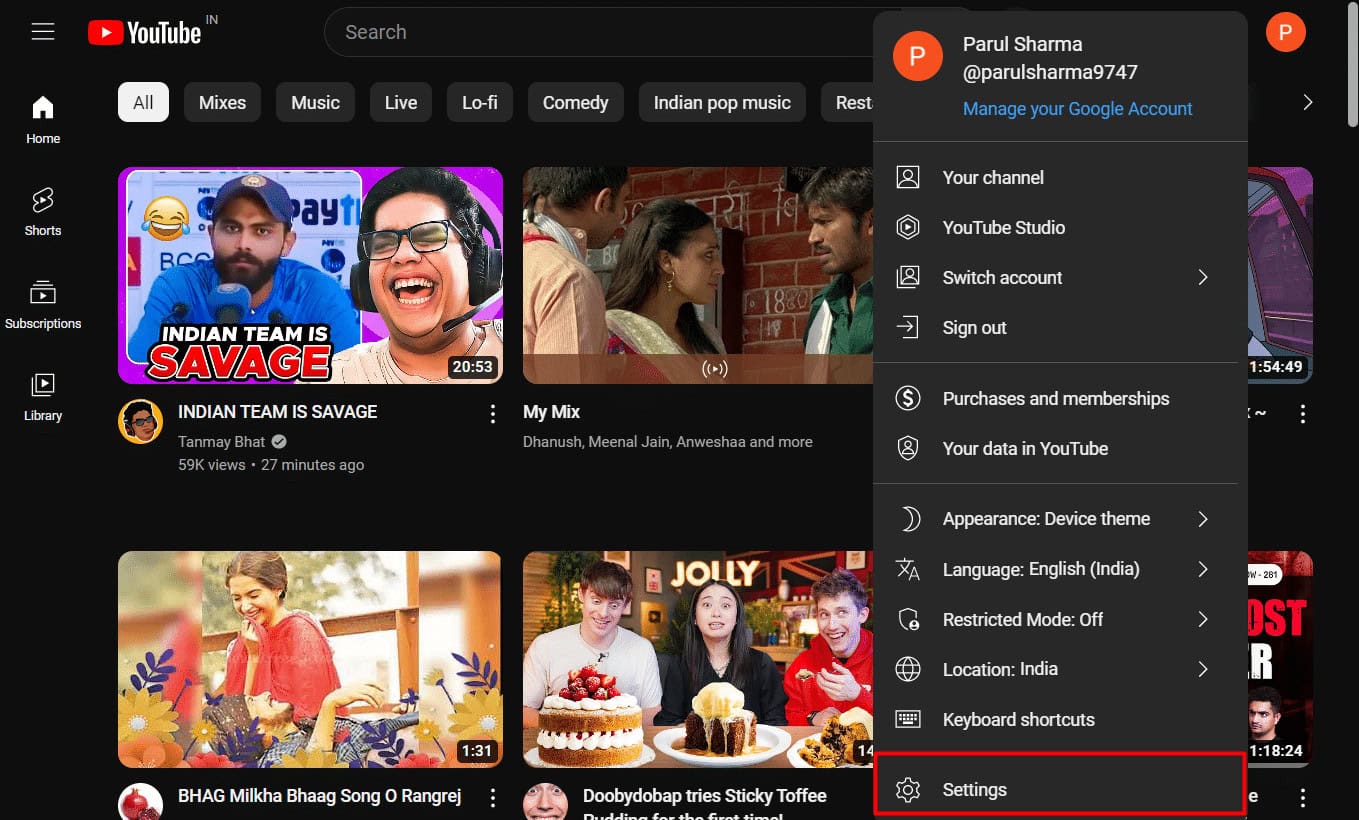
- From the left pane, click on Privacy .

- Turn off the toggle for the Keep my subscriptions private option to make your subscriptions public.

- Now, click on your profile icon again and select the Your channel option.
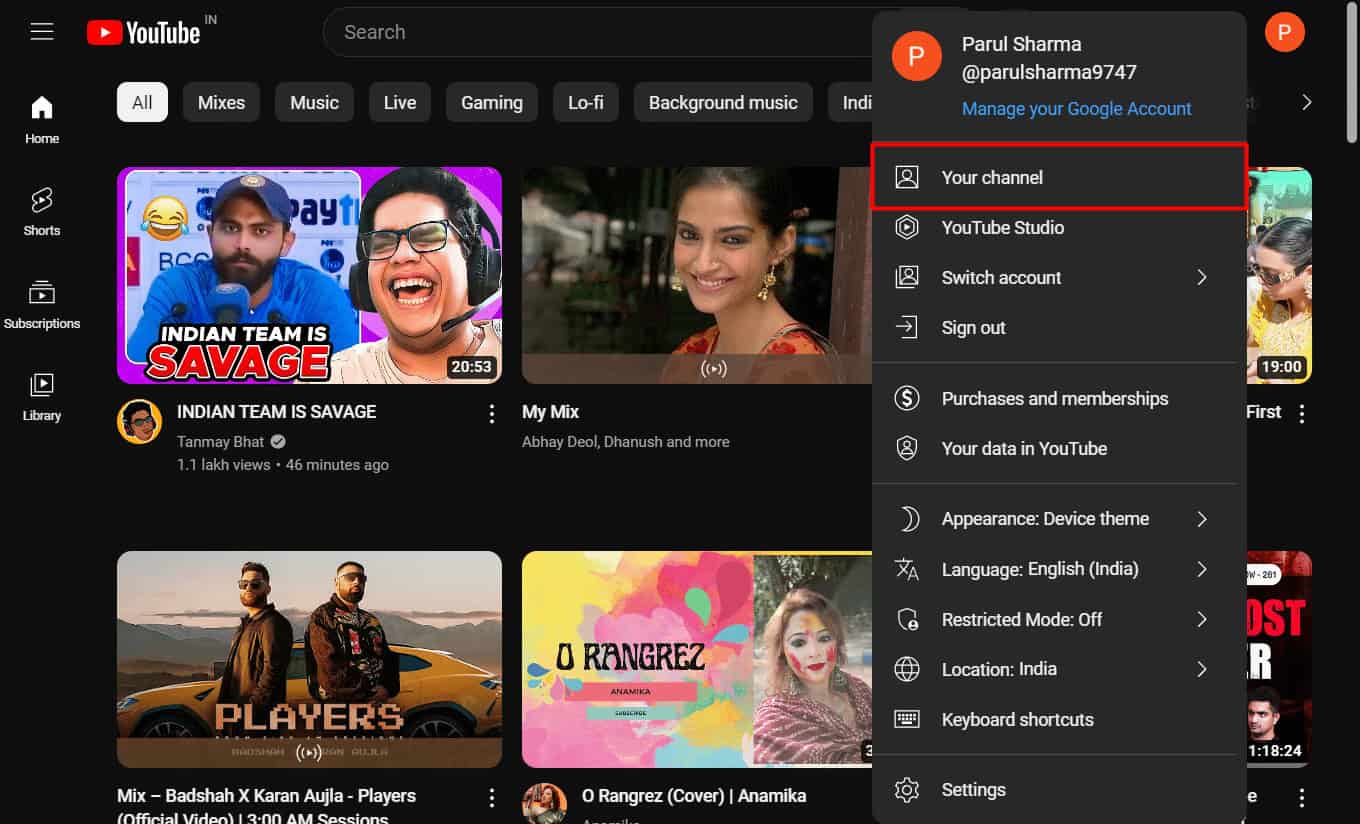
Copy the URL of your channel from the address bar and paste it into the query box on the xxluke.de website.
Initiate the query by clicking on CONTINUE and the xxluke.de website will display your subscriptions in reverse chronological order , along with the corresponding subscription dates.

Recommended :
- What is a Capacitive Stylus?
- What Does the Blue Dot Mean on YouTube?
- How to Turn Off Are You Still Watching YouTube Message
- How to Delete YouTube Channel on Phone
