Ringtones are audio files that a mobile phone user can use to get notified of an impending contact or communication. These tones also help you get alert about an incoming call or a message. If you love to change ringtones now and then, our guide on how to transfer ringtones from Android to Android will be of great help to you, so keep reading till the end to learn about different ways of doing so.

- How to Transfer ringtones from Android to Android
- Can I Transfer a Ringtone from One Phone to Another?
- Method 1: From Bluetooth
- Method 2: From File-Sharing Application
- Method 3: From USB cable
- Where are Ringtones Stored on Android?
How to Transfer ringtones from Android to Android
Ringtones are available in various forms, such as MP3, WAV, and MIDI, and can be altered to the user’s tastes and interests. Natural tones, polyphonic, and monophonic are the three different ringtones. If you like to set up a ringtone for each notification, then different ways of transferring them on a smartphone given in the guide below will interest you a lot.
Quick Answer To transfer a ringtone from one phone to another: 1. Select a ringtone from the Files app and tap on Send . 2. Tap on Bluetooth and select the device you want to send the ringtone to.
Can I Transfer a Ringtone from One Phone to Another?
Yes, it is possible to transfer a ringtone from one smartphone to another. Following are the type of phones and the choices available, with which you can do so in several ways.
You can transfer a ringtone using the following methods:
Bluetooth: you can connect two phones and send the ringtone wirelessly if both support Bluetooth.
Email attachments or MMS messages: Email attachments or MMS messages can transmit the ringtone file to another phone.
USB cable: connect the phones using the USB cable if both are compatible with USB OTG (On-The-Go) or have a USB cable.
Cloud storage: cloud storage is an additional choice. You can submit the ringtone file to a service like Google Drive or Dropbox and then use that service to transfer it to the other phone.
To transfer ringtones from one smartphone to another, you can try three different methods as given below:
Note: Since smartphones don’t have the same Settings options and vary from manufacturer to manufacturer, ensure the correct settings before changing any. The following methods were tried on OnePlus Nord CE2 and Vivo 1920 .
Method 1: From Bluetooth
You can pair two devices and transmit the ringtone remotely if they both support Bluetooth , follow these simple steps for this method.
The ringtone file can be found in the file browser on the primary device.
Tap the Send option after tapping and holding the file to pick it up.

- Select Bluetooth from the list of choices.

- Select a suitable device under the AVAILABLE DEVICES section .

Once done, the ringtone should be stored in the default folder once the destination device accepts the upload.
Method 2: From File-Sharing Application
Ringtones can be transferred between Android devices using a file-sharing application as well. Here is how you can do it:
- On both devices Download and install a File-Sharing Application of your choice from the Google Play Store .
Note: There are multiple file-sharing applications available for Android devices on Play Store such as Google Drive , SHAREit , Xender , etc.
Open the file browser on the source device.
Select the sound file . To pick a file , touch and hold it and tap on the Share icon.

Select File-Sharing Application from the list of choices.
Pick the desired device from the access list.
Accept the transfer on the second device.
Once done, the ringtone should be stored in the usual ringtone folder .
Method 3: From USB cable
If both devices have a USB cable, you can also link them and use file manager software to move the ringtone file from one device to another. You can do so as given below:
Use a USB cord to connect the two devices.
Find the ringtone file in the file explorer on the primary device.
Tap and hold the ringtone file .
Tap the Copy icon .

Find the preset ringtone folder in the file explorer on the output port.
To send the ringtone to the selected device, tap the Paste option.
Where are Ringtones Stored on Android?
On Android devices, the Ringtones section is usually where ringtones are kept. This folder can be viewed using a file organizer software or attaching your device to a computer via USB. It is typically found in the internal storage or external SD card (if accessible) of the device.
Recommended:
- What To Do If I Forgot My Sprint Pin
- How to Disable OTG in Android Phone
- How to Change Notification Sounds for Different Apps on Samsung
- 20 Best Free Online File Sharing and Storage Sites
Sprint offers an extensive selection of wireless and mobile broadband products from various manufacturers. Sprint’s partner device manufacturers include Blackberry, Apple, HTC, LG, Samsung, and more. The My Sprint app gives users many facilities, some fun stuff like custom offers and app-exclusive experiences, and bill-pay support. You can get the My Sprint app on your phone by installing it from the Google Play Store. To use this app, you need to create an account by giving your username and password, but if somehow you forgot the sprint pin, there’s no need to get worried about it. Just follow the steps mentioned in this article. If you are someone looking for tips on what to do if I forgot my sprint pin, then this article is for you. We bring you a helpful guide that will teach you how to reset a forgotten Sprint pin.

- What To Do If I Forgot My Sprint Pin?
- What is Sprint Default PIN?
- How to Reset Sprint Pin
What To Do If I Forgot My Sprint Pin?
Sprint Corporation is one of America’s biggest telecommunications companies. It was founded by Cleyson Brown on December 21, 1899, and is owned by T-Mobile. Its headquarters are located in various parts of the world such as Overland Park, Kansas, U.S. Moreover, the company focuses on providing wireless voice, messaging, and broadband services through its various subsidiaries under the Boost Mobile and Open Mobile brands.
Quick Answer In case you forget your Sprint pin, here is what you can do: 1. Visit Sprint’s official website and log in to your account. 2. Navigate to Security Information in Profile & Security . 3. Update your PIN and save the changes.
What is Sprint Default PIN?
Sprint PIN is a Personal Identification Number that can be anywhere between 6-10 digits . This number is used to identify your identity while calling Sprint customer support or visiting a Sprint retail store. Apart from this, Sprint default PIN is also required while registering an account at the official Sprint website.
As you might have already guessed, Sprint PIN adds an extra layer of protection. This way, you can relax as no one can access your Sprint account without authorization.
How to Reset Sprint Pin
Many times, we end up forgetting our saved passwords and losing access to our social media accounts. In this case, here are the steps to learn how to reset the Sprint pin in a few easy steps:
Go to the official Sprint website .
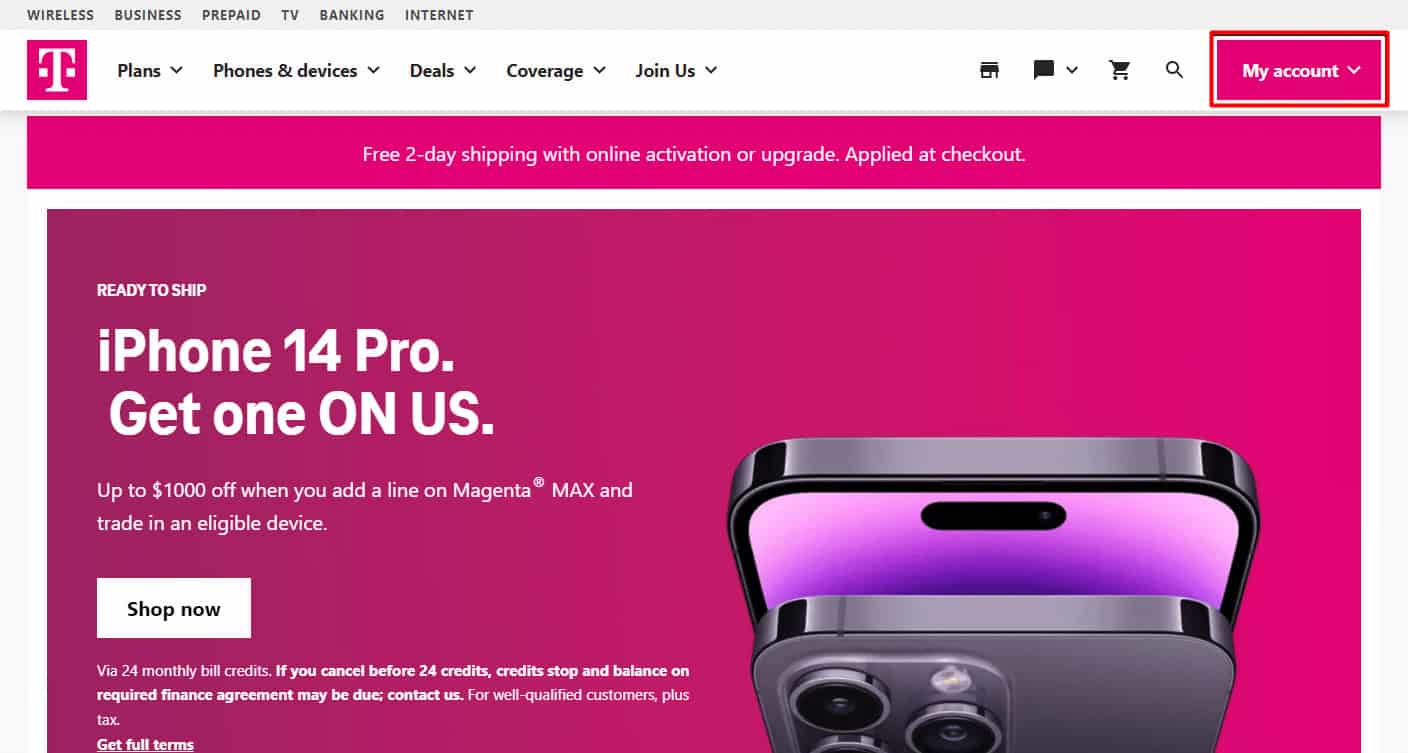
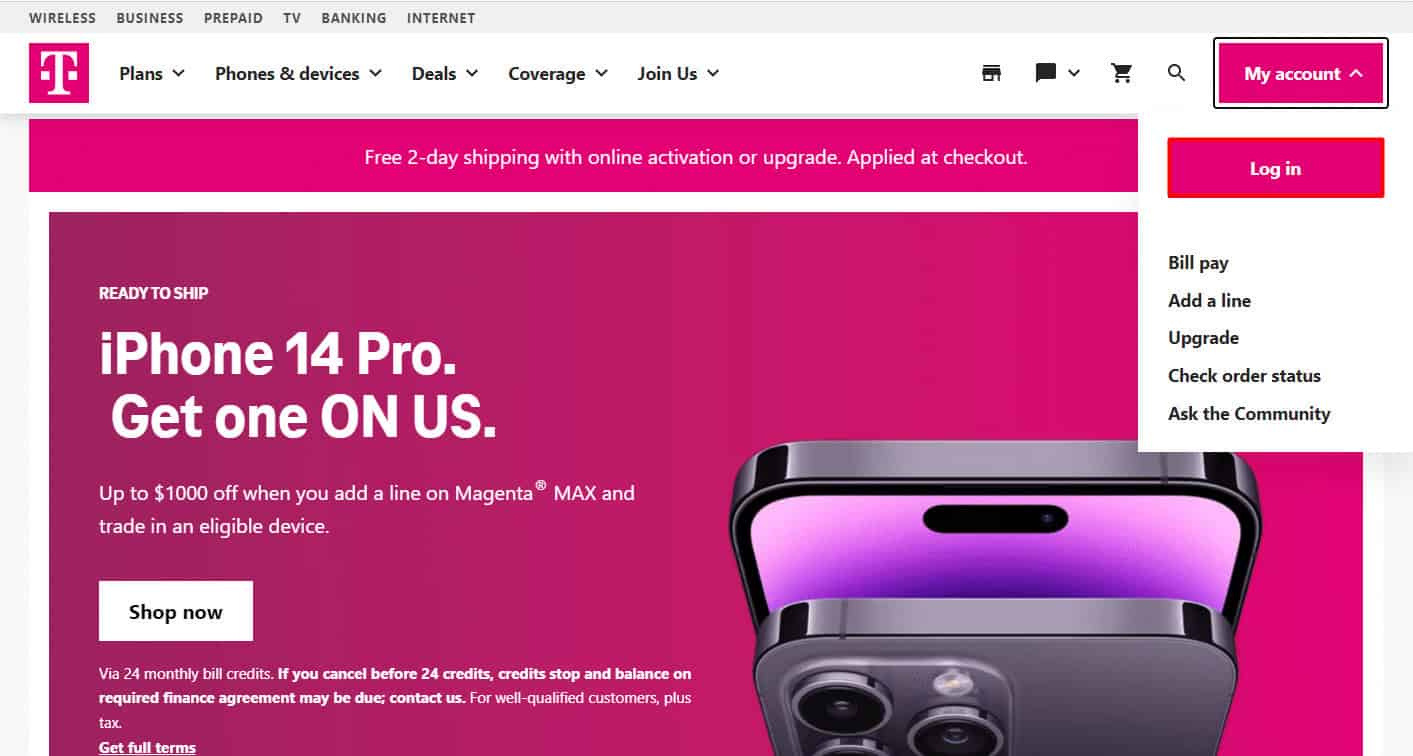
Click on My account to open a drop-down menu.
- Choose Log in and enter your credentials.
Then, click on My Sprint .
Now, select Profile & Security .
After that, scroll down to Security Information .
Now update the PIN on the page, and then click Save .
Recommended:
- How to Uninstall Skype on Android
- What to Do If I Forgot My Verizon Email Password?
- What Happens If You Forgot Your Amazon Password?
