Whether you’re looking for something in the dark or finding your keys under the couch, our phones’ torches go a long way to help us. Apple made it super easy to turn on with a quick swipe and or a few taps. But sometimes that flashlight gets stuck on, keeps turning on accidentally in your pocket, or you simply can’t figure out how to make it stop shining when you’re done with it. This is when knowing how to turn off the flashlight on iPhone is the need of the hour. So, let’s show you how it’s done.
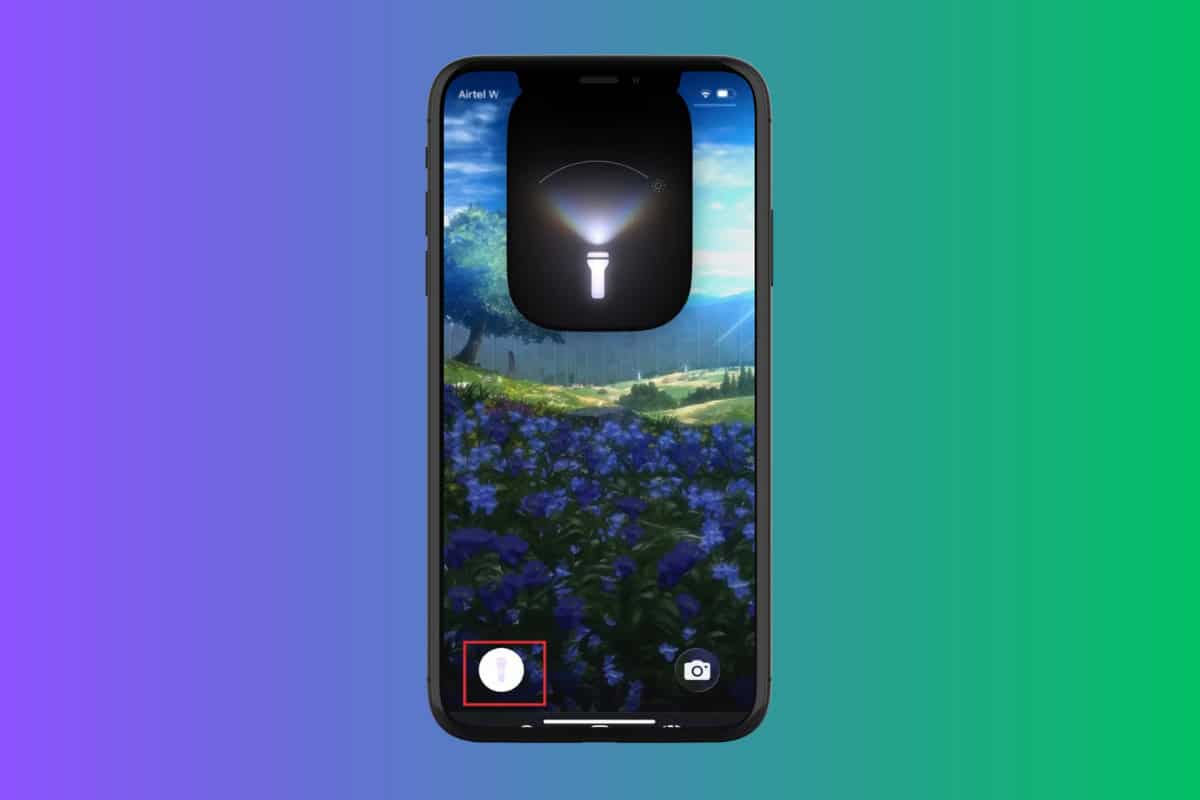
- How to Turn Off Flashlight on iPhone
- Method 1: Via Lock Screen
- Method 2: Via Siri
- Method 3: Via Control Center
- Method 4: Via Action Button
How to Turn Off Flashlight on iPhone
You can choose various ways to disable your flashlight:
Method 1: Via Lock Screen
You can easily turn off the flashlight right from your screen:
- Press the power button to lock your phone.
- Now, tap on the flashlight icon at the bottom left corner.
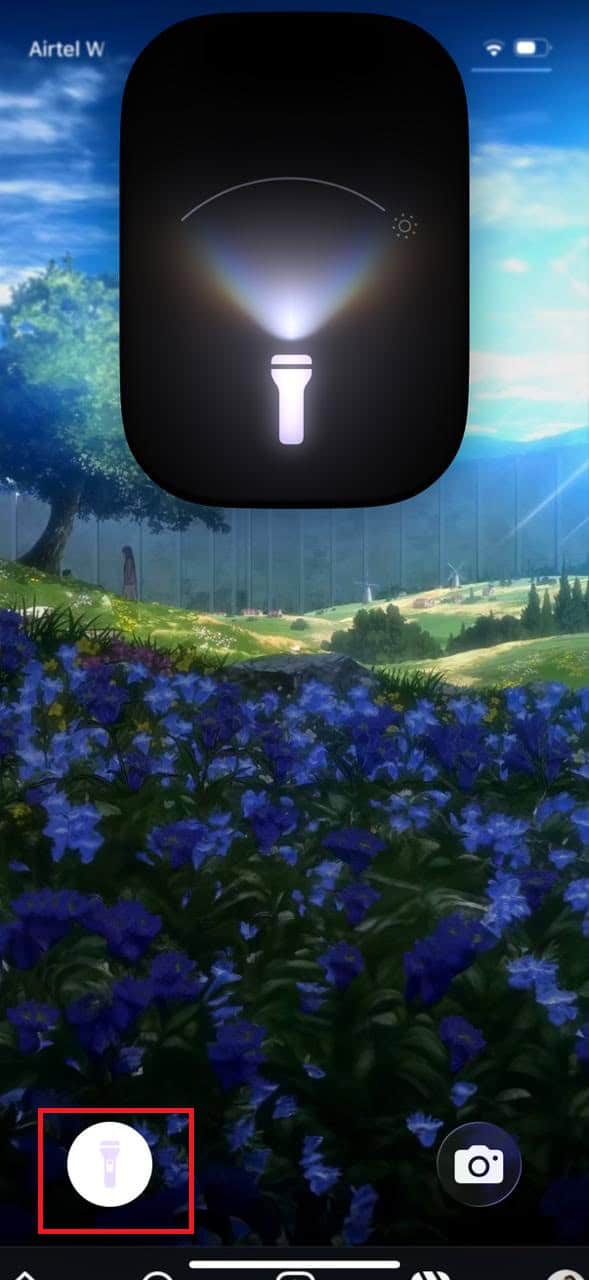
The flashlight will be disabled.
Method 2: Via Siri
You can also use the voice assistant Siri to do the same. Simply say “Hey Siri, turn off the flashlight” to make it work.
Method 3: Via Control Center
Control Center also has a flashlight button to turn it off or on.
- Swipe the screen from the top right corner.
- Tap on the flashlight icon .
- Hold the screen and drag it down to the lowest light.
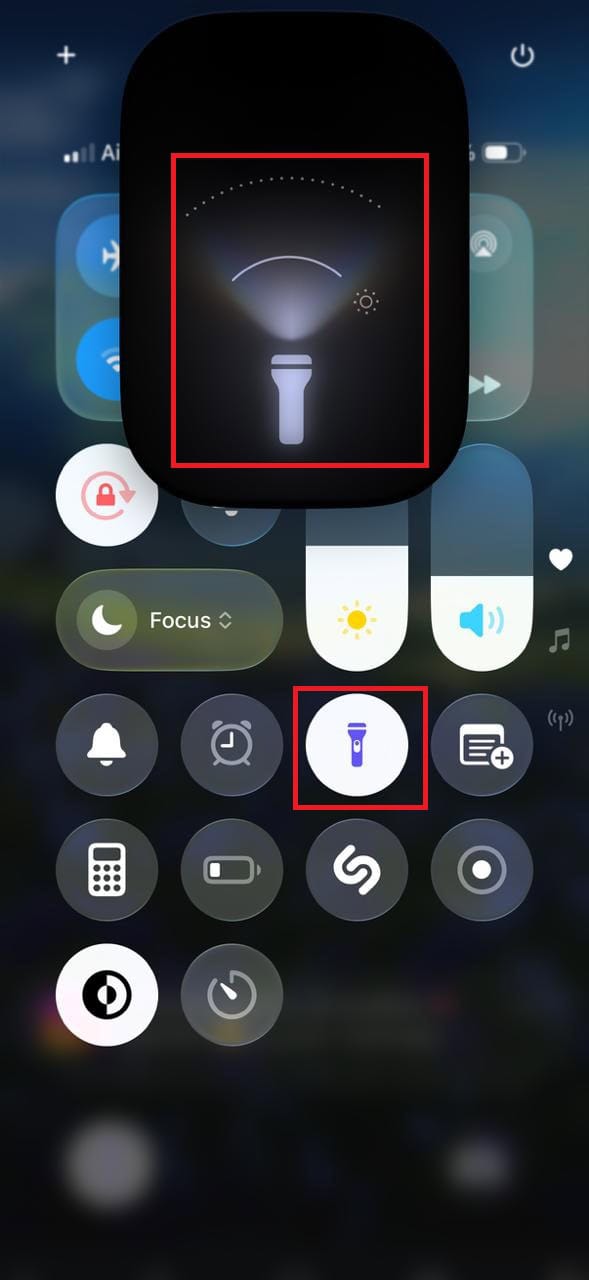
This way, you can control the flashlight.
Method 4: Via Action Button
If you use iPhone 15 or later, you can also assign flashlight to your action button and use it to turn it on or off.
- Open Settings and tap on Action Button .
- Swipe and choose flashlight .
- Click on the action button on iPhone to turn on and click again to turn off.
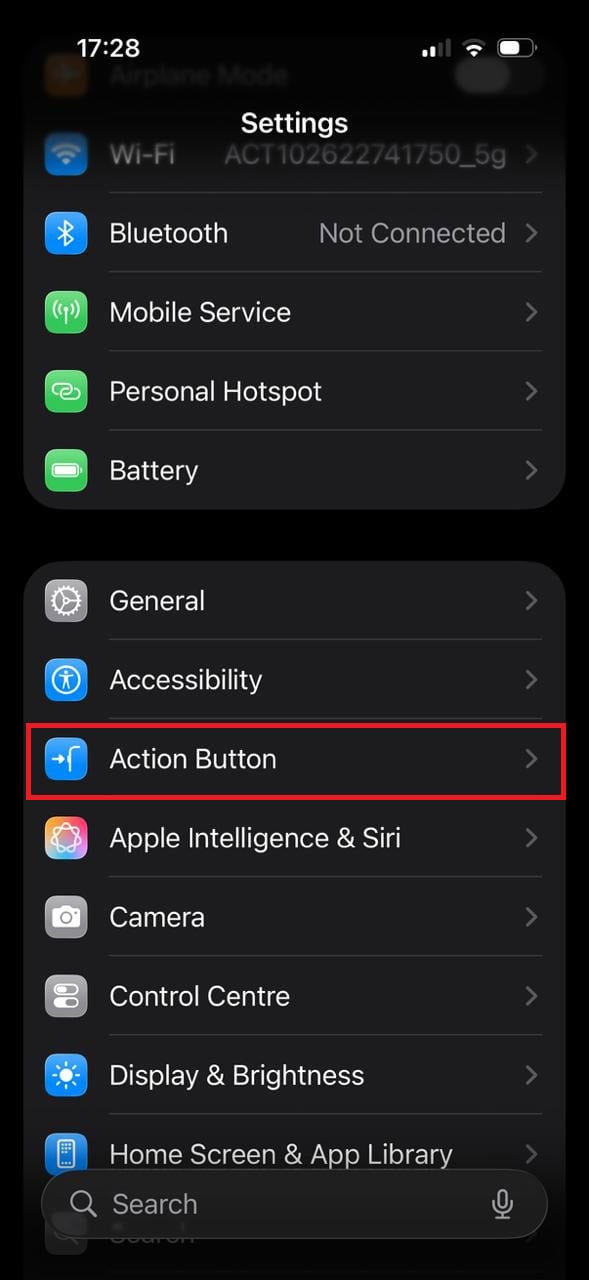
This is a quick way to use your flashlight.
